Using the Finder’s “Go” Menu
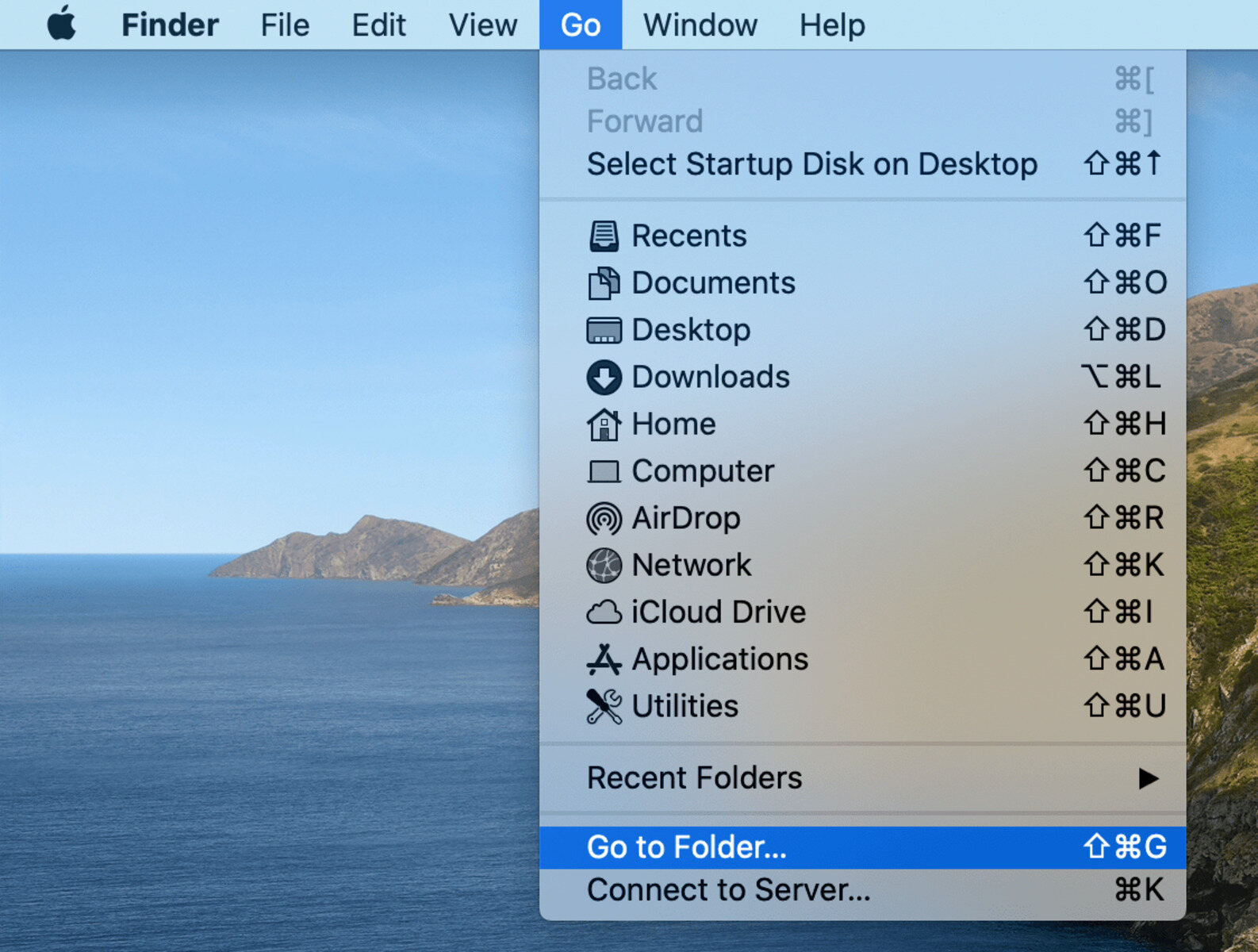
One of the simplest ways to access the Library folder on your Mac is by utilizing the Finder’s “Go” menu. This menu provides quick access to various essential folders, including the Library folder. Follow the steps below to locate it:
- Open a new Finder window by clicking on the Finder icon in the Dock or using the Command + N keyboard shortcut.
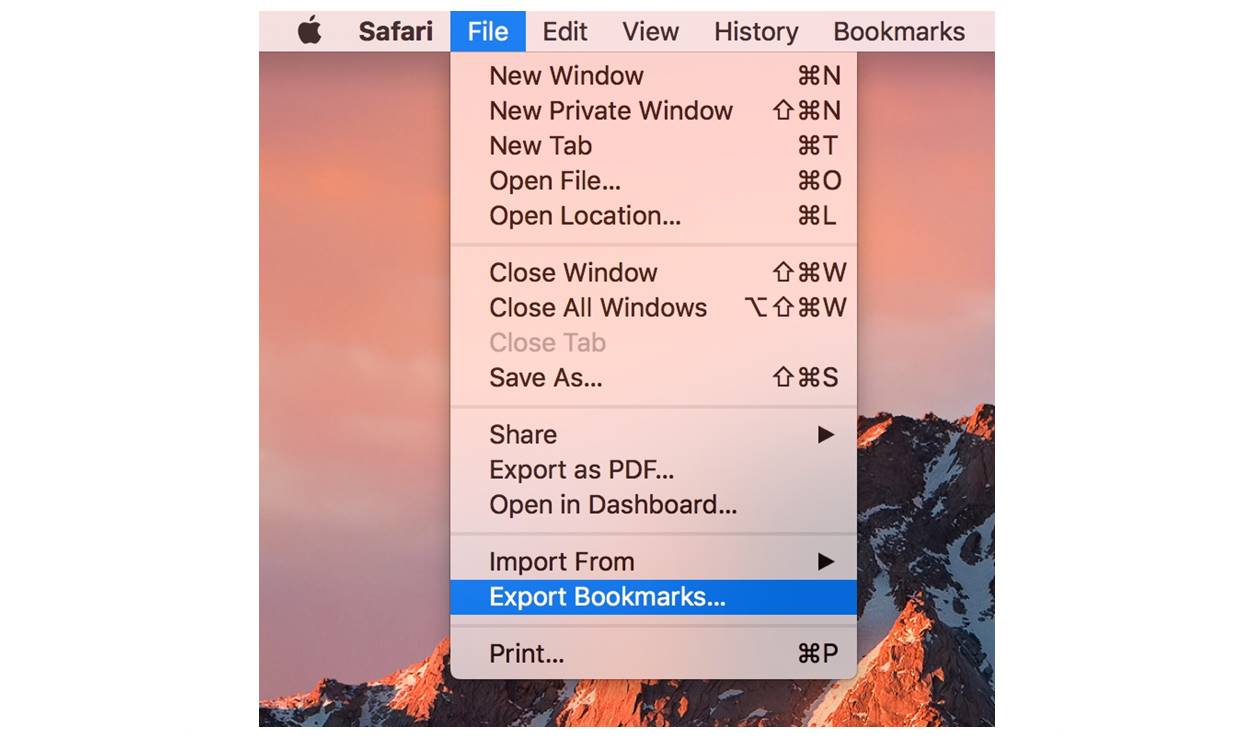
- With the new Finder window opened, navigate to the top menu bar and click on the “Go” tab.
- While the “Go” tab is selected, press and hold the Option key on your keyboard. This action will reveal the “Library” option in the drop-down menu.
- Click on the “Library” option to access the Library folder on your Mac.
By following these simple steps, you can easily access the Library folder without the need for any additional applications or complex commands. However, it’s important to note that the “Library” option will only appear in the “Go” menu when you hold down the Option key. Once you release the Option key, the “Library” option will disappear from the menu.
The Finder’s “Go” menu is a convenient method to access the Library folder, especially for users who prefer a visual approach rather than diving into the command line or using keyboard shortcuts.
Using the Keyboard Shortcut
If you prefer using keyboard shortcuts to quickly navigate through your Mac, there is a simple combination that can grant you access to the Library folder in no time. Follow the steps below:
- Open a Finder window by clicking on the Finder icon in the Dock or using the Command + N keyboard shortcut.
- With the Finder window active, press and hold the Option key on your keyboard.
- While still holding the Option key, click on the “Go” tab in the top menu bar. You will notice that the “Library” option appears in the drop-down menu.
- With the “Library” option displayed, release the Option key. The Library folder will now be accessible.
Using the keyboard shortcut allows you to swiftly access the Library folder without the need to move your mouse and navigate through menus. It is a handy method for users who prefer relying on keyboard commands to carry out various tasks on their Mac.
However, it’s important to note that the keyboard shortcut is dependent on the Finder window being active. If you are working in another application, make sure to first click on the Finder window to activate it, and then use the keyboard shortcut to access the Library folder.
Using the Terminal
For advanced users who are comfortable working with command line interfaces, accessing the Library folder through the Terminal provides another efficient option. Here’s how you can do it:
- To open Terminal, go to Applications > Utilities > Terminal, or use the Spotlight search (Command + Space) to find and launch it.
- With the Terminal window open, type the following command and press Enter:
cd ~/Library - The command “cd” stands for “change directory” and “~/Library” is the path to the Library folder in your user directory. Pressing Enter will navigate you to the Library folder.
By employing the Terminal, you can quickly access the Library folder and have the flexibility to perform various operations and modifications using command line commands. This method is particularly useful for experienced users, developers, or those who prefer the speed and control of the command line interface.
Keep in mind that when using the Terminal, it’s crucial to enter commands accurately to avoid any unintended consequences. Ensure that you follow the proper syntax and double-check the command before pressing Enter.
Remember that the Library folder contains critical system files, so exercise caution when making changes within it. Modifying or deleting files without adequate knowledge may result in issues with your Mac’s functionality.