Common Bluetooth Connection Issues
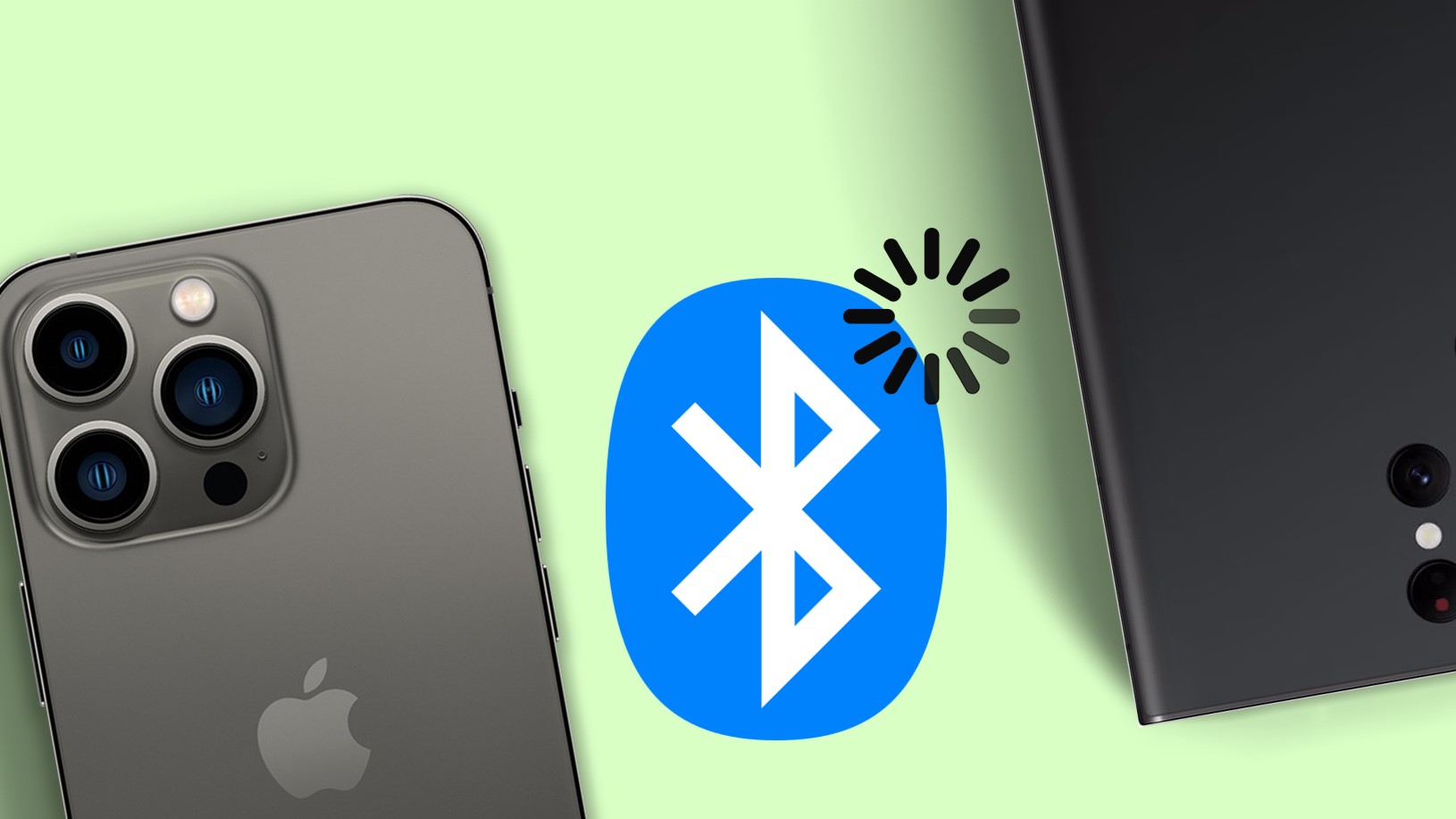
Bluetooth technology has revolutionized the way we connect and interact with our devices, allowing for seamless wireless communication. However, like any technology, Bluetooth connections can sometimes encounter issues that disrupt this convenience. Understanding the common problems that may arise can help you troubleshoot and resolve these issues effectively.
Here are some of the most prevalent Bluetooth connection issues:
- Intermittent connection or dropouts
- Unable to pair with a Bluetooth device
- Poor audio quality during calls or media playback
- Bluetooth device not recognized by the phone
- Bluetooth connection fails to establish
Encountering any of these issues can be frustrating, but with the right troubleshooting steps, you can often resolve them without much difficulty. Let’s explore some effective solutions to these common Bluetooth connection problems.
Check Bluetooth Settings
When experiencing Bluetooth connection issues on your phone, the first step is to ensure that the Bluetooth settings are configured correctly. Here’s how you can do this:
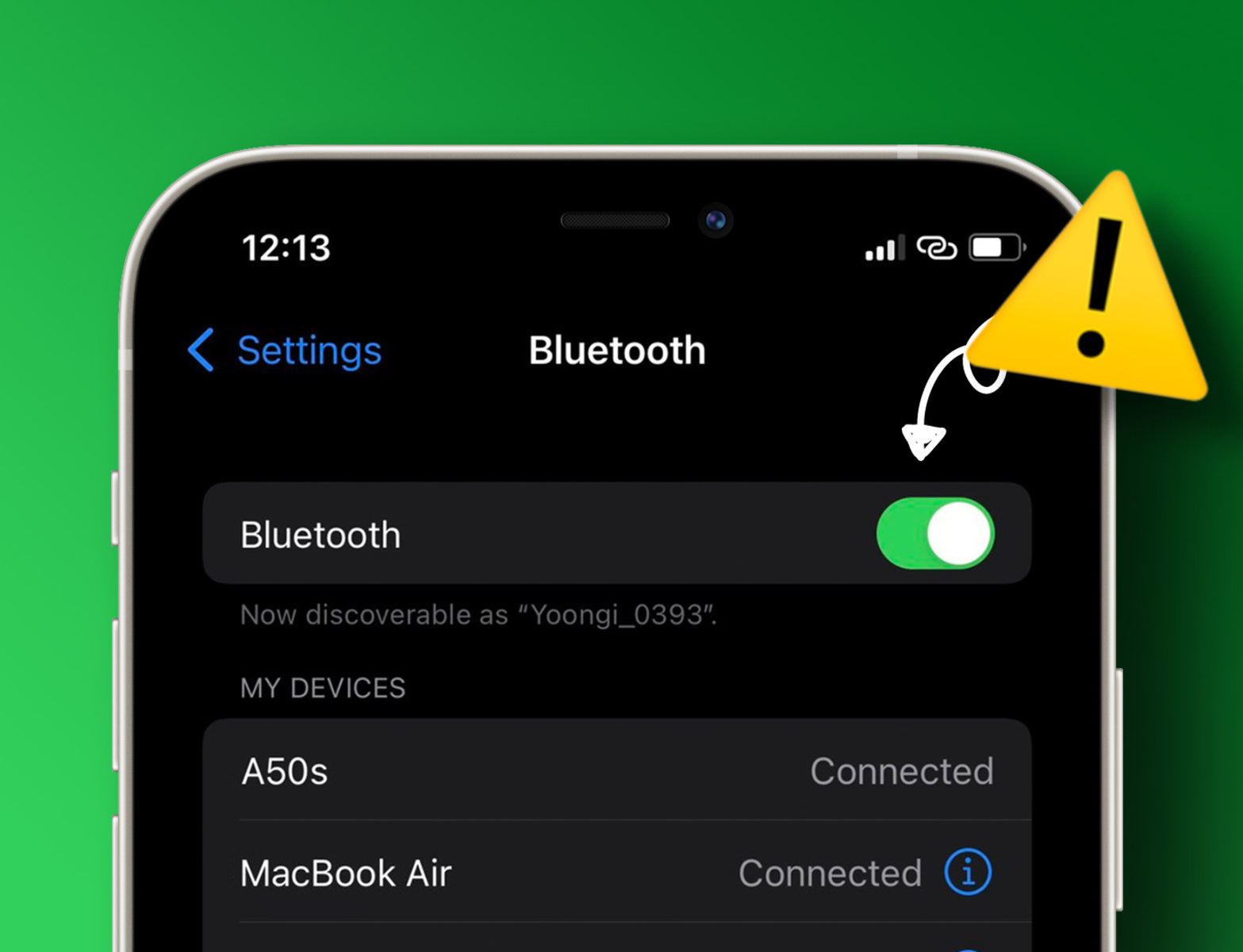
1. Enable Bluetooth: Access the Bluetooth settings on your phone and make sure that Bluetooth is turned on. This can usually be done through the “Settings” menu or the quick settings panel.
2. Visibility: Check if your phone is set to be discoverable. If you’re trying to pair with a new device, ensure that the device is in pairing mode and within range of your phone.
3. Paired Devices: Verify that the Bluetooth device you’re trying to connect to is listed in the “Paired Devices” section. If not, you may need to pair it again.
4. Bluetooth Profiles: Some devices require specific Bluetooth profiles to function correctly. Ensure that the required profile is supported by both your phone and the Bluetooth device you’re trying to connect to.
By thoroughly checking and adjusting these settings, you can often resolve common Bluetooth connection issues and establish a stable connection with your desired device. If the problem persists, further troubleshooting steps may be necessary.
Restart Your Phone and Bluetooth Device
When encountering Bluetooth connection issues, a simple yet effective troubleshooting step is to restart both your phone and the Bluetooth device you’re trying to connect to. This process can help resolve temporary glitches and refresh the connection. Here’s how to do it:
1. Restart Your Phone: Begin by restarting your phone. This can often clear any temporary software issues that may be affecting the Bluetooth functionality. Simply power off your phone, wait for a few seconds, and then power it back on.
2. Restart the Bluetooth Device: If the issue persists, restart the Bluetooth device you’re attempting to connect to. This could be a Bluetooth speaker, headphones, car stereo, or any other compatible device. Power it off, wait for a short period, and then turn it back on.
3. Reattempt the Connection: Once both your phone and the Bluetooth device have been restarted, attempt to establish the Bluetooth connection again. This simple reset process often resolves many common Bluetooth connection issues.
By restarting both your phone and the Bluetooth device, you can effectively troubleshoot and resolve temporary connectivity issues, allowing you to enjoy a stable and reliable Bluetooth connection for your devices.
Update Your Phone’s Software
Keeping your phone’s software up to date is crucial for maintaining optimal performance and resolving potential issues, including Bluetooth connectivity problems. Software updates often include bug fixes and enhancements that can address Bluetooth-related issues. Here’s how you can update your phone’s software:
1. Check for Updates: Access the “Settings” menu on your phone and navigate to the “Software Update” or “System Update” section. Here, you can check for any available updates for your device’s operating system.
2. Download and Install: If an update is available, download and install it according to the on-screen instructions. Ensure that your phone is sufficiently charged or connected to a power source during the update process.
3. Restart Your Phone: After the update is installed, restart your phone to apply the changes. This can help ensure that the updated software functions optimally, including improvements to Bluetooth connectivity.
By regularly updating your phone’s software, you can benefit from the latest enhancements and bug fixes that can potentially resolve Bluetooth connection issues. If the problem persists after the update, further troubleshooting steps may be necessary.
Forget and Re-pair the Bluetooth Device
When experiencing persistent Bluetooth connection issues, forgetting and re-pairing the Bluetooth device can often resolve the problem by establishing a fresh connection. Follow these steps to forget and re-pair the Bluetooth device on your phone:
1. Forget the Bluetooth Device: Access the Bluetooth settings on your phone and locate the list of paired devices. Find the Bluetooth device that is experiencing connectivity issues and select the option to “Forget” or “Unpair” it. This will remove the existing connection data from your phone.
2. Put the Device in Pairing Mode: If the Bluetooth device requires pairing, ensure that it is in pairing mode according to the manufacturer’s instructions. This may involve pressing a specific button or following a sequence of actions to enable pairing.
3. Re-pair the Device: Once the Bluetooth device is in pairing mode, initiate the pairing process on your phone. Locate the device in the list of available Bluetooth devices and select it to begin the pairing procedure. Follow any on-screen prompts to complete the pairing process.
By forgetting and re-pairing the Bluetooth device, you can establish a fresh connection, potentially resolving any underlying connectivity issues. This process can often clear up persistent pairing or connection problems, allowing you to enjoy a stable Bluetooth connection with your device.
Clear Bluetooth Cache
Over time, the Bluetooth cache on your phone can accumulate temporary data and potentially lead to connectivity issues. Clearing the Bluetooth cache can help refresh the connection and resolve related issues. Here’s how you can clear the Bluetooth cache on your phone:
1. Access App Settings: Navigate to the “Settings” menu on your phone and locate the “Apps” or “Applications” section.
2. Find Bluetooth Settings: Within the list of installed apps, find and select the Bluetooth settings or the system app that manages Bluetooth functionality.
3. Clear Cache: Once in the Bluetooth settings, you should see an option to clear the cache associated with the Bluetooth functionality. Select this option to clear the temporary data stored in the Bluetooth cache.
4. Restart Your Phone: After clearing the Bluetooth cache, it’s advisable to restart your phone to ensure that the cache is fully cleared and the changes take effect.
By clearing the Bluetooth cache, you can effectively refresh the Bluetooth connection and potentially resolve any underlying issues related to cached data. This simple maintenance step can contribute to a more reliable and stable Bluetooth experience on your phone.
Check for Interference
Interference from other devices or environmental factors can disrupt Bluetooth connections, leading to connectivity issues. Identifying and mitigating potential sources of interference can help improve the stability of your Bluetooth connections. Here’s how you can check for interference and address any issues:
1. Avoid Physical Obstructions: Ensure that there are no physical barriers or obstructions between your phone and the Bluetooth device. Objects such as walls, metal barriers, or electronic equipment can interfere with Bluetooth signals. Positioning the devices in close proximity and with a clear line of sight can minimize potential interference.
2. Minimize Wireless Interference: Other wireless devices operating in the same frequency range as Bluetooth, such as Wi-Fi routers, cordless phones, and microwave ovens, can cause interference. Try to minimize the proximity of these devices to your phone and the Bluetooth device to reduce potential signal interference.
3. Power Off Nearby Devices: If possible, power off or move other electronic devices that may be causing interference. This includes devices that emit strong electromagnetic fields or operate on similar frequencies to Bluetooth, potentially disrupting the connection.
4. Switch to 5GHz Wi-Fi: If your phone and Bluetooth device support 5GHz Wi-Fi, consider using this frequency band for your Wi-Fi connection. The 5GHz band is less prone to interference from Bluetooth and other wireless devices operating on the 2.4GHz band.
By identifying and mitigating potential sources of interference, you can improve the reliability and stability of your Bluetooth connections, reducing the likelihood of connectivity issues caused by external factors. This proactive approach can lead to a more consistent and seamless Bluetooth experience with your devices.
Reset Network Settings
Resetting the network settings on your phone can help resolve complex Bluetooth connectivity issues by restoring all network-related configurations to their default state. This can effectively clear any underlying network conflicts or misconfigurations that may be impacting Bluetooth functionality. Here’s how you can reset the network settings on your phone:
1. Access Network Settings: Navigate to the “Settings” menu on your phone and locate the “Network & Internet” or “Connections” section, where you can manage various network settings.
2. Reset Network Settings: Look for an option to reset network settings, usually found in the “Reset” or “General Management” section. This option may be labeled as “Reset Network Settings” or “Reset Wi-Fi, mobile & Bluetooth.”
3. Confirm the Reset: When initiating the network settings reset, your phone may prompt you to confirm the action due to its significant impact on various network configurations. Proceed with the reset and follow any on-screen instructions.
4. Reconfigure Wi-Fi and Bluetooth: After the network settings reset is complete, you’ll need to reconfigure your Wi-Fi and Bluetooth connections, including re-pairing Bluetooth devices and reconnecting to Wi-Fi networks.
By resetting the network settings, you can effectively clear any network-related conflicts or misconfigurations that may be affecting Bluetooth connectivity. This comprehensive reset can often resolve complex Bluetooth issues, providing a fresh start for your phone’s network configurations.
Contact Customer Support
If you’ve exhausted all troubleshooting steps and are still experiencing persistent Bluetooth connection issues on your phone, reaching out to customer support can provide valuable assistance in resolving the problem. Here’s how you can effectively engage with customer support to address Bluetooth connectivity issues:
1. Manufacturer’s Support Channels: Contact the customer support channels provided by the manufacturer of your phone and any Bluetooth devices you are attempting to connect. This may include phone support, email support, live chat, or support forums.
2. Describe the Issue: Clearly describe the Bluetooth connectivity issues you’re encountering, including any specific error messages, symptoms, or patterns of occurrence. Providing detailed information can help customer support diagnose and address the problem more effectively.
3. Follow Guidance: Customer support representatives may provide specific troubleshooting steps tailored to your phone model and the Bluetooth devices in question. Follow their guidance carefully and provide feedback on the outcomes of their suggested actions.
4. Warranty and Service Options: If the Bluetooth issues persist and are determined to be hardware-related, inquire about warranty coverage and service options for your phone and any affected Bluetooth devices. Depending on the circumstances, repairs or replacements may be necessary.
By engaging with customer support, you can leverage the expertise and resources of the manufacturer to address persistent Bluetooth connectivity issues. Their guidance and assistance can help diagnose and resolve underlying problems, ensuring that you can enjoy reliable Bluetooth connections with your devices.