Step 1: Open Contacts in Gmail
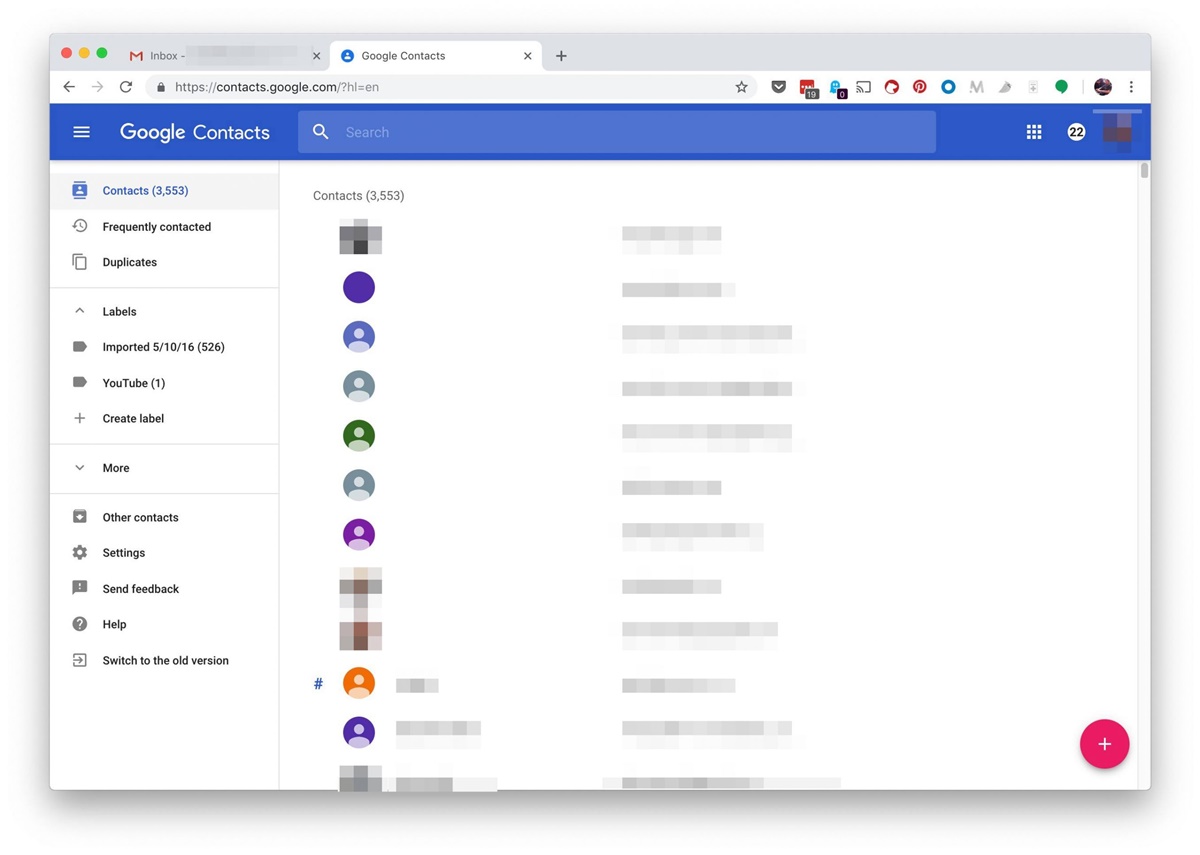
Gmail provides a convenient way to organize and manage your contacts. To begin adding several contacts to a group at once, open the Contacts feature in Gmail. Here’s how:
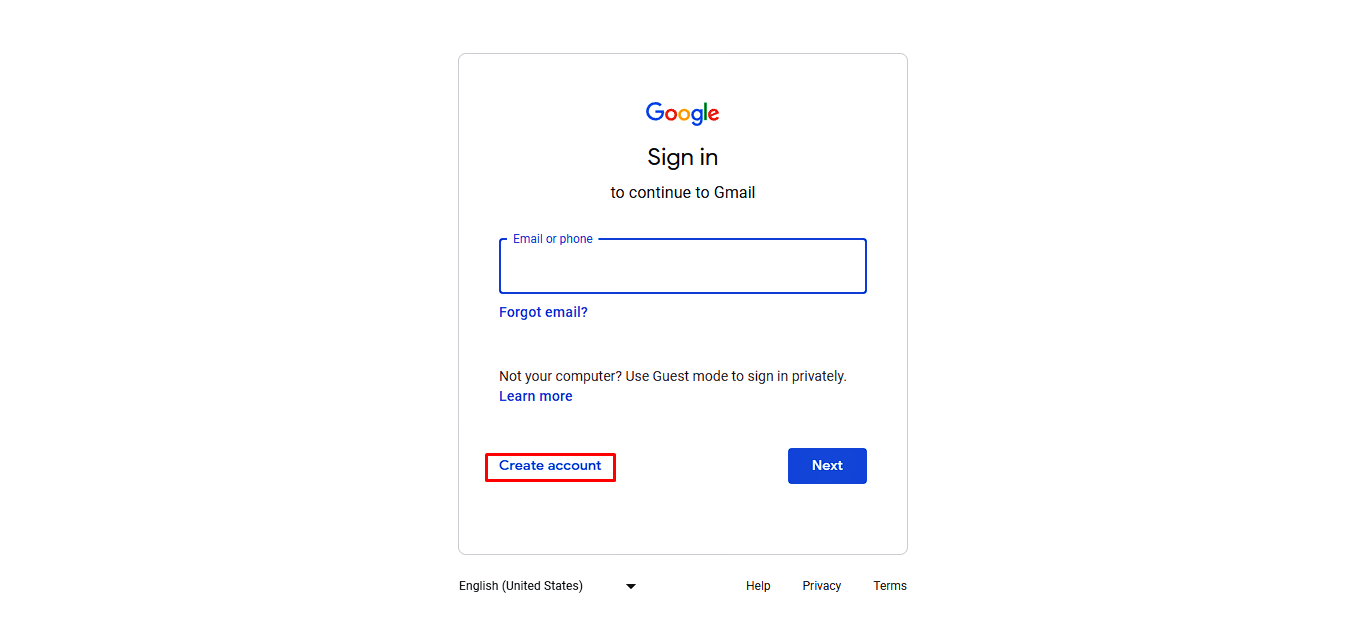
1. Open your Gmail account in any web browser. Ensure that you are signed in with your Gmail credentials.
2. Once you have signed in, locate and click on the “Google Apps” icon, which is represented by a grid of squares in the upper-right corner of the Gmail interface. This will open a drop-down menu.
3. From the drop-down menu, click on the “Contacts” icon. This will redirect you to the Contacts page, where you can manage all your saved contacts.
Alternatively, you can directly access your contacts by clicking on the “Google Apps” icon and selecting “Contacts” from the available apps displayed.
Once you have successfully opened the Contacts page in Gmail, you are ready to proceed to the next step of adding multiple contacts to a group.
Step 2: Select the Contacts You Want to Add to a Group
Now that you have opened the Contacts page in Gmail, it’s time to select the contacts you want to add to a group. Follow these steps:
1. Take a look at the list of contacts displayed on the left-hand side of the screen. These are your existing contacts.
2. To select multiple contacts, hold down the “Ctrl” key (on Windows) or the “Command” key (on Mac) and click on each contact you want to add to the group. Alternatively, if you want to select all contacts, click on the checkbox at the top left corner of the contact list to mark all contacts.
3. As you select contacts, you will notice that their details appear in the center of the screen. This allows you to verify that you have selected the correct contacts.
It’s important to note that you can add both individual contacts and entire contact groups to a new group. To add a contact group, simply click on the name of the group instead of selecting individual contacts.
Once you have selected the contacts you wish to add to a group, you are ready to proceed to the next step of creating a new group.
Step 3: Click on the “Manage labels” Button
After selecting the contacts you want to add to a group in Gmail, it’s time to create a new group. Follow these steps:
1. Look for the “Manage labels” button on the top menu bar. It is represented by a small icon with three vertical dots. Click on this button to access the options for managing your labels.
2. A dropdown menu will appear with various options. Look for and click on the “Create label” option. This will open a pop-up window.
3. In the pop-up window, you will be prompted to name the new label. Type in a meaningful name for your group that will help you identify its purpose and members. For example, you can name it “Work Colleagues” or “Family Friends”.
4. Once you have entered the desired name, click on the “Create” button to create the new group label.
By clicking on the “Manage labels” button and creating a new label, you are setting the foundation for adding your selected contacts to the group.
Now that you have created a new group label, you are ready to move on to the next step of adding the selected contacts to the newly created group.
Step 4: Create a New Group
With the new label created, it’s time to create a new group to which you can add the selected contacts. Follow these steps to create a new group in Gmail:
1. Look for the “Labels” panel on the left-hand side of the Contacts page. This panel displays all your existing labels and groups.
2. Scroll down the panel until you find the newly created label that you want to use for your group. It should be listed under the “My Contacts” section.
3. Click and drag the label to the “Groups” section of the panel. This will automatically convert the label into a group.
4. As you drag the label, you will notice a small pop-up window appearing, asking you to confirm the conversion of the label into a group. Click on the “Convert to group” button to proceed.
5. Once you have converted the label into a group, you can rename it if desired by clicking on the three vertical dots next to the group name and selecting the “Rename group” option.
Creating a new group allows you to centralize and organize the selected contacts under a specific label. Now that you have successfully created a new group, it’s time to move on to the next step of adding the selected contacts to this group.
Step 5: Add the Selected Contacts to the New Group
Now that you have created a new group in Gmail, it’s time to add the selected contacts to this group. Follow these steps to add contacts to the newly created group:
1. In the Contacts page, you will see a list of your contacts displayed in the center of the screen.
2. Locate and select the contacts that you want to add to the new group. Remember, you can select multiple contacts by holding down the “Ctrl” key (on Windows) or the “Command” key (on Mac) while clicking on the contacts.
3. Once you have selected the contacts, click and drag them to the new group label that you created. You can find the group label under the “Groups” section of the Labels panel on the left-hand side of the screen.
4. As you drag the contacts to the group label, you will see a notification indicating that the contacts are being added to the group.
5. Release the mouse button to drop the contacts into the group.
By adding the selected contacts to the new group, you are organizing them under a specific label for easier management and communication.
Now that you have successfully added the selected contacts to the new group, it’s time to move on to the next step of confirming the addition.
Step 6: Confirm the Addition
After adding the selected contacts to the new group in Gmail, it’s important to confirm that the addition was successful. Follow these steps to confirm the addition:
1. Look for the new group label in the “Groups” section of the Labels panel on the left-hand side of the Contacts page. Click on the group label to view its contents.
2. Once you have opened the group, you will see a list of the contacts that have been added. Take a moment to review the list to ensure that all the desired contacts are included.
3. You can also click on each contact to view their details and verify that they have been correctly added to the group.
4. If you notice that any contacts are missing or you have accidentally added the wrong contacts, you can remove them from the group by selecting the contact and clicking on the “Remove from group” button.
5. Repeat the confirmation process for each set of contacts that you have added to different groups.
Confirming the addition ensures that the selected contacts are properly organized and associated with the corresponding group label. This gives you peace of mind knowing that the contacts are readily accessible whenever you need to communicate with them.
Now that you have confirmed the addition, you are ready to move on to the next step of adding additional contacts to groups if needed.
Step 7: Repeat Steps 2-6 for Additional Contacts
If you have more contacts that you want to add to groups in Gmail, you can repeat steps 2-6 to easily manage them. Follow these steps to add additional contacts to groups:
1. Go back to the Contacts page in Gmail.
2. Select the contacts that you want to add to a group by following the steps outlined in Step 2. You can select individual contacts or entire contact groups.
3. Once you have selected the contacts, follow Steps 3-6 to create a new group, convert it into a group label, and add the selected contacts to the group.
4. Repeat this process for each set of contacts that you want to add to different groups.
By repeating Steps 2-6, you can efficiently organize and manage all your contacts in Gmail. This allows you to create multiple groups based on different categories or relationships, making it easier to communicate with specific sets of contacts when needed.
Remember, you can always modify or update the groups by adding or removing contacts as your contact list evolves over time.
Once you have added all the additional contacts to their respective groups, you can proceed to the final step of accessing the groups in Gmail.
Step 8: Access the Group in Gmail
After successfully adding contacts to groups in Gmail, it’s important to know how to access and utilize these groups. Follow these steps to access the groups in Gmail:
1. Open your Gmail account in any web browser and sign in with your credentials.
2. On the left-hand side of the Gmail interface, locate and click on the “Google Apps” icon, represented by a grid of squares. This will open a drop-down menu.
3. From the drop-down menu, click on the “Contacts” icon. This will redirect you to the Contacts page in Gmail.
4. On the left-hand side of the Contacts page, look for the “Groups” section in the Labels panel. You will see a list of all the groups you have created.
5. Click on the group name to access the contacts within that group. The group details will appear in the center of the screen, displaying the contacts associated with that group.
6. From this point, you can perform various actions such as sending an email to all the contacts in the group, editing the group details, or adding more contacts to the group.
Accessing the groups in Gmail allows you to conveniently communicate with specific sets of contacts without the need to individually select each contact. It streamlines your workflow and ensures efficient communication with the desired groups.
Now that you know how to access the groups in Gmail, take full advantage of this feature to stay organized and communicate effectively.