Creating a Kaspersky Account
If you’re new to the world of online security and want to take advantage of the robust protection that Kaspersky offers, the first step is to create a Kaspersky account. With a Kaspersky account, you can easily manage your subscriptions, access your product licenses, and receive important notifications about your security software.
To begin the account creation process, visit the official Kaspersky website and look for the “Sign In” or “My Kaspersky” button. Click on it, and you’ll be directed to the login page. Here, you’ll find an option to create a new account if you don’t have one already.
When creating your Kaspersky account, you’ll be asked to provide some personal information, including your email address and a strong password. Ensure that you choose a password that is unique and secure, combining uppercase and lowercase letters, numbers, and special characters.
After entering your email address and password, click on the “Create Account” or “Sign Up” button. You may also be prompted to read and accept the terms and conditions before proceeding. Make sure to review the terms carefully before agreeing to them.
Once you’ve successfully created your Kaspersky account, you’ll receive a confirmation email with a link to verify your email address. Simply click on the link to validate your account.
With your Kaspersky account now verified, you can log in to access all the features and benefits it offers. Keep your login credentials in a safe place and avoid sharing them with anyone to ensure the security of your account.
Now that you have your Kaspersky account set up, you’re ready to explore the world of advanced cybersecurity. From protecting your devices against malware and viruses to safeguarding your online transactions and personal information, Kaspersky provides the comprehensive security you need in today’s digital landscape.
So go ahead and create your Kaspersky account today to stay protected and enjoy a seamless online experience!
Accessing the Kaspersky Account Login Page
Once you’ve created your Kaspersky account, accessing the login page is a breeze. Whether you want to manage your subscriptions, check your licensing status, or make any changes to your account settings, here’s how you can easily access the Kaspersky Account login page.
To begin, open your preferred web browser and visit the official Kaspersky website. Look for the “Sign In” or “My Kaspersky” button, usually located at the top right corner of the homepage. Click on it to proceed to the login page.
Alternatively, you can directly visit the Kaspersky Account login page by typing “https://my.kaspersky.com” into the address bar of your browser. Press Enter, and you will be directed to the login page.
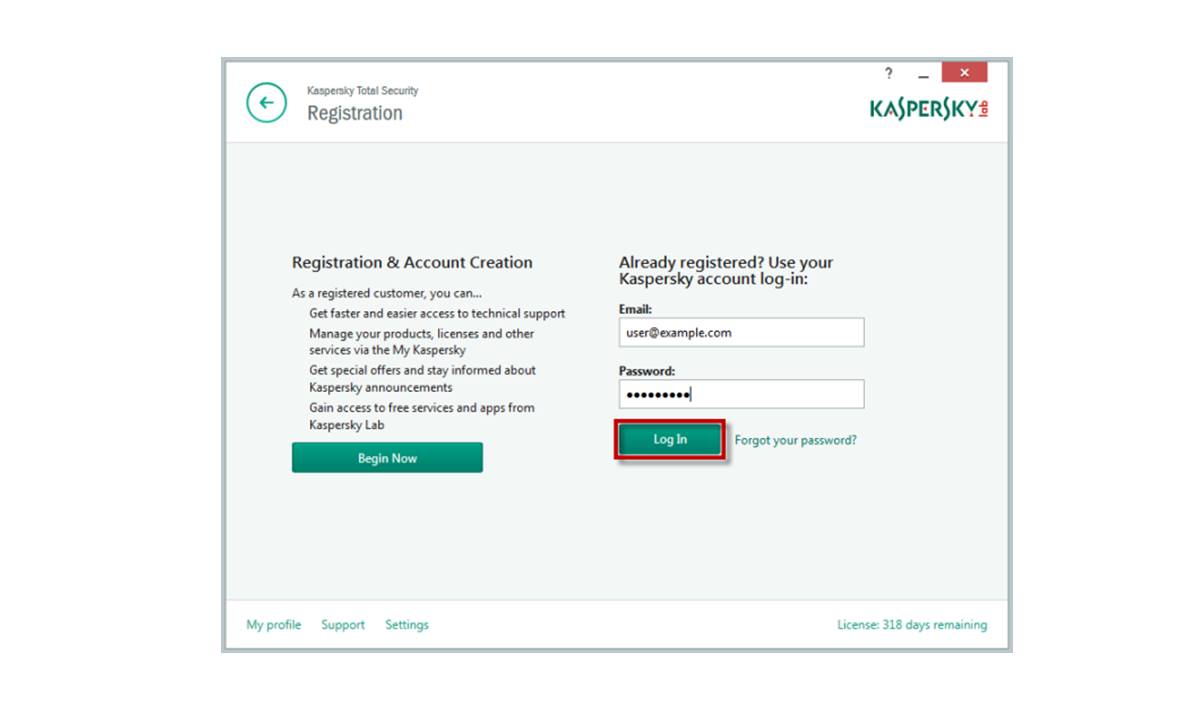
On the login page, you will see two empty fields where you can enter your email address and password. Carefully type in your login credentials, ensuring that you enter them correctly to avoid any login errors.
If you have the Kaspersky Password Manager installed, it can automatically fill in your login details for you, saving you time and effort. Simply click on the key icon near the login fields, and the Password Manager will fill in your email and password.
Once you’ve entered your email and password, click on the “Sign In” or “Login” button to access your Kaspersky account. If your credentials are correct, you will be redirected to your account dashboard, where you can manage your subscriptions, view your licenses, and explore other account features.
It’s important to note that if you make multiple unsuccessful login attempts, your account may be temporarily blocked for security reasons. If you encounter any login issues, ensure that you are entering the correct login information and double-check for any typing errors. If needed, you can also reset your password to regain access to your account.
With easy access to the Kaspersky Account login page, you can stay in control of your security solutions and ensure that your devices and sensitive information are well-protected. Take advantage of the user-friendly interface and robust features of your Kaspersky account to enjoy a seamless and secure online experience.
Entering Your Email and Password
When logging in to your Kaspersky account, entering your email and password correctly is essential to ensure a smooth and secure login process. Here’s a step-by-step guide on how to enter your email and password accurately.
1. Start by navigating to the Kaspersky Account login page. You can do this by visiting the official Kaspersky website and clicking on the “Sign In” or “My Kaspersky” button, or by directly entering “https://my.kaspersky.com” in your web browser’s address bar.
2. On the login page, you will see two empty fields for your email address and password. Carefully enter your email address in the designated field. Make sure to type it correctly, as any minor errors can lead to login issues.
3. After entering your email address, move on to the password field. Here, it is crucial to use the correct password associated with your Kaspersky account. Double-check your password for accuracy, paying attention to uppercase and lowercase letters, numbers, and special characters.
4. If you are having trouble remembering your password, you can utilize the “Forgot your password?” link provided on the login page. By clicking on this link, you will be guided through a password recovery process, allowing you to reset your password and regain access to your Kaspersky account.
5. Some users may have the Kaspersky Password Manager installed, which can streamline the login process by automatically filling in your email and password. If you have this feature enabled, simply click on the key icon near the login fields, and the Password Manager will input your login credentials for you accurately.
6. Once you have ensured the accuracy of your email address and password, click on the “Sign In” or “Login” button to proceed. If your login information is correct, you will be granted access to your Kaspersky account dashboard, where you can manage your subscriptions, view licenses, and adjust account settings as needed.
Remember to keep your login credentials secure and avoid sharing them with others. If you suspect that your login information has been compromised or you experience any unusual account activity, consider changing your password immediately for added security.
By following these steps and attentively entering your email and password, you can effortlessly access your Kaspersky account and make the most of the powerful security features it offers.
Using Social Media Accounts to Log In
Kaspersky offers a convenient way to log in to your account by integrating social media accounts. If you prefer to use your existing social media credentials, such as Facebook or Google, instead of creating a separate username and password for Kaspersky, here’s how you can do it.
1. Start by visiting the Kaspersky Account login page. You can reach this page by navigating to the official Kaspersky website and clicking on the “Sign In” or “My Kaspersky” button.
2. On the login page, look for the option to log in using your social media accounts. This is typically represented by buttons or icons of popular social media platforms, such as Facebook, Google, or Apple.
3. Click on the social media button that corresponds to the account you want to use for logging in. For example, if you choose to log in with your Facebook account, click on the “Log in with Facebook” button.
4. You will be redirected to a separate login page for the selected social media platform. Enter your social media account credentials – email/username and password – and click on the “Log In” or “Continue” button to proceed.
5. Once you have successfully logged in using your social media account, you will be directed back to the Kaspersky Account dashboard or a registration page to complete the process.
6. If you are logging in for the first time using your social media account, you may need to allow permissions for Kaspersky to access your basic profile information. Read and understand the access and privacy settings before granting access.
7. Some social media platforms might require you to confirm the login attempt through additional security measures, such as two-factor authentication. Follow the instructions provided by the social media platform to complete the verification process.
By utilizing the social media login feature, you can enjoy the convenience of a single set of credentials for various web services, including Kaspersky. It eliminates the need to remember and manage multiple usernames and passwords, making the login process quicker and more streamlined.
Keep in mind that when you choose to log in using your social media account, Kaspersky will have limited access to your profile information as specified by the permissions granted. Your privacy is important, and Kaspersky is committed to handling your personal information securely and in adherence to privacy standards.
Next time you want to access your Kaspersky account, consider using your social media credentials and experience a hassle-free login process.
Resetting Your Kaspersky Account Password
If you’ve forgotten your Kaspersky account password or suspect that it has been compromised, don’t worry. You can easily reset your password to regain access to your account. Follow these steps to reset your Kaspersky account password:
1. Start by visiting the Kaspersky Account login page. You can reach this page by navigating to the official Kaspersky website and clicking on the “Sign In” or “My Kaspersky” button.
2. On the login page, look for the “Forgot your password?” link, typically located near the login fields. Click on it to initiate the password reset process.
3. You will be redirected to a password recovery page. Here, you will need to enter the email address associated with your Kaspersky account. Make sure to provide the correct email address to receive further instructions.
4. After entering your email address, click on the “Submit” or “Reset Password” button. Kaspersky will send you an email with a password reset link.
5. Check your email inbox for the password reset email from Kaspersky. If you don’t see it in your inbox, make sure to check your spam or junk folder as well.
6. Open the email from Kaspersky and click on the password reset link provided. This link will redirect you to a web page where you can set a new password for your Kaspersky account.
7. On the password reset page, enter your new password. Make sure to choose a strong and unique password that combines uppercase and lowercase letters, numbers, and special characters. Avoid using common words or personal information that could be easily guessed.
8. After entering your new password, click on the “Save” or “Confirm” button to finalize the password reset process.
Once you have successfully reset your Kaspersky account password, you can use the new password to log in to your account and access all the features and benefits it offers.
It is recommended to change your password periodically or if you suspect any unauthorized access to your account. Keeping your password secure helps protect your personal information and ensures the integrity of your account.
If you encounter any issues or require further assistance during the password reset process, you can reach out to Kaspersky customer support for guidance. They will be able to help you resolve any login or account-related issues that you may encounter.
Take control of your Kaspersky account by resetting your password whenever necessary to maintain the security and accessibility of your account.
Troubleshooting Login Issues
Having trouble logging in to your Kaspersky account can be frustrating, but don’t worry—there are a few troubleshooting steps you can take to resolve the issue. Follow these tips to troubleshoot common login issues:
1. Double-check your email and password: Ensure that you are entering the correct email address and password associated with your Kaspersky account. Pay attention to uppercase and lowercase letters, as passwords are case-sensitive.
2. Reset your password: If you can’t remember your password, use the “Forgot your password?” link on the login page to initiate a password reset. Follow the instructions in the password recovery email to set a new password for your account.
3. Clear your browser cache and cookies: Sometimes, login problems can be caused by corrupted cache or cookies. Clear your browser’s cache and cookies, then try logging in again.
4. Try a different browser or device: There may be compatibility issues between your current browser or device and the Kaspersky login page. Try logging in from a different browser or device to see if the issue persists.
5. Disable browser extensions: Certain browser extensions or add-ons can interfere with the login process. Temporarily disable any extensions and try logging in again.
6. Check your internet connection: Make sure you have a stable internet connection before attempting to log in. Unstable or slow internet can cause login issues or prevent the login page from loading properly.
7. Update your browser: Ensure that you are using the latest version of your web browser. Outdated browser versions can have compatibility issues that affect the login process.
8. Contact Kaspersky support: If you have tried the above steps and are still unable to log in to your account, reach out to Kaspersky customer support for further assistance. They can help troubleshoot the issue and provide personalized solutions.
Remember to keep your account information secure and avoid sharing your login credentials with others. If you suspect any unauthorized access to your account or unusual activity, contact Kaspersky support immediately for guidance.
By following these troubleshooting steps, you can resolve common login issues and regain access to your Kaspersky account, ensuring you can make full use of the comprehensive security features it offers.
Enabling Two-Factor Authentication for Added Security
In today’s digital landscape, protecting your online accounts from unauthorized access is crucial. Kaspersky offers an additional layer of security through two-factor authentication (2FA) to enhance the safety of your account. Enabling 2FA adds an extra step beyond entering your password to verify your identity when logging in. Here’s how you can enable two-factor authentication for your Kaspersky account:
1. Start by logging in to your Kaspersky account using your email address and password. If you don’t have an account yet, create one, and then proceed to enable 2FA.
2. Once logged in, navigate to the account settings or security settings section. Look for an option related to two-factor authentication or “Verify with 2FA.”
3. Click on the 2FA option to initiate the setup process. You may be prompted to provide additional information to complete this step, such as your phone number or an authentication app.
4. If you choose to receive verification codes via SMS, enter your phone number and request a verification code. You will receive a code on your mobile device, which you will need to enter in the designated field on the Kaspersky website to validate your phone number.
5. Alternatively, you can use an authentication app, such as Google Authenticator or Authy, to generate verification codes. Follow the instructions provided by the authentication app to link it to your Kaspersky account.
6. Once your phone number or authentication app is successfully linked to your Kaspersky account, you can proceed to enable 2FA. This step typically involves flipping a toggle switch or clicking on a “Turn On” button.
7. After enabling 2FA, every time you log in to your Kaspersky account, you will need to provide the verification code generated by your authentication app or sent to your phone number. This additional step verifies your identity and enhances the security of your account.
By enabling two-factor authentication, you add an extra layer of protection to your Kaspersky account. Even if your password is compromised, unauthorized access is still prevented without the verification code generated by your authentication app or sent to your phone. This significantly reduces the risk of someone gaining unauthorized access to your account and personal information.
Remember to keep your authentication app or phone number secure and avoid sharing it with anyone. If you change your phone number or no longer have access to your authentication app, make sure to update your 2FA settings accordingly to avoid any login issues.
Take control of your account’s security by enabling two-factor authentication for your Kaspersky account. With this added layer of protection, you can have peace of mind knowing that your account is safeguarded against unauthorized access.
Managing Multiple Devices with a Single Login
In today’s interconnected world, many individuals own and use multiple devices. Whether you have a smartphone, tablet, or multiple computers, managing the security of each device can be a daunting task. However, with a Kaspersky account and the ability to manage multiple devices under a single login, you can simplify the process and enhance your overall security. Here’s how you can efficiently manage multiple devices with a single Kaspersky account:
1. Create a Kaspersky account: If you haven’t already, start by creating a Kaspersky account. Visit the official Kaspersky website, click on the “Sign In” or “My Kaspersky” button, and then select the option to create a new account. Make sure to choose a strong password.
2. Install Kaspersky software on your devices: Once your Kaspersky account is set up, install the Kaspersky security software on each of your devices. This can be done by downloading and installing the appropriate product from the Kaspersky website or by visiting the respective app stores for mobile devices.
3. Sign in to your Kaspersky account on each device: When launching the Kaspersky software on each device, you will be prompted to sign in with your Kaspersky account credentials. Use the same email address and password to log in to your account on each device.
4. Sync your devices: With all your devices signed in to the same Kaspersky account, you can now sync them together. This allows for seamless management and monitoring of all devices from one central location.
5. Access device management features: Once your devices are synced, you can access the device management features offered by Kaspersky. These features may include scanning for malware, scheduling scans, adjusting security settings, and monitoring device activity.
6. Set up automatic updates: Enable automatic updates for the Kaspersky software on all your devices. This ensures that you are always using the latest version with the most up-to-date security features and patches. Regular updates are essential for maintaining optimal protection against emerging threats.
7. Enable remote management: Look for the remote management feature within your Kaspersky account settings. Enabling this feature allows you to remotely control and manage your devices, perform scans, and apply security settings, even if you are not physically present with the device.
By managing multiple devices under a single Kaspersky account, you can streamline your security management tasks and ensure consistent protection across all your devices. This centralized approach not only saves time and effort but also enhances the overall security of your digital environment.
Remember to periodically review and update your security settings, perform regular scans, and stay informed about the latest threats and security practices. With a well-managed and protected device ecosystem, you can have peace of mind and confidently navigate the digital world.
Viewing Your Account Activity and Settings
As a Kaspersky account holder, you have access to various features that allow you to view and manage your account activity and settings. Whether you want to review your subscription details, update your personal information, or monitor your account’s security, here’s how you can conveniently view your account activity and make necessary adjustments:
1. Log in to your Kaspersky account: Start by visiting the Kaspersky Account login page and entering your email address and password. Once logged in, you will be directed to your account dashboard.
2. Navigate to account settings: Look for the “Account” or “Settings” tab within your Kaspersky account dashboard. This is typically located at the top or side menu of the page. Click on it to access your account settings.
3. Review account information: Within the account settings section, you can view and edit your personal information, such as your name, email address, and contact details. Ensure that your information is up to date, and make any necessary changes if required.
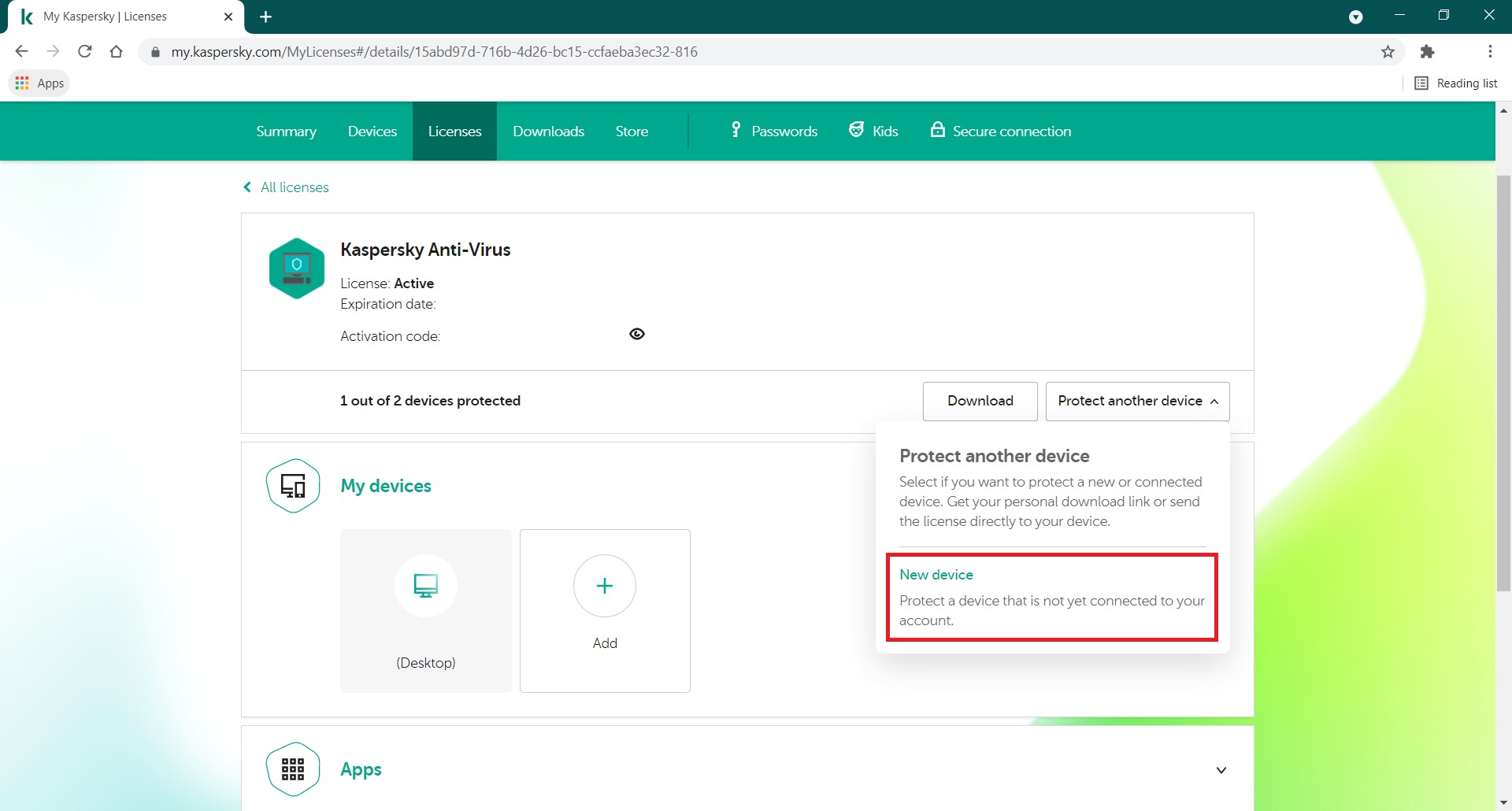
4. Manage subscriptions and licenses: If you have a Kaspersky subscription, you can view your subscription details, including the expiration date, within your account settings. You may also have options to upgrade or renew your subscription depending on your specific plan.
5. Monitor device activity: Some Kaspersky products offer device monitoring features, allowing you to review the activity and status of each protected device. Check if this feature is available within your account settings and use it to ensure all devices are properly protected.
6. Optimize security settings: Depending on the Kaspersky product you have, you may have access to security settings within your account. Review these settings to customize your security preferences, adjust scanning schedules, and configure other security-related options.
7. Access usage statistics: Some Kaspersky products provide usage statistics to help you understand the impact of the software on your device’s performance. Explore your account settings to access these usage statistics and gain insights into the resources consumed by the security software.
8. Set up account notifications: Kaspersky allows you to choose the type and frequency of notifications you receive. This can range from important security alerts, subscription renewal reminders, and product updates. Adjust the notification settings according to your preferences and requirements.
By regularly reviewing your account activity and settings, you can stay informed about your subscription, maintain accurate personal information, and ensure your Kaspersky security software is optimized to meet your needs. This proactive approach helps you maximize your security while staying in control of your Kaspersky account.
Remember to keep your login credentials secure and regularly update your password. If you encounter any issues or have questions about your account activity or settings, consult the Kaspersky customer support team for assistance. They can provide guidance and personalized solutions to address any concerns you may have.
Take advantage of the account activity and settings features provided by Kaspersky to manage your account effectively and maintain optimal security for your digital environment.
Updating Your Account Information
As you continue to use your Kaspersky account, there may be times when you need to update your account information. Whether you’ve changed your email address, phone number, or simply want to modify your preferences, keeping your account information up to date is important. Here’s how you can easily update your account information:
1. Sign in to your Kaspersky account: Start by visiting the Kaspersky Account login page and enter your email address and password. Once logged in, you will be directed to your account dashboard.
2. Access account settings: Look for the “Account” or “Settings” tab within your Kaspersky account dashboard. This is typically located at the top or side menu of the page. Click on it to access your account settings.
3. Modify personal details: Within the account settings section, you will find the option to update your personal information. This may include your name, email address, phone number, and other contact details. Click on the relevant field to make the desired changes.
4. Save your changes: After making the necessary modifications to your account information, click on the “Save” or “Update” button to save your changes. Double-check your updates to ensure accuracy before confirming the changes.
5. Verify changes: In some cases, to ensure the security of your account, Kaspersky may require you to verify changes made to your account information. This can be done through email verification, phone verification, or other verification methods. Follow the provided instructions to complete the verification process.
6. Review and update preferences: Additionally, within your account settings, you may have options to update your preferences. This includes notification preferences, language preferences, and other settings that personalize your Kaspersky experience. Explore these options and adjust them according to your preferences.
Remember, keeping your account information up to date is essential for effective communication, account management, and security measures. It ensures that you receive important notifications, renewal reminders, and other communication from Kaspersky.
If you encounter any issues while updating your account information or require further assistance, contact Kaspersky customer support. They will be able to provide guidance and solutions to address any concerns or difficulties you may have.
By regularly updating your account information, you maintain the accuracy and relevance of your Kaspersky account, ensuring that you are getting the most out of your security software and services.