Overview of Samsung Kies
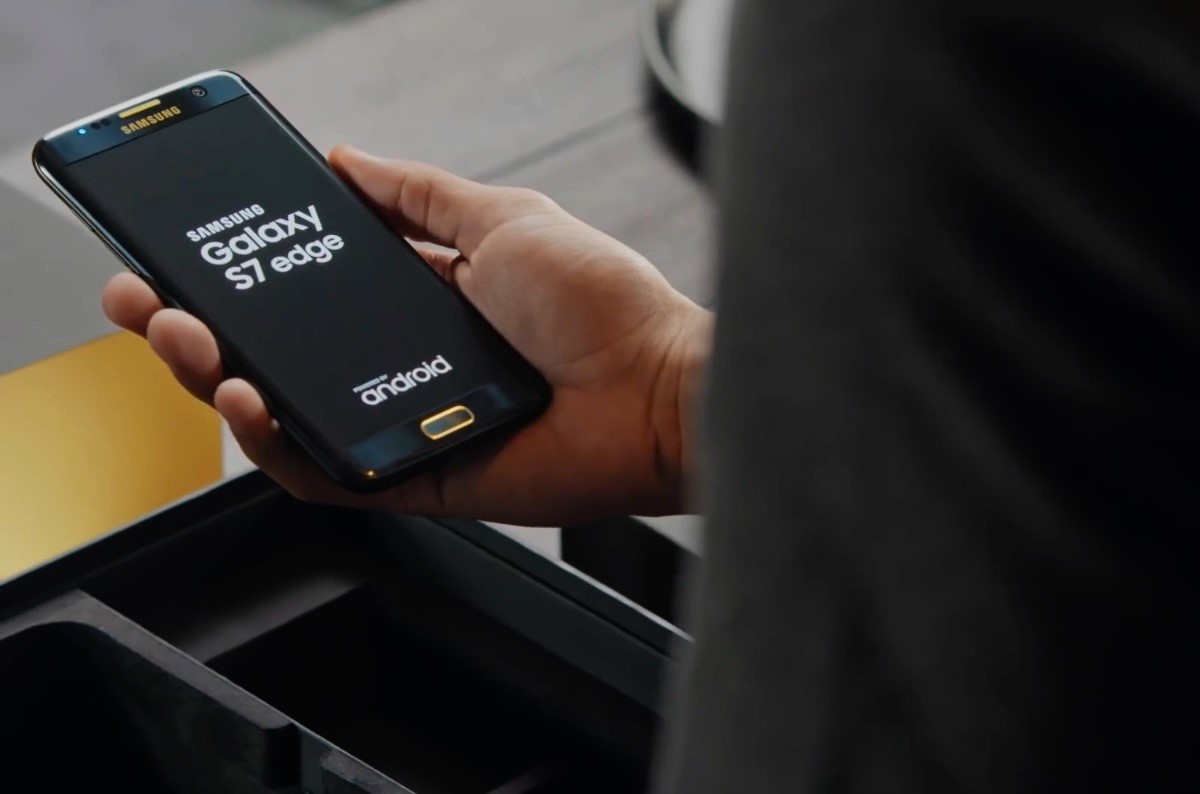
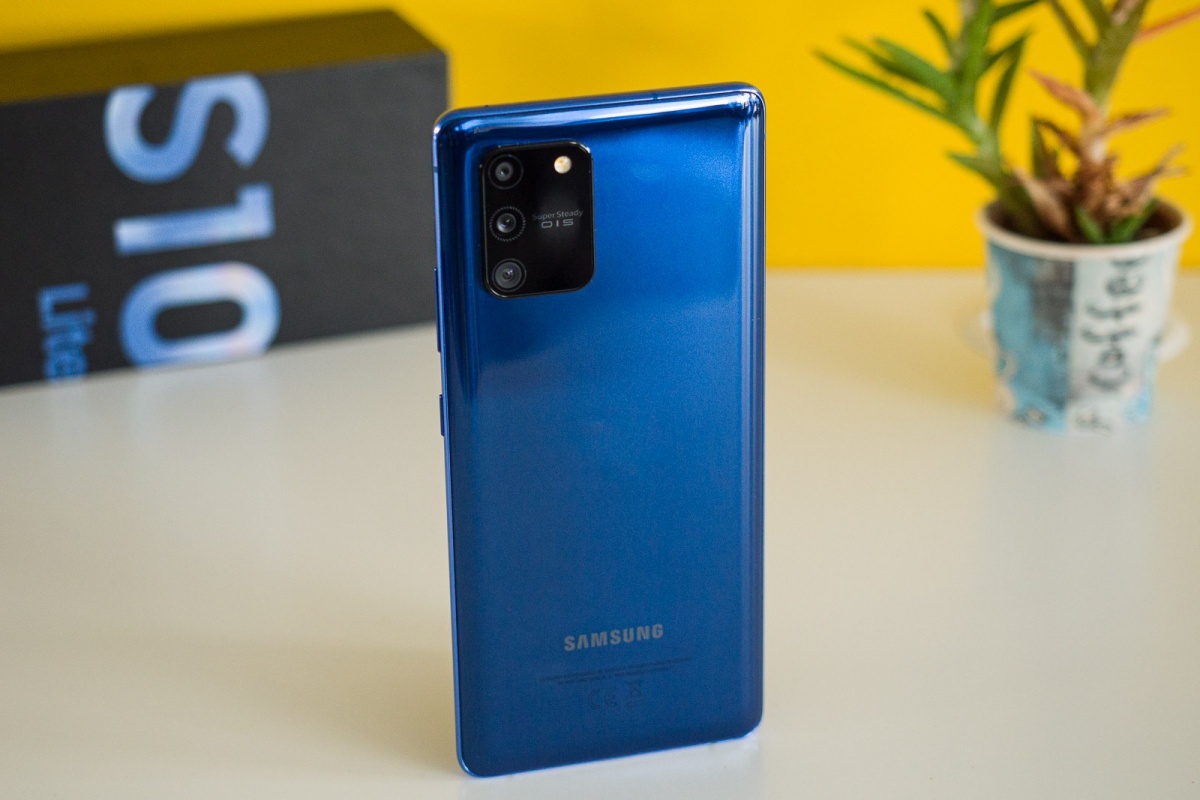
Samsung Kies is a versatile software application developed by Samsung Electronics to facilitate the seamless transfer of files, synchronization of data, and management of applications between your Samsung device and your computer. Whether you own a Samsung smartphone, tablet, or smartwatch, Samsung Kies provides a user-friendly interface that allows you to efficiently manage and organize your device and its contents.
One of the primary features of Samsung Kies is the ability to transfer files between your computer and Samsung device. Whether you want to move photos, videos, music, or documents, Samsung Kies provides a simple and convenient method to transfer these files back and forth. Additionally, you can sync your contacts, calendar, and messages between your Samsung device and computer, ensuring that you have all your important information readily available.
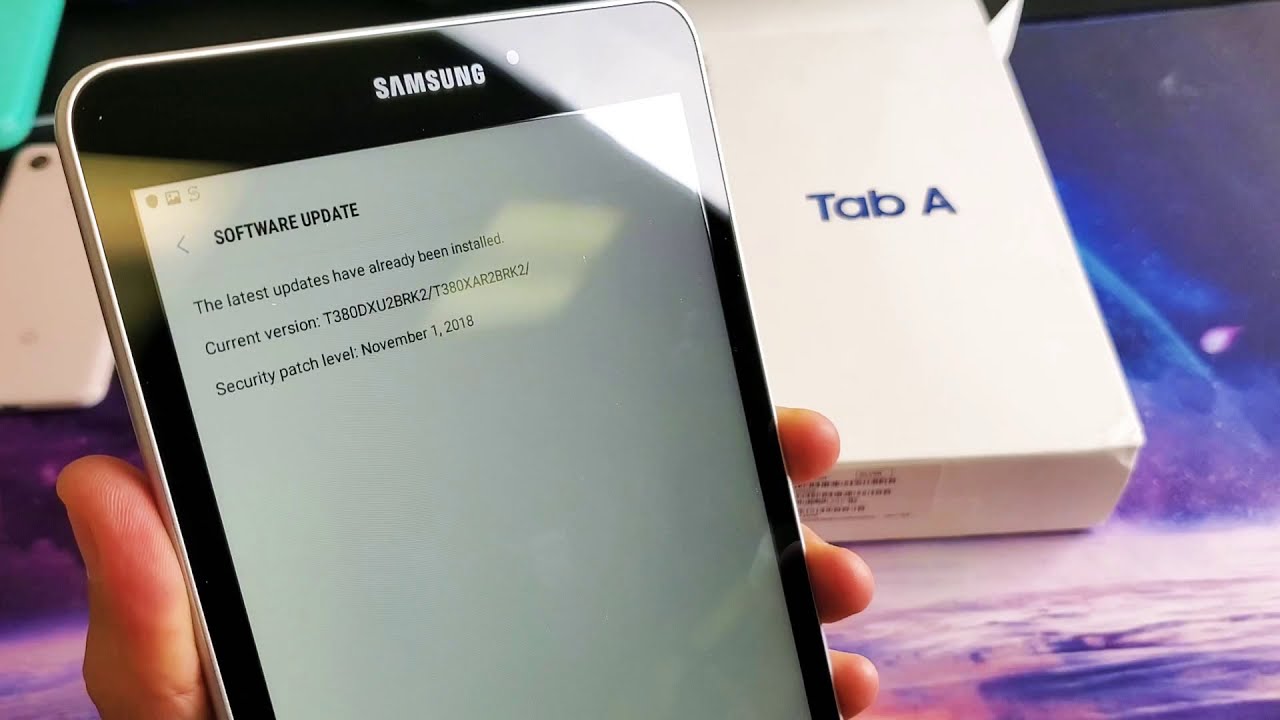
Another significant feature of Samsung Kies is its capability to update the firmware of your Samsung device. Firmware updates are essential for keeping your device optimized and up to date with the latest features and security patches. Samsung Kies allows you to easily check for and install available firmware updates, ensuring that you are always running the latest software version.
In addition to file transfer and firmware updates, Samsung Kies also offers the ability to create backups of your Samsung device. This feature provides peace of mind as you can securely store a copy of your device’s data, including contacts, messages, photos, and more, in case of any unexpected data loss or device failure. You can also restore your device from a backup using Samsung Kies, making the recovery process simple and hassle-free.
Furthermore, Samsung Kies enables you to manage applications installed on your Samsung device directly from your computer. You can view, install, and uninstall applications, as well as update them to the latest versions available. This feature simplifies application management, allowing you to keep your device organized and free from unnecessary or outdated apps.
Overall, Samsung Kies is a powerful tool that enhances the connectivity and functionality of your Samsung device. Whether you need to transfer files, synchronize data, update firmware, create backups, or manage applications, Samsung Kies streamlines these tasks and provides a seamless experience for Samsung device users.
Installing Samsung Kies on your Computer
If you want to take advantage of the features and functionalities offered by Samsung Kies, you first need to install the software on your computer. Here’s a step-by-step guide to help you through the installation process:
- Visit the official Samsung website and navigate to the support section.
- Search for Samsung Kies and select the appropriate download link for your operating system (Windows or macOS).
- Once the download is complete, locate the installation file and double-click it to begin the installation process.
- Follow the on-screen instructions to proceed with the installation. You may be prompted to agree to the terms and conditions and specify the installation location.
- After the installation is complete, launch the Samsung Kies application.
- Connect your Samsung device to your computer using a compatible USB cable. Ensure that the device is recognized by your computer before proceeding.
- In Samsung Kies, you may be prompted to update to the latest version. If an update is available, it is recommended to install it for optimal performance and compatibility.
- Once the update is complete, you can begin utilizing the various features offered by Samsung Kies.
It is worth noting that Samsung Kies may require certain system requirements to function properly. Ensure that your computer meets the minimum specifications detailed on the Samsung website to avoid any compatibility issues.
By installing Samsung Kies on your computer, you gain access to a suite of powerful tools and features that enhance your Samsung device’s functionality and connectivity. Whether you want to transfer files, synchronize data, update firmware, manage applications, or create backups, Samsung Kies provides a reliable and efficient solution to meet your needs.
Connecting your Samsung Device to your Computer
Once you have installed Samsung Kies on your computer, the next step is to connect your Samsung device to establish a stable connection between the two. The process of connecting your device to your computer may slightly vary based on the device model, but the following general steps should guide you through the process:
- Ensure that both your Samsung device and computer are powered on and in a ready state.
- Using a compatible USB cable, connect one end of the cable to the USB port of your computer and the other end to the charging port of your Samsung device.
- If prompted on your Samsung device, choose the appropriate USB connection option. The available options may include “File Transfer,” “Media device (MTP),” or “Camera (PTP).” Select the option that best suits your intended use.
- On your computer, launch the Samsung Kies application if it hasn’t automatically opened upon detecting the connected device.
- Allow some time for the computer and Samsung Kies to recognize and establish a connection with your device. This process may take a few moments.
- Once the connection is successfully established, you will see your Samsung device displayed within the Samsung Kies interface, along with a variety of options and controls for managing and interacting with your device.
It is important to note that before you connect your Samsung device to your computer, it is advisable to close any other applications or programs that may interfere with the connection process. Additionally, ensure that your USB cable is in good working condition to avoid any disruptions during the connection.
With your Samsung device successfully connected to your computer, you can now utilize the various features and functionalities provided by Samsung Kies to transfer files, synchronize data, update firmware, manage applications, create backups, and more. The connection ensures a seamless and efficient interaction between your Samsung device and computer, allowing you to make the most out of your device’s capabilities.
Transferring Files from your Computer to your Samsung Device
One of the essential features of Samsung Kies is the ability to transfer files from your computer to your Samsung device. Whether you want to transfer photos, videos, music, or documents, Samsung Kies provides a simple and convenient method to accomplish this. Follow the steps below to transfer files from your computer to your Samsung device:
- Make sure that your Samsung device is connected to your computer using a compatible USB cable and that it is recognized by Samsung Kies.
- In the Samsung Kies interface on your computer, navigate to the location from which you wish to transfer files. This could be your computer’s local storage or an external drive.
- Select the desired files or folders you wish to transfer to your Samsung device. You can select multiple files by holding down the Ctrl (Windows) or Command (Mac) key while making your selections.
- Once the files are selected, click on the “Transfer to Device” or similar option within the Samsung Kies interface.
- Samsung Kies will prompt you to select your Samsung device if you have multiple devices connected. Choose the appropriate device from the list.
- Click on the “Transfer” or “OK” button to begin the file transfer process. The progress of the transfer will be displayed on the screen.
- Once the transfer is complete, disconnect your Samsung device from your computer by safely removing the USB cable.
- You can now access the transferred files on your Samsung device through the relevant files or media apps.
It is important to note that the time taken for the file transfer can vary based on the size of the files and the speed of your computer and USB connection. It is recommended to avoid interrupting the transfer process to ensure that all files are successfully copied to your Samsung device.
With Samsung Kies, transferring files from your computer to your Samsung device becomes a hassle-free process. Whether you want to enjoy your favorite music, watch videos, view photos, or access important documents on the go, Samsung Kies provides a convenient solution for managing your files and enhancing your device’s capabilities.
Transferring Files from your Samsung Device to your Computer
In addition to transferring files from your computer to your Samsung device, Samsung Kies also allows you to transfer files from your Samsung device to your computer. Whether you want to backup important files, free up space on your device, or simply organize your files on your computer, Samsung Kies provides a seamless method to accomplish this task. Follow the steps below to transfer files from your Samsung device to your computer:
- Ensure that your Samsung device is connected to your computer using a compatible USB cable and that it is recognized by Samsung Kies.
- In the Samsung Kies interface on your computer, navigate to the location on your computer where you want to transfer the files from your Samsung device.
- In the Samsung Kies interface, locate your Samsung device and navigate to the files or folders you wish to transfer.
- Select the desired files or folders you want to transfer to your computer. You can select multiple files by holding down the Ctrl (Windows) or Command (Mac) key while making your selections.
- Once the files are selected, click on the “Transfer to PC” or similar option within the Samsung Kies interface.
- Choose the destination folder on your computer where you want to save the transferred files. You can create a new folder or select an existing folder.
- Click on the “Transfer” or “OK” button to begin the file transfer process. The progress of the transfer will be displayed on the screen.
- Once the transfer is complete, you can access the transferred files on your computer through the destination folder you selected.
- Disconnect your Samsung device from your computer by safely removing the USB cable.
It is important to note that the time taken for the file transfer can vary based on the size of the files and the speed of your computer and USB connection. Larger files may take longer to transfer, so it is recommended to exercise patience during the process.
Samsung Kies simplifies the process of transferring files from your Samsung device to your computer, allowing you to effectively manage your device’s storage and keep important files backed up. Whether you want to archive photos, videos, documents, or any other type of file, Samsung Kies provides a reliable and convenient solution for transferring files from your Samsung device to your computer.
Syncing Contacts, Calendar, and Messages with Samsung Kies
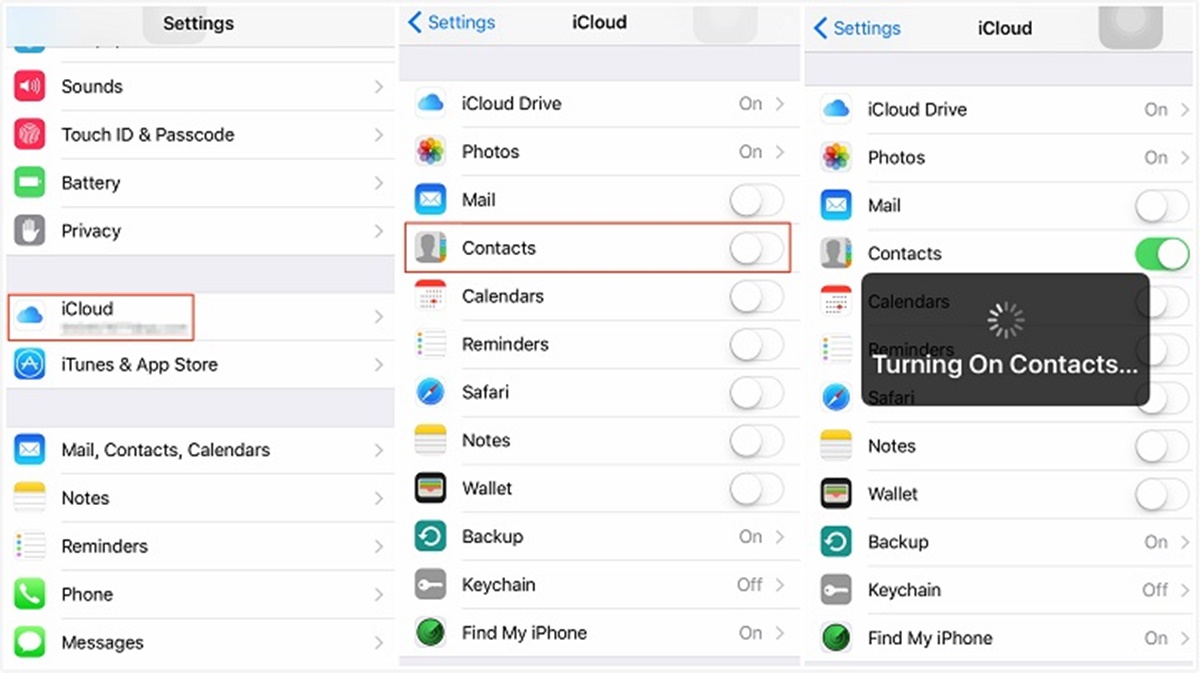
One of the key features of Samsung Kies is its ability to sync important data such as contacts, calendar events, and messages between your Samsung device and your computer. This ensures that you have access to your essential information across multiple devices and offers a convenient way to manage and organize your data. Follow the steps below to sync your contacts, calendar, and messages using Samsung Kies:
- Ensure that your Samsung device is connected to your computer using a compatible USB cable and that it is recognized by Samsung Kies.
- In the Samsung Kies interface on your computer, navigate to the “Sync” or “Sync Data” section.
- Select the type of data you want to sync, such as contacts, calendar, or messages.
- Configure the sync settings according to your preferences. For example, you may choose to sync all contacts or only select groups, or you may choose to sync calendar events from a specific time period.
- Click on the “Sync” or “Apply” button to initiate the syncing process.
- The progress of the sync will be displayed on the screen, and you can monitor the status of the synchronization.
- Once the sync is complete, you can access your synced contacts, calendar events, and messages on your computer.
- To ensure that your data remains up to date, it is recommended to regularly perform syncs using Samsung Kies.
By syncing your contacts, calendar, and messages with Samsung Kies, you can easily manage and update your personal and professional information. Whether you want to keep your contacts updated, have access to your schedule on your computer, or conveniently read and reply to text messages from your desktop, Samsung Kies provides a seamless solution for syncing your data across devices.
It is worth noting that while Samsung Kies offers synchronization capabilities, it is always prudent to have additional backups of your important data in case of any unforeseen situations. Regularly backing up your Samsung device using Samsung Kies or other backup methods ensures the safety and availability of your data.
Updating Firmware with Samsung Kies
Samsung Kies provides a convenient method for updating the firmware of your Samsung device. Firmware updates are essential as they not only bring new features and improvements but also address any security vulnerabilities and performance issues. Here’s a step-by-step guide on how to update the firmware with Samsung Kies:
- Ensure that your Samsung device is connected to your computer using a compatible USB cable and that it is recognized by Samsung Kies.
- In the Samsung Kies interface on your computer, navigate to the “Firmware Upgrade” or similar section.
- Click on the “Check for Updates” or “Upgrade Firmware” button to allow Samsung Kies to search for available firmware updates for your device.
- If a new firmware update is found, you will be notified, and a brief description of the update will be displayed.
- Read the update details to understand the changes and improvements brought by the firmware update.
- Click on the “Upgrade” or “Update” button to initiate the firmware update process. Follow any prompts or instructions that appear during the process.
- It is important to keep your device connected to your computer and refrain from using it during the firmware update process.
- The update progress will be displayed on the screen, and your device may reboot during the process.
- Once the firmware update is complete, disconnect your Samsung device from your computer and follow any additional instructions provided by Samsung Kies.
It is crucial to note that firmware updates can take some time to complete, and the duration may vary based on the size of the update and the speed of your internet connection. It is recommended to have a stable internet connection and be patient during the update process to ensure its successful completion.
Firmware updates not only enhance the performance and security of your Samsung device but also ensure compatibility with the latest software and services. With Samsung Kies, staying up to date with the latest firmware releases becomes effortless, allowing you to take full advantage of your device’s capabilities.
Creating Backups of your Samsung Device with Samsung Kies
Creating backups of your Samsung device is essential for keeping your data safe and protected. Samsung Kies offers a straightforward method to back up your device, ensuring that you can recover your important files and settings in case of accidental data loss or device failure. Follow the instructions below to create backups of your Samsung device using Samsung Kies:
- Connect your Samsung device to your computer using a compatible USB cable and ensure that it is recognized by Samsung Kies.
- In the Samsung Kies interface on your computer, navigate to the “Backup” or “Backup/Restore” section.
- Select the data you want to include in the backup. This can include contacts, messages, photos, videos, app data, call logs, and more.
- Choose the destination on your computer where you want to save the backup files. You can create a new folder or select an existing one.
- Click on the “Backup” or “Start Backup” button to initiate the backup process.
- Wait for the backup process to complete. The time taken may vary based on the amount of data being backed up.
- Once the backup is finished, you will have a copy of your device’s data stored on your computer.
It is important to note that creating backups regularly is crucial to ensuring that your most recent data is protected. Set a reminder to perform backups on a regular basis or configure Samsung Kies to automatically schedule backups for your device.
In addition to creating a full device backup, Samsung Kies also allows you to perform selective backups, enabling you to choose specific files or data to include in the backup. This flexibility ensures that you can prioritize backing up your most critical data.
By creating backups of your Samsung device using Samsung Kies, you can have peace of mind knowing that your data is safely stored and easily recoverable. Whether you accidentally delete important files, encounter a device malfunction, or upgrade to a new device, having backups ensures that you can restore your data and continue seamlessly.
Restoring your Samsung Device from a Backup with Samsung Kies
If you have created backups of your Samsung device using Samsung Kies, you have the peace of mind knowing that you can easily restore your data in case of accidental data loss, device replacement, or other unforeseen circumstances. Restoring your device from a backup is a straightforward process with Samsung Kies. Follow the steps below to restore your Samsung device from a backup:
- Connect your Samsung device to your computer using a compatible USB cable and ensure that it is recognized by Samsung Kies.
- In the Samsung Kies interface on your computer, navigate to the “Restore” or “Backup/Restore” section.
- Select the backup file you want to restore from. This will be the file that you previously created using Samsung Kies.
- Choose the data you want to restore from the backup. You can select specific files, contacts, messages, or even perform a full device restore.
- Select the destination on your Samsung device where you want to restore the data. For example, you can choose to restore the contacts directly to your contacts app.
- Click on the “Restore” or “Start Restore” button to initiate the restoration process.
- Wait for the restoration process to complete. The time taken will depend on the size of the backup and the data being restored.
- Once the restoration is finished, your Samsung device will have the data and settings from the selected backup.
It is important to note that restoring your device from a backup will overwrite any existing data on your device. Make sure to back up any new data that you want to preserve before initiating the restoration process.
Samsung Kies allows you to have complete control over the restoration process. You can choose which specific data or files to restore, ensuring that you only recover what is necessary for your device’s functionality and personalization.
By leveraging the backup functionality of Samsung Kies, you can confidently restore your Samsung device to its previous state, saving time and effort in manually reconfiguring your device and recovering lost data.
Managing Applications on your Samsung Device with Samsung Kies
Samsung Kies not only provides features for file transfer and data synchronization but also offers a convenient way to manage applications on your Samsung device. Whether you want to install, uninstall, or update applications, Samsung Kies simplifies the process and allows you to take full control of your device’s app ecosystem. Here’s how you can manage applications on your Samsung device using Samsung Kies:
- Connect your Samsung device to your computer using a compatible USB cable and ensure that it is recognized by Samsung Kies.
- In the Samsung Kies interface on your computer, navigate to the “Applications” or “App Management” section.
- Here, you will see a list of applications currently installed on your Samsung device.
- To install a new application, click on the “Install” or “Add” button and select the application file from your computer. Follow the on-screen instructions to complete the installation process.
- To uninstall an application, select the desired application from the list and click on the “Uninstall” or “Remove” button. Confirm your selection to proceed with the uninstallation.
- To update an application to the latest version available, select the application from the list and click on the “Update” or “Upgrade” button. Follow any prompts or instructions that appear to complete the update process.
- You can also sort the application list by various criteria such as name, size, or installation date to manage your applications more effectively.
With Samsung Kies, you gain more control and flexibility over the applications on your Samsung device. You can keep your device organized by installing or uninstalling applications according to your preferences, ensuring that you have the apps you need and removing the ones you no longer require. Additionally, by updating applications to their latest versions, you can benefit from new features, bug fixes, and performance improvements.
It is important to note that while Samsung Kies offers application management capabilities, you can also explore other convenient methods to manage your applications, such as using the official app store on your device or utilizing third-party app management tools.
By utilizing the application management features of Samsung Kies, you have greater control over the software ecosystem on your Samsung device, allowing you to tailor it to your needs and preferences while ensuring optimal performance and organization.
Troubleshooting Common Issues with Samsung Kies
While Samsung Kies is a reliable software application for managing your Samsung device, you may encounter certain issues that can hinder its functionality. Fortunately, many common problems can be resolved with easy troubleshooting steps. Here are some common issues you may encounter with Samsung Kies along with their corresponding solutions:
1. Connection Issues: If your Samsung device is not being recognized by Samsung Kies or if you are facing connectivity problems, try the following steps:
- Ensure that you have installed the latest version of Samsung Kies on your computer.
- Check the USB cable for any damage and try using a different cable if necessary.
- Make sure that USB debugging is enabled on your Samsung device. This option can be found in the Developer Options settings.
- Restart both your Samsung device and your computer.
- Try connecting your device to a different USB port on your computer.
2. Slow Data Transfer: If you are experiencing slow file transfer speeds with Samsung Kies, try these troubleshooting steps:
- Close any other running applications on your computer to free up system resources.
- Ensure that both your computer and Samsung device have stable internet connections.
- Try using a different USB cable or USB port.
- Check for any background processes or tasks that may be affecting the performance.
- Consider updating your Samsung device’s firmware to the latest version to ensure compatibility with Samsung Kies.
3. Syncing Issues: If you are encountering problems while syncing data such as contacts, calendar, or messages, try these troubleshooting steps:
- Make sure that you have selected the correct data to be synced in Samsung Kies.
- Verify that your Samsung device is connected to the internet and has a stable network connection.
- Restart both your Samsung device and your computer.
- Ensure that your device’s software is up to date. Consider updating your Samsung device’s firmware.
4. Application Management Issues: If you are facing difficulties in managing applications with Samsung Kies, try these troubleshooting steps:
- Ensure that you have the necessary permissions to install or uninstall applications on your Samsung device.
- Restart both your Samsung device and your computer.
- Make sure that you have the latest version of Samsung Kies installed on your computer.
- Check if there are any conflicting applications or antivirus software that may be causing issues with Samsung Kies. Temporarily disable any interfering software and try again.
If the above troubleshooting steps do not resolve the problems you are experiencing with Samsung Kies, you may consider contacting Samsung Support for further assistance. Additionally, you can explore online forums and communities where fellow Samsung users may have encountered and resolved similar issues.
Remember, troubleshooting may vary depending on the specific problem and your device model. It is always recommended to refer to official documentation or reach out to Samsung Support for the most accurate and tailored assistance.