Why should you register your Kindle?
Registering your Kindle is an essential step to fully enjoying all the features and benefits that come with owning this popular e-reader device. By registering your Kindle with an Amazon account, you unlock a world of possibilities, including access to a wide range of e-books, personalized recommendations, syncing across devices, and much more. Whether you’re a seasoned reader or new to the world of e-books, registering your Kindle is a simple process that offers numerous advantages.
One of the primary reasons to register your Kindle is to gain access to the vast library of e-books available on Amazon. With millions of titles to choose from, you’ll have an extensive selection at your fingertips, covering various genres and topics. By registering your Kindle, you can easily browse, purchase, and download e-books directly to your device, making it convenient to discover and enjoy new reading material.
Registering your Kindle also allows you to personalize your reading experience. By linking your Amazon account, you can receive tailored book recommendations based on your reading preferences, browsing history, and previous purchases. This personalized approach helps you discover new authors, genres, and series that align with your interests, ensuring that your reading list is always fresh and engaging.
Syncing across devices is another valuable feature that comes with Kindle registration. By registering your device, you can seamlessly switch between reading on your Kindle, smartphone, tablet, or computer. This synchronization ensures that your bookmarks, notes, and reading progress are all kept up-to-date, regardless of which device you’re using. This means you can start reading on your Kindle at home, then continue where you left off on your smartphone during your morning commute.
In addition to accessing e-books and personalized recommendations, registering your Kindle allows you to take advantage of other features such as Cloud storage. By linking your device to your Amazon account, you can store and backup your e-book library in the Cloud, ensuring that your books are accessible even if your Kindle gets lost or damaged. This feature provides peace of mind and eliminates the worry of losing your entire collection of e-books.
Furthermore, registering your Kindle grants you access to exclusive offers, promotions, and discounts on e-books and other related products. Amazon frequently offers special deals and discounted prices for registered Kindle users, allowing you to save money while expanding your reading collection. These limited-time offers are a fantastic way to discover new authors or explore different genres without breaking the bank.
Creating an Amazon account
Before you can register your Kindle, you’ll need to create an Amazon account if you don’t already have one. Having an Amazon account not only allows you to register and manage your Kindle device but also opens the doors to a plethora of online shopping opportunities and services offered by Amazon.
To create an Amazon account, follow these simple steps:
- Visit the Amazon website at www.amazon.com and click on the “Account & Lists” option located in the top right corner of the page.
- Click on the “Start here.” link below the “New customer?” heading.
- You’ll be redirected to the registration page, where you’ll need to provide your name, email address, and password. Choose a strong password that includes a combination of letters, numbers, and symbols to ensure the security of your account.
- After entering the required information, click on the “Create your Amazon account” button.
- Next, you’ll be prompted to verify your email address. Amazon will send you an email with a verification link. Simply click on the link to confirm your email address and complete the registration process.
- Once your email address is verified, you can add additional personal information, such as your shipping address and payment methods, to make future purchases easier.
Keep in mind that it’s crucial to provide accurate and up-to-date information when creating your Amazon account. This ensures a seamless registration process for your Kindle and allows for efficient management of your device and purchases. Additionally, make sure to choose a secure password and keep your login credentials confidential to safeguard your account from unauthorized access.
After successfully creating your Amazon account, you’ll be ready to move on to the next step: registering your Kindle device. With your account set up, you can now take full advantage of the numerous features and benefits that come with owning a Kindle, including a vast library of e-books, personalized recommendations, and syncing your reading progress across devices.
Navigating to the Kindle registration page
Once you have an Amazon account, the next step in registering your Kindle is navigating to the Kindle registration page. This page will guide you through the registration process and ensure that your device is properly linked to your Amazon account.
Here’s how to navigate to the Kindle registration page:
- Open a web browser on a computer or mobile device and go to the Amazon website (www.amazon.com).
- Click on the “Account & Lists” option located in the top right corner of the page. If you’re already signed in, you’ll see your account name instead of “Account & Lists”.
- A dropdown menu will appear. Select the “Your Content and Devices” option.
- You will be prompted to sign in again if necessary. Enter your Amazon account email address and password, then click on the “Sign-In” button.
- Once logged in, you’ll be taken to the “Manage Your Content and Devices” page. Here, you can view and manage all the digital content associated with your Amazon account.
- Click on the “Devices” tab located in the top menu.
- From the list of devices, select the “Register a new device” option.
By following these steps, you will be directed to the Kindle registration page, where you can begin the process of associating your Kindle e-reader with your Amazon account. This page will guide you through the necessary steps to complete the registration process, including providing your device’s serial number and connecting to a Wi-Fi network.
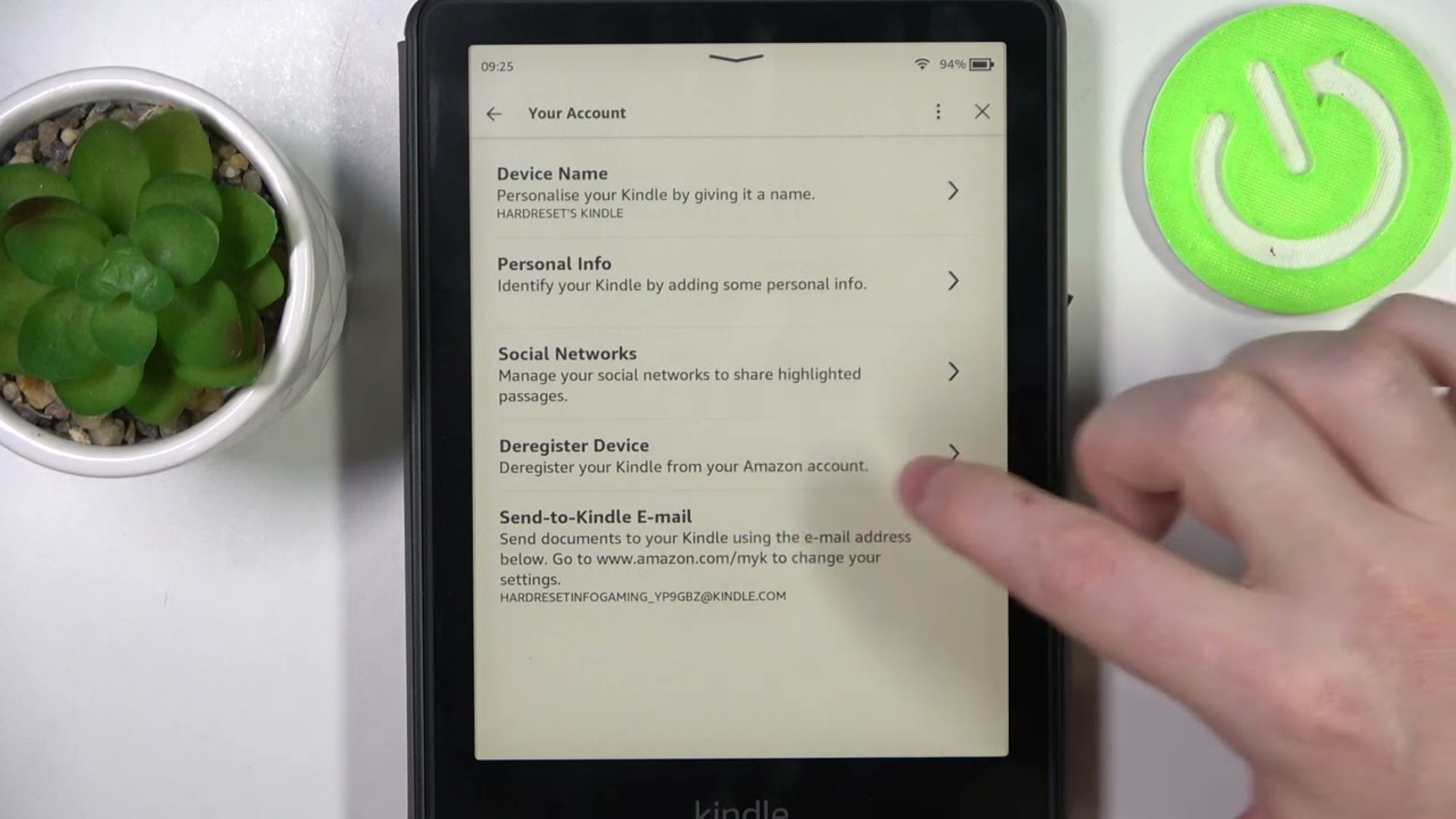
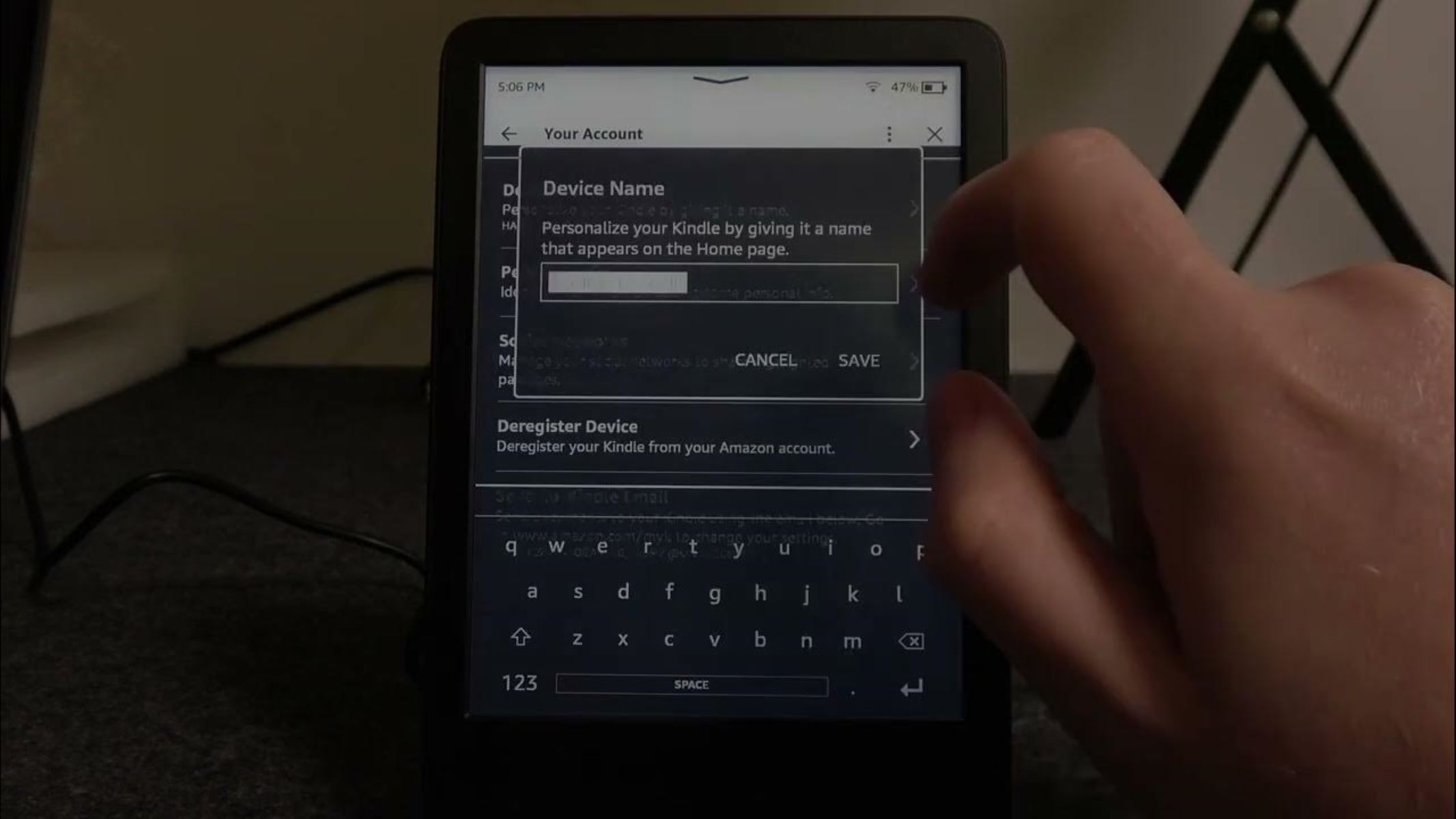
It’s worth mentioning that you can also access the Kindle registration page directly from your Kindle device. Simply turn on your Kindle and navigate to the home screen. From there, select “Settings” followed by “My Account” or “Registration”. This will take you directly to the registration page, where you can follow the prompts to complete the process.
Once you have successfully navigated to the Kindle registration page, you’re ready to proceed with entering your device’s serial number and connecting to Wi-Fi, which are the next steps in the registration process. Registering your Kindle is a straightforward process, and by following the prompts, you’ll be able to enjoy the full functionality and benefits of your Kindle device in no time.
Choosing your Kindle device
When it comes to registering your Kindle, selecting the right Kindle device is an important decision. Amazon offers a range of Kindle e-readers, each with its own features and capabilities, ensuring there’s a device that suits your reading preferences and budget.
Here are some of the different Kindle devices to consider:
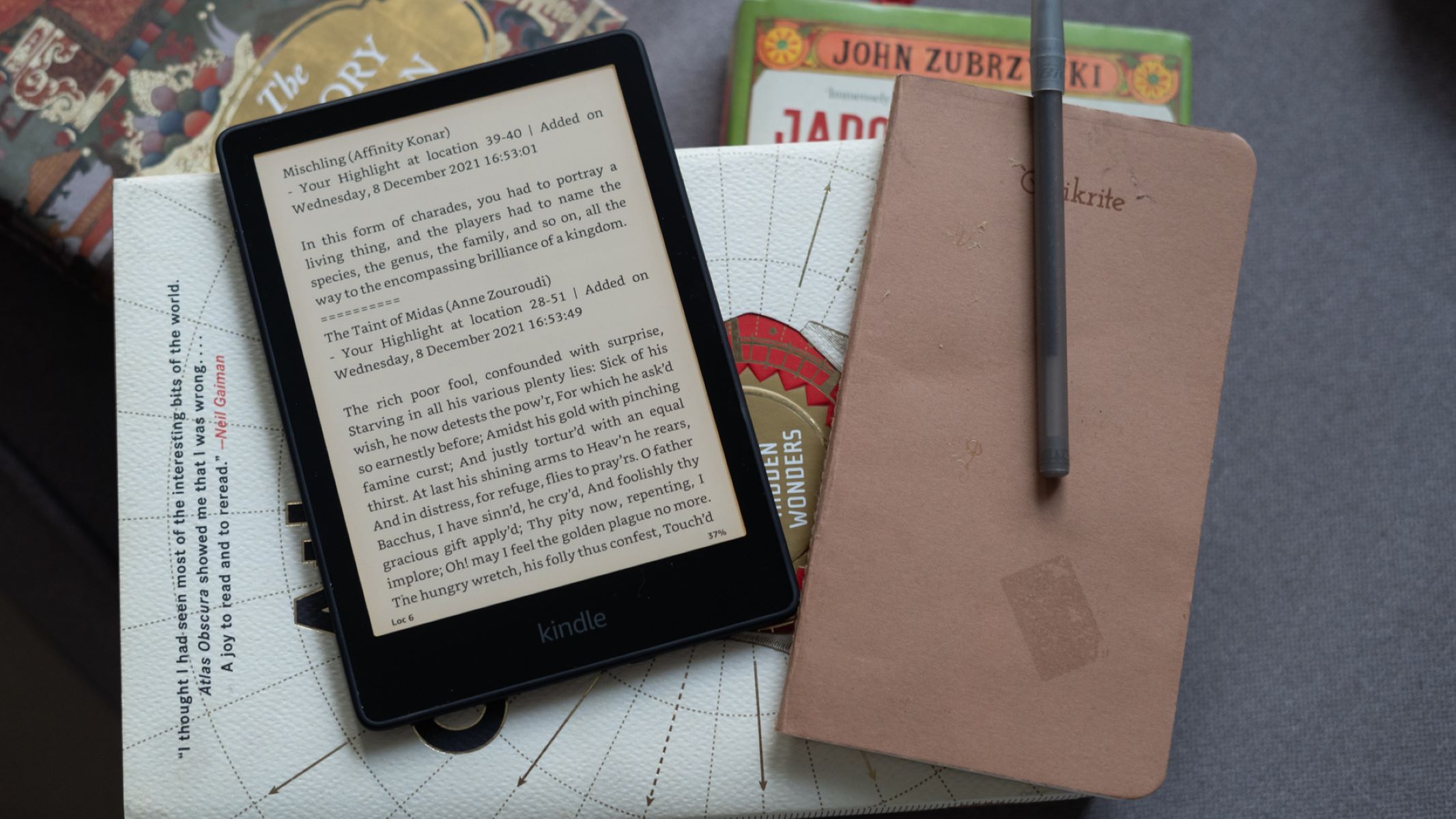
- Kindle: This is the basic entry-level Kindle device, perfect for those who want a simple e-reader without extra frills. It offers a no-nonsense reading experience with a glare-free display, long battery life, and ample storage capacity for hundreds or even thousands of e-books.
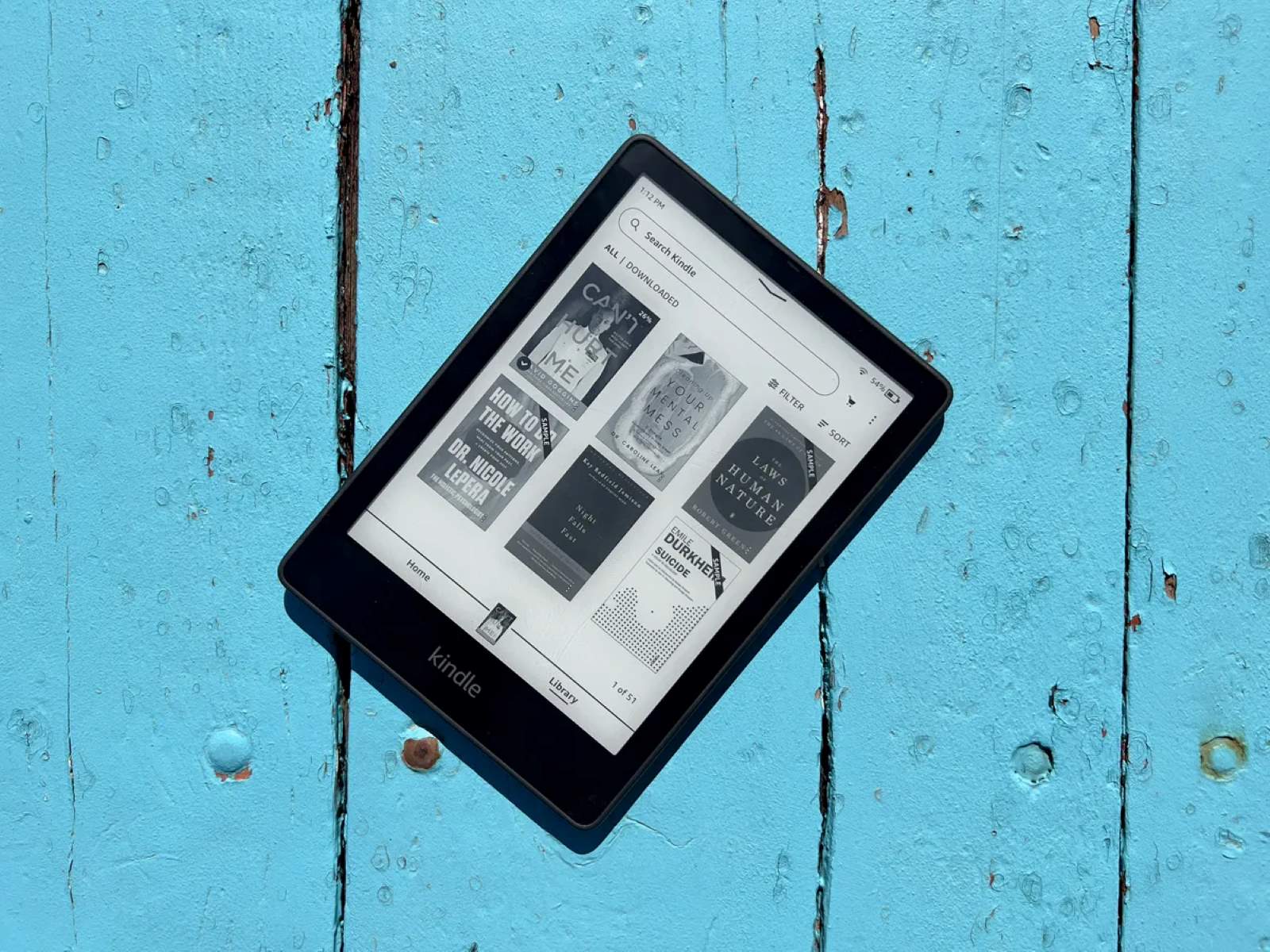
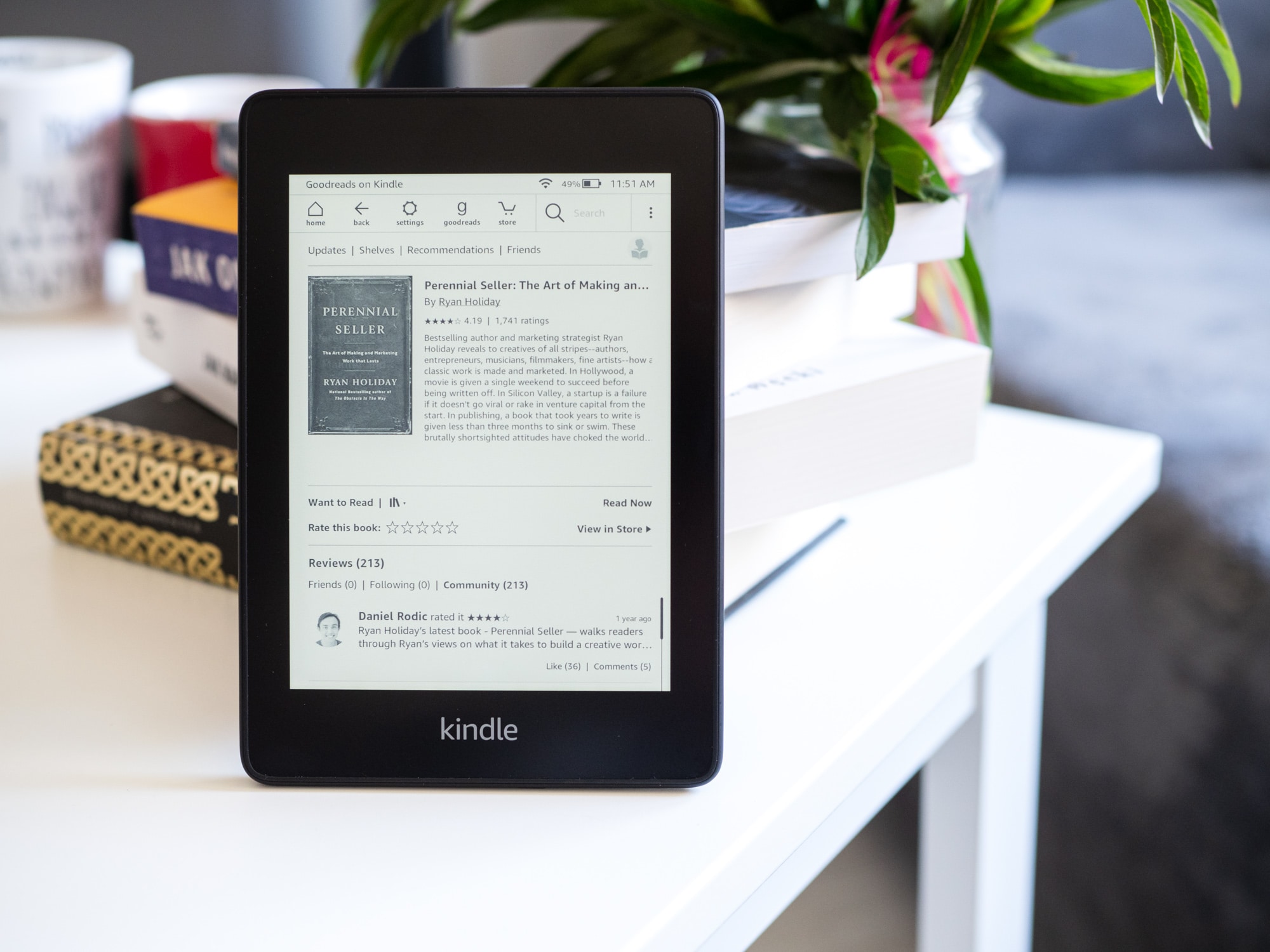
- Kindle Paperwhite: The Kindle Paperwhite takes the reading experience to the next level with a high-resolution display, built-in adjustable light, and a waterproof design. It offers a crisp and clear reading experience even in bright sunlight or low-light conditions.
- Kindle Oasis: The Kindle Oasis is the premium Kindle device, packed with advanced features and premium materials. It boasts a larger display, an ergonomic design for comfortable reading, and physical page-turn buttons. The Kindle Oasis also offers an adjustable warm light, allowing you to customize the color temperature for a more comfortable reading experience.
When choosing your Kindle device, consider factors such as your reading habits, preferences, and budget. If you’re primarily focused on reading and want an affordable option, the basic Kindle may be the best choice. If you enjoy reading in various lighting conditions and desire additional features like waterproofing, the Kindle Paperwhite could be ideal. For those seeking a luxurious reading experience with additional features and ergonomic design, the Kindle Oasis is the top-of-the-line option.
Once you’ve decided on the Kindle device that suits your needs, ensure that you select the corresponding device during the registration process. This step ensures that your Kindle is properly associated with your Amazon account, allowing you to access all the benefits and features that come with registration, such as syncing your library, receiving personalized recommendations, and more.
Whether you go for the basic Kindle, Kindle Paperwhite, or Kindle Oasis, registering your device is essential to fully unlock its potential. Enjoy the pleasure of reading with your chosen Kindle device and discover the exciting world of e-books that awaits you.
Entering your device’s serial number
As you progress through the Kindle registration process, one crucial step is entering your device’s serial number. The serial number serves as a unique identifier for your Kindle and ensures that it is correctly linked to your Amazon account.
Here’s how to enter your device’s serial number during the registration process:
- After navigating to the Kindle registration page, you will be prompted to enter your device’s serial number. The serial number can usually be found on the back of your Kindle device or on the device’s packaging.
- Inspect your Kindle for the 14-character alphanumeric serial number. It may be labeled as ‘Serial Number’, ‘SN’, or ‘S/N’.
- Using your computer keyboard or mobile device’s keyboard, carefully enter the serial number into the designated field on the registration page. Double-check the number to ensure accuracy and avoid any registration issues.
- Once you have entered the serial number, click on the “Register” or “Continue” button to proceed with the registration process.
It’s important to enter the serial number correctly to ensure a successful registration. Errors or discrepancies in the serial number may prevent your Kindle from being properly registered to your Amazon account.
If you’re having trouble locating the serial number, try the following:
- Check the back of your Kindle device, as the serial number is often printed there.
- If you have a Kindle Paperwhite, try swiping down from the top of the screen to open the menu, then tap the settings icon, followed by ‘Device Info’ or ‘Device Options’. The serial number should be listed there.
- For Kindle devices without physical keyboards, try accessing the serial number through the on-screen keyboard. Select the ‘Menu’ option, then ‘Settings’, followed by ‘Device Info’ or ‘Device Options’.
- If you are unable to find the serial number on your device, check the original packaging or documentation that came with your Kindle.
By accurately entering your device’s serial number, you ensure that your Kindle is registered to your Amazon account and can fully benefit from the features and services provided. Once the serial number is successfully entered, you can proceed to the next step: connecting your Kindle to a Wi-Fi network.
Connecting to Wi-Fi
Once you have entered your device’s serial number during the Kindle registration process, the next step is to connect your Kindle to a Wi-Fi network. Establishing a Wi-Fi connection is essential for accessing and downloading e-books, receiving software updates, and enjoying the full range of features available on your Kindle device.
Here’s how to connect your Kindle to Wi-Fi:
- On your Kindle device, navigate to the home screen by pressing the home button or swiping down from the top.
- Select the settings icon, typically represented by a gear or cogwheel.
- Within the settings menu, locate and select the “Wireless” or “Wi-Fi” option.
- Your Kindle will scan for available Wi-Fi networks in your vicinity. Select your desired network from the list of options. Make sure you are connecting to a secure and trusted Wi-Fi network.
- If the network is password-protected, enter the Wi-Fi password using the on-screen keyboard. Take care to enter the password accurately, paying attention to capitalization and special characters.
- After entering the password, select the “Connect” or “Join” button.
Your Kindle will attempt to connect to the selected Wi-Fi network. Once the connection is established, you will see a confirmation message or Wi-Fi icon indicating that your Kindle is now connected to the internet.
If you experience any issues connecting to Wi-Fi, ensure that:
- The Wi-Fi network is working correctly and broadcasting its SSID.
- The network password is entered correctly, including any capital letters, numbers, or special characters.
- Your Kindle is within range of the Wi-Fi network, as some networks may have limited coverage.
- You may need to restart your Kindle or router if you encounter persistent connection problems.
Remember, establishing a reliable Wi-Fi connection is crucial for accessing and enjoying the full range of features on your Kindle device, including downloading e-books, syncing your reading progress, and receiving software updates. Once your Kindle is connected to Wi-Fi, you can proceed to the next step in the registration process: confirming your registration.
Confirming your registration
After successfully entering your device’s serial number and connecting your Kindle to a Wi-Fi network, the final step in the Kindle registration process is confirming your registration. This step ensures that your Kindle is officially associated with your Amazon account, allowing you to enjoy all the benefits and features that come with a registered device.
Here’s how to confirm your registration:
- Once your Kindle is connected to Wi-Fi, it will automatically prompt you to confirm your registration. This message may appear as a pop-up or a notification on your Kindle’s screen.
- Select the “Register” or “Confirm” button to proceed.
- Your Kindle will communicate with Amazon’s servers to verify your device’s registration.
- If successful, you will receive a confirmation message indicating that your Kindle is now registered to your Amazon account.
Upon confirming your registration, you can start exploring the wide range of features and benefits that come with owning a registered Kindle. These features include access to a vast library of e-books, personalized recommendations, the ability to sync your reading progress across devices, and more.
If you encounter any issues during the registration confirmation process, make sure:
- Your Kindle is connected to a stable and reliable Wi-Fi network.
- Your Amazon account is active and in good standing.
- You have entered your device’s serial number accurately and followed the correct registration steps.
- If problems persist, you may need to restart your Kindle and try again, or reach out to Amazon customer support for further assistance.
Confirming your registration ensures that your Kindle is properly associated with your Amazon account, allowing you to fully utilize all the features and benefits of your e-reader device. Take a moment to double-check and confirm your registration to start enjoying a world of reading possibilities right at your fingertips.
Troubleshooting common registration issues
While registering your Kindle is typically a straightforward process, there may be instances where you encounter issues or face challenges. Here are some common registration issues and troubleshooting steps to help you overcome them:
Incorrect serial number:
If you receive an error message indicating an incorrect serial number during registration, double-check the number you entered. Ensure that you entered all characters correctly, including any dashes or special characters. If you are still experiencing issues, refer to the documentation that came with your Kindle or contact Amazon customer support for assistance.
Wi-Fi connection problems:
If you are unable to connect your Kindle to Wi-Fi, try the following troubleshooting steps:
- Ensure that your Wi-Fi network is working correctly and broadcasting its SSID.
- Check that you are within range of the Wi-Fi network or try moving closer to the router.
- Restart your Kindle and your router to refresh the connection.
- Verify that you are entering the correct Wi-Fi password, including any capital letters, numbers, or special characters.
- If the issue persists, try connecting to a different Wi-Fi network or contact your internet service provider for assistance.
Amazon account issues:
If you are having trouble with your Amazon account during registration, consider the following:
- Ensure that your Amazon account is active and in good standing.
- Verify that you are using the correct email address and password to sign in.
- If you have forgotten your Amazon account password, use the “Forgot password” option to reset it.
- If you are still experiencing account-related issues, contact Amazon customer support for further assistance.
Device registration limit exceeded:
Each Amazon account has a limit on the number of devices that can be registered. If you receive an error message stating that you have exceeded the device registration limit, you may need to remove a previously registered device from your account. To do this, visit the “Manage Your Content and Devices” page on Amazon’s website, select the “Devices” tab, and choose the device you wish to deregister. Follow the prompts to remove the device, then try registering your new Kindle again.
If none of the troubleshooting steps mentioned above resolve your registration issues, it’s recommended to contact Amazon customer support for personalized assistance. They have dedicated teams to help resolve any technical difficulties you may encounter during the registration process.
Remember, patience and perseverance are key when troubleshooting registration issues. By following the appropriate steps and seeking assistance when needed, you’ll be able to successfully register your Kindle and start enjoying all the features and benefits of your e-reader device.
Managing multiple Kindles under one account
If you own multiple Kindles, you’ll be pleased to know that you can easily manage them all under one Amazon account. This allows you to access your entire library of e-books, sync your reading progress, and enjoy a consistent reading experience across all your Kindle devices. Here’s how to manage multiple Kindles under one account:
Registering additional Kindles:
To add an additional Kindle to your account:
- Ensure that the new Kindle is connected to Wi-Fi.
- Follow the same registration process as you did with your first Kindle. Enter the device’s serial number and connect it to your Amazon account.
- Once registered, the new Kindle will appear in the “Manage Your Content and Devices” page on Amazon’s website.
Syncing and managing content:
With multiple Kindles registered to your account, you can sync your e-books, bookmarks, highlights, and reading progress across all devices. This allows you to seamlessly switch between Kindles while picking up where you left off. To sync your content:
- Ensure that all your Kindles are connected to Wi-Fi.
- Open the settings menu on each Kindle and select the “Sync” option.
- Your e-books, annotations, and reading progress will be updated across all your Kindles.
In addition, you can manage your content through the “Manage Your Content and Devices” page on Amazon’s website. From this page, you can view and organize your entire library, organize books into collections, deliver books to specific devices, and remove unwanted content.
Sharing content with family:
If you have an Amazon household or family library set up, you can share your purchased e-books with other members of your household. This allows family members to access and read your e-books on their registered devices. To set up Amazon household sharing, visit the “Account & Lists” section of your Amazon account and select “Your Content and Devices”. From there, you can invite family members and share content.
Parental controls:
If you have multiple Kindles and want to manage content and set restrictions for specific devices, Amazon offers robust parental control options. Parental controls allow you to restrict access to certain features, set age-appropriate content filters, and manage device usage for Kindle devices registered to your account.
By effectively managing multiple Kindles under one account, you can enjoy a unified reading experience and easily access your entire library across all devices. Whether you’re sharing books with family or organizing content for different devices, managing multiple Kindles under one account offers flexibility and convenience.