Why Change the Default Browser in Thunderbird
Thunderbird is a popular email client used by millions of individuals and businesses around the world. It offers a range of features and customization options to enhance the email experience. One such customization option is the ability to change the default browser within Thunderbird.
By default, Thunderbird opens links within its built-in browser. However, there are several reasons why you might want to change the default browser:
- Preference: You may have a preferred browser that you are more comfortable with or that offers features and functionalities that Thunderbird’s built-in browser lacks. Changing the default browser allows you to open links directly in your preferred browser.
- Compatibility: Certain websites or web applications may not work optimally with Thunderbird’s built-in browser. Changing the default browser allows you to open these links in a browser that is better suited for these specific websites or applications.
- Customization: Different browsers offer different levels of customization and extensions. By changing the default browser, you can take advantage of these additional features and personalize your browsing experience.
- Security: Browsers are constantly being updated with security patches and improvements. By using a regularly updated browser as your default, you can ensure a safer browsing experience.
Changing the default browser in Thunderbird is a simple process that can be done in just a few steps. It allows you to tailor your Thunderbird experience to your preferences and optimize your browsing experience. In the following sections, we will guide you through the step-by-step process of changing the default browser in Thunderbird.
Step 1: Open the Preferences Dialog Box
In order to change the default browser in Thunderbird, you will need to access the Preferences dialog box. Follow the steps below to access this dialog box:
- Launch Thunderbird and ensure you are on the main interface.
- Click on the “Tools” menu located at the top of the screen.
- A drop-down menu will appear. Scroll down and select “Options.”
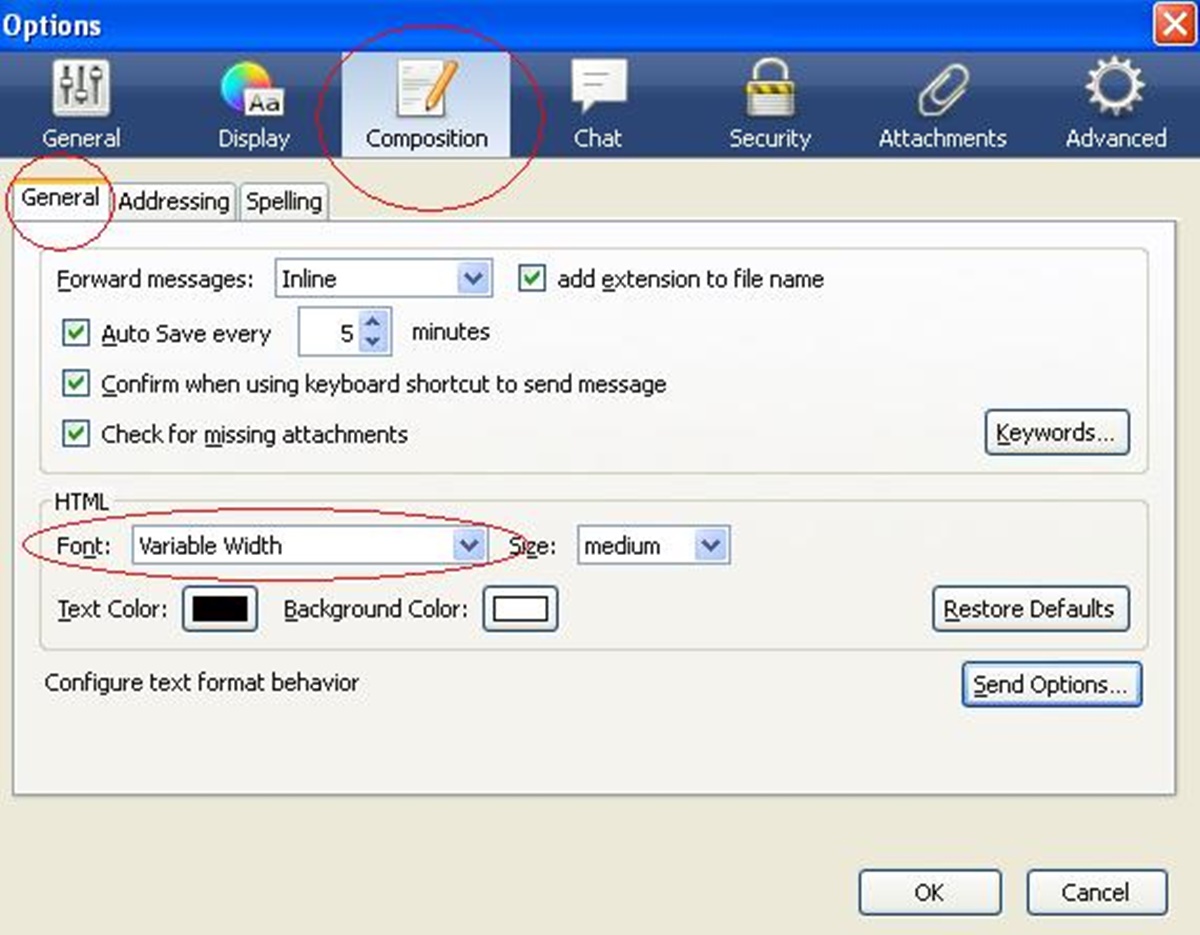
- The Preferences dialog box will now open, displaying various categories and options.
The Preferences dialog box is where you can customize various settings in Thunderbird. It allows you to make changes to different aspects of the email client, including the default browser.
It’s important to note that the steps to access the Preferences dialog box may vary slightly depending on the version of Thunderbird you are using. However, the general process remains the same – you will need to locate the menu or settings section that allows you to access the Preferences dialog box.
Once you have successfully opened the Preferences dialog box, you are ready to proceed to the next step: selecting the “General” category. We will explore this step in detail in the next section.
Step 2: Select the “General” Category
After opening the Preferences dialog box in Thunderbird, the next step is to navigate to the “General” category. Follow the instructions below to select the “General” category:
- Within the Preferences dialog box, you will see a list of categories on the left-hand side.
- Locate and click on the category labeled “General.”
The “General” category in Thunderbird contains various settings that are related to the general behavior and appearance of the email client. This is where you can make changes to the default browser and other general preferences.
Once you have successfully selected the “General” category, you are ready to proceed to the next step: locating the “Default Browser” section. This is where you will find the option to change the default browser in Thunderbird. We will explore this step in detail in the next section.
Step 3: Locate the “Default Browser” Section
Within the “General” category of the Preferences dialog box in Thunderbird, you will find the “Default Browser” section. This section is where you can locate and modify the default browser settings. Here’s how you can find it:
- With the “General” category selected, look for the tab or option labeled “Default Browser.”
- Click on the “Default Browser” tab or option to access the settings related to the default browser.
The “Default Browser” section in Thunderbird allows you to set your preferred browser as the default option for opening links within the email client. This means that whenever you click on a link in an email, it will open in your chosen browser instead of Thunderbird’s built-in browser.
In this section, you may also find additional options or settings related to the default browser. Depending on the version of Thunderbird you are using, these options may include the ability to choose whether to open links in a new window or a new tab, or the option to prompt you to select a browser each time you click on a link.
Once you have successfully located the “Default Browser” section, you are ready to proceed to the next step: choosing a new default browser. This step will allow you to select the browser that you want Thunderbird to use as the default when opening links. We will explore this step in detail in the next section.
Step 4: Choose a New Default Browser
Once you have located the “Default Browser” section within the “General” category of Thunderbird’s Preferences dialog box, you are ready to choose a new default browser. Follow the steps below to make this selection:
- Within the “Default Browser” section, you will see a list of available browsers installed on your computer.
- Review the list and decide which browser you want to set as your default option.
- Click on the dropdown menu or button next to the browser you wish to select as the default.
- From the dropdown menu, choose the desired browser that you want Thunderbird to use as the default.
The list of available browsers displayed in the “Default Browser” section will include any browsers you have installed on your computer, such as Google Chrome, Mozilla Firefox, Microsoft Edge, or Safari.
By selecting a new default browser, Thunderbird will now use that browser to open links whenever you click on them in emails. This allows you to seamlessly switch between Thunderbird and your chosen browser, enhancing your browsing experience.
Once you have chosen a new default browser, you are ready to proceed to the next step: confirming the changes. This will ensure that the new default browser is set correctly in Thunderbird. We will explore this step in detail in the next section.
Step 5: Confirm the Changes
After you have selected a new default browser in Thunderbird’s Preferences dialog box, it’s important to confirm and apply the changes. Follow the steps below to ensure that the new default browser is set correctly:
- Once you have selected your desired default browser, click on the “OK” or “Apply” button within the Preferences dialog box.
- This will save your changes and update the default browser setting in Thunderbird.
By clicking “OK” or “Apply,” Thunderbird will now use the newly selected browser as the default option for opening links within the email client.
It’s important to note that if you navigate away from the Preferences dialog box without clicking “OK” or “Apply,” the changes will not be saved, and the default browser setting will remain the same as before.
Once you have confirmed the changes, you are now ready to test the new default browser in Thunderbird. This will ensure that the browser opens links correctly and that the selected browser integrates seamlessly with Thunderbird. We will explore this step in detail in the next section.
Step 6: Test the New Default Browser
After selecting and confirming the changes to the default browser in Thunderbird, it’s essential to test that the new browser opens links correctly. Follow the steps below to ensure that the new default browser works as intended:
- Open an email that contains a link within Thunderbird.
- Click on the link to open it.
- Verify that the link opens in the new default browser that you selected earlier.
By following these steps, you can confirm that Thunderbird now uses the chosen browser as the default option for opening links. If the link opens in the new browser successfully, it indicates that the changes you made to the default browser settings have been applied correctly.
It’s a good idea to test the new default browser with multiple links in different emails to ensure its consistency and reliability. If any issues arise, you may need to revisit the Preferences dialog box and double-check your default browser selection.
Once you have tested the new default browser and verified that it opens links correctly within Thunderbird, congratulations! You have successfully changed the default browser in Thunderbird to your preferred choice.
Remember that if you ever want to change the default browser again in the future, you can easily revisit the Preferences dialog box and follow the same steps outlined in this guide.
Now that you have successfully changed the default browser in Thunderbird, you can enjoy a seamless browsing experience within your preferred browser while using this popular email client.
Tips for Choosing a Default Browser
When selecting a default browser in Thunderbird, it’s important to consider your preferences and requirements. Here are some tips to keep in mind when choosing a default browser:
- Compatibility: Ensure that the browser you choose is compatible with the operating system you are using. Some browsers may perform better on certain operating systems than others.
- Features and Functionality: Consider the features and functionalities offered by different browsers. Look for features that are important to you, such as built-in ad blockers, password managers, or tab management tools.
- User Interface: The user interface of a browser can greatly impact your browsing experience. Choose a browser with a clean, intuitive interface that appeals to you.
- Performance: Look for a browser that is known for its speed and performance. A fast and responsive browser will enhance your overall browsing experience.
- Security and Privacy: Consider the security and privacy features of different browsers. Look for options that offer robust security settings, protection against malware, and privacy-enhancing features like tracker blockers.
- Customization: If you enjoy personalizing your browsing experience, choose a browser that offers a wide range of customization options, including themes, extensions, and add-ons.
- Developer Support: Consider the level of ongoing support and updates provided by the browser’s developers. Regular updates and bug fixes can help ensure a smooth and secure browsing experience.
Ultimately, the choice of a default browser depends on your personal preferences and needs. Consider the factors mentioned above and explore different browsers to find the one that offers the best combination of features, performance, and user experience for you.
Remember, you are not limited to using a single browser exclusively. You can have multiple browsers installed on your computer and switch between them based on your needs and preferences.
By carefully considering these tips, you can select a default browser in Thunderbird that aligns with your expectations and enhances your overall browsing experience.