Benefits of Allowing Access to Your Physical Location Settings
Allowing access to your physical location settings on your device can greatly enhance your overall user experience and provide you with a range of convenient benefits. While some people may have concerns about privacy, it’s essential to weigh the potential advantages before making a decision. In this section, we will explore the benefits of allowing access to your physical location settings.
1. Personalized Services and Recommendations:
When you grant access to your physical location, apps and services can provide personalized recommendations tailored specifically to your location. From local restaurant suggestions to nearby attractions, having location-based information can enhance your day-to-day activities and help you discover new places.
2. Seamless Navigation:
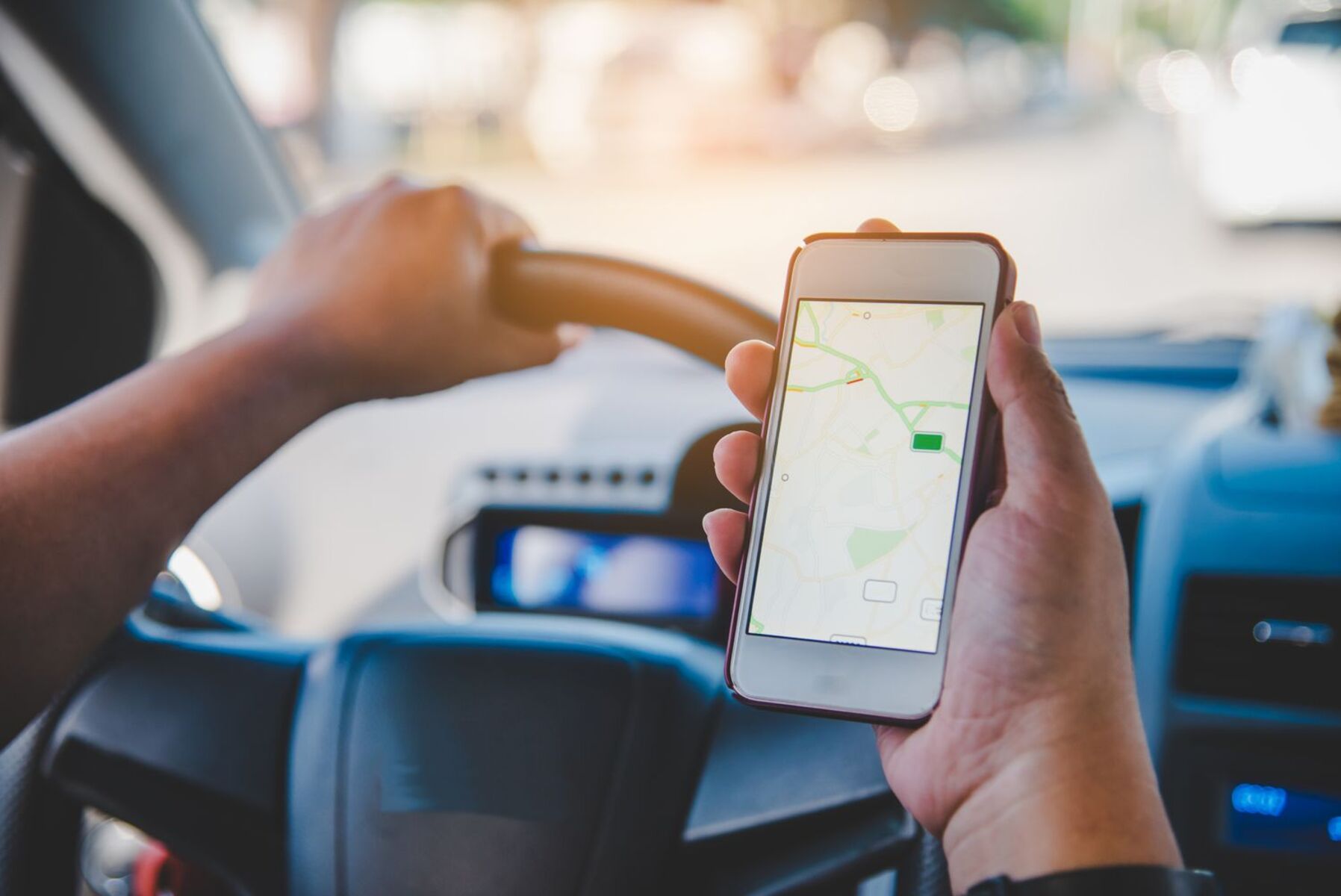
Access to your physical location enables GPS navigation systems to accurately track your position and provide turn-by-turn directions. Whether you are driving in an unfamiliar city or exploring a new hiking trail, having access to location data ensures that you reach your destination efficiently and without getting lost.
3. Enhanced Security:
Many mobile security features, such as anti-theft systems, rely on location data. By allowing access to your physical location, you can take advantage of these security features, including the ability to remotely track your device in case of loss or theft.
4. Improved App Functionality:
Various apps, such as weather forecast apps or ride-sharing platforms, heavily rely on location data to provide accurate and up-to-date information. By permitting access to your physical location, you allow these apps to deliver real-time data and optimize their services for your specific location.
5. Location-Based Reminders:
With access to your physical location, you can set location-based reminders on your device. For example, you can create a reminder to pick up groceries when you pass by a particular store. These reminders can be incredibly helpful in ensuring that you never miss important tasks or appointments.
6. Social Networking Benefits:
Allowing access to your physical location on social networking platforms can enhance your social interactions. You can easily share your location with friends and family, check-in at places you visit, and discover events happening nearby.
7. Emergency Situations:
In case of an emergency, allowing access to your physical location can provide crucial information to emergency services, enabling them to locate and assist you quickly. This can be particularly useful if you find yourself in an unfamiliar area or if you need immediate help.
By allowing access to your physical location, you open up a world of possibilities and enjoy a more tailored, convenient, and secure experience with your device. However, it’s important to consider the potential risks and take appropriate steps to protect your privacy, which we will discuss in later sections.
Risks of Allowing Access to Your Physical Location Settings
While allowing access to your physical location settings can provide various benefits, it’s crucial to be aware of the potential risks involved. By understanding these risks, you can make an informed decision about granting access to your location data. In this section, we will explore the potential risks of allowing access to your physical location settings.
1. Privacy Concerns:
Granting access to your physical location can raise privacy concerns. By sharing your precise location with apps and services, you are potentially allowing them to track your movements and build a detailed profile of your activities. This information can be vulnerable to misuse or unauthorized access, posing risks to your personal privacy.
2. Location-Based Targeting:
Apps that have access to your physical location may use this information to target you with personalized advertisements, offers, or content. While some may find this helpful, others might perceive it as intrusive or manipulative, as their behavior is being monitored and potentially exploited for marketing purposes.
3. Security Risks:
Providing access to your physical location can expose you to potential security risks. If a malicious app gains access to your location data, it may compromise your privacy, track your movements without your consent, or even use the information for illegal activities. Being cautious about the apps you grant location access to is essential to mitigate these risks.
4. Battery Drain:
Allowing access to your physical location can impact your device’s battery life. Location tracking requires constant communication between your device and GPS satellites, consuming significant power. If you have numerous apps constantly accessing your location, you may experience accelerated battery drain, leading to frequent recharging.
5. Data Usage:
Location-based services also consume data as they transmit and receive information from GPS satellites. If you have limited data on your mobile plan, frequent location updates and tracking by various apps can quickly eat into your monthly data allowance, leading to additional charges or reduced internet speeds.
6. Geotagging Risks:
Some apps automatically include location metadata, known as geotags, in photos or posts you share online. This can unintentionally reveal your precise location to others when sharing content on social media or other platforms. It’s important to review and disable geotagging features within apps if privacy is a concern.
7. Location-Based Tracking:
Allowing access to your physical location enables apps and services to track your movements over time. This information can paint a detailed picture of your daily routines, habits, and interests. If this data falls into the wrong hands or is used without your consent, it may compromise your safety, personal security, or even employment opportunities.
By understanding the risks associated with granting access to your physical location, you can make informed decisions about which apps to trust and take steps to protect your privacy. It’s essential to strike a balance between the benefits of location-based services and the need to safeguard your personal information.
How to Allow or Deny Access to Your Physical Location Settings on Android
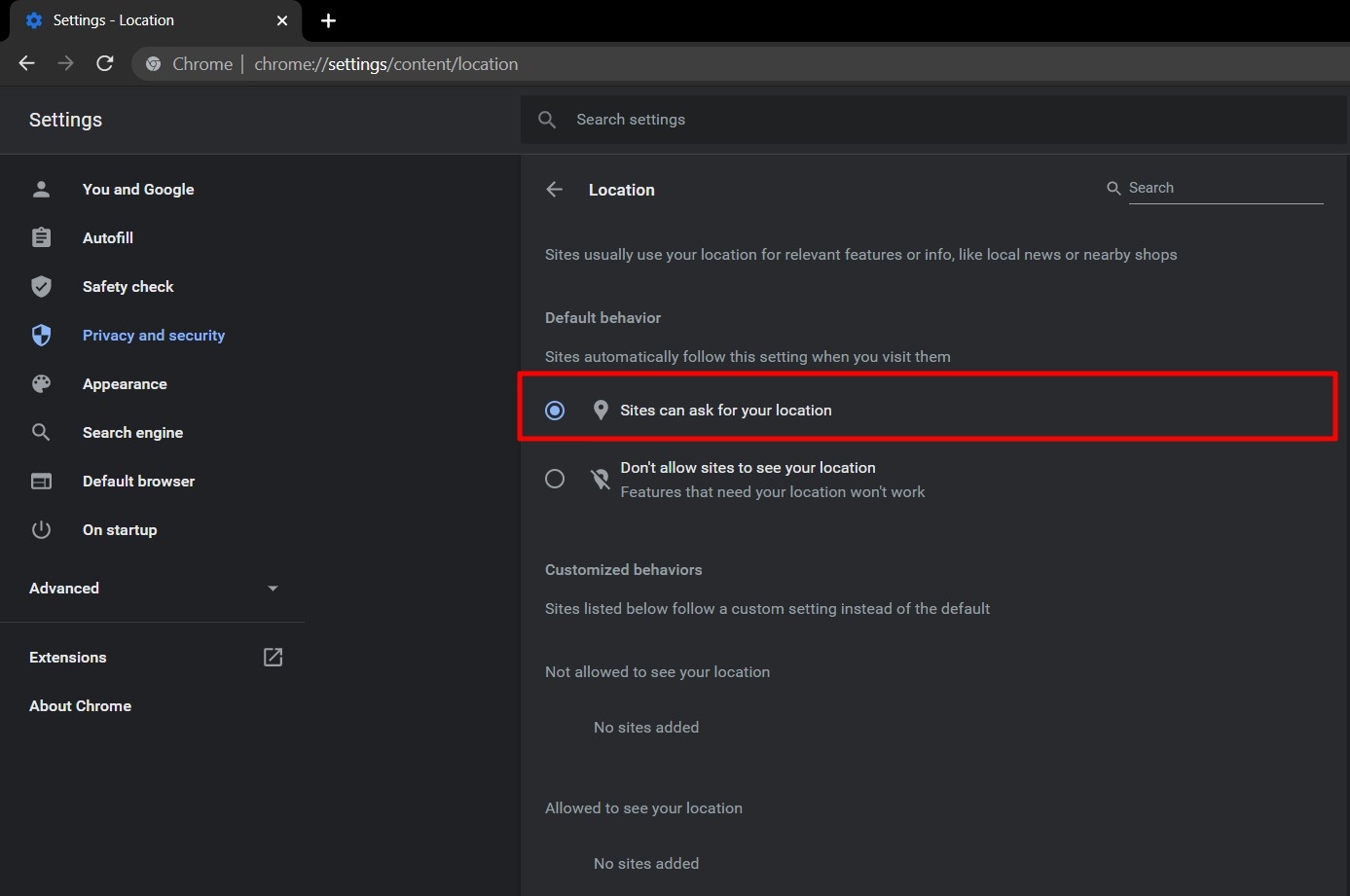
Android devices give you control over which apps have access to your physical location settings. You can choose to allow or deny access to your location data for individual apps. Here’s how you can manage your location settings on Android:
1. Open Settings:
Swipe down from the top of your screen to open the notification shade, then tap on the gear icon to access your device settings.
2. Locate Location Settings:
In the Settings menu, scroll down and find the “Location” or “Location Services” option. The exact location may vary depending on your Android version and device model.
3. Enable Location Services:
Toggle the switch to enable Location Services if it is currently turned off. This will allow apps to access your physical location settings. You may be prompted to agree to the terms and conditions for using Location Services.
4. Manage App Permissions:
Scroll down to see a list of apps that have requested access to your physical location. Tap on any app to manage its location permissions.
5. Grant or Deny Access:
For each app, you can choose to allow or deny access to your location data. Select “Allow all the time” if you want the app to have continuous access to your location, “Allow only while using the app” if you want location access limited to when the app is in use, or “Deny” if you want to block location access altogether.
6. Customize Location Accuracy:
Some Android devices offer the option to customize location accuracy. You can choose from options like “High accuracy” (using GPS, Wi-Fi, and mobile networks), “Battery saving” (using Wi-Fi and mobile networks), or “Device only” (using GPS only). Select the option that best suits your needs and preferences.
7. Additional Location Settings:
Depending on your Android version and device, you may have additional location settings. These may include options to improve location accuracy, allow or restrict background location access, or manage location history. Explore these settings to further customize your location preferences.
By following these steps, you can easily manage which apps have access to your physical location settings on your Android device. Regularly review and update these settings to maintain control over your privacy and ensure that apps are using your location data responsibly.
How to Allow or Deny Access to Your Physical Location Settings on iPhone
iPhones give you the ability to control which apps can access your physical location settings. You can choose to allow or deny location access for individual apps based on your preferences. Here’s how you can manage your location settings on an iPhone:
1. Open Settings:
Tap on the “Settings” app, which can be found on the home screen of your iPhone.
2. Access Privacy Settings:
In the Settings menu, scroll down and find the “Privacy” option. Tap on it to access various privacy settings.
3. Select Location Services:
Under the Privacy settings, tap on “Location Services” to view and manage location access permissions for apps on your iPhone.
4. Enable Location Services:
Toggle the switch next to “Location Services” to enable it if it is currently turned off. This allows your apps to access your physical location settings.
5. Manage App Permissions:
Scroll down to see a list of apps that have requested access to your location data. You can adjust the permission settings for individual apps by tapping on their names.
6. Allow or Deny Access:
For each app, you can choose to allow or deny access to your location. Select “Never” to deny location access completely, “While Using the App” to allow location access only when the app is in use, or “Always” to allow continuous location access even when the app is in the background.
7. Customize Location Services:
Some apps may offer additional options to customize their location access. For example, you may find options like “Precise Location” or “Background App Refresh.” Review these options and adjust them based on your preferences and needs.
8. System Services:
Beneath the individual app listings, you’ll find the “System Services” option. Tapping on it will present you with various system-related services that utilize your location data. You can customize which services have access to location data by toggling their switches.
By following these steps, you can easily manage which apps have access to your physical location settings on your iPhone. Regularly reviewing and updating these settings allows you to maintain control over your privacy while ensuring that apps use your location data according to your preferences.
How to Allow or Deny Access to Your Physical Location Settings on Windows
Windows devices give you control over which apps can access your physical location settings. You can choose to allow or deny location access for individual apps based on your preferences. Here’s how you can manage your location settings on Windows:
1. Open Settings:
Click on the “Start” button and then click on the “Settings” gear icon to open the Settings menu.
2. Access Privacy Settings:
In the Settings menu, click on the “Privacy” option to access various privacy settings.
3. Select Location:
Under the Privacy settings, click on “Location” in the sidebar to view and manage location access permissions for apps on your Windows device.
4. Enable Location Service:
Toggle the switch next to “Location service” to enable it if it is currently turned off. This allows your apps to access your physical location settings.
5. Manage App Permissions:
Below the Location service toggle, you will see a list of apps that have requested access to your location data. You can modify their permissions by toggling the switches next to each app.
6. Allow or Deny Access:
For each app, you can choose to allow or deny access to your location. Select “On” to allow location access, or “Off” to deny it completely.
7. Customize App Permissions:
Some apps may offer additional options to customize their location access. To access these settings, click on the app name in the list and adjust the permissions according to your preferences.
8. Advanced Location Settings:
At the top of the Location settings page, you’ll find an option to “Change” advanced location settings. Here, you can control additional features such as location history, default location, and location accuracy. Explore these settings to further customize your location preferences.
By following these steps, you can easily manage which apps have access to your physical location settings on your Windows device. Regularly reviewing and updating these settings allows you to maintain control over your privacy while ensuring that apps use your location data according to your preferences.
How to Allow or Deny Access to Your Physical Location Settings on Mac
Mac computers give you control over which apps can access your physical location settings. You can choose to allow or deny location access for individual apps based on your preferences. Here’s how you can manage your location settings on a Mac:
1. Open System Preferences:
Click on the Apple menu icon in the upper-left corner of the screen and select “System Preferences” from the dropdown menu.
2. Access Security & Privacy:
In the System Preferences window, click on the “Security & Privacy” icon.
3. Select Privacy:
In the Security & Privacy settings, click on the “Privacy” tab at the top.
4. Choose Location Services:
In the left sidebar, select “Location Services” to view and manage location access permissions for apps on your Mac.
5. Enable Location Services:
If Location Services is currently disabled, click on the lock icon at the bottom-left corner of the window and enter your administrator password to unlock the settings. Then check the box next to “Enable Location Services” to allow access.
6. Manage App Permissions:
Scroll through the list of apps on the right to find the ones that have requested access to your location data. You can modify their permissions by checking or unchecking the boxes next to each app.
7. Allow or Deny Access:
For each app, you can choose to allow or deny access to your location. Check the box next to an app to allow location access or uncheck it to deny access.
8. Customize App Permissions:
Some apps may offer additional options to customize their location access. To access these settings, click on the app’s name in the list and adjust the permissions according to your preferences.
9. System Services:
Beneath the list of apps, you’ll find an option to “Details” where you can manage system services that use your location. Click on it to customize which services have access to your location data.
By following these steps, you can easily manage which apps have access to your physical location settings on your Mac. Regularly reviewing and updating these settings allows you to maintain control over your privacy while ensuring that apps use your location data according to your preferences.
How to Check Which Apps Have Access to Your Physical Location Settings
It is important to regularly review which apps have access to your physical location settings to ensure your privacy and security. Here’s how you can check which apps have access to your location data on various devices:
On Android:
1. Open the Settings app on your Android device.
2. Scroll down and find the “Location” or “Location Services” option.
3. Tap on it to access location settings.
4. Look for the “App permissions” or “App access to location” option.
5. Tap on it to see a list of apps that have requested location access.
6. Review the apps and their access permissions.
On iPhone:
1. Open the Settings app on your iPhone.
2. Scroll down and tap on the “Privacy” option.
3. Select “Location Services” to view location access permissions.
4. You will see a list of apps with their respective location access status.
5. Review the apps and their access permissions.
On Windows:
1. Open the Settings app on your Windows device.
2. Click on the “Privacy” option.
3. Select “Location” in the sidebar.
4. Scroll down to see the list of apps under “Choose which apps can access your precise location” or similar options.
5. Review the apps and their access permissions.
On Mac:
1. Click on the Apple menu icon and select “System Preferences”.
2. Open the “Security & Privacy” settings.
3. Go to the “Privacy” tab and select “Location Services”.
4. You will see a list of apps that have requested access to your location.
5. Review the apps and their access permissions.
By regularly checking which apps have access to your physical location settings, you can identify any unauthorized or unnecessary access and make informed decisions about granting permissions. Consider revoking access for apps that you no longer use or don’t require location information.
Best Practices for Managing Access to Your Physical Location Settings
Managing access to your physical location settings is essential for maintaining your privacy and security. By following some best practices, you can ensure that your location data is only shared with trusted apps and services. Here are some tips for managing access to your physical location settings:
1. Review App Permissions:
Regularly review the permissions granted to apps on your device. Check which apps have access to your physical location and consider whether it is necessary for their functionality. Revoke permissions for any apps that don’t require access to your location data.
2. Understand App Access Levels:
Most devices offer different levels of location access, such as continuous access, access only while the app is in use, or no access at all. Understand the access levels and choose the appropriate setting for each app based on your preferences and privacy concerns.
3. Use Location Services on an As-Needed Basis:
Consider enabling location services only when you actively need them. This allows you to enjoy the benefits of location-based features while minimizing the amount of time your location data is being tracked.
4. Prioritize Trusted Apps:
Grant location access to apps from reputable and trusted developers. Avoid granting location permissions to unfamiliar or suspicious apps, as they might misuse your data or compromise your privacy.
5. Check App Reputation and Reviews:
Before granting location access to a new app, check its reputation and read reviews from other users. Look for any reports of privacy breaches or excessive data collection, as this can help you make an informed decision about granting permissions.
6. Restrict Background Location Access:
Review and configure background location access for apps. Some apps may continue to track your location even when not actively in use, consuming battery life and potentially compromising your privacy. Disable background location access for apps that don’t require it.
7. Utilize Device Security Features:
Take advantage of security features like password protection and biometric authentication on your device. This adds an extra layer of protection in case your device falls into the wrong hands, preventing unauthorized access to your location data.
8. Keep Your Device Updated:
Install software updates regularly to ensure that your device has the latest security patches and privacy enhancements. Updates often address known vulnerabilities that could be exploited to gain unauthorized access to your location data.
By implementing these best practices, you can better manage access to your physical location settings, protect your privacy, and have greater control over how your location data is used by apps and services.
Common Myths About Allowing or Denying Access to Your Physical Location Settings
There are various misconceptions and myths surrounding the decision to allow or deny access to your physical location settings. To make informed choices about granting location access, it’s important to debunk these myths and separate fact from fiction. Here are some common myths about allowing or denying access to your physical location settings:
1. Allowing access means constant tracking:
One common myth is that allowing access to your physical location settings means that you will be constantly tracked. In reality, apps typically access your location data only when necessary, such as when you use location-based features or request directions. You can choose to grant temporary or limited access to minimize tracking.
2. Denying access guarantees complete privacy:
Contrary to popular belief, denying access to your physical location settings doesn’t guarantee complete privacy. While denying access may prevent specific apps from obtaining your location data, other methods like IP address or Wi-Fi network information can still reveal your approximate location. It’s important to understand the broader context of privacy vulnerabilities.
3. Allowing access compromises your security:
Some people believe that allowing access to your physical location settings automatically compromises your security. While location data can have security implications, the risk largely depends on the app and how it handles and stores the data. With careful consideration and evaluation of app permissions, you can strike a balance between functionality and security.
4. Denying access renders location-based services useless:
Another myth is that denying access to your physical location settings renders location-based services useless. While certain features may require location data, many apps offer alternative options or can still provide valuable services without precise location information. You can explore manual input or search-based alternatives for specific functionality.
5. Allowing access leads to excessive battery drain:
Some people believe that allowing access to your physical location settings inevitably results in excessive battery drain. While it’s true that location tracking consumes power, modern devices are optimized to minimize battery impact. Additionally, you have control over which apps have location access, allowing you to manage power consumption effectively.
6. Denying access ensures protection from data misuse:
While denying access to your physical location settings may limit some potential risks, it doesn’t guarantee protection from all forms of data misuse. Apps can still collect and use other information for tracking or targeted advertising purposes. Reading and understanding an app’s privacy policy and reputation provide a clearer picture of how your data is handled.
7. Allowing access means constant location-based notifications:
There is a misconception that allowing access to your physical location settings means you will receive constant, intrusive location-based notifications. In reality, apps typically require additional permissions to send push notifications, and you have control over granting those permissions separately. Location access alone does not determine the frequency or type of notifications you receive.
By debunking these common myths, you can make more informed decisions about allowing or denying access to your physical location settings. Consider the specific app, the nature of the requested location access, and your privacy and security preferences before making your choice.
How to Protect Your Privacy While Allowing Access to Your Physical Location Settings
While allowing access to your physical location settings can provide numerous benefits, it’s crucial to protect your privacy and ensure that your location data is used responsibly. Here are some important steps you can take to safeguard your privacy while still allowing access to your physical location settings:
1. Grant Access Selectively:
Be selective about which apps you grant access to your location data. Only allow access to trusted and reputable apps that genuinely require location information to provide valuable services. Review and revoke permissions for any apps that no longer serve a purpose or that you don’t use frequently.
2. Set App Permissions to “While Using the App”:
Whenever possible, set app permissions to allow access to your location only while the app is in use. This ensures that the app can utilize location features while minimizing the duration of location tracking when the app is not active.
3. Regularly Review App Permissions:
Regularly review the permissions granted to apps on your device, including location access. Check for any changes or updates to apps’ privacy policies and review the location permissions for each app. Revoke permissions for any apps that you believe are accessing your location data unnecessarily or without valid reasons.
4. Customize Location Accuracy:
Take advantage of location accuracy settings offered by your device. If possible, set your location accuracy to the highest level only when needed, such as during navigation or when using location-based services. This helps reduce unnecessary location data collection and enhances your privacy.
5. Limit Location Sharing on Social Media:
Be mindful of the location information you share on social media platforms. Consider disabling or limiting location tags on photos or posts to prevent unintentional sharing of your precise location. Review the privacy settings on your social media accounts and adjust them to minimize location data exposure.
6. Keep Apps and Devices Updated:
Regularly update both your apps and device operating system. Developers often release updates that address existing vulnerabilities and improve privacy features. By keeping your software up to date, you can benefit from enhanced security measures and protect your data.
7. Use a VPN for Location Privacy:
Consider using a virtual private network (VPN) when accessing the internet on your device. A VPN encrypts your internet traffic, making it more difficult for third parties to track your online activities and correlate them with your physical location.
8. Review App Privacy Policies:
Before granting location access to an app, review its privacy policy. Look for information regarding how the app collects, uses, and stores your location data. Make sure the app has clear and transparent privacy practices in place before consenting to share your location.
By taking these precautions, you can protect your privacy and ensure that your location data is used responsibly. It’s essential to maintain control over your location settings and regularly review your app permissions to stay in charge of your personal information.
Final Thoughts on Allowing or Denying Access to Your Physical Location Settings
When it comes to allowing or denying access to your physical location settings, it’s important to strike a balance between the benefits and risks involved. While allowing access can provide personalized services, seamless navigation, and enhanced functionality, it also raises concerns about privacy, security, and potential misuse of data.
The decision ultimately comes down to individual preferences and priorities. Some may prioritize the convenience and functionality of location-based services, while others may prioritize their privacy and security above all else. It’s crucial to assess your comfort level and weigh the potential benefits against the associated risks.
If you choose to allow access to your physical location settings, it’s important to take steps to protect your privacy. Be selective about which apps you grant location access to and regularly review and manage app permissions. Customize location accuracy settings, limit location sharing on social media, and keep apps and devices updated to benefit from enhanced privacy features.
On the other hand, if you decide to deny access to your physical location settings, be prepared for some limitations in terms of functionality and personalized experiences. Some apps and services may rely heavily on location data for optimal performance.
Regardless of your choice, it’s essential to stay informed about the privacy practices of the apps and services you use. Keep an eye on privacy policies and terms of service, and be mindful of any changes that could impact your privacy. Regularly reviewing app permissions and staying updated with the latest security measures can help you maintain control over your location data.
Remember, it’s not a binary decision – you can always revisit your preferences and adjust your settings accordingly. Technology and privacy landscapes are constantly evolving, so it’s important to stay informed and adapt as needed.
In the end, striking a balance between the benefits of location-based services and the need to protect your privacy is key. By understanding the potential risks, making informed choices, and following best practices for managing access to your physical location settings, you can enjoy the benefits of location-based features while safeguarding your privacy and security.