What You’ll Need
Before you begin the process of removing a SIM card from your device, there are a few essential items you will need to ensure a smooth and successful extraction. Gathering the following items will help you avoid any interruptions during the process:
- Device Manual: It’s always helpful to have the manual for your device on hand. This will provide you with specific instructions on locating the SIM card tray and the proper procedure for removing the SIM card.
- SIM Eject Tool or Paperclip: Most devices come with a SIM eject tool, a small pin-like tool specifically designed for ejecting the SIM card tray. If you don’t have the SIM eject tool, a paperclip can be used as an alternative.
- Steady Hands: While not a physical item, having steady hands is crucial for this process. The SIM card and the SIM card tray are delicate components, so a steady hand will help prevent any accidental damage during removal and reinsertion.
By ensuring you have these items on hand, you’ll be well-prepared to proceed with the SIM card removal process without any unnecessary hiccups.
Step 1: Locate the SIM Card Tray
Before you can begin the process of removing your SIM card, you’ll need to locate the SIM card tray on your device. The location of the SIM card tray varies depending on the make and model of your device, so it’s essential to refer to your device’s manual for specific guidance. However, in most cases, the SIM card tray is located on the side of the device.
Here’s a general guide to help you locate the SIM card tray:
- Consult the Manual: If you’re unsure about the location of the SIM card tray, refer to your device’s manual. The manual will typically contain detailed instructions and illustrations to help you identify the SIM card tray’s precise location.
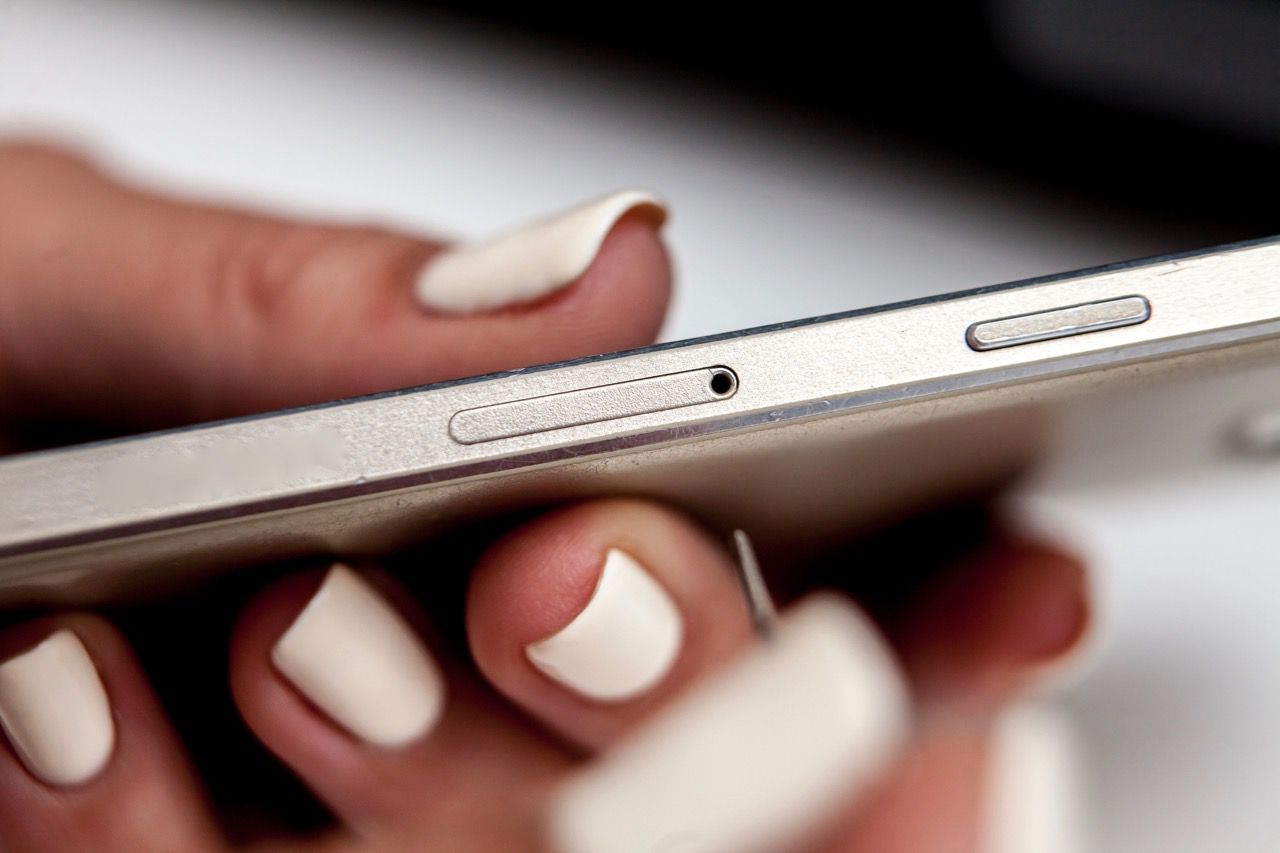
- Inspect the Device: Examine the sides of your device for a small pinhole or a slot with a removable cover. The SIM card tray is often located adjacent to or near this area.
- Use a Light Source: In some cases, the SIM card tray may be partially concealed or located in a recessed area. Using a light source, such as a flashlight, can help you identify the SIM card tray’s location more easily.
Once you have located the SIM card tray, you’re ready to proceed to the next step in the process of removing your SIM card.
Step 2: Insert the SIM Eject Tool
After locating the SIM card tray, the next step is to prepare the SIM eject tool or an alternative tool, such as a paperclip, for use. The SIM eject tool is typically provided by the device manufacturer and is specifically designed for ejecting the SIM card tray. If you don’t have the SIM eject tool, a straightened paperclip can be used as a substitute.
Here’s how to insert the SIM eject tool:
- Retrieve the SIM Eject Tool: If you’re using the official SIM eject tool provided with your device, ensure that it is easily accessible. If you’re using a paperclip, straighten it out to create a small, straight tool that can fit into the pinhole of the SIM card tray.
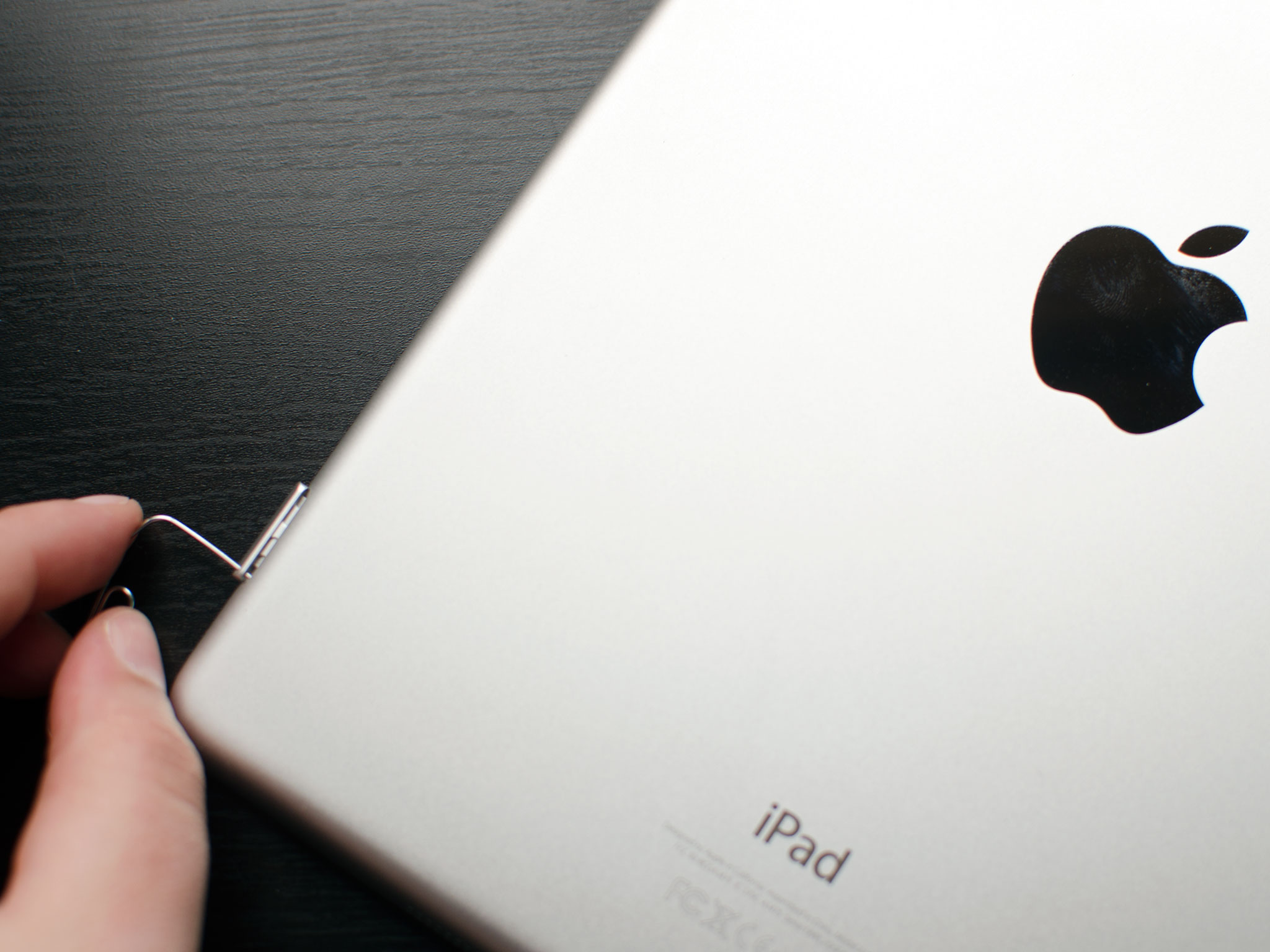
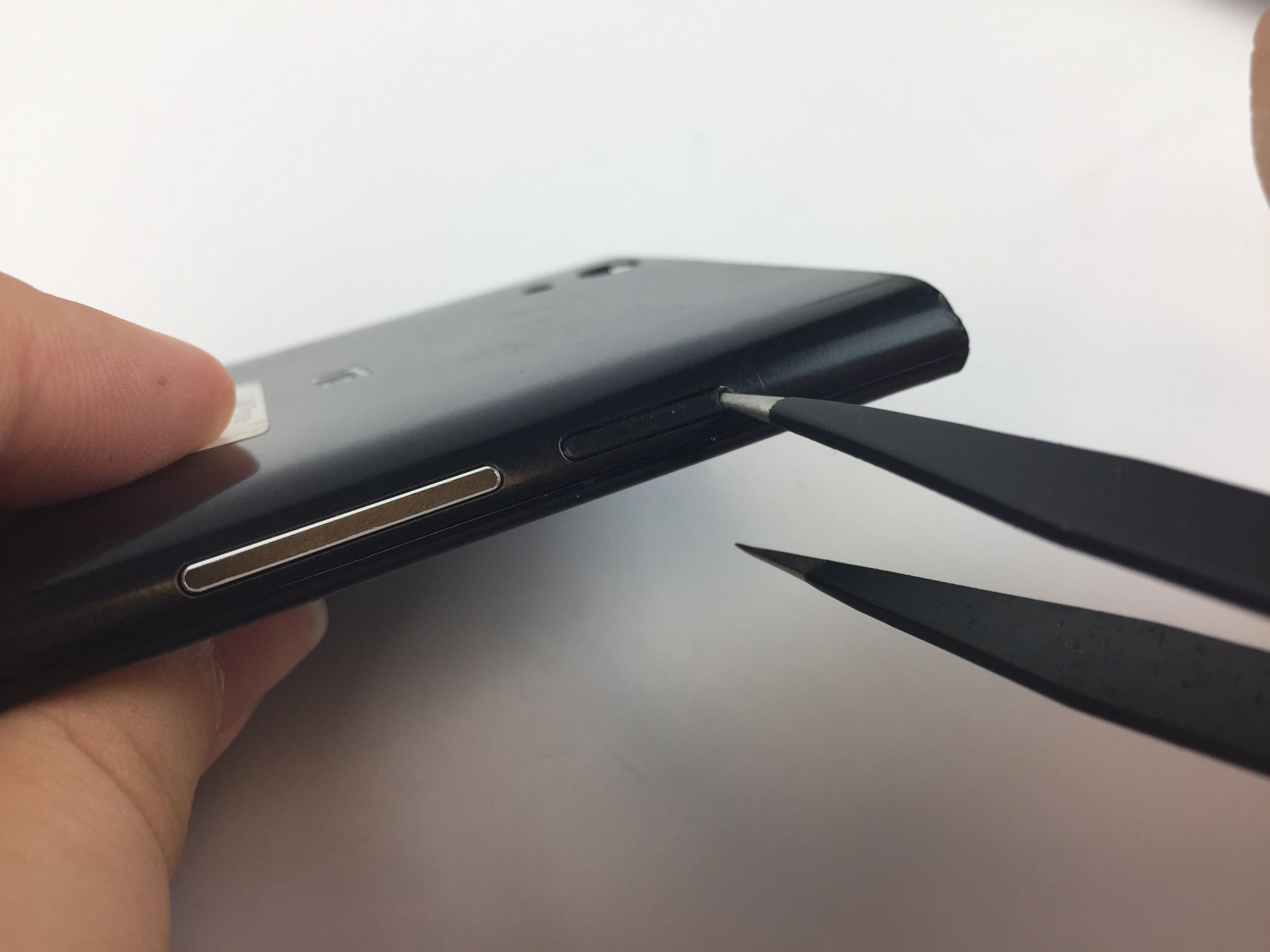
- Identify the Pinhole: Locate the small pinhole near the SIM card tray. This pinhole is where you will insert the SIM eject tool to release the SIM card tray.
- Insert the Tool: Gently insert the SIM eject tool or the straightened paperclip into the pinhole. Apply light pressure until you feel a slight resistance, indicating that the tool has engaged with the internal mechanism.
Once the SIM eject tool is correctly inserted, you’ll be ready to proceed to the next step of removing the SIM card tray from your device.
Step 3: Remove the SIM Card Tray
With the SIM eject tool or alternative tool inserted into the pinhole next to the SIM card tray, you are now ready to remove the SIM card tray from your device. This step requires a delicate touch to ensure the safe extraction of the SIM card tray.
Follow these steps to remove the SIM card tray:
- Apply Gentle Pressure: While keeping the SIM eject tool or paperclip inserted into the pinhole, apply gentle and steady pressure to the tool. This will trigger the release mechanism inside the device, causing the SIM card tray to pop out slightly.
- Retrieve the SIM Card Tray: Once the SIM card tray has been partially ejected, carefully pull it out from the device using your fingers. Exercise caution to avoid applying excessive force, as this could cause damage to the tray or the device.
- Place the Device Down: After removing the SIM card tray, place your device on a stable surface to prevent any accidental drops or damage while you proceed to remove the SIM card from the tray.
Upon successfully removing the SIM card tray, you’re now ready to proceed to the next crucial step of removing the SIM card from the tray itself.
Step 4: Remove the SIM Card
Now that you have the SIM card tray in hand, the next step is to carefully remove the SIM card from the tray. The SIM card is a small, rectangular card that contains your subscriber information, and it’s essential to handle it with care to prevent any damage.
Follow these steps to remove the SIM card:
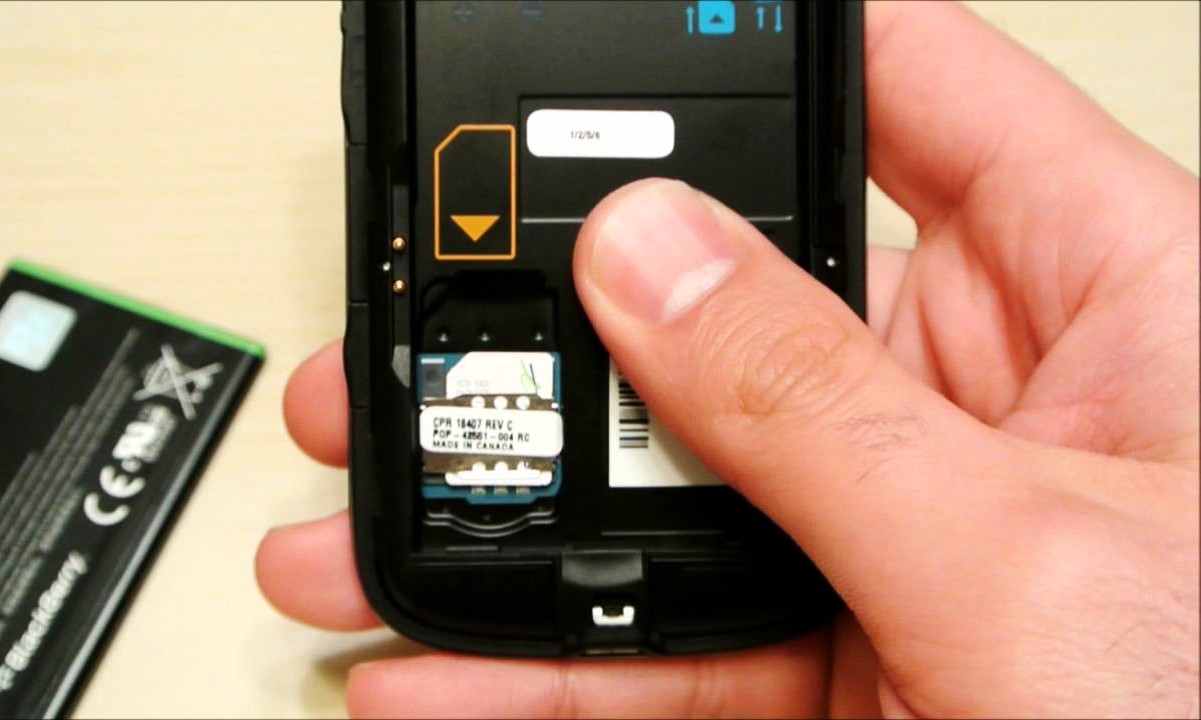
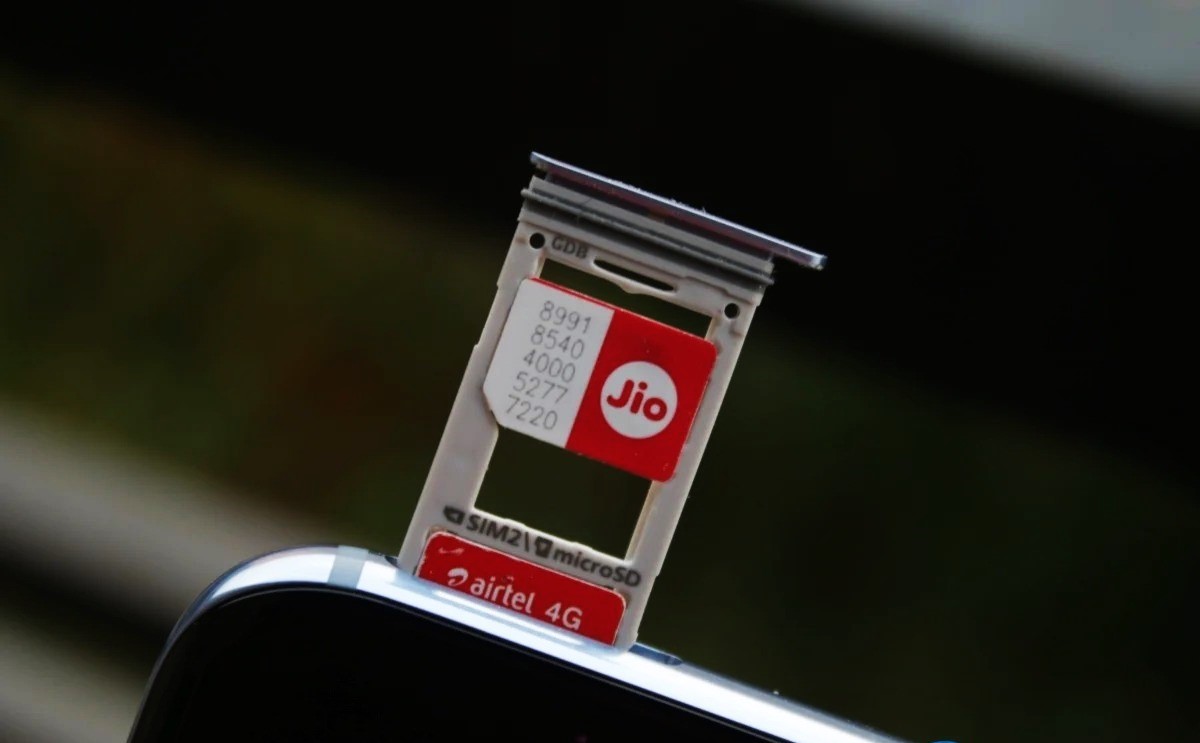
- Inspect the SIM Card Tray: Take a close look at the SIM card tray and locate the position of the SIM card. The SIM card is typically situated within a small indentation or slot on the tray.
- Gently Remove the SIM Card: Using your fingers, carefully slide the SIM card out of its slot on the tray. Exercise caution to avoid bending or damaging the SIM card during this process.
- Inspect the SIM Card: Before proceeding, take a moment to inspect the SIM card for any visible damage or debris. If the SIM card appears to be in good condition, you can proceed to the next step. If you notice any damage, it’s advisable to contact your service provider for a replacement SIM card.
By successfully removing the SIM card from the tray, you’ve completed a critical step in the process of replacing or transferring your SIM card. The next step involves reinserting the SIM card tray back into your device.
Step 5: Reinsert the SIM Card Tray
With the SIM card in hand, the next step is to carefully reinsert the SIM card tray back into your device. This step is crucial to ensure that the SIM card is securely placed within the device, allowing you to resume using your device’s network services.
Follow these steps to reinsert the SIM card tray:
- Position the SIM Card Tray: Take the SIM card tray and ensure that the SIM card is correctly oriented within the tray. The notched corner of the SIM card should align with the corresponding notch in the tray to ensure proper placement.
- Align the Tray with the Device: Carefully align the SIM card tray with the slot on your device, ensuring that it is positioned correctly and sits flush with the device’s frame.
- Insert the Tray: Gently slide the SIM card tray back into the device, applying light and even pressure to ensure that it smoothly reseats into its original position.
- Secure the Tray: Once the SIM card tray is fully inserted, ensure that it is securely in place and sits level with the device’s frame. Avoid applying excessive force during this process to prevent any damage to the tray or the device.
By successfully reinserting the SIM card tray, you have completed the process of replacing or transferring your SIM card. The final step involves powering on your device to ensure that the new SIM card is recognized and ready for use.
Step 6: Power On Your Device
After reinserting the SIM card tray, the final step is to power on your device and ensure that the new SIM card is recognized and operational. This step is essential to verify that the SIM card has been successfully installed and that your device can establish a connection to the network.
Follow these steps to power on your device:
- Press the Power Button: Locate the power button on your device and press it to turn the device on. Depending on your device, the power button may be located on the side, top, or back of the device.
- Wait for Startup: Allow your device to complete the startup process. This may involve displaying the device manufacturer’s logo, followed by the device’s home screen or lock screen.
- Check for Network Signal: Once your device has powered on, check for the presence of a network signal or cellular connectivity indicator. This can typically be found in the status bar or notification panel of your device’s interface.
- Make a Test Call or Send a Message: To confirm that the new SIM card is functioning correctly, consider making a test call or sending a text message. This will help verify that the device can establish a connection using the new SIM card.
By following these steps, you can ensure that the new SIM card is recognized by your device and that it is ready for use. If you encounter any issues with network connectivity, consider restarting your device or contacting your service provider for further assistance.