Why would you want to erase an SD card?
An SD card is a portable storage device commonly used in digital cameras, smartphones, and other electronic devices. Over time, these cards can accumulate a considerable amount of data, including personal photos, videos, documents, and sensitive information.
There are several reasons why you may want to erase an SD card:
- Selling or giving away your device: If you plan to sell or give away your camera, smartphone, or any other device containing an SD card, it is essential to erase all the data to protect your privacy. Simply deleting the files may not be sufficient, as they can still be recovered using data recovery software.
- Freeing up space: If your SD card is running out of space and you need to make room for new files, erasing unnecessary data is a quick and effective solution. This allows you to continue using your device without encountering storage-related issues.
- Removing sensitive information: Sometimes, you may have confidential or sensitive information stored on your SD card that you no longer need. Erasing the data ensures that it cannot be accessed or retrieved by unauthorized individuals.
- Fixing errors: In some cases, an SD card may develop errors or become corrupted, leading to issues with file access or storage. Erasing the card completely and starting fresh can help resolve these problems.
Regardless of your reason for wanting to erase an SD card, it is crucial to do it properly to ensure that the data cannot be recovered.
Before you begin
Before you start the process of erasing an SD card, there are a few important considerations to keep in mind:
- Backup important data: It’s always wise to back up any important files or data stored on the SD card before proceeding with the erasure process. This ensures that you have a copy of your important files in case anything goes wrong during the erasure process.
- Remove the SD card safely: If the SD card is inserted in a device, make sure to safely remove it before attempting to erase it. This helps prevent any data corruption or damage to the card.
- Use the correct method: There are different methods available for erasing an SD card, including formatting the card using your device, using specialized SD card eraser software, or physically destroying the card. Choose the method that is most suitable for your needs and preferences.
- Consider data recovery limitations: While properly erasing an SD card generally makes data recovery difficult, it is important to note that in some cases, advanced data recovery techniques may still be able to retrieve some or all of the erased data. If you have extremely sensitive information on the card, you may want to consider using a physically destructive method.
- Check for any write protection: Some SD cards have a write protection switch that prevents data from being erased or modified. Before attempting any erasure method, make sure that the write protection switch is in the correct position to allow data erasure.
By taking these precautions and understanding the options available, you can proceed with confidence in erasing your SD card.
Method 1: Formatting the SD card
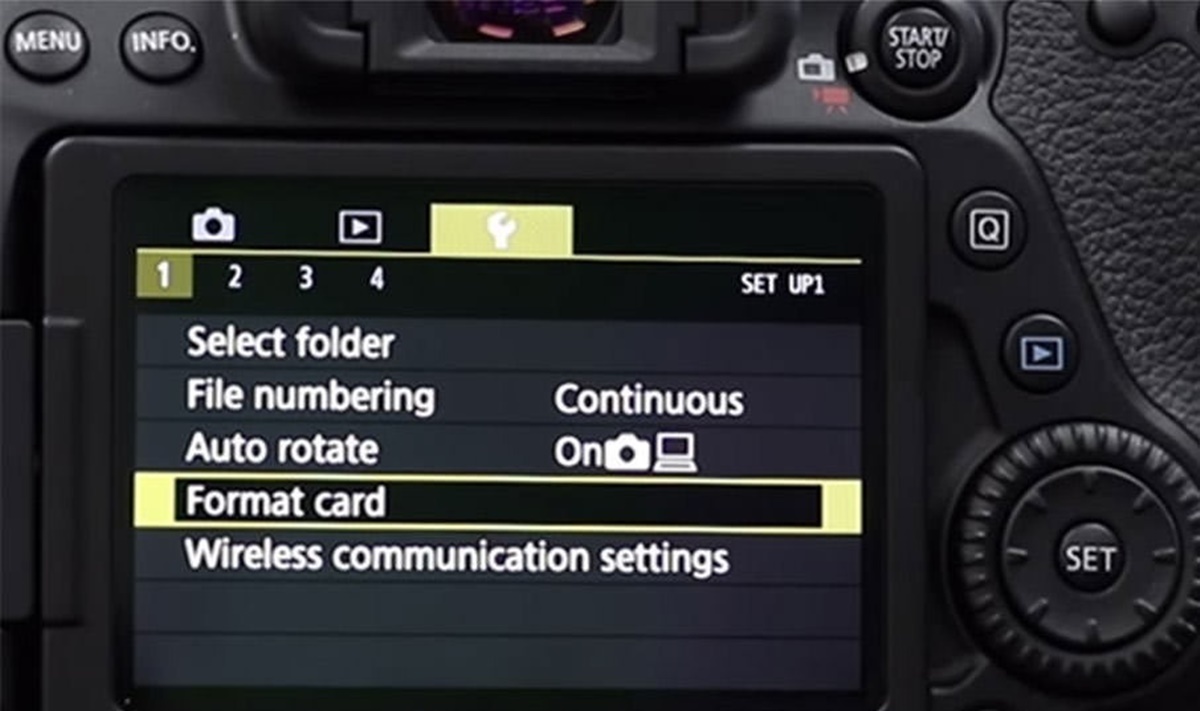
Formatting an SD card is a quick and straightforward method to erase all data stored on it. It essentially wipes the card clean and prepares it for future use. Here’s how to format an SD card:
- Connect the SD card: Insert the SD card into the appropriate slot on your computer or device. Ensure that the card is properly connected and recognized by the system.
- Open file explorer: Open the file explorer or file manager on your computer or device. Locate the SD card among the listed drives or devices.
- Select the SD card: Right-click on the SD card and choose the “Format” option from the context menu. This will open the format settings for the SD card.
- Choose the formatting options: In the format settings, you can choose the file system for the SD card (e.g., FAT32, exFAT) and allocate the allocation unit size. If you’re unsure, you can usually leave the default settings.
- Start the formatting process: Once you have selected the formatting options, click on the “Start” or “Format” button to initiate the formatting process.
- Wait for the process to complete: The formatting process may take a few seconds or several minutes, depending on the size of the SD card. Do not interrupt the process and wait for it to complete.
- Verify the formatting: Once the formatting process is finished, you will receive a confirmation message. You can then close the format settings window.
It’s important to note that formatting an SD card will erase all data, including any partitions or partitions on the card. Therefore, ensure that you have backed up any important data before formatting the card.
Formatting is a convenient method for basic data erasure, but keep in mind that it may not be completely secure. Advanced data recovery techniques may still be able to recover some data after formatting. If you require a more secure method, consider using specialized SD card eraser software or physically destroying the card.
Method 2: Using SD card eraser software
If you want a more secure method to erase an SD card and ensure that data recovery is nearly impossible, you can use specialized SD card eraser software. These tools provide advanced algorithms to overwrite the data on the card multiple times, making it extremely challenging to recover any information. Here’s how to use SD card eraser software:
- Download and install the software: Search for reputable SD card eraser software online and download it from a trusted source. Follow the installation instructions provided by the software.
- Connect the SD card: Insert the SD card into the appropriate slot on your computer or use a card reader to connect it.
- Launch the SD card eraser software: Open the software on your computer. Depending on the program, you may be required to grant necessary permissions or provide administrator access.
- Select the SD card: Once the software is running, select the SD card you want to erase from the list of available drives or devices.
- Choose the erasure method: The software will typically offer different erasure methods, such as single pass, multi-pass, or DoD (Department of Defense) standard. Select the method that suits your level of data security requirements.
- Start the erasure process: Begin the erasure process by clicking on the designated button or option. The software will start overwriting the data on the SD card according to the chosen method.
- Monitor the progress: The software will display the progress of the erasure process, informing you of the percentage completed or estimated time remaining.
- Complete the erasure: Once the erasure process is finished, the software will provide a confirmation message. Safely remove the SD card from your computer or device.
Using SD card eraser software ensures a more comprehensive and secure erasure of data. However, it’s important to note that the process may take longer than simply formatting the card.
Remember to back up any important data before using SD card eraser software, as the process is irreversible and all data on the card will be permanently removed.
Method 3: Physically destroying the SD card
If you have sensitive information on your SD card that you want to eliminate completely and ensure that it cannot be recovered by any means, physically destroying the card is the most effective method. Here’s how to physically destroy an SD card:
- Gather the necessary tools: Obtain a pair of scissors, pliers, or a hammer to physically damage the SD card.
- Remove the SD card from any devices: If the SD card is inserted in a device, make sure to safely remove it before proceeding to destroy it.
- Identify the storage chip: On the SD card, locate the square or rectangular chip that stores the data. It is usually located on one side of the card and can be identified by its metal contacts.
- Cut or crush the chip: Use the scissors, pliers, or hammer to either cut or crush the storage chip on the SD card. Apply enough force to ensure significant damage.
- Dispose of the card: After destroying the storage chip, it is advisable to dispose of the SD card in a secure manner to prevent any possibility of data recovery. You can dispose of it in an electronic waste recycling facility.
Physically destroying the SD card provides the highest level of data security, as even specialized data recovery techniques would be unable to recover any information without a functioning storage chip.
Keep in mind that once you physically destroy the SD card, it cannot be used again, so make sure you have no need for the card before proceeding with this method.
Note: Always exercise caution when handling sharp objects or using force to destroy the SD card. Take necessary safety precautions to avoid injury.
Tips for erasing an SD card
When it comes to erasing an SD card, whether it’s for privacy, freeing up space, or getting rid of sensitive information, here are some useful tips to keep in mind:
- Backup your data: Before you begin erasing your SD card, make sure to back up any important files or data that you want to keep. This way, you can restore them later if needed.
- Choose the appropriate method: Consider the sensitivity of the information and your desired level of data security. Formatting the card is a quick option, but if you need a more secure method, consider using dedicated SD card eraser software or physically destroying the card.
- Protect your privacy: If you’re selling or giving away your device with the SD card, it’s essential to erase all data to protect your privacy and prevent unauthorized access to your personal information.
- Ensure proper disconnection: Always safely remove the SD card from your device before attempting any erasure methods to avoid data corruption or damage to the card.
- Consider advanced data recovery: Although proper erasure methods make data recovery difficult, it’s important to be aware that there are advanced techniques that may still recover some or all of the erased data. If you have highly sensitive information, you may want to opt for physically destroying the card.
- Check for write protection: Some SD cards have a write protection switch that prevents data from being modified or erased. Before proceeding with any erasure method, ensure that the switch is in the correct position.
- Dispose of the SD card responsibly: If you choose to physically destroy the SD card, be sure to dispose of it in an electronic waste recycling facility to protect the environment.
- Verify the erasure: After using any erasure method, consider verifying that the data has been properly erased by attempting to access the card and confirming that no files are recoverable.
By following these tips, you can ensure the successful and secure erasure of your SD card, protecting your privacy and data integrity.