Requirements for Connecting Amazon Echo
Before you can begin enjoying all the amazing features of your Amazon Echo, you will need to fulfill a few requirements to ensure a smooth and successful connection. Here are the essential elements you will need:
- A stable Wi-Fi network: To connect your Amazon Echo, you will need a reliable Wi-Fi network with sufficient coverage in the area where you plan to use the device. Make sure you have the necessary Wi-Fi credentials (network name and password) handy for the setup process.
- A compatible mobile device: You will need a smartphone or tablet running a compatible operating system to download the Amazon Alexa app. The app acts as a central hub for managing and controlling your Echo device.
- The Amazon Alexa app: This free app is available for iOS and Android devices. It is essential for setting up and configuring your Echo, as well as accessing additional features and skills.
- Power supply: The Amazon Echo requires a power source to function. Make sure you have access to an electrical outlet near the desired location for your device.
By ensuring that you have these requirements in place before starting the connection process, you can save time and avoid any potential issues during setup. Having a stable Wi-Fi network, a compatible mobile device, the Amazon Alexa app, and a power supply will ensure a seamless experience as you integrate your Amazon Echo into your daily life.
Step 1: Set Up Amazon Echo Device
Setting up your Amazon Echo device is the first step to unleash its powerful capabilities. Follow these simple instructions to get started:
- Find a suitable location: Choose a spot for your Amazon Echo that is within range of your Wi-Fi network and has a power outlet nearby. Avoid placing it in a closed cabinet or too close to walls or other objects that may obstruct the sound.
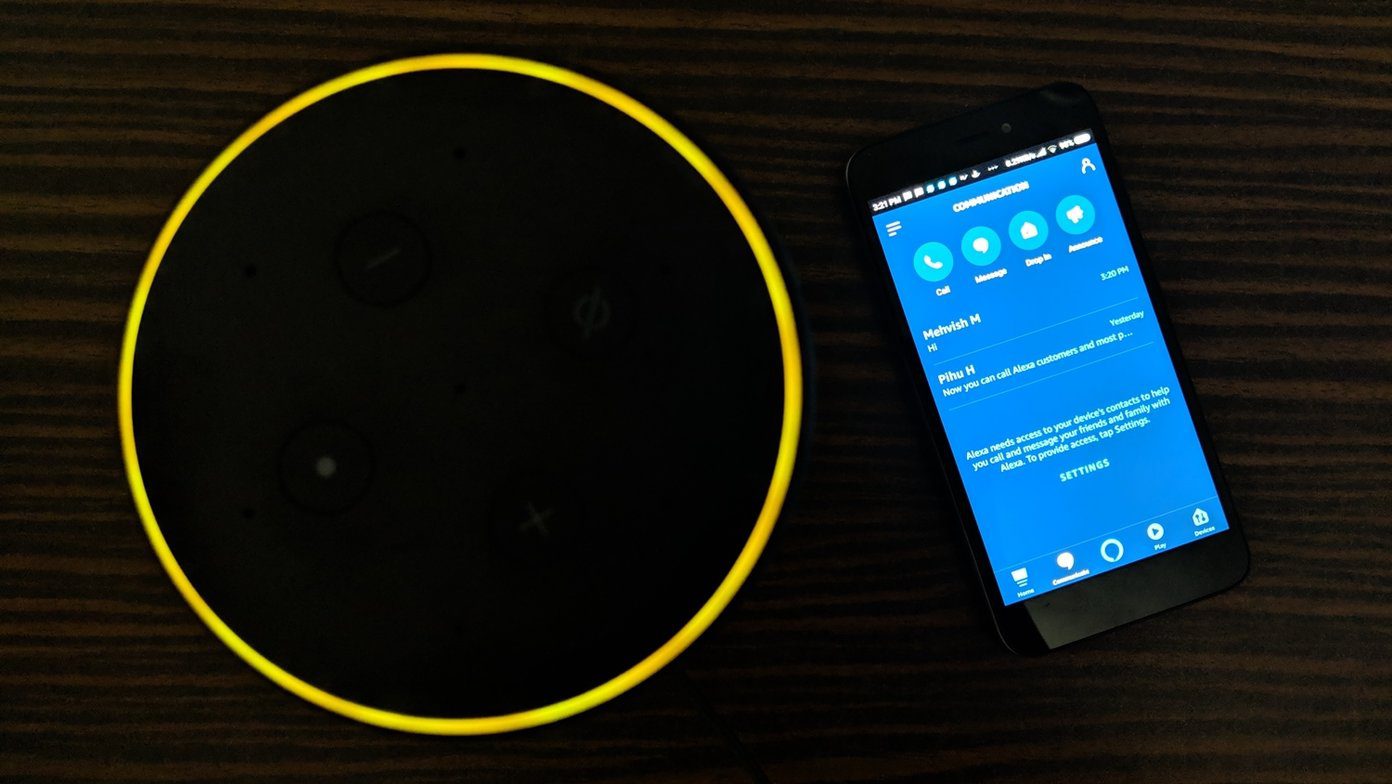
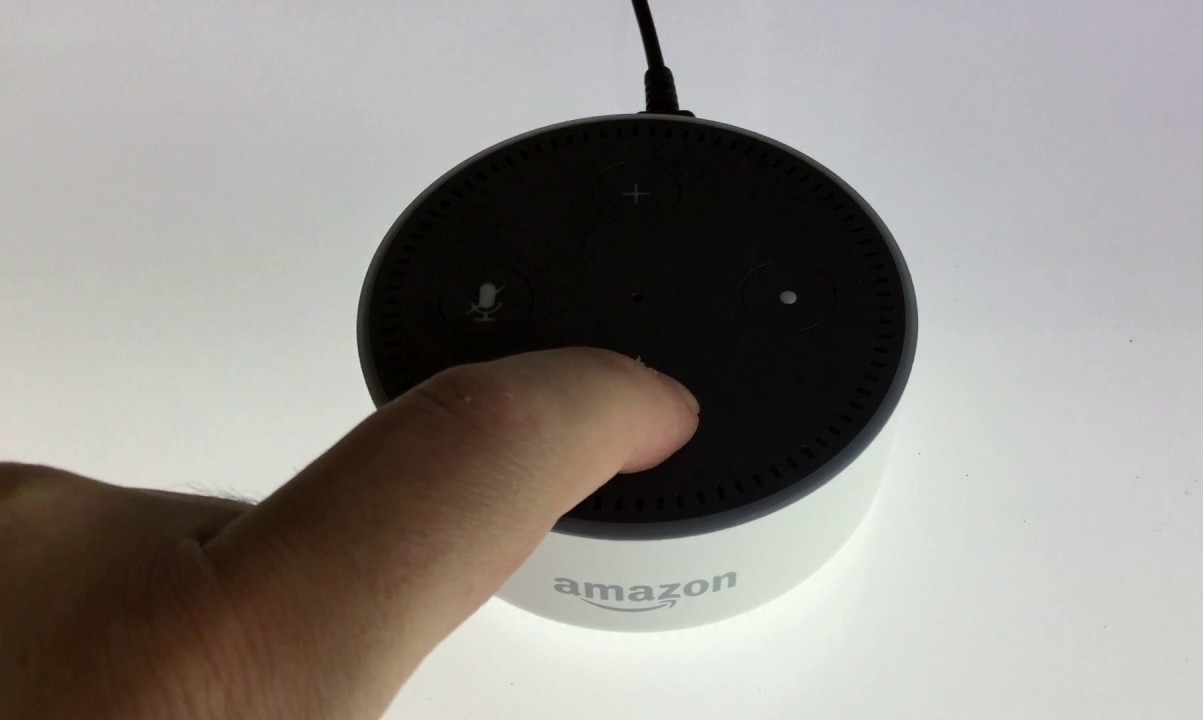
- Plug in the device: Connect the power adapter to your Amazon Echo and plug it into a power outlet. The ring on the top of the device will light up, indicating that it is receiving power.
- Wait for the setup process: Give the device a few moments to boot up and initiate the setup process. The ring will eventually turn blue, and Alexa will greet you.
- Download the Amazon Alexa app: Open your smartphone or tablet’s app store and search for “Amazon Alexa.” Download and install the app on your device.
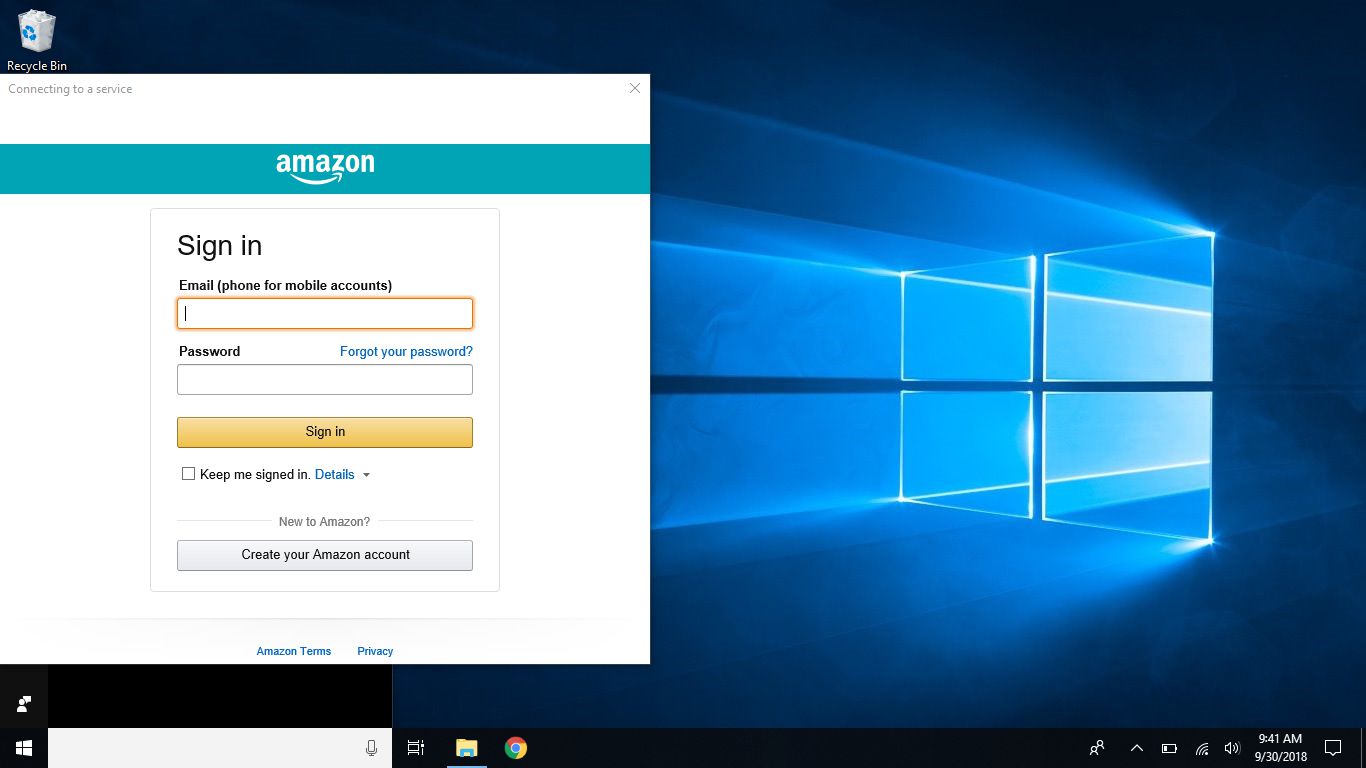
- Open the Amazon Alexa app: Launch the app and sign in with your Amazon account. If you don’t have an Amazon account, you can create one directly within the app.
- Add a new device: In the app, tap on the menu icon and select “Add Device.” Then choose “Amazon Echo” from the list of available devices.
- Select your Echo device: Follow the on-screen instructions to connect your Echo to your Wi-Fi network. You may be prompted to enter your Wi-Fi network name and password.
- Wait for the connection: The app will establish a connection between your Echo and the selected Wi-Fi network. This may take a few minutes, so be patient.
- Confirmation: Once the connection is successful, the app will display a message confirming that your Echo is now ready to use.
Congratulations! You have successfully set up your Amazon Echo device. Now you can start exploring its wide range of features, ask questions, play music, and control smart home devices using simple voice commands.
Step 2: Download the Amazon Alexa App
The Amazon Alexa app is an essential tool for managing and controlling your Amazon Echo device. Follow these steps to download and install the app:
- Open your device’s app store: Whether you have an iOS or Android device, open the respective app store on your smartphone or tablet.
- Search for the Amazon Alexa app: In the app store’s search bar, type in “Amazon Alexa” and tap the search button.
- Select the Amazon Alexa app: From the search results, look for the official Amazon Alexa app and tap on it to access the app’s page.
- Download and install the app: On the app’s page, tap the “Install” or “Get” button to start the download and installation process. Wait for the app to download and install on your device.
- Open the Amazon Alexa app: Once the installation is complete, tap the “Open” button to launch the app.
- Sign in or create an account: If you already have an Amazon account, sign in with your credentials. If not, follow the on-screen prompts to create a new Amazon account.
- Add your Amazon Echo device: Once signed in, tap on the menu icon in the app and select “Add Device.” Choose “Amazon Echo” from the list of available devices.
- Follow the on-screen instructions: The app will guide you through the process of connecting your Echo to your Wi-Fi network. Make sure to enter the correct Wi-Fi credentials when prompted.
- Wait for the device to connect: The app will establish a connection between your Echo device and your Wi-Fi network. This may take a few minutes.
- Confirmation: Once the connection is successful, the app will display a confirmation message, indicating that you have successfully connected your Amazon Echo device.
With the Amazon Alexa app now installed on your device, you have convenient access to control and customize your Amazon Echo. You can explore various features, manage settings, enable skills, and interact with Alexa using your smartphone or tablet.
Step 3: Connect Echo to Wi-Fi Network
Connecting your Amazon Echo device to a Wi-Fi network is crucial for it to function properly and access the vast array of features. Follow these steps to ensure a successful connection:
- Open the Amazon Alexa app: Launch the Amazon Alexa app on your smartphone or tablet. Make sure you are signed in to your Amazon account.
- Select the device: Tap the menu icon in the app and choose the “Devices” option.
- Choose your Echo device: From the list of devices, select the Echo device you want to connect to your Wi-Fi network.
- Select “Change” next to Wi-Fi network: Tap on the “Change” button next to the Wi-Fi network name displayed on the device screen.
- Select your Wi-Fi network: A list of available Wi-Fi networks will appear on the app. Tap on your Wi-Fi network to select it.
- Enter Wi-Fi password: If prompted, enter the password for your Wi-Fi network. Make sure to enter it accurately and double-check for any typographical errors.
- Wait for the connection: The app will initiate the connection between your Echo device and the selected Wi-Fi network. This process may take a few moments.
- Confirmation: Once the connection is established, a confirmation message will be displayed in the app, indicating that your Echo device is now successfully connected to your Wi-Fi network.
Connecting your Amazon Echo to your Wi-Fi network is an integral step that allows you to fully experience the voice-controlled convenience of Alexa. With a stable Wi-Fi connection, you can enjoy seamless music streaming, smart home control, and access to a wide range of information just by using your voice.
Step 4: Complete Alexa App Setup
After connecting your Amazon Echo device to your Wi-Fi network, it’s time to complete the setup process within the Alexa app. Follow these steps to ensure a successful configuration:
- Open the Amazon Alexa app: Launch the app on your smartphone or tablet, and ensure that you are signed in to your Amazon account.
- Tap on “Devices”: Locate and tap on the “Devices” option in the bottom right corner of the app.
- Choose your Echo device: From the list of devices, select the Echo device you want to configure.
- Explore settings: Within the device’s settings, you can customize various aspects of your Echo, such as its name, language, and time zone. Feel free to make any desired adjustments.
- Set up voice profiles: If you have multiple users in your household, you can set up voice profiles to personalize the experience for each individual. Follow the on-screen prompts to complete the process.
- Enable personalized skills: Alexa’s skills are like apps that add additional functionality to your Echo. Browse through the available skills and enable the ones that interest you. This allows you to access even more features and capabilities.
- Link compatible smart home devices: If you have any smart home devices, navigate to the “Smart Home” section in the Alexa app. Tap on “Discover devices” to scan and connect with compatible devices in your home.
- Enable music services: To stream music through your Echo, you can link compatible music services like Amazon Music, Spotify, or Pandora. Simply navigate to the “Music” section in the app and follow the instructions to link a music service.
- Test your Echo: Once you have completed the desired configuration steps, you can test your Echo by asking Alexa questions, playing music, or controlling connected devices. This allows you to ensure that everything is working correctly.
By completing the setup process within the Amazon Alexa app, you can customize your Echo to suit your preferences and access additional features and functionalities. Take your time to explore the various settings, enable skills, and integrate your smart home devices to enhance your overall Amazon Echo experience.
Step 5: Enable Alexa Skills
Alexa skills are like additional capabilities or applications that extend the functionality of your Amazon Echo device. Enabling skills allows you to access a wide range of services and features to enhance your Alexa experience. Follow these steps to enable and manage Alexa skills:
- Open the Amazon Alexa app: Launch the app on your smartphone or tablet, and ensure that you are signed in to your Amazon account.
- Tap on “Skills & Games”: Locate and tap on the “Skills & Games” option on the bottom navigation bar of the app.
- Explore featured skills: On the Skills & Games page, you will find a collection of featured skills recommended by Amazon. Browse through the different categories or use the search bar to find specific skills that interest you.
- Select a skill: When you find a skill you want to enable, tap on it to access the skill’s details page.
- Enable the skill: On the skill’s details page, tap the “Enable” button to add it to your Alexa device. Some skills may require additional steps for setup or linking accounts.
- Manage enabled skills: To view and manage your enabled skills, you can go to the “Enabled” tab under the Skills & Games section. Here, you can enable or disable skills and access specific settings or preferences for each skill.
- Discover new skills: The Amazon Alexa app provides a vast selection of skills across various categories like music, news, productivity, and more. Feel free to explore and experiment with different skills to find ones that align with your interests and needs.
- Update or remove skills: As you continue to use your Echo device and discover new skills, you may want to update or remove certain skills. Navigating to the “Enabled” tab in the Skills & Games section allows you to easily manage your skills and make necessary adjustments.
By enabling Alexa skills, you can unlock a world of possibilities with your Amazon Echo device. Whether you’re looking for entertainment, productivity tools, or smart home integrations, enabling skills allows you to personalize and tailor your Echo experience according to your preferences and needs.
Step 6: Connect Echo to Other Devices via Bluetooth
Connecting your Amazon Echo device to other devices via Bluetooth opens up a whole new world of audio streaming possibilities. You can easily pair your Echo with compatible Bluetooth-enabled devices such as smartphones, tablets, or even speakers. Follow these steps to connect your Echo to other devices:
- Ensure Bluetooth is enabled on the device: Make sure that the device you want to connect to your Echo has Bluetooth functionality and that it is turned on.
- Put your Echo in pairing mode: Say “Alexa, pair Bluetooth” or open the Alexa app, go to the Devices section, select your Echo, and tap “Bluetooth Devices.” Then tap “Pair a New Device.”
- Put the device in pairing mode: Refer to the other device’s user manual or settings to enter Bluetooth pairing mode. This process may vary depending on the device.
- Select the Echo in the device’s Bluetooth settings: On the other device, open the Bluetooth settings and look for your Echo device in the list of available devices. Tap on the Echo’s name to establish the Bluetooth connection.
- Wait for the connection: Once the pairing is successful, you will hear a confirmation sound or see a notification on both the Echo and the other device.
- Start streaming audio: Now that your Echo is connected to the other device via Bluetooth, you can start streaming audio from the device to your Echo. Play your favorite music, podcasts, or other audio content, and it will be played through the Echo’s speakers.
Connecting your Echo to other devices via Bluetooth allows you to use your Echo as a wireless speaker for audio streaming. You can enjoy high-quality sound and control your audio playback using voice commands or the Alexa app. Whether you want to stream music from your phone or listen to audio from another device, Bluetooth connectivity enhances the versatility and enjoyment of your Amazon Echo device.
Step 7: Personalize and Configure Echo Settings
Personalizing and configuring the settings of your Amazon Echo device allows you to customize its behavior and tailor it to your preferences. Follow these steps to personalize and configure your Echo settings:
- Open the Amazon Alexa app: Launch the app on your smartphone or tablet and sign in to your Amazon account.
- Tap on “Devices”: Locate and tap on the “Devices” option on the bottom navigation bar of the app.
- Choose your Echo device: From the list of devices, select the Echo device you want to configure.
- Explore settings: Within the device settings, you can fine-tune various aspects of your Echo’s behavior. Here are some settings you can explore:
- Device name: Customize the name used to interact with the device. Choose something that is easy to remember and pronounce.
- Language: Select the preferred language for Alexa’s responses and interactions.
- Time zone: Set the time zone to ensure accurate time-based features like alarms and timers.
- Adjust volume and sound settings: You can control the volume of your Echo device and customize other sound settings such as the equalizer and audio output options.
- Manage communication options: In the settings, you can control how your Echo handles communication features such as calling, messaging, and Drop In.
- Set up routines: Routines allow you to automate tasks and customize specific actions based on predefined triggers. Explore the routines section to create personalized routines that suit your needs.
- Explore advanced settings: If you’re an advanced user, you can delve into advanced settings like device software updates, Wi-Fi network settings, device location, and more.
- Save changes: Once you have customized your Echo settings, make sure to save and apply the changes you’ve made.
By personalizing and configuring your Echo’s settings, you can tailor its behavior and functionality to align with your preferences and needs. Take advantage of the various settings offered by the Amazon Alexa app to create a personalized and optimized experience with your Amazon Echo device.
Troubleshooting Tips for Echo Connection Issues
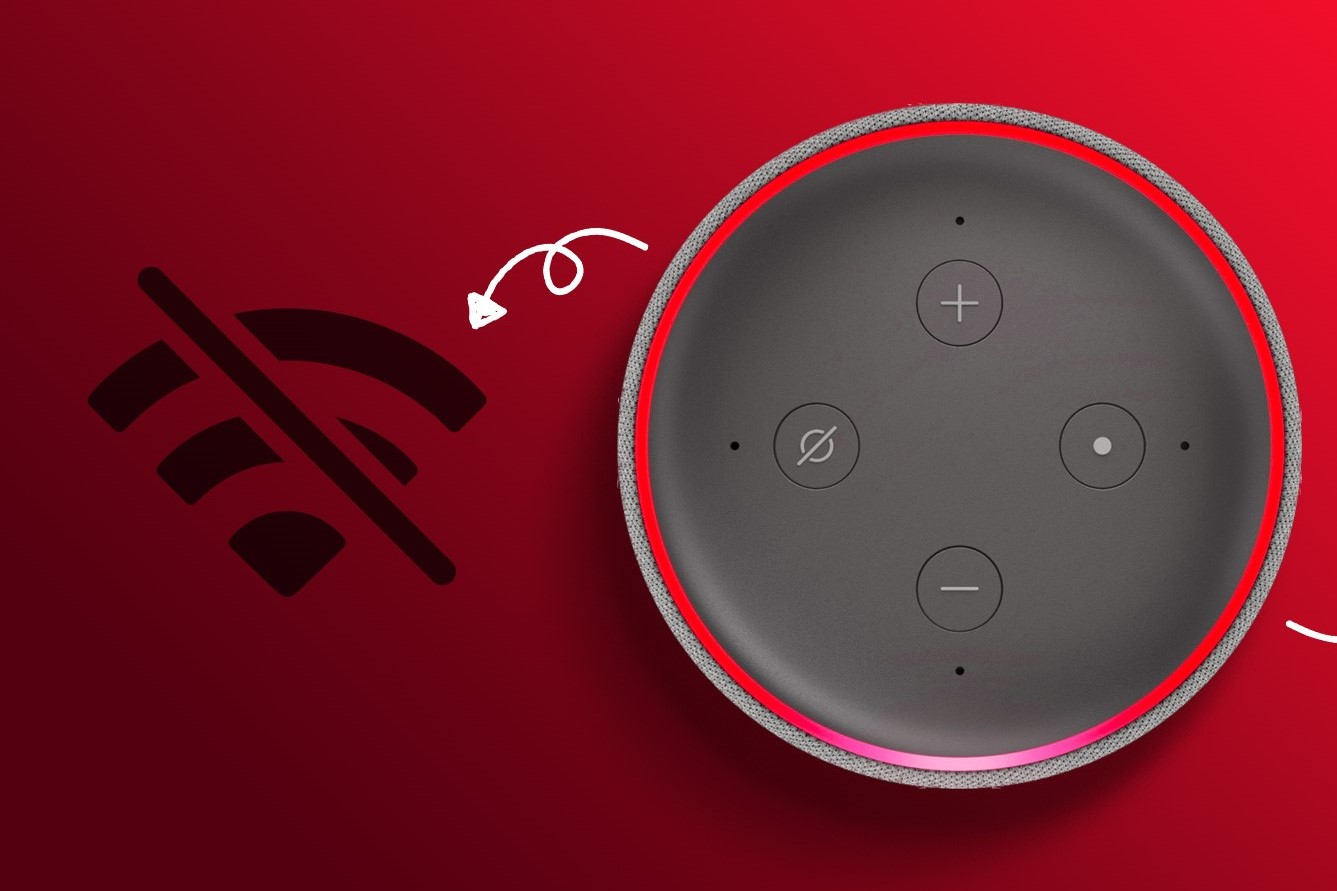
If you encounter connection issues with your Amazon Echo device, don’t worry. Here are some troubleshooting tips to help you resolve common connectivity problems:
- Check your Wi-Fi network: Ensure that your Wi-Fi network is working properly and that you have a stable internet connection. Restarting your router or modem might help resolve temporary network issues.
- Move your Echo closer to the router: If your Echo is located far from the Wi-Fi router, the signal strength may be weak. Try moving the device closer to the router to establish a stronger connection.
- Restart your Echo device: Sometimes, a simple restart can fix connectivity issues. Unplug your Echo device from the power source, wait for a few seconds, and then plug it back in. Allow the device to boot up and reconnect to the Wi-Fi network.
- Forget and reconnect to Wi-Fi network: In the Alexa app, go to the device settings for your Echo and select the Wi-Fi network. Tap on “Forget” to remove the network from your Echo’s memory. Then, set it up again by selecting the network and entering the password.
- Check for app and device updates: Ensure that both the Amazon Alexa app and your Echo device have the latest software updates installed. Outdated firmware or app versions can sometimes cause connectivity issues.
- Reset your Echo to factory settings: If all else fails, you can try resetting your Echo device to its factory settings. Keep in mind that this will erase all your settings and personalized configurations. To reset, press and hold the reset button on the device for about 20 seconds until the light ring turns orange. Follow the on-screen instructions to set up your Echo again.
- Contact customer support: If none of the above steps resolve your connection issues, reach out to Amazon customer support for further assistance. They can provide specific troubleshooting steps or guide you through the process of resolving any technical issues.
By applying these troubleshooting tips, you can troubleshoot and resolve common connectivity issues with your Amazon Echo device. Troublesome connections can often be resolved with a few simple troubleshooting steps, allowing you to enjoy uninterrupted use of your Echo and its various features.