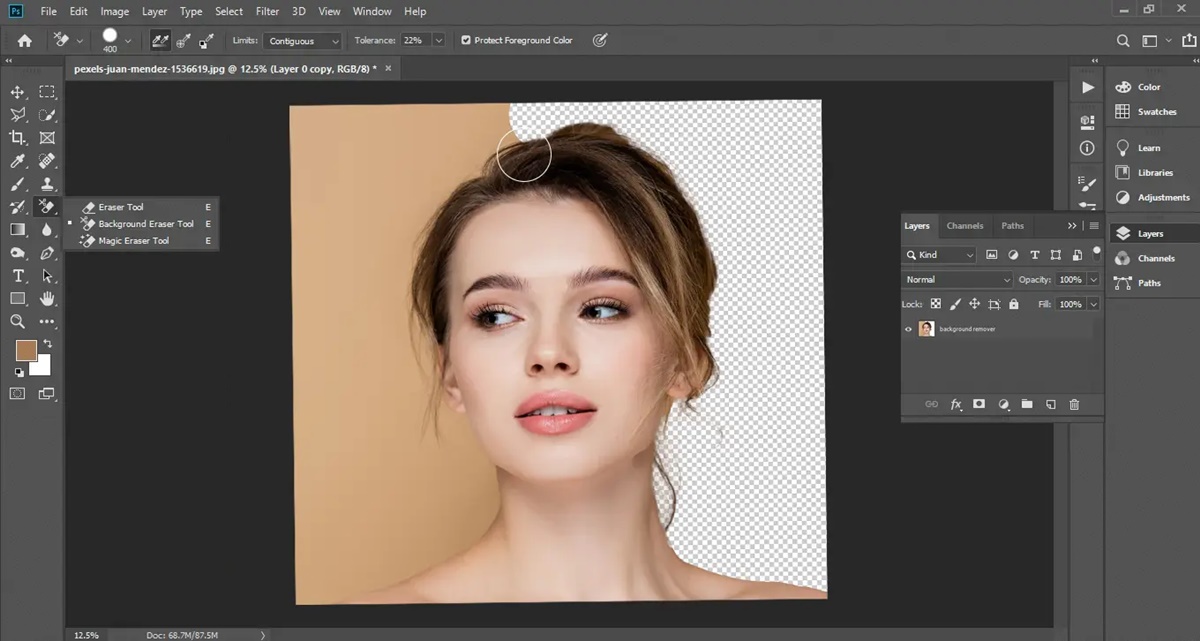
Photoshop costs money every single month. GIMP takes hours to learn. And for most people, all they really need is to pull a product off a white background or clean up a profile photo for LinkedIn. Paying for a full creative suite, or spending a weekend learning its selection tools, is genuinely overkill for that kind of one-off task. The good news is that there is a free, browser-based way to do it in under a minute, with results that are surprisingly sharp.
Key Takeaways:
– You do not need a subscription or a desktop app to remove a photo background
– Browser-based AI tools detect and cut subjects automatically, with no manual tracing
– No sign-up is required for the tool covered in this article
– Exporting or cropping a photo can soften details, so use an AI upscaler to restore clarity afterward
– A transparent PNG is reusable across product listings, social media, presentations, and more
Why Paid Software Is Not Worth It for One-Off Edits
Adobe Photoshop is a professional tool built for professional workflows. It has masking, color grading, layer effects, and hundreds of features that a graphic designer reaches for every day. For someone who wants to swap the background on a product photo twice a year, those features are not helpful. They are just in the way.
Subscription costs have also climbed sharply. Most full creative suite plans now run $20 to $55 a month. That is a real expense if photo editing is not your main job. And if you are running a small business, spending that money on software you barely open is hard to justify when free alternatives handle the task just as well.
The rise of browser-based tools built on AI has changed the math entirely. These apps run in any browser, require no installation, and use the same kind of neural network technology that powers major commercial products. For background removal specifically, the accuracy is now genuinely impressive on everyday photos.
What AI Background Removal Actually Does
The technology behind modern background removal is not a simple selection tool. It does not ask you to trace around an object with your mouse. Instead, it runs a photo through a trained model that has seen millions of images and learned to distinguish foreground subjects from their surroundings.
That means it recognizes the difference between a person standing in front of a cluttered room and the room itself. It picks out a product on a table from the surface underneath it. It handles fuzzy edges, like hair and fur, far better than manual selection tools ever did.
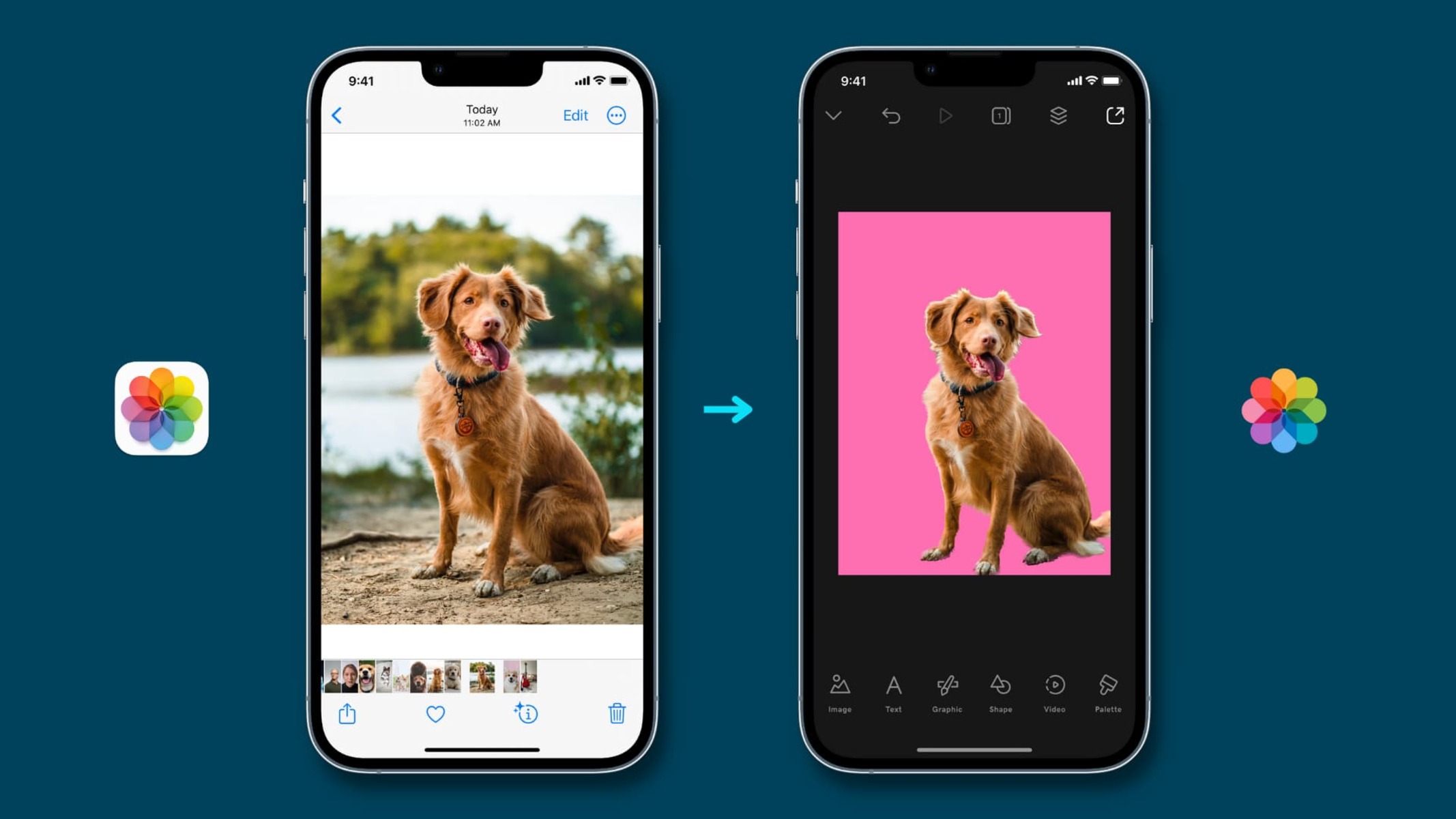
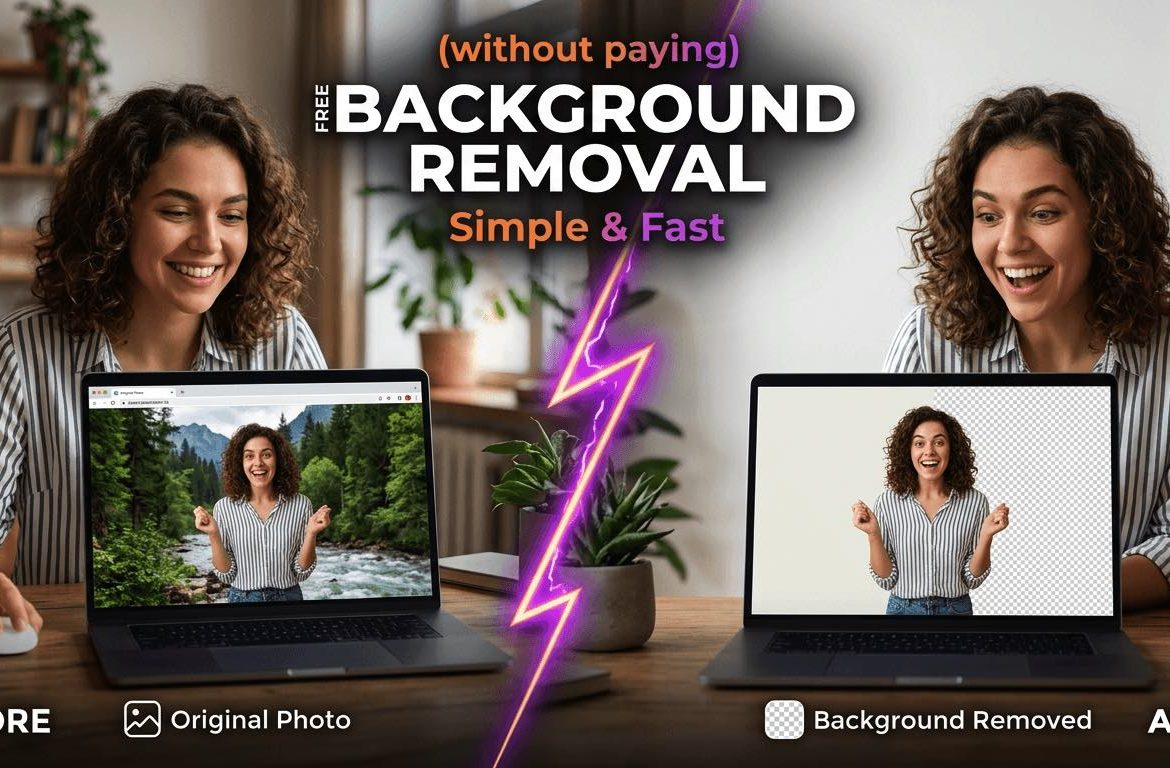
The result is a PNG file with a transparent background. From there, you can place the subject on any color, any pattern, or any new photo you want.
How to Remove a Background Without Signing Up
The process is straightforward, and there is no account required. A background remover that runs entirely in the browser handles everything automatically.
Open the tool. You will see an upload prompt on the main page. There is no login screen because no account is needed. Drag your photo into the upload area or click to browse your files. JPG and PNG both work.
The AI processes the image automatically. Depending on the file size, this takes between a few seconds and about half a minute. A preview appears showing your subject with the background removed. You can zoom in on the edges to check the cutout quality before downloading anything.
Download the result as a transparent PNG. That file is ready to drop into any design, document, or social media template you want.
For most standard photos, like a person against a plain wall or a product on a table, the result comes out clean on the first pass. For more complex images, overlapping objects, or very busy backgrounds, cropping tightly before you upload gives the AI less to figure out and tends to produce cleaner edges.
Getting a Cleaner Cutout Every Time
A few choices you make before uploading make a real difference in the output quality.
- Shoot or select a photo where the subject has clear contrast against the background. A person in a dark jacket against a bright wall is easier for the AI to process than someone wearing beige in front of a beige room.
- Crop tightly around the subject before uploading. The less background area in the photo, the fewer decisions the model has to make, and the cleaner the edges tend to be.
- Use a well-lit, sharp original image. Blurry or underexposed photos produce blurry or underexposed cutouts.
Transparent PNG files can look slightly softer after export compared to the original. This is especially noticeable if you cropped heavily, because you are working with fewer pixels than you started with. That is a solvable problem.
Restoring Sharpness After Cropping or Export
When a photo loses detail after you crop it or export it at a different size, an AI upscaler can rebuild the lost sharpness by analyzing the image and filling in missing detail. The same kind of neural network that handles background removal can also predict what a sharper version of a softer image should look like.
This is useful for product photos that need to display large, or for profile pictures originally taken on an older phone. You remove the background, scale the image up, and the upscaler keeps the result looking crisp rather than pixelated.
It is also worth knowing that AI-powered photo tools have improved dramatically. If you want a broader look at where the technology is heading, a roundup of AI artwork generators shows just how far visual AI has come in a short time.
Where a Clean Cutout Actually Gets Used
The practical uses for a transparent-background PNG are broader than most people expect. Once you have the cutout, you can reuse it across a lot of contexts without starting over.
- Product listings: Marketplaces like Etsy, Amazon, and Shopify all recommend or require white backgrounds on product images. A transparent PNG drops straight into any template.
- Profile photos: A clean cutout lets you swap your background to match a company brand, a seasonal theme, or just something that looks more polished.
- Presentations: Dropping a transparent subject into a slide looks far more professional than a white rectangle floating on a colored background.
- Social media graphics: Tools like Canva and Adobe Express accept transparent PNGs directly. You can resize and reframe for every platform without re-editing the original.
Editing on Your Phone Versus Your Browser
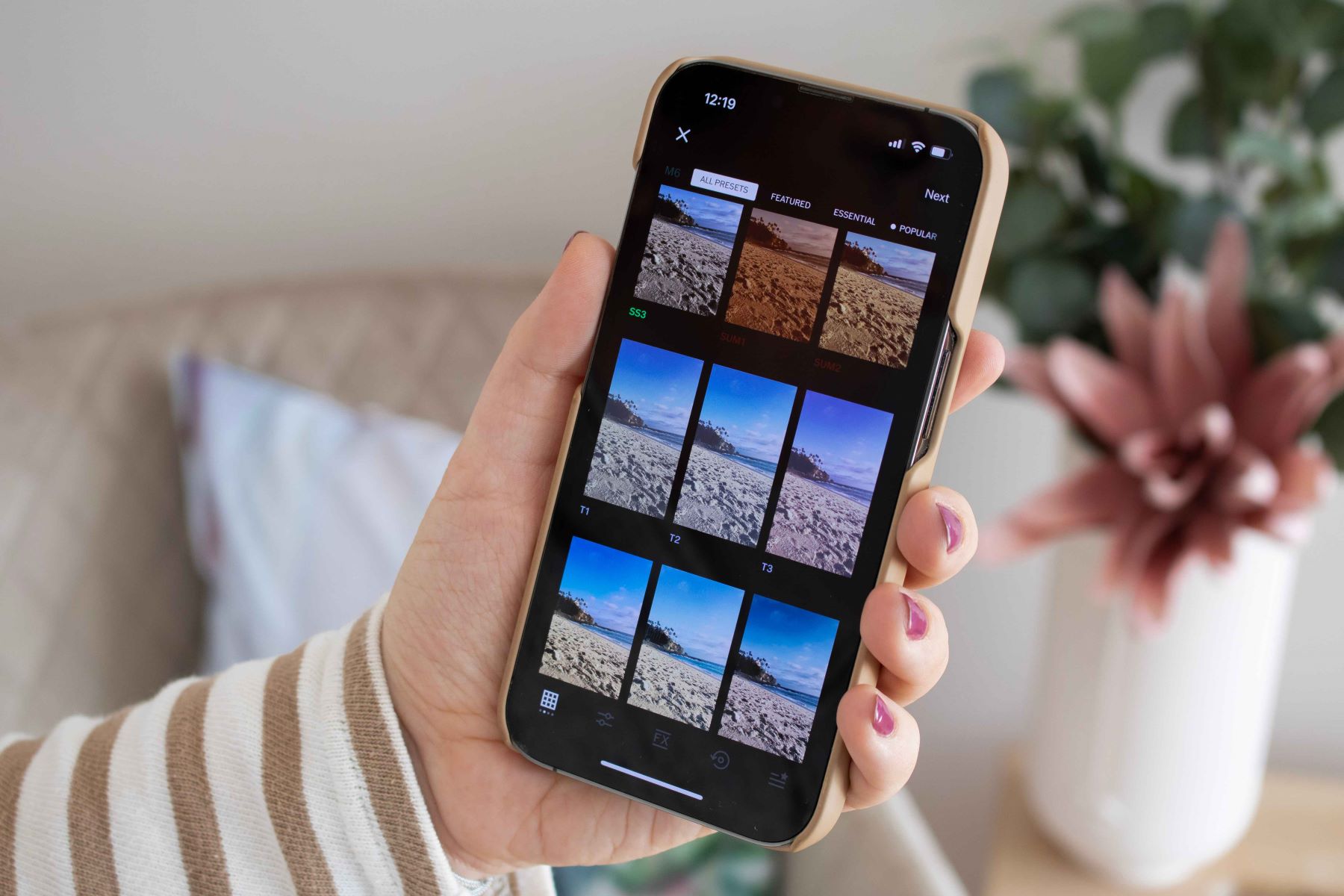
Most photo editing apps on phones are free and capable, but they handle background removal inconsistently. Some require a paid upgrade, others produce rough edges, and many save the result as a JPG rather than a transparent PNG. That means you lose the transparency entirely, which defeats the purpose.
Browser tools sidestep all of that. They work on any device with a web browser, including phones, tablets, and desktops. Nothing needs to be installed, and there is no storage overhead. The file downloads directly to wherever your device saves downloads by default.
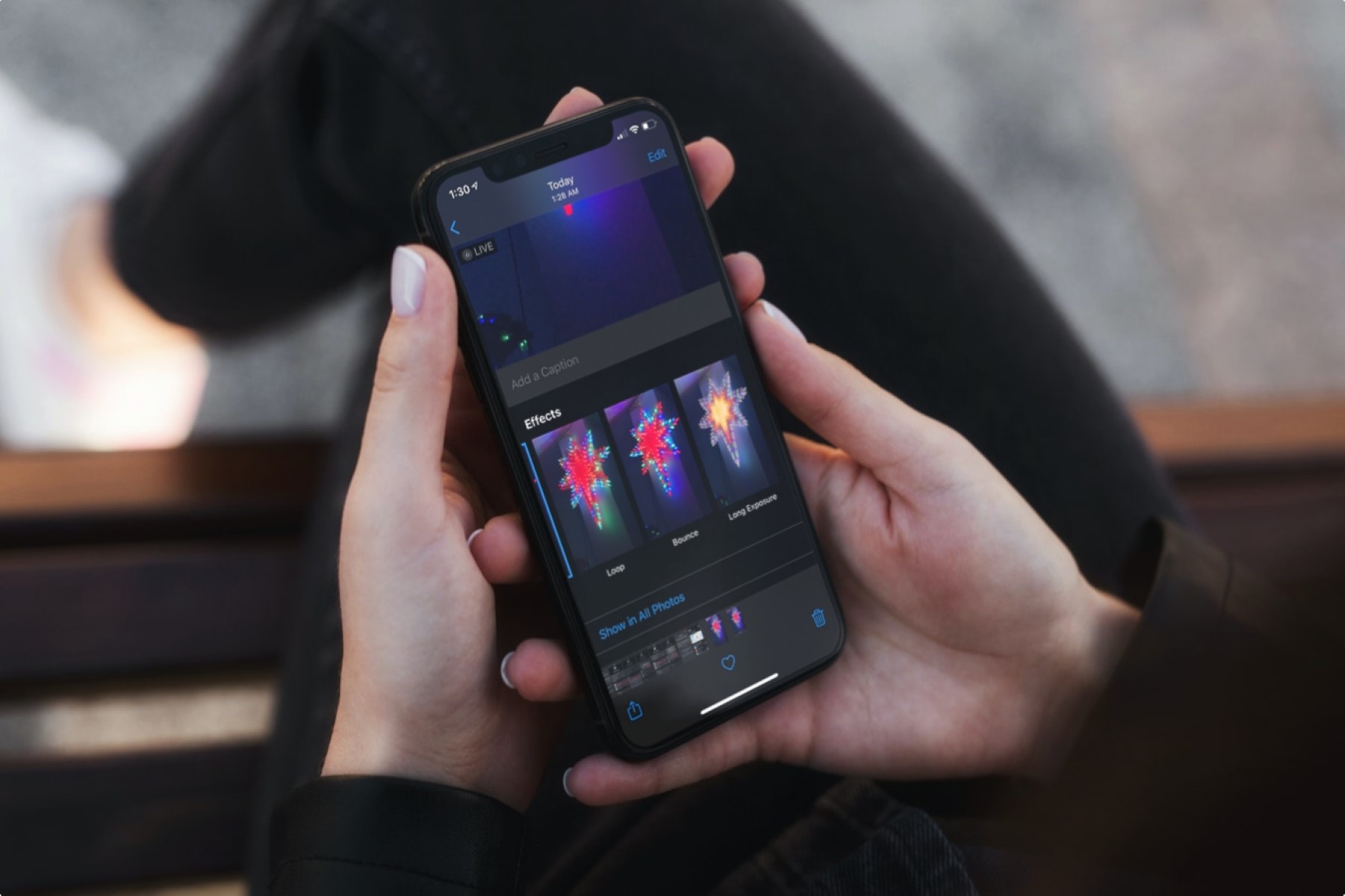
For iPhone users who manage a lot of photos, keeping your library organized before editing makes the whole process smoother. This walkthrough on managing iPhone photos covers sorting, tagging, and finding images without letting the Camera Roll turn into a mess.
For a broader look at what free photo editing tools can handle on mobile, this CitizenSide list of photo editing apps covers the strongest options across iOS and Android.
The Case for Keeping It Simple
Professional photo editing will always have a place. For photographers, designers, and marketers working with images every day, the investment in full software makes sense. But for everyone else, the gap between professional tools and free browser-based alternatives has closed considerably.
Background removal is a good example of that shift. What used to require selecting, masking, refining, and cleaning up edges by hand now happens automatically, in a browser, for free, in under a minute. The output holds up well for most real-world uses, and when you need extra sharpness, an AI upscale pass brings it back.
There is no good reason to spend money on software for a task that a free browser tool handles cleanly. The subscription stays in your pocket, the photo gets done, and you move on.