Common reasons for a black Google Home screen
A black screen on your Google Home device can be frustrating, especially when you rely on it for various tasks and features. There can be several reasons why you are experiencing this issue, ranging from hardware problems to software glitches. In this section, we will explore the common causes behind a black Google Home screen.
1. Power connection issues: One of the primary reasons for a black screen on your Google Home device is a power-related problem. Ensure that your device is properly connected to a power source and that the power cable is securely plugged in. If the power outlet is functioning correctly, consider trying a different power cable to rule out a faulty cable as the cause of the issue.
2. Screen settings: It is possible that your Google Home device’s screen settings have been altered, resulting in a black screen. Check the display settings on your device to ensure that the screen brightness is not set to the lowest level or that the screen timeout is not too short. Adjusting these settings might resolve the black screen problem.
3. Software updates: Occasionally, software updates can cause compatibility issues, leading to a black screen on your Google Home device. When updates are available, they are usually automatically installed. However, in some instances, the update process can encounter errors or conflicts, resulting in a black screen. Making sure that your device is running the latest software version may resolve this issue.
4. Overheating: Another possible cause of a black screen is overheating. Continuous usage or exposure to direct sunlight can lead to the device overheating, triggering a protective measure that turns off the screen. Give your Google Home device some time to cool down and try using it again. Placing the device in a well-ventilated area can also prevent overheating.
5. Physical damage: Accidental drops or physical damage to the device can cause a black screen. If you suspect that this may be the case, inspect your Google Home device for any signs of physical damage, such as cracks or dents. If you find any damage, contact the manufacturer or seek professional help for repair or replacement.
It is important to identify the specific reason behind the black screen on your Google Home device to determine the appropriate solution. In the next section, we will discuss troubleshooting steps that can help resolve this issue.
Hardware issues causing a black Google Home screen
If you are encountering a black screen on your Google Home device, it’s crucial to consider the possibility of hardware-related problems. In this section, we will delve into the hardware issues that can cause a black screen on your Google Home device.
1. Faulty power source: Sometimes, a faulty power source can be the culprit behind a black Google Home screen. Ensure that the power outlet is functioning correctly by plugging in another device or using a power tester. If the power source is not providing the required voltage, it may be time to replace or repair the outlet.
2. Defective power cable: A faulty power cable can also lead to a black screen on your Google Home device. Examine the power cable for any visible signs of damage, such as frayed wires or loose connections. If you spot any issues, consider replacing the power cable with a new one that is compatible with your device.
3. Physical damage: Accidental drops or physical damage can cause internal components to malfunction, resulting in a black screen. Check for any visible signs of physical damage, such as cracks or dents, on your Google Home device. If you find any damage, it may be necessary to seek professional repairs or consider replacing the device.
4. Hardware failure: In some cases, a black screen on your Google Home device may indicate a hardware failure. This could be due to a malfunctioning display, motherboard, or other internal components. If you have ruled out other potential causes and suspect a hardware failure, it is advisable to contact the manufacturer or authorized service center for assistance.
5. Overheating: Overheating can cause the screen on your Google Home device to turn black as a protective measure. Ensure that your device is placed in a well-ventilated area and not subjected to extreme temperatures. If the issue persists after allowing the device to cool down, it may indicate a more severe hardware-related problem.
Identifying any hardware issues causing a black screen on your Google Home device is essential in determining the appropriate course of action. In the next section, we will explore troubleshooting steps for resolving a black Google Home screen.
Software issues causing a black Google Home screen
When encountering a black screen on your Google Home device, it’s important to consider the possibility of software-related issues. In this section, we will discuss the common software problems that can lead to a black Google Home screen.
1. Software updates: Occasionally, software updates can cause conflicts or glitches, resulting in a black screen on your Google Home device. If you recently updated your device, it’s possible that the update may not have installed correctly. Check for any available software updates and ensure that your device is running the latest version.
2. App conflicts: Certain apps or services running on your Google Home device may not be compatible with the current software version, causing the screen to go black. Uninstalling or disabling recently installed apps or services one at a time can help identify if any specific app is causing the issue.
3. Cache and data buildup: Over time, your Google Home device’s cache and data can accumulate and cause software issues. Clearing the cache and data for specific apps or performing a device-wide cache-clearing can potentially resolve the black screen problem. However, keep in mind that clearing data will also remove app-specific settings and logged-in accounts.
4. Factory reset: If the black screen issue persists and other troubleshooting steps haven’t yielded any results, performing a factory reset may be necessary. A factory reset will restore your Google Home device to its original settings, erasing all data and personalization. It should be considered as a last resort, and ensure that you have a backup of any important data before proceeding.
5. Software bugs: Like any software, the operating system on your Google Home device can have occasional bugs or glitches that may cause a black screen. Reporting the issue to Google’s support team can help them identify and address any software-related problems, potentially providing a future software update to resolve the issue.
Understanding the software issues that can cause a black Google Home screen can assist in troubleshooting the problem effectively. In the next section, we will explore specific troubleshooting steps to help resolve the issue.
Troubleshooting steps for a black Google Home screen
Experiencing a black screen on your Google Home device can be frustrating, but there are several troubleshooting steps you can try to resolve the issue. In this section, we will explore some common troubleshooting steps that can help bring your Google Home screen back to life.
1. Check the power connection: Ensure that your Google Home device is properly connected to a power source. Verify that the power cable is securely plugged into both the device and the power outlet. Try connecting to a different power outlet to rule out any issues with the power source.
2. Adjust screen settings: Check the display settings on your Google Home device and ensure that the screen brightness is not set to the lowest level. Also, verify that the screen timeout is not set to a very short duration. Adjust these settings if necessary to ensure proper visibility of the screen.
3. Reboot your device: Sometimes, a simple reboot can resolve software-related issues. Try powering off your Google Home device and unplugging it from the power source for a few seconds. Then, plug it back in and power it on again. This can help refresh the device’s system and potentially resolve the black screen problem.
4. Perform a software update: Check for any available software updates for your Google Home device. Keeping your device up to date with the latest software version can often fix bugs or performance issues that may be causing the black screen problem. Follow the prompts to install any available updates to your device.
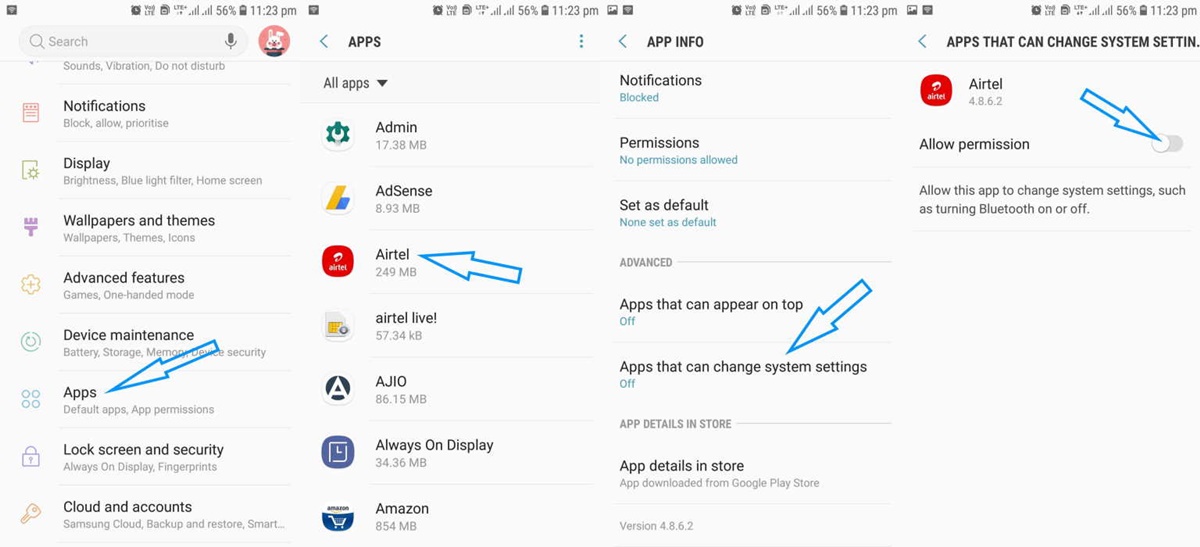
5. Clear cache and data: Clearing the cache and data for specific apps or performing a device-wide cache-clearing can help resolve software-related issues. Navigate to the settings on your Google Home device, find the apps section, and select the problematic app. From there, you can clear the cache and data for that specific app. Alternatively, you can perform a device-wide cache-clearing from the settings menu.
6. Perform a factory reset: If all other troubleshooting steps have failed to resolve the black screen issue, you may need to perform a factory reset. Keep in mind that a factory reset will erase all data and personalization on your device, so make sure to backup any important data beforehand. Refer to your device’s user manual or the manufacturer’s website for instructions on how to perform a factory reset.
Remember that these troubleshooting steps are general suggestions and may vary based on the specific model of your Google Home device. If none of these steps resolve the black screen issue, it’s advisable to contact the manufacturer’s customer support or seek professional assistance for further troubleshooting.
Resetting your Google Home device to resolve a black screen
If you have tried various troubleshooting steps and are still experiencing a black screen on your Google Home device, performing a reset may be the solution. Resetting your device can help resolve software conflicts or glitches that may be causing the black screen problem. In this section, we will discuss the process of resetting your Google Home device.
Before proceeding with a reset, it’s crucial to note that performing a reset will erase all data and settings on your Google Home device. It will essentially revert it back to its factory settings. Therefore, it’s essential to back up any important data or settings that you wish to retain.
To reset your Google Home device, follow these steps:
1. Locate the reset button: Different models of Google Home devices may have a reset button located in various places. Check the user manual or the manufacturer’s website to identify the exact location of the reset button on your specific model.
2. Press and hold the reset button: Once you have located the reset button, press and hold it down for about 10-15 seconds. You may need to use a small pin or a paperclip to press the reset button if it is recessed.
3. Wait for the device to reset: After holding the reset button, you will see lights or indicators on the device flashing, indicating that it is resetting. Keep holding the reset button until the lights stop flashing, and the device powers off and then powers back on. This process may take a few minutes.
4. Set up your device again: Once the device has successfully reset, you will need to set it up again as if it’s a new device. Follow the on-screen prompts to connect to your Wi-Fi network, sign in to your Google account, and configure your preferences.
After resetting your Google Home device, check if the black screen issue has been resolved. If the problem persists, it’s advisable to contact the manufacturer’s customer support or seek professional assistance for further troubleshooting.
Remember that resetting your device should be considered as a last resort if other troubleshooting steps have failed to resolve the black screen problem. It’s important to understand the potential consequences of resetting your device and ensure that you have backed up any important data beforehand.
Contacting Google Support for assistance with a black Google Home screen
If you have exhausted all troubleshooting options and are still experiencing a black screen on your Google Home device, it may be time to reach out to Google Support for further assistance. Google’s support team is equipped to handle technical issues and provide specific guidance to help resolve the problem. In this section, we will discuss how to contact Google Support for assistance.
1. Visit the Google Support website: Start by navigating to the official Google Support website. You can access the website by searching for “Google Support” on your web browser.
2. Choose the appropriate product and issue: On the Google Support website, select the product category that corresponds to your Google Home device. Then, choose the specific issue category related to a black screen or display issues.
3. Follow the provided troubleshooting steps: Google’s support website generally provides a series of troubleshooting steps for common issues. Make sure to carefully follow the instructions provided. Even if you have already tried some of the suggested steps, it’s worth going through them again to ensure you haven’t missed anything.
4. Check the support forums: Google has community forums where users can share their experiences and seek advice from other users. It’s possible that someone may have encountered a similar issue and found a solution. Look for threads related to black screens on Google Home devices to see if any helpful information is available.
5. Contact Google Support directly: If none of the provided troubleshooting steps or information on the support forums help resolve the black screen issue, you can contact Google Support directly. There are multiple options available, such as live chat, email support, or phone support. Choose the method that is most convenient for you and follow the instructions provided to get in touch with a support representative.
When contacting Google Support, be prepared to provide details about your Google Home device, the specific issue you are experiencing, and any troubleshooting steps you have already attempted. This information will help the support team better understand your situation and provide accurate assistance.
Remember to remain patient and cooperative during your interaction with Google Support. They are there to help you resolve the issue and provide the necessary guidance. If the representative is unable to assist you or if further troubleshooting is required, they may escalate the issue to a higher level of support or provide further instructions.
Contacting Google Support should be considered when all other troubleshooting steps have failed to resolve the black screen issue. Their expertise and resources can often help diagnose and resolve complex technical problems with Google Home devices.