Signs of Infection
Dealing with a potential malware infection can be overwhelming, especially if you’re unsure about the signs to look out for. Recognizing the symptoms of a compromised computer is crucial in order to take immediate action and mitigate any potential damage. Here are some common signs that your computer may be infected with malware:
- Slow performance: If your computer suddenly becomes sluggish and unresponsive, it could be a sign that malware is running in the background, consuming system resources.
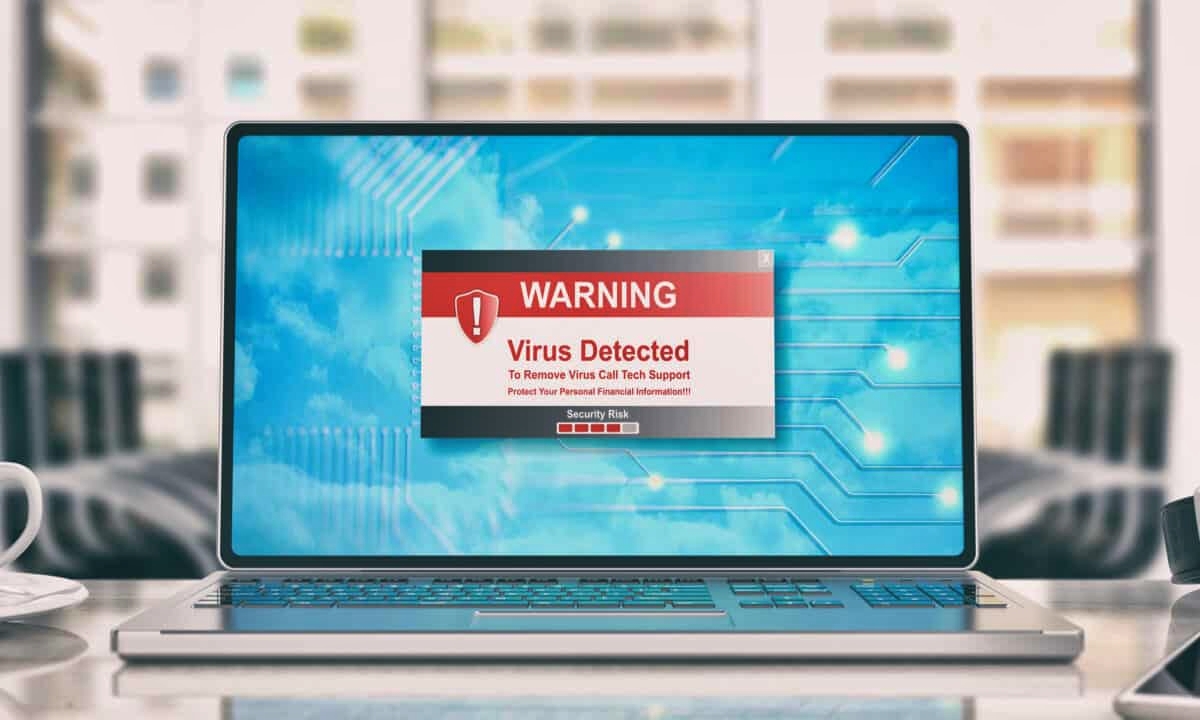
- Unexpected pop-ups: Pesky pop-up ads that appear at random intervals, especially if they are unrelated to the website you are visiting, are a red flag for malware infections.
- Unusual error messages: If you consistently receive error messages that you have never seen before or encounter system crashes that are out of the ordinary, your computer may be compromised.
- Changes to browser settings: If your homepage or default search engine has been altered without your consent, it’s likely that malware is responsible for these unauthorized modifications.
- Unexplained network activity: Excessive network usage when you’re not actively using the internet can indicate malware activity, such as sending out spam emails or participating in a botnet.
- Disabled security software: Malware often targets antivirus and firewall applications, disabling them to avoid detection. If you find that your security software has been turned off or is unable to update, your computer may be compromised.
Keep in mind that these signs may also be indicative of other issues with your computer, so it’s important to investigate further to confirm if it is indeed a malware infection. Taking prompt action is crucial to prevent further damage and protect your personal information.
Disconnect from the Internet
When you suspect that your computer is infected with malware, the first step is to immediately disconnect from the internet. This is a crucial step to prevent the malware from spreading further or communicating with its command and control servers. Here’s what you need to do:
Step 1: Unplug your Ethernet cable or turn off your Wi-Fi connection. This will sever the connection between your computer and the internet, cutting off any communication channels that the malware may be using.
Step 2: If you suspect that malware might be using your mobile device’s data connection, disable mobile data or switch your device to airplane mode. This will prevent any potential malware activity through your mobile data network.
Step 3: Keep in mind that simply closing your browser or disconnecting from a specific website is not enough. Malware can continue to infect your system and communicate with its servers even if you’re not actively using the internet.
By disconnecting from the internet, you’re effectively limiting the malware’s ability to spread or receive instructions, giving you a chance to assess the situation and take further action in securing your computer.
It’s important to note that staying offline for an extended period of time may inconvenience you, especially if you rely heavily on internet connectivity for work or communication. However, the temporary inconvenience is necessary to prevent any further damage or data loss due to the malware infection.
Once you have successfully disconnected from the internet, you can proceed to assess the situation and take appropriate steps to remove the malware and restore the security of your computer.
Assess the Situation
After disconnecting from the internet, the next step in dealing with a suspected malware infection is to assess the situation. Understanding the extent of the infection and its potential impact on your computer is crucial in determining the appropriate course of action. Here’s what you should do:
Step 1: Take note of any unusual behavior or symptoms that you have observed. This could include frequent crashes, strange error messages, or the presence of new software or browser extensions that you don’t recognize.
Step 2: Use a separate and unaffected device to research the specific malware symptoms or indicators that you have identified. This will help you gather more information about the potential risks and possible solutions.
Step 3: Consult reputable online resources or contact professional help if you are unsure how to proceed. Malware infections can vary significantly, and having expert guidance can be invaluable in effectively addressing the issue.
Step 4: Determine the potential impact of the malware infection. Consider whether it could compromise sensitive personal or financial information, and take appropriate precautions to protect yourself if necessary.
Step 5: Assess the importance of the infected computer in your daily activities. If it’s a personal device, you may have more flexibility in addressing the issue. However, if it’s a work device connected to important networks, it’s crucial to involve your IT department or supervisor as soon as possible.
By thoroughly assessing the situation, you can make informed decisions about how to proceed. Depending on the severity of the infection and the potential risks involved, you may need to enlist the help of professionals or follow specific guidelines to remove the malware and secure your computer.
Remember, the sooner you assess the situation and take appropriate action, the better chance you have of minimizing the impact of the malware infection and restoring the security of your computer.
Use Antivirus Software
One of the most effective tools in combating malware infections is antivirus software. These programs are specifically designed to detect, quarantine, and remove various types of malware from infected computers. Here’s what you need to do when using antivirus software:
Step 1: Ensure that you have a reputable and up-to-date antivirus software installed on your computer. There are many options available in the market, both free and paid. Research and choose one that suits your needs and offers real-time protection against a wide range of malware threats.
Step 2: Update your antivirus software to ensure that it has the latest virus definitions and security patches. This allows it to detect and handle the newest strains of malware that may be circulating.
Step 3: Perform a full system scan with your antivirus software. This comprehensive scan will thoroughly check all files, folders, and system areas for any signs of malware infections.
Step 4: Follow the prompts provided by the antivirus software to quarantine or remove any detected malware. Quarantining isolates the infected files from the rest of your system, while removal deletes them entirely. It’s essential to follow the recommendations of the software and not make any manual changes unless you are confident in what you’re doing.
Step 5: Regularly scan your computer with your antivirus software on a scheduled basis. This helps to identify and remove any new or emerging malware that may have bypassed your initial scan.
In addition to using antivirus software, it’s important to keep in mind that no antivirus program can provide 100% protection. Cybercriminals are continually evolving their tactics, and new malware strains are developed frequently. Therefore, it’s crucial to complement your antivirus software with other cybersecurity measures like updating your operating system and practicing safe browsing habits.
By using antivirus software and regularly scanning your computer, you significantly reduce the risk of malware infections and help maintain the overall security and performance of your system.
Update Your Operating System and Software
Keeping your operating system and software up to date is essential in maintaining the security and stability of your computer. Outdated software can have vulnerabilities that malware can exploit, making it easier for infections to occur. Here’s why and how you should update your operating system and software:
Why Update: Software updates often include bug fixes, performance improvements, and most importantly, security patches. As cyber threats evolve, software developers release updates to address newly discovered vulnerabilities and protect against malware attacks. By staying up to date, you minimize the risk of malware infecting your system.
Operating System Updates: Regularly check for operating system updates from your software provider, such as Microsoft for Windows, Apple for macOS, or Linux distributions. Enable automatic updates if available to ensure that you receive the latest security patches without manual intervention.
Software Updates: Check for updates for all the software installed on your computer, including web browsers, media players, productivity suites, and any other applications you regularly use. Most software includes a built-in update feature, or you can visit the official website of the software developer to manually download the latest version.
App Store Updates: If you’re using mobile devices, regularly update your apps through the respective app store, such as the Apple App Store for iOS or Google Play Store for Android. App updates often include security enhancements and bug fixes, protecting your device from malware threats.
Enable Automatic Updates: Whenever possible, enable automatic updates for your operating system, software, and apps. This ensures that you receive the latest updates without having to manually check for them. Automatic updates are particularly important for critical security patches that need to be installed promptly.
Restart After Updates: After installing updates, restart your computer or device as recommended by the software. This allows the updates to take effect and ensures that your system is running with the latest security fixes and performance improvements.
By regularly updating your operating system and software, you significantly reduce the risk of malware infections. Remember to also enable automatic updates and restart your computer after installing updates to ensure optimal security and performance.
Perform a Full Malware Scan
Performing a full malware scan is a crucial step in identifying and removing any malicious software that may be lurking on your computer. It allows you to thoroughly examine your system for traces of malware and take appropriate action to eliminate the threat. Here’s how to perform a full malware scan:
Step 1: Ensure that you have reliable and up-to-date antivirus software installed on your computer. This software will have the capability to perform comprehensive malware scans.
Step 2: Open your antivirus software and look for the option to perform a full system scan. This scan will thoroughly examine all areas of your computer, including files, folders, applications, and system areas.
Step 3: Initiate the full system scan and allow the antivirus software to complete its scan. This process can take some time, depending on the size of your hard drive and the number of files on your computer. Be patient and avoid interrupting the scan.
Step 4: While the scan is running, the antivirus software will analyze each file and compare it against its virus definitions database. It will flag any files or processes that match known malware signatures, suspicious behavior patterns, or other indicators of potential infection.
Step 5: After the scan is complete, review the scan results provided by the antivirus software. It will display a list of any detected malware or suspicious files. Take note of the names and locations of the infected files for further action.
Step 6: Follow the prompts provided by the antivirus software to quarantine or remove any detected malware. Quarantining isolates the infected files, preventing them from causing harm, while removal deletes them from your computer entirely.
Step 7: For any files that may not be automatically cleaned or removed by the antivirus software, consider seeking professional assistance or consulting reputable online resources for specific instructions on how to deal with these threats.
Performing a full malware scan on a regular basis, as part of your computer maintenance routine, helps ensure that your system is free from any hidden malware infections. Remember to keep your antivirus software updated to stay protected against the latest malware threats.
Remove any Suspicious Programs or Files
When dealing with a suspected malware infection, it’s essential to identify and remove any suspicious programs or files that may be compromising the security of your computer. These could be malicious software or unwanted applications that are causing harm or consuming system resources. Here’s how to remove such programs or files:
Step 1: Use your antivirus software to scan for any suspicious programs or files that may have been missed during the initial scan. Most antivirus software includes the option to scan specific files or folders, allowing you to target areas of concern.
Step 2: Review the scan results provided by the antivirus software. Look for any flagged programs or files that are identified as malware, potentially unwanted applications (PUAs), or suspicious files. Pay attention to the names and locations of these items.
Step 3: Determine whether the programs or files identified as suspicious are actually necessary for your computer’s operation. If you are unsure, research the program or file online or use reliable software review websites to gather more information about their legitimacy.
Step 4: For any confirmed malicious programs or files, follow the instructions provided by your antivirus software to quarantine or remove them. Quarantining isolates the files or programs, preventing them from causing harm, while removal deletes them entirely from your system.
Step 5: Uninstall any unwanted or suspicious programs using the built-in uninstaller or the Programs and Features section in your computer’s control panel. Look for any unfamiliar or suspicious applications that you don’t remember installing and remove them.
Step 6: For suspicious files that were not caught by the antivirus software or unwanted programs that were not successfully uninstalled, consider seeking professional help or guidance from reputable online resources specific to the type of malware or software involved.
Step 7: Regularly review and manage your installed programs and files to prevent future infections. Remove any unnecessary software or files to minimize the potential for malware to exploit vulnerabilities or consume system resources.
By actively removing suspicious programs or files from your computer, you reduce the risk of ongoing malware infections and enhance the overall security and performance of your system.
Reinforce Cybersecurity Measures
Dealing with a suspected malware infection is a stark reminder of the importance of reinforcing your cybersecurity measures. Strengthening your defenses can help protect your computer from future malware attacks and enhance the overall security of your system. Here are some essential steps to reinforce your cybersecurity measures:
Step 1: Update your passwords: Regularly update your passwords for online accounts, ensuring they are strong, unique, and not easily guessable. Consider using a password manager to securely store and manage your passwords.
Step 2: Enable two-factor authentication (2FA): Wherever possible, enable 2FA for your online accounts. This adds an extra layer of security by requiring a second form of verification, such as a code sent to your mobile device, in addition to your password.
Step 3: Install a firewall: Use a reputable firewall software or enable the built-in firewall provided by your operating system. Firewalls help monitor and control incoming and outgoing network traffic, blocking unauthorized access to your computer.
Step 4: Be cautious of phishing attacks: Exercise caution when clicking on links or downloading attachments in emails or messages. Look for signs of phishing, such as suspicious email addresses, spelling errors, or requests for sensitive information. When in doubt, verify the legitimacy of the sender before proceeding.
Step 5: Regularly backup your data: Create regular backups of your important files and store them in a separate location or on cloud storage. This helps protect your data in the event of a malware infection, hardware failure, or other unforeseen circumstances.
Step 6: Keep your software updated: Continuously update your operating system, web browsers, and other software with the latest security patches. Unpatched software can have vulnerabilities that can be exploited by malware, so staying up to date is vital.
Step 7: Educate yourself on safe browsing habits: Learn about common cybersecurity threats, such as phishing, malware, and social engineering, and how to recognize and avoid them. Educate yourself on safe browsing practices, such as avoiding suspicious websites or downloading files from untrusted sources.
Step 8: Invest in reputable security software: Consider investing in a comprehensive security suite that includes antivirus, anti-malware, and other advanced security features. These tools can help detect and prevent malware infections and provide enhanced protection against various cyber threats.
By reinforcing your cybersecurity measures, you minimize the risk of future malware infections and better safeguard your computer and personal information from cybercriminals. Stay vigilant and proactive in maintaining a secure digital environment.
Secure your Online Accounts
Securing your online accounts is crucial in protecting your personal information and minimizing the risk of unauthorized access or data breaches. Taking steps to strengthen the security of your accounts can help prevent future malware attacks and ensure your online presence remains safe. Here are some essential measures to secure your online accounts:
Step 1: Use strong, unique passwords: Always create strong and unique passwords for each online account you have. Make sure to include a combination of uppercase and lowercase letters, numbers, and special characters. Avoid using common passwords or easily guessable information.
Step 2: Implement two-factor authentication (2FA): Enable 2FA whenever possible. This adds an extra layer of security by requiring a second form of verification, typically a code sent to your mobile device, in addition to your password. It significantly enhances the security of your accounts.
Step 3: Regularly update your passwords: Periodically change your passwords for all your online accounts. This practice helps ensure that any compromised passwords are no longer valid and reduces the chance of unauthorized access to your accounts.
Step 4: Be cautious of phishing attempts: Be wary of phishing emails, messages, or websites that attempt to trick you into revealing personal information. Watch for red flags such as spelling errors, suspicious URLs, or requests for sensitive data. Avoid clicking on links or downloading attachments from untrusted sources.
Step 5: Disable automatic login features: Avoid using automatic login features that remember your login credentials on websites or applications. Although convenient, this can be risky if your computer becomes infected with malware, as it could grant easy access to your accounts.
Step 6: Regularly review account activity: Routinely monitor your online accounts for any suspicious activity. Check your account statements, transaction history, and any notifications received to identify any unauthorized access or unusual actions. Report any suspicious activity immediately to the respective service provider.
Step 7: Be cautious with third-party applications: Exercise caution when granting permissions to third-party applications that request access to your online accounts. Review and revoke access for applications you no longer use or trust.
Step 8: Keep your devices secure: Ensure that your devices, including computers, smartphones, and tablets, have up-to-date security software installed. Regularly update your operating system and applications to mitigate vulnerabilities that could be exploited by malware.
By taking these necessary steps to secure your online accounts, you can significantly enhance the protection of your sensitive information, reduce the risk of malware attacks, and maintain control over your digital identity.
Educate Yourself and Others
Education plays a vital role in protecting yourself and others from malware infections. By staying informed about the latest cybersecurity threats and best practices, you can make informed decisions, recognize potential risks, and take proactive measures to prevent malware attacks. Here are some essential steps to educate yourself and others:
Stay Updated: Stay informed about the latest cybersecurity news, trends, and emerging threats. Regularly read reputable online sources and subscribe to newsletters or security alerts to stay up to date with the evolving landscape of malware and cyber threats.
Learn About Common Threats: Educate yourself about common types of malware, such as viruses, worms, Trojans, ransomware, and spyware. Understand how these threats can infiltrate your system and the potential consequences they can have on your computer and personal information.
Practice Safe Browsing: Educate yourself and others about safe browsing habits. Teach others to avoid clicking on suspicious links, downloading files from untrusted sources, and visiting potentially malicious websites. Encourage the use of secure websites (HTTPS) and caution when entering personal information online.
Recognize Phishing Attempts: Learn how to spot phishing attempts and teach others how to do the same. Look out for signs of email scams, such as spelling mistakes, unexpected attachments or links, urgent requests for personal information, or emails claiming to be from reputable organizations asking for sensitive data.
Implement Security Best Practices: Educate yourself and others about security best practices, such as keeping software up to date, using strong and unique passwords, enabling two-factor authentication, and regularly backing up important data. Encourage others to follow these practices to enhance their own cybersecurity.
Teach Safe Email Practices: Educate yourself and others about email security. Teach others to be cautious of opening email attachments or clicking on links from unknown senders. Warn against sharing sensitive information through email and highlight the importance of verifying the authenticity of the sender before responding.
Share Knowledge and Resources: Share your knowledge and resources with family, friends, and colleagues. Spread awareness about the importance of cybersecurity and provide them with helpful tips, resources, and recommendations to improve their own online safety.
Stay Vigilant: Continuously educate yourself to stay one step ahead of cybercriminals. Stay vigilant and encourage others to do the same. Remind yourself and others that cybersecurity is an ongoing process that requires constant learning and adaptation to new threats and technologies.
By educating yourself and others about malware risks and best practices, you contribute to creating a safer online environment for everyone. Increased awareness and knowledge empower individuals to make informed decisions and take proactive measures to protect their digital lives.