Checking Your Settings
Before delving into the process of turning off the Emergency SOS feature on your Realme device, it's essential to first familiarize yourself with the current settings. This ensures that you have a clear understanding of the feature's status and can proceed with confidence.
-
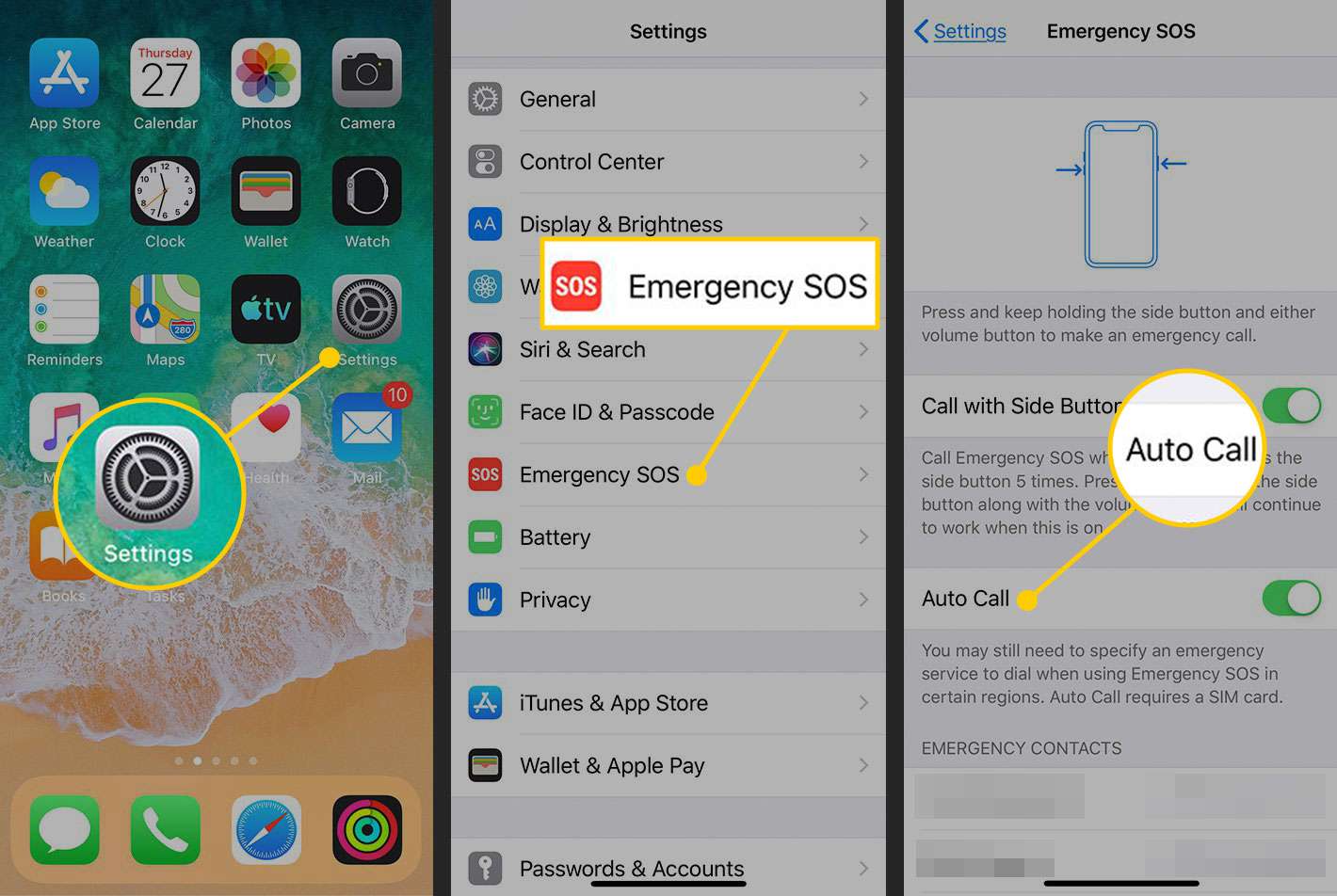
Accessing the Settings Menu: To begin, unlock your Realme device and navigate to the home screen. From there, locate and tap on the "Settings" app, typically represented by a gear icon. Upon entering the Settings menu, you'll gain access to a range of options and configurations for your device.
-
Locating the Emergency SOS Feature: Once within the Settings menu, scroll through the available options to find the "Security & privacy" or "Safety & emergency" section. These sections often house features related to emergency contacts and SOS functionality. Tap on the relevant section to proceed.
-
Identifying the Emergency SOS Settings: Within the "Security & privacy" or "Safety & emergency" section, look for the "Emergency SOS" or "Emergency information" option. This is where you can review the current settings associated with the Emergency SOS feature on your Realme device.
-
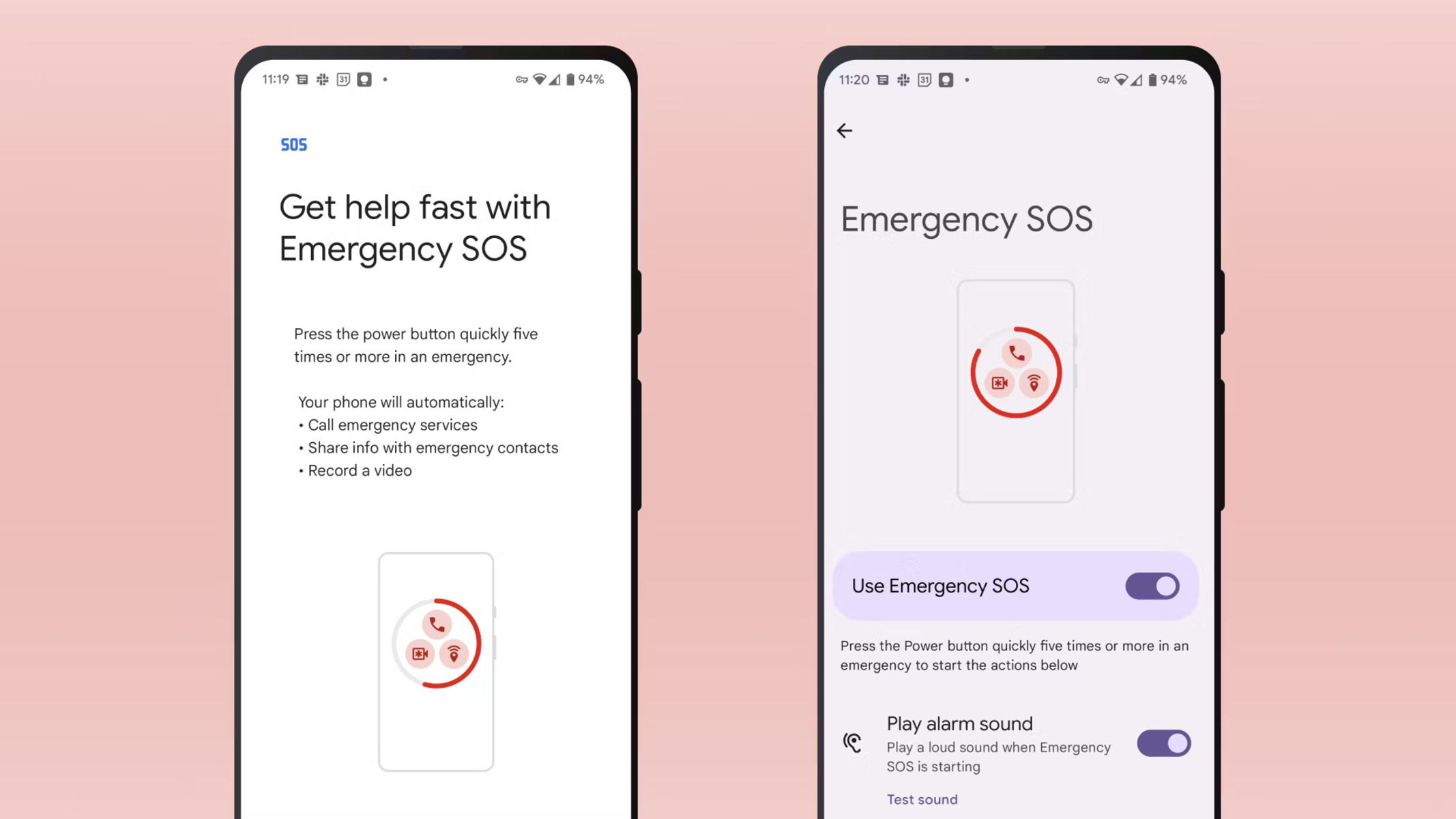
Reviewing the Activation Status: Upon accessing the Emergency SOS settings, take note of the current activation status. If the feature is enabled, you will likely see a toggle switch indicating its active state. Conversely, if the feature is disabled, the toggle switch will be in the off position.
-
Verifying Emergency Contacts: In addition to the activation status, it's beneficial to verify the emergency contacts linked to the SOS feature. Realme devices often allow users to designate specific contacts to be notified in the event of an emergency. Take a moment to ensure that the listed emergency contacts are up to date and accurate.
By thoroughly examining the settings related to the Emergency SOS feature on your Realme device, you can gain valuable insights into its current configuration. This foundational knowledge sets the stage for the subsequent steps involved in disabling the feature, ensuring a smooth and informed process.
Now that you've familiarized yourself with the existing settings, you're prepared to proceed with the next crucial step: disabling the Emergency SOS feature on your Realme device.
Disabling Emergency SOS
Disabling the Emergency SOS feature on your Realme device is a straightforward process that empowers you to customize the functionality based on your preferences. Whether you've reassessed your emergency contact details or simply wish to deactivate the feature temporarily, the ability to disable Emergency SOS provides users with flexibility and control over their device's settings.
To initiate the process of disabling Emergency SOS, follow these step-by-step instructions tailored to Realme devices:
-
Accessing the Emergency SOS Settings: Begin by unlocking your device and navigating to the home screen. From there, locate and tap on the "Settings" app, typically represented by a gear icon. Once within the Settings menu, scroll through the available options to find the "Security & privacy" or "Safety & emergency" section.
-
Locating the Emergency SOS Feature: Within the "Security & privacy" or "Safety & emergency" section, you will find the "Emergency SOS" or "Emergency information" option. Tap on this feature to access the specific settings associated with Emergency SOS.
-
Disabling the Feature: Upon entering the Emergency SOS settings, you will likely encounter a toggle switch that indicates the current activation status of the feature. To disable Emergency SOS, simply tap on the toggle switch to deactivate the feature. Once disabled, the toggle switch will reflect the off position, signifying that the Emergency SOS functionality is no longer active on your Realme device.
-
Verifying the Deactivation: After toggling off the Emergency SOS feature, take a moment to ensure that the deactivation has been successfully implemented. This can be confirmed by reviewing the toggle switch, which should now indicate that the feature is inactive.
-
Optional: Reviewing Emergency Contacts: While in the Emergency SOS settings, it's advisable to review the emergency contacts associated with the feature. If you've made any changes to your emergency contact list, this is an opportune time to verify that the information is accurately reflected in the settings.
By following these steps, you can effectively disable the Emergency SOS feature on your Realme device, granting you the autonomy to tailor the device's emergency functionality to align with your current needs and preferences. Whether you're adjusting the settings for personal reasons or exploring the customization options available on your device, the ability to disable Emergency SOS provides a valuable avenue for user control and customization.
Upon completing the process of disabling Emergency SOS, you can proceed with confidence, knowing that the feature has been adjusted according to your specifications. This level of customization empowers users to tailor their device's emergency functionality in a manner that best suits their individual requirements and circumstances.
Testing the Functionality
With the Emergency SOS feature disabled on your Realme device, it's essential to verify the functionality to ensure that the deactivation has been successfully implemented. Testing the functionality provides peace of mind, confirming that the adjustments made to the settings align with your preferences and that the device operates as intended.
To test the functionality of the disabled Emergency SOS feature, consider the following steps:
-
Simulating an Emergency Scenario: Begin by simulating a hypothetical emergency scenario to assess the device's response. This can be achieved by initiating a test sequence that mirrors the conditions under which the Emergency SOS feature would typically activate. For example, consider mimicking a distress situation that would prompt the device to trigger the emergency functionality.
-
Observing the Device's Response: Once the simulated emergency scenario is initiated, observe the device's response to determine whether the Emergency SOS feature remains inactive. Pay close attention to any indicators or prompts that would typically accompany the activation of the feature, such as emergency contact notifications or automatic distress signal transmissions.
-
Verifying Non-Activation: As the simulated emergency scenario unfolds, verify that the Emergency SOS feature does not activate despite the conditions that would typically trigger its functionality. This confirmation reaffirms that the feature remains disabled and that the device's response aligns with the intended deactivation of the Emergency SOS functionality.
-
Reviewing User Interface Feedback: Throughout the testing process, take note of any user interface feedback or visual cues that may indicate the status of the Emergency SOS feature. This can include observing the absence of emergency prompts, the lack of distress signal transmissions, and the overall non-engagement of the emergency functionality.
-
Ensuring Contact Notification Suppression: In the event of a simulated emergency, ensure that the designated emergency contacts do not receive notifications or alerts from the device, further confirming that the Emergency SOS feature remains inactive and that the adjustments to the settings have been effectively implemented.
By rigorously testing the functionality of the disabled Emergency SOS feature, you can gain confidence in the successful deactivation of the feature on your Realme device. This proactive approach allows you to validate the device's response under simulated emergency conditions, providing assurance that the feature remains inactive and that the device operates according to the specified settings.
Testing the functionality serves as a crucial step in the process of disabling the Emergency SOS feature, offering users the opportunity to verify the effectiveness of the adjustments made to the device's settings. This validation process ensures that the feature remains inactive and that the device's response aligns with the intended deactivation, ultimately empowering users with control and confidence in their device's emergency functionality.