Understanding Touch Hold Duration
Touch hold duration refers to the length of time a user must keep their finger pressed on the screen before a touch and hold action is triggered. This feature is particularly significant in the context of user interface design, as it determines the responsiveness and user experience of touch-based interactions on devices such as the iPhone 10.
The touch hold duration setting plays a crucial role in balancing user convenience and preventing accidental activations. By customizing this duration, users can tailor their device's responsiveness to their specific needs and preferences. For instance, a shorter touch hold duration may lead to quicker access to contextual menus or actions, while a longer duration can prevent unintended interactions, especially for individuals with motor control challenges.
In essence, the touch hold duration setting empowers users to optimize their interaction with the iPhone 10, ensuring that touch and hold actions are both deliberate and efficient. This feature exemplifies Apple's commitment to providing a personalized and intuitive user experience, catering to a diverse range of user needs and preferences.
Understanding the significance of touch hold duration is essential for users seeking to enhance their interaction with the iPhone 10. By delving into the intricacies of this setting, individuals can gain a deeper appreciation for the thoughtfulness and flexibility embedded within the device's user interface, ultimately leading to a more tailored and seamless user experience.
Setting Touch Hold Duration on iPhone 10
Setting the touch hold duration on your iPhone 10 is a straightforward process that allows you to customize the responsiveness of touch and hold actions according to your preferences. This feature empowers users to fine-tune the interaction experience, ensuring that touch and hold gestures align with their individual needs and usage patterns.
To adjust the touch hold duration on your iPhone 10, follow these simple steps:
-
Access the Settings: Begin by tapping on the "Settings" icon on your iPhone 10's home screen. This will open the device's settings menu, providing access to a wide range of customization options.
-
Navigate to Accessibility Settings: Within the Settings menu, scroll and locate the "Accessibility" option. Tap on it to access a variety of features designed to enhance the usability of your iPhone 10.
-
Select Touch:** Under the Accessibility menu, tap on the "Touch" option. This will lead you to a set of touch-related settings that can be personalized to suit your specific requirements.
-
Adjust 3D & Haptic Touch: Within the Touch settings, locate the "3D & Haptic Touch" section. Here, you can fine-tune the touch duration required to trigger 3D Touch or Haptic Touch actions. Tap on "Touch Duration" to proceed to the next step.
-
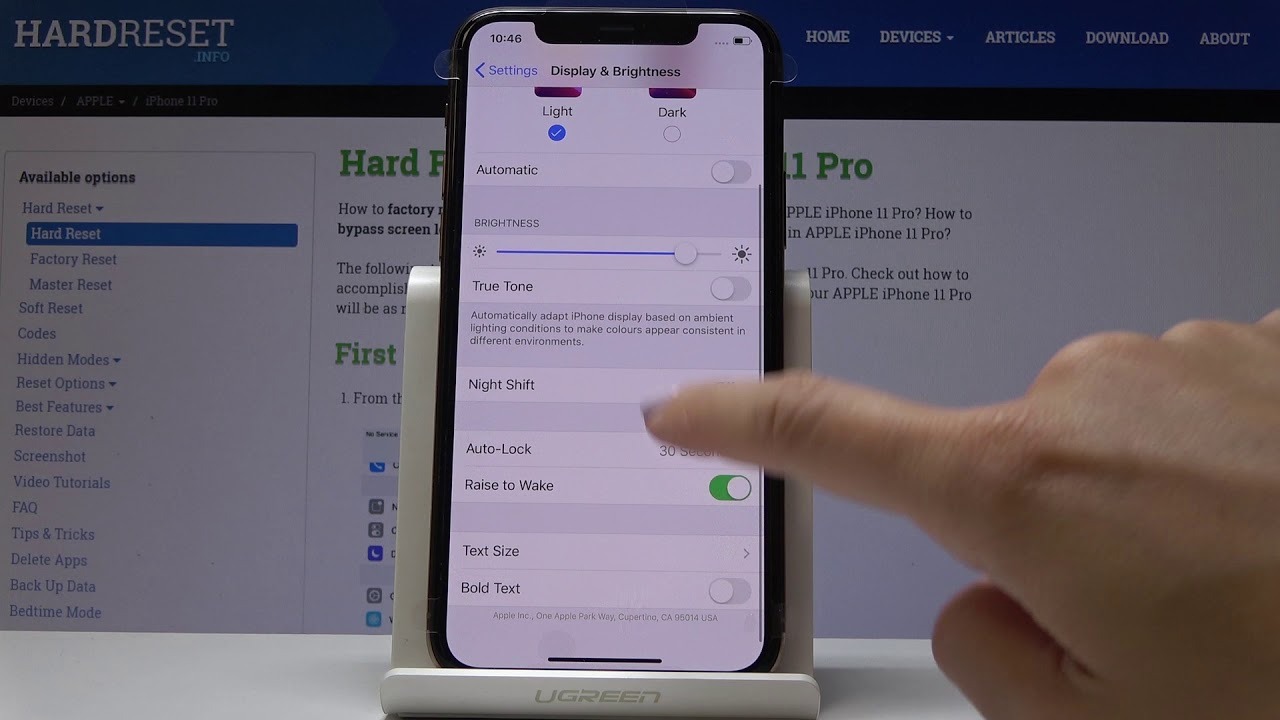
Customize the Touch Hold Duration: Upon selecting "Touch Duration," you will be presented with a slider that allows you to adjust the touch hold duration. By sliding the control left or right, you can decrease or increase the duration, respectively, based on your desired level of responsiveness.
-
Test and Confirm: After making the desired adjustments, test the touch and hold actions across various apps and interfaces to ensure that the duration aligns with your preferences. This step allows you to fine-tune the setting until it perfectly complements your interaction style.
By following these steps, you can seamlessly customize the touch hold duration on your iPhone 10, tailoring the device's responsiveness to your unique needs and usage habits. This level of personalization underscores Apple's commitment to delivering a user-centric experience, where individuals have the flexibility to adapt their devices to suit their preferences.
The ability to set the touch hold duration on the iPhone 10 exemplifies Apple's dedication to empowering users with intuitive customization options, ultimately enhancing the overall usability and accessibility of their devices. This feature not only showcases the technological sophistication of the iPhone 10 but also underscores Apple's commitment to inclusivity and user-centric design.
Customizing Touch Hold Duration for Different Apps
Customizing the touch hold duration for different apps on the iPhone 10 allows users to tailor their interaction experience based on the specific requirements and functionalities of individual applications. This level of customization empowers users to optimize their touch and hold actions, ensuring seamless and efficient interactions across various apps and interfaces.
When customizing touch hold duration for different apps, users can consider the unique characteristics and usage scenarios associated with each application. For instance, productivity apps such as note-taking or task management tools may benefit from a shorter touch hold duration, enabling swift access to contextual menus or actions within the app's interface. On the other hand, entertainment or media consumption apps might warrant a longer touch hold duration to prevent accidental interactions while navigating through content or engaging with multimedia elements.
To customize touch hold duration for different apps on the iPhone 10, users can leverage the device's accessibility settings to fine-tune the responsiveness of touch and hold actions based on their usage patterns and preferences. By accessing the Touch settings within the Accessibility menu, users can navigate to the specific app settings and adjust the touch hold duration to align with the app's functionality and their interaction requirements.
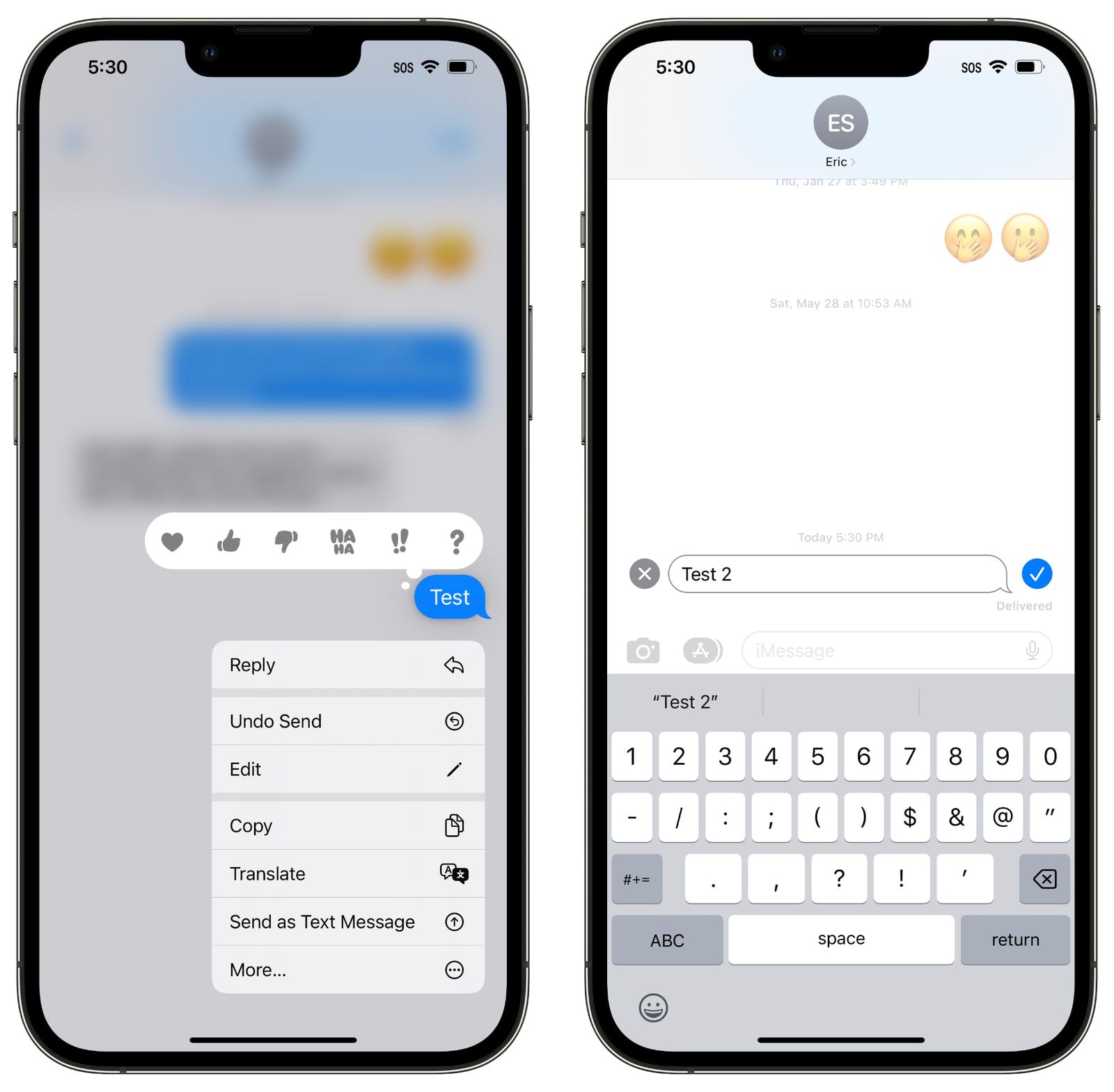
For instance, users can customize the touch hold duration for messaging apps to strike a balance between swift access to contextual actions, such as replying or forwarding messages, and preventing inadvertent triggering of touch and hold gestures during regular typing or scrolling activities. This level of customization ensures that touch and hold actions within messaging apps are optimized for efficient communication while minimizing the risk of unintended interactions.
Similarly, when customizing touch hold duration for creative or design-oriented apps, users can tailor the duration to facilitate precise and deliberate interactions, particularly when working with intricate design elements or editing tools. By adjusting the touch hold duration to accommodate the app's specific workflow and user interface dynamics, individuals can enhance their productivity and creative expression within these specialized applications.
Overall, customizing touch hold duration for different apps on the iPhone 10 reflects Apple's commitment to providing users with a personalized and adaptable interaction experience. This level of customization empowers individuals to optimize their touch-based interactions across a diverse range of applications, ensuring that the touch hold duration aligns with the unique demands and usage scenarios associated with each app. By seamlessly integrating this customization feature into the device's accessibility settings, Apple underscores its dedication to fostering a user-centric approach to interaction design, where individuals have the flexibility to tailor their devices to suit their diverse needs and preferences.