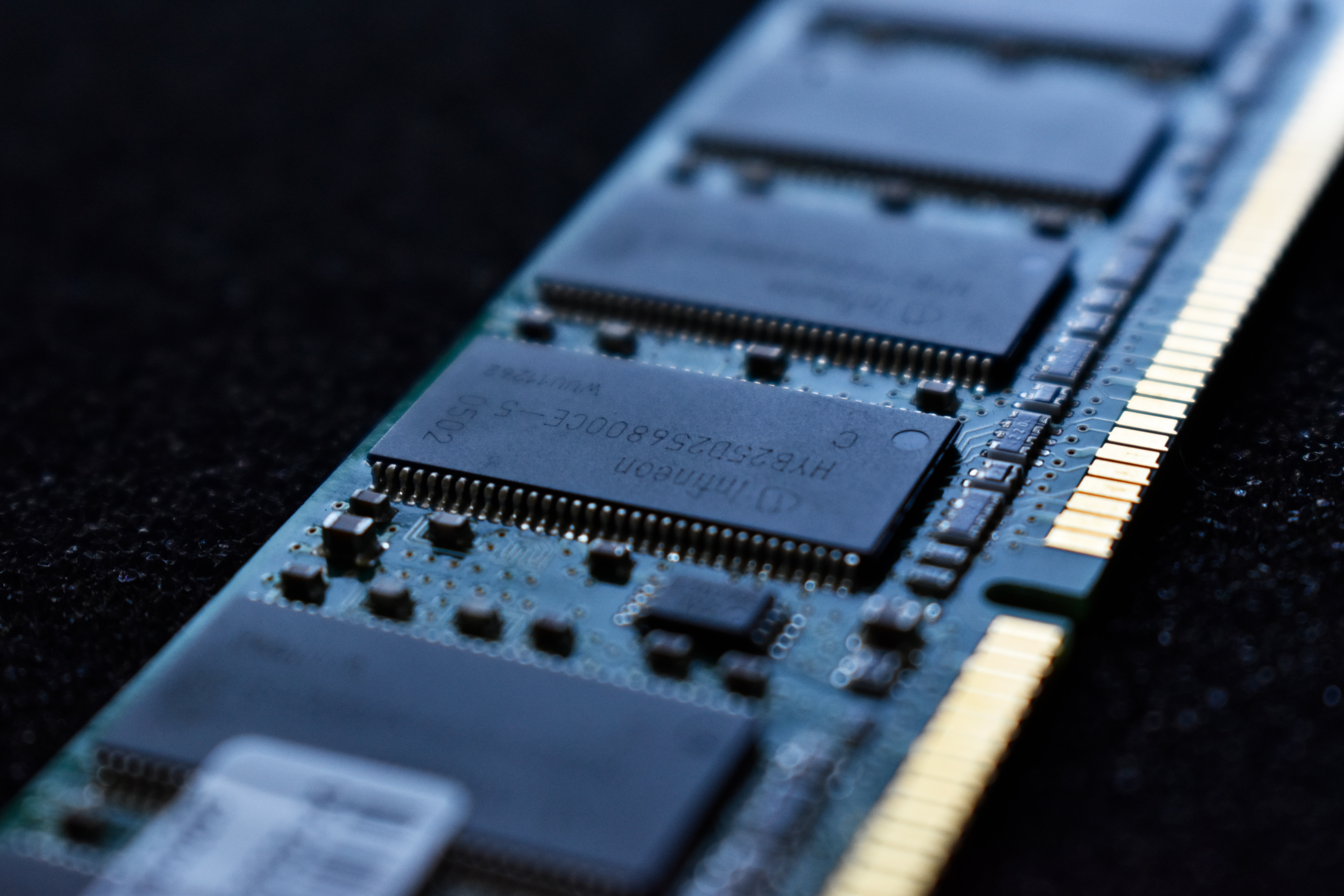
Restart Your Computer
One of the simplest and most effective ways to clear RAM on your Mac or Windows computer is to restart it. When you restart your computer, it allows the operating system to close all running processes and clear the RAM. This can help free up memory that might have been occupied by unnecessary programs or processes.
Restarting your computer also helps in resolving any temporary software glitches or memory leaks that might be causing your computer to slow down. By shutting down and starting up again, you give your computer a fresh start and enable it to allocate memory more efficiently.
Before you restart your computer, it’s a good idea to save any unsaved work and close any open applications. This ensures that you don’t lose any important data and allows the system to properly exit all running processes.
After shutting down your computer, wait for a few seconds and then turn it back on. Once it boots up, you should notice a difference in the speed and responsiveness of your system. The RAM would be cleared, and your computer would have more resources to allocate to the tasks at hand.
Restarting your computer should be a regular practice, especially if you notice it becoming sluggish or unresponsive. It’s a quick and easy way to give your computer a boost without any technical knowledge or complex procedures.
In addition to clearing RAM, restarting your computer also allows for updates and patches to be applied, ensuring that your system runs smoothly with the latest software versions.
Remember, restarting your computer should only be the first step in optimizing its performance. For more advanced methods of clearing RAM and improving system performance, continue reading the following sections.
Close Unnecessary Programs and Processes
One of the primary reasons for high RAM usage on your Mac or Windows computer is the presence of multiple running programs and processes. Closing unnecessary programs and processes can help free up valuable memory and improve system performance.
First, take a look at your taskbar or dock and identify any programs that you are not currently using. Right-click on their icons and choose the “Quit” or “Close” option to shut them down. This will release the RAM they were occupying and make it available for other tasks.
Additionally, you can use the built-in Task Manager (Windows) or Activity Monitor (Mac) to identify and close any background processes that may be consuming excessive memory. These tools provide valuable insights into the performance of your system and allow you to terminate specific processes that are straining the RAM.
On Windows, you can access Task Manager by pressing Ctrl+Shift+Esc or by right-clicking on the taskbar and selecting “Task Manager” from the menu. In the Task Manager window, navigate to the “Processes” or “Details” tab, and look for any processes that are using a significant amount of memory. Right-click on them and choose “End Task” to close them.
For Mac users, Activity Monitor can be accessed by going to Applications > Utilities > Activity Monitor. In the Activity Monitor window, click on the “Memory” tab to view processes sorted by memory usage. Identify any resource-hungry processes and click on the “X” button in the toolbar to quit them.
It’s worth noting that some processes are vital for the functioning of your operating system and should not be terminated unless you are certain about their purpose. Make sure to research any unfamiliar processes before terminating them to avoid unintended consequences.
Closing unnecessary programs and processes not only frees up memory but also reduces the strain on your computer’s CPU and disk, resulting in improved overall performance.
By regularly monitoring and closing unnecessary programs and processes, you can ensure that your computer has enough resources to handle the tasks you’re working on and maintain optimal performance.
Use Activity Monitor (Mac) or Task Manager (Windows)
Activity Monitor (Mac) and Task Manager (Windows) are powerful tools that provide detailed information about the performance of your computer and allow you to manage running processes. You can effectively use these tools to identify memory-hungry applications, monitor system resources, and optimize RAM usage.
On a Mac, Activity Monitor can be accessed by navigating to Applications > Utilities > Activity Monitor. It provides a comprehensive view of your system’s performance, including CPU usage, memory usage, disk activity, and more. The “Memory” tab in Activity Monitor is particularly useful for identifying which applications and processes are consuming the most RAM.
In Task Manager, which can be accessed on Windows by pressing Ctrl+Shift+Esc or right-clicking on the taskbar and selecting “Task Manager,” you’ll find a similar set of options. The “Processes” or “Details” tab in Task Manager displays a list of all running processes, along with information such as CPU usage, memory usage, and more. By sorting the list by memory usage, you can quickly identify memory-intensive processes and take appropriate action.
In both Activity Monitor and Task Manager, you have the ability to terminate or end specific processes that may be contributing to high RAM usage. Right-clicking on a process in Task Manager or clicking on the “X” button in Activity Monitor’s toolbar allows you to close or quit the selected process, freeing up memory resources.
These tools also provide insight into other system performance metrics such as disk activity, network usage, and CPU utilization. By monitoring these metrics, you can identify any bottlenecks or resource-intensive processes that might be causing overall system slowdowns.
Regularly using Activity Monitor or Task Manager to monitor and manage running processes can significantly improve your computer’s performance. By closing unnecessary applications and terminating resource-hungry processes, you can free up valuable RAM and ensure that your system runs smoothly.
Remember to use these tools with caution and avoid terminating essential system processes, as doing so may result in instability or system crashes. Take the time to understand the purpose of each process before making any modifications.
Using Activity Monitor (Mac) or Task Manager (Windows) empowers you to take control of your computer’s performance and optimize RAM usage for a smoother computing experience.
Disable Startup Programs
Many applications and programs have the option to automatically start when you boot up your computer. While this can be convenient, having too many startup programs can significantly impact your computer’s performance by consuming valuable RAM right from the start. Disabling unnecessary startup programs can help free up memory and improve the overall speed of your computer.
On a Windows computer, you can manage startup programs through the Task Manager. To access the Task Manager, press Ctrl+Shift+Esc, and then navigate to the “Startup” tab. This tab lists all the programs that are set to launch during startup. Right-click on any program you want to disable and select “Disable” from the context menu.
On a Mac, managing startup programs can be done through the System Preferences. Click on the Apple menu, select “System Preferences,” and then click on “Users & Groups.” From there, select your user account, and click on the “Login Items” tab. This tab displays a list of applications that are set to launch during startup. To disable a program, select it from the list and click on the “-” button at the bottom of the window.
When disabling startup programs, it’s important to distinguish between essential programs and those that are not necessary for everyday use. System-related programs and protective software, such as antivirus programs, should typically remain enabled for the security and proper functioning of your computer. However, non-essential applications like messaging apps or media players can be safely disabled without affecting your computer’s performance.
By reducing the number of startup programs, your computer will have more memory available to allocate to the tasks you initiate, resulting in faster boot times and improved overall performance. Additionally, disabling unnecessary startup programs can help reduce the clutter on your desktop and system tray, making for a cleaner and more organized user experience.
Periodically reviewing and disabling unnecessary startup programs is a good practice to maintain the optimal performance of your computer. This simple step can go a long way in optimizing the allocation of RAM and improving the efficiency of your system.
Clear System and Browser Caches
Over time, your computer’s system and browser caches can accumulate a significant amount of temporary files and data. Clearing these caches can help free up storage space and also improve the performance of your computer’s RAM.
System caches, also known as cache files or temporary files, are created by your operating system and various applications as they run. These caches store data that allows your computer to load applications and files more quickly. However, as the caches grow in size, they can occupy a portion of your computer’s RAM, leading to slower performance.
To clear system caches on a Windows computer, you can use the built-in Disk Cleanup tool. To access it, open the Start menu and search for “Disk Cleanup.” Launch the tool, select the drive you want to clean (usually the C: drive), and click on “OK.” Check the “Temporary files” option and any other cache-related options you wish to clear, then click on “OK” again to start the cleanup process.
On a Mac, you can clear system caches by using the Terminal application. Open the Terminal and enter the command “sudo periodic daily weekly monthly” to clear various system caches. You may need to enter your administrator password for the changes to take effect.
In addition to system caches, clearing your browser caches can also help improve the performance of your computer. Web browsers store copies of web pages, images, and other resources in the cache to load them faster the next time you visit the same pages. However, an overly full browser cache can slow down your browser and consume RAM unnecessarily.
To clear browser caches, open your web browser’s settings or preferences and look for the option to clear browsing data or clear cache. In most browsers, you can usually find this option under the “Privacy” or “History” section. Choose the cache option and click on “Clear” or “Delete” to remove the stored data.
By regularly clearing system and browser caches, you can reclaim valuable storage space and ensure that your computer’s RAM is efficiently utilized. This can lead to faster loading times, improved responsiveness, and a smoother overall computing experience.
Keep in mind that clearing caches will remove temporary files, but it won’t delete any important data or files. It’s always a good idea to create backups of important files and documents before performing any system or cache cleanup.
Uninstall Unused Applications
Over time, you may accumulate a collection of applications on your computer that you no longer use or need. These unused applications not only take up valuable storage space but can also consume memory resources, including RAM. Uninstalling these unused applications can help free up storage and improve the performance of your computer.
Both Windows and Mac operating systems provide built-in tools to uninstall applications. On a Windows computer, you can access the “Add or Remove Programs” or “Programs and Features” section in the Control Panel. This displays a list of installed applications, allowing you to select the ones you want to uninstall. Simply click on the application’s name and then select the “Uninstall” or “Remove” option to initiate the uninstallation process.
On a Mac, you can uninstall applications by locating them in the Applications folder. Open Finder, select “Applications” from the sidebar, and find the application you want to remove. Drag the application to the Trash bin, or right-click on it and select “Move to Trash.” Remember to empty the Trash to completely remove the application from your Mac.
When uninstalling applications, it’s important to distinguish between essential programs needed for the functioning of your system and those that are not actively used. System-related or vital applications should be retained, while applications that haven’t been used for a long time can be safely uninstalled.
In addition to freeing up storage space, uninstalling unused applications can help improve system performance. When an application is installed, it may set background processes or services that run automatically, consuming valuable resources such as RAM. By removing unnecessary applications, you reduce the strain on your computer’s memory and allow it to allocate resources more effectively to the tasks you’re actively working on.
If you’re unsure about whether to uninstall a particular application, consider its usefulness and frequency of use. If you haven’t utilized the application for an extended period and don’t foresee needing it in the future, it’s probably safe to remove it. However, be cautious when uninstalling applications that are unfamiliar or part of your system software, as they may be required for proper functioning.
Regularly reviewing and uninstalling unused applications is a good practice to maintain an organized and optimized computer. By freeing up storage space and reducing the number of background processes, you can enhance overall system performance and ensure a smoother and more efficient computing experience.
Adjust Virtual Memory Settings
Virtual memory, also known as the paging file, is a reserved portion of your computer’s hard drive that is used as an extension of physical RAM. Adjusting virtual memory settings can help optimize memory usage and improve overall system performance.
When your computer’s physical RAM reaches its maximum capacity, the operating system uses virtual memory to temporarily store data that would otherwise be stored in RAM. By default, the virtual memory settings are managed automatically by the operating system. However, manually adjusting these settings can potentially enhance performance.
To adjust virtual memory settings on a Windows computer, open the Control Panel and navigate to “System and Security” > “System” > “Advanced system settings”. In the “System Properties” window, go to the “Advanced” tab and click on the “Settings” button under the “Performance” section. In the “Performance Options” window, select the “Advanced” tab and click on the “Change” button under the “Virtual memory” section. From here, you can manually set the size of the virtual memory (paging file) or choose the “System managed size” option to let the operating system handle it automatically.
On a Mac, virtual memory settings are managed automatically and cannot be manually adjusted. However, you can optimize virtual memory usage by minimizing the number of open applications and reducing resource-intensive processes.
When adjusting virtual memory settings, it’s important to strike a balance. Setting the virtual memory too low can lead to frequent system crashes or errors, while setting it too high can consume valuable hard drive space. It’s recommended to follow the recommended virtual memory size suggested by your operating system unless you have specific requirements or experience performance issues.
By manually adjusting virtual memory settings, you can potentially improve system performance, especially if you frequently use memory-intensive applications or multitask with several resource-demanding programs open simultaneously. Increasing the size of the virtual memory may help prevent frequent swapping between physical RAM and the paging file, reducing latency and improving overall system responsiveness.
Keep in mind that adjusting virtual memory settings is an advanced task, and incorrectly modifying these settings may result in system instability or other issues. If you’re unsure about changing virtual memory settings, it’s recommended to consult with a knowledgeable professional or refer to official documentation for your specific operating system.
Optimizing virtual memory settings can be one of the many steps you take to maximize the utilization of your computer’s available resources and enhance overall system performance.
Upgrade Your RAM
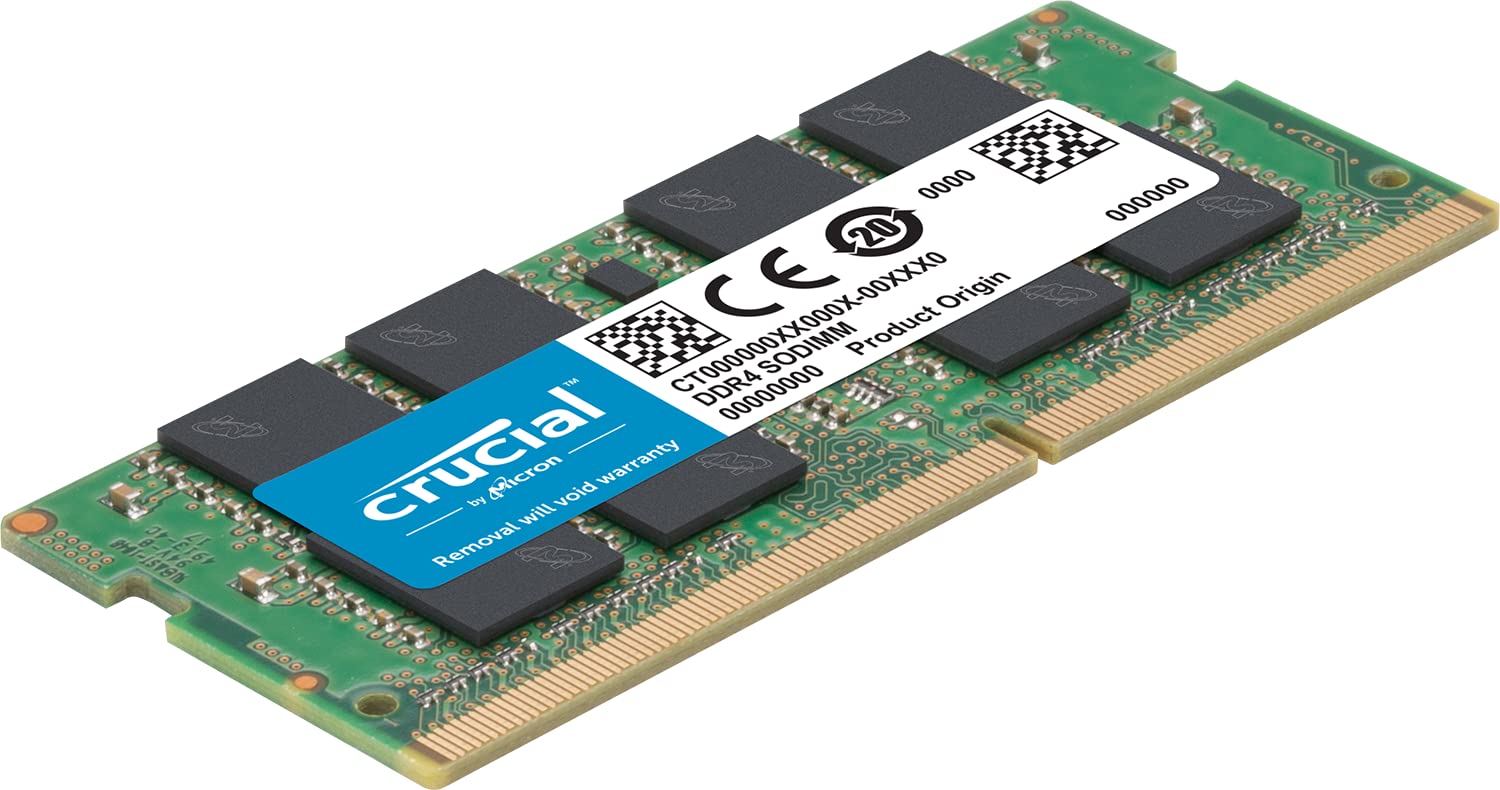
If your computer is still experiencing sluggishness, even after implementing various optimizations, it may be time to consider upgrading your RAM. Upgrading the RAM can provide a significant performance boost and allow your computer to handle more demanding tasks efficiently.
RAM, or Random Access Memory, is the temporary storage space that your computer uses to hold data that is actively being used by the processor. More RAM means your computer can store and access more data simultaneously, resulting in faster performance, improved multitasking capabilities, and smoother overall operation.
Before deciding to upgrade your RAM, it’s essential to determine the maximum amount of RAM that your computer’s motherboard can support. This information can usually be found in the specifications of your computer or by consulting the manufacturer’s documentation. It’s worth noting that some older systems may have physical limitations on the amount of RAM they can address.
Purchasing compatible RAM modules is the next step. Ensure that you choose RAM modules that match the type (e.g., DDR3, DDR4) and speed supported by your motherboard. It’s also important to consider the capacity of the RAM modules you are purchasing. For optimal performance, it’s best to install RAM in pairs, matching the capacity of each module. However, if your motherboard has only two RAM slots, upgrading to a single larger capacity module might be a better option.
Once you have acquired the new RAM modules, the installation process is relatively straightforward. Power off your computer, unplug it, and open the case following the manufacturer’s instructions. Locate the RAM slots on the motherboard and remove the existing modules, if necessary. Insert the new RAM modules into the available slots, ensuring they are securely seated and aligned with the notches. Finally, close the case, reconnect the power, and power on your computer.
After upgrading your RAM, your computer should have more available memory to handle demanding tasks, run applications smoothly, and multitask more efficiently. With faster access to data, you’ll experience improved performance when working with resource-intensive applications, editing videos, playing games, or running virtual machines.
While upgrading your RAM can significantly enhance the performance of your computer, it’s important to remember that RAM is just one component of overall system performance. Other factors, such as the speed of your processor, storage drive, and graphics card, can also impact the overall speed and responsiveness of your computer.
Consider upgrading your RAM as part of a holistic approach to optimize your computer’s performance. Combine RAM upgrades with other optimization techniques, such as clearing caches, closing unnecessary applications, and maintaining an organized system, to ensure the best possible performance from your computer.
Run a Disk Cleanup
Over time, your computer’s hard drive can accumulate temporary files, system logs, unused system files, and other unnecessary data. Running a disk cleanup can help remove these files and free up valuable storage space, improving the overall performance of your computer.
Windows computers come with a built-in Disk Cleanup tool that you can use to clean up your hard drive. To access this tool, open the Start menu, search for “Disk Cleanup,” and click on the application when it appears in the search results.
When the Disk Cleanup window opens, select the drive you want to clean. The tool will calculate how much space you can free up by removing various types of files. You can choose which file categories you want to clean by checking the corresponding boxes. These categories may include temporary files, system files, downloaded program files, and more.
Once you have selected the file categories you want to clean, click on the “OK” button. Disk Cleanup will ask for confirmation before it proceeds to delete the selected files. Review the list of files to be deleted and click on “Delete Files” to start the cleanup process.
Running a disk cleanup not only helps free up storage space but also removes files that may be unnecessarily taking up memory resources. By eliminating unneeded files, you can optimize the allocation of RAM and improve system performance.
It’s important to note that while a disk cleanup can remove temporary and unnecessary files, it won’t delete important personal files or programs. Exercise caution when selecting which file categories to clean, and make sure you review the list of files before proceeding to delete them.
In addition to the built-in Disk Cleanup tool, there are also third-party disk cleanup utilities available that offer more advanced cleaning options. These utilities often provide additional features, such as detecting duplicate files or managing large files, to further optimize your computer’s storage and memory usage.
Running a disk cleanup on a regular basis, such as monthly or quarterly, can help keep your computer’s hard drive clutter-free and maintain optimal storage space and performance.
Remember, freeing up storage space through a disk cleanup is just one aspect of optimizing your computer’s performance. Combine disk cleanups with other optimization techniques, such as uninstalling unused applications and adjusting virtual memory settings, to ensure your computer runs efficiently and smoothly.
Disable Visual Effects and Animations
Visual effects and animations can enhance the visual appeal of your computer’s user interface, but they can also consume valuable system resources. Disabling or reducing these visual effects can help improve overall performance, especially on older or less powerful hardware.
On a Windows computer, you can adjust visual effects settings through the Control Panel. Open the Control Panel, then navigate to “System and Security” > “System” > “Advanced system settings”. In the “System Properties” window, go to the “Advanced” tab and click on the “Settings” button under the “Performance” section. In the “Performance Options” window, select the “Visual Effects” tab. From here, you can choose between various preset options for visual effects, or manually customize them by selecting or deselecting specific checkboxes. To maximize performance, select the “Adjust for best performance” option, which disables most visual effects and animations.
On a Mac, visual effects and animations are deeply integrated into the operating system, and there are limited options to disable or customize them. However, you can make some adjustments in the “Dock & Menu Bar” settings. Open the System Preferences, click on “Dock & Menu Bar,” and uncheck the “Animate opening applications” and “Automatically hide and show the Dock” checkboxes. These adjustments can reduce animation-related system load.
By disabling or reducing visual effects and animations, you can reduce the strain on your computer’s processing power, memory, and graphics resources. This can result in faster and more responsive performance, especially when running resource-demanding applications or multitasking.
In addition to improving performance, disabling visual effects and animations can also provide a cleaner and less distracting user interface. If you find that the animations are unnecessary or annoying, minimizing them can create a more efficient and focused computing experience.
Keep in mind that disabling visual effects and animations is a trade-off between improved performance and visual aesthetics. While it can provide a noticeable performance boost, it may also remove some visual elements that enhance the user experience. Experiment with different settings to find the balance that suits your preferences and hardware capabilities.
Regularly reviewing and adjusting visual effects and animations can be a useful practice in maintaining optimal performance on your computer. By eliminating unnecessary visual elements, you can ensure that your computer’s resources are utilized efficiently for the tasks that matter most to you.