Checking the Connection
When encountering audio issues with your Plantronics headset, the first step is to ensure that the connection between the headset and the device is secure and properly configured. A faulty or loose connection can often lead to distorted sound, intermittent audio, or complete audio failure. Here are the steps to check and troubleshoot the connection:
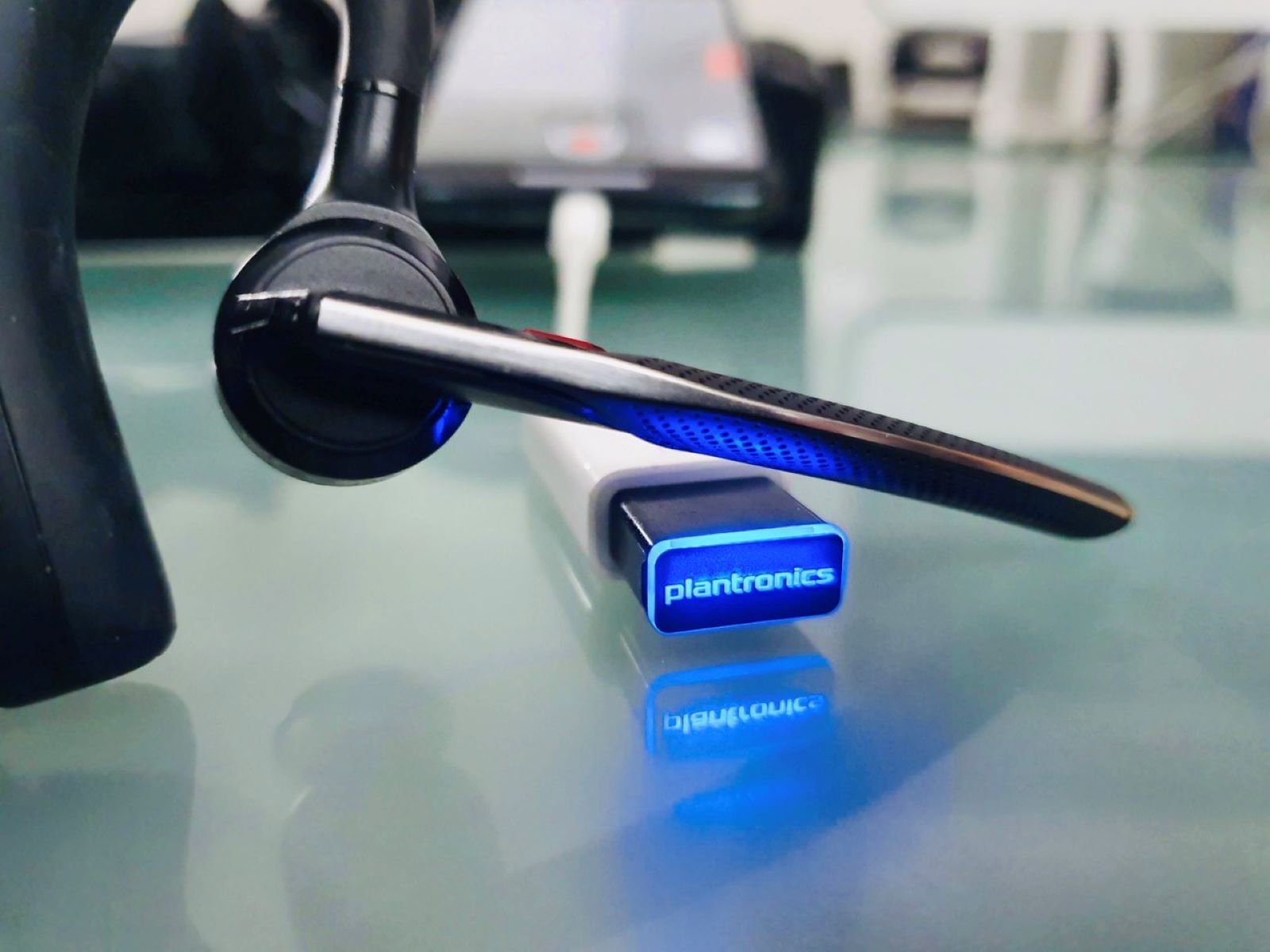
- Verify the Physical Connection: Start by inspecting the physical connection of the headset. If you are using a wired headset, check that the cable is firmly plugged into the device’s audio jack. For wireless headsets, ensure that the wireless receiver is properly connected to the device and that the headset is within the recommended range for connectivity.
- Try Different Ports: If you are using a wired headset and experiencing audio issues, try plugging the headset into different audio ports on your device. Sometimes, a faulty audio jack can be the culprit behind the audio problems.
- Check Bluetooth Connectivity: For Bluetooth-enabled Plantronics headsets, ensure that the Bluetooth connection between the headset and the device is stable. Check for any interference from other nearby devices and make sure the Bluetooth settings on both the headset and the device are properly configured.
- Re-pair Bluetooth Connection: If you are facing audio disruptions with a Bluetooth headset, try re-pairing the headset with the device. Remove the existing pairing from the device’s Bluetooth settings and then re-establish the connection following the manufacturer’s instructions.
By meticulously examining and troubleshooting the connection, you can often identify and resolve the underlying causes of audio issues with your Plantronics headset.
Adjusting the Volume and Settings
When encountering audio problems with your Plantronics headset, adjusting the volume and settings can often resolve the issues. Here are some steps to effectively troubleshoot and optimize the volume and settings:
- Volume Adjustment: Begin by checking the volume levels on both the headset and the connected device. Ensure that the volume is not set too low or muted on either the headset or the device. Gradually increase the volume to a comfortable level and test the audio output.
- Device Settings: Access the audio settings on your device and verify that the correct audio output is selected. If you are using a computer, check the sound settings in the control panel or system preferences. For mobile devices, navigate to the sound or audio settings to confirm the output configuration.
- Equalizer Settings: Some audio issues may be related to the equalizer or sound enhancement settings on your device. Experiment with different equalizer presets or adjust the sound enhancements to see if it improves the audio quality. Resetting the equalizer settings to default may also help resolve any irregularities in the audio output.
- Headset Controls: If your Plantronics headset features built-in volume and audio controls, ensure that these are properly configured. Refer to the headset’s user manual to understand how to adjust the volume, mute the microphone, or activate any audio enhancements directly from the headset.
By meticulously adjusting the volume and settings, you can often mitigate audio issues and optimize the audio output of your Plantronics headset.
Updating the Device Drivers
Outdated or corrupted device drivers can often lead to audio issues with your Plantronics headset. To address this, updating the device drivers is a crucial troubleshooting step. Here’s how you can update the device drivers to potentially resolve audio problems:
- Check for Updates: Start by checking for driver updates for the audio device to which your Plantronics headset is connected. For computers, you can access the device manager to check for driver updates. On mobile devices, navigate to the system settings and look for the option to update device drivers.
- Download Official Drivers: Visit the official website of the device manufacturer or Plantronics to download the latest drivers for your audio device. Ensure that you are downloading the drivers that are compatible with your operating system version.
- Install the Updates: Once you have downloaded the latest drivers, follow the installation instructions provided by the manufacturer. It’s essential to install the drivers correctly to ensure that the audio device and your Plantronics headset can communicate effectively.
- Restart the Device: After updating the device drivers, restart your computer or mobile device to apply the changes. This can help in finalizing the driver updates and ensuring that the audio system is refreshed.
By proactively updating the device drivers for the audio device, you can potentially resolve audio issues and ensure seamless compatibility with your Plantronics headset.
Resetting the Headset
When experiencing persistent audio issues with your Plantronics headset, performing a reset on the headset can often rectify the underlying problems. Resetting the headset can help clear any temporary glitches or configuration errors that may be affecting the audio performance. Here’s how you can reset your Plantronics headset:
- Power Cycle the Headset: Start by turning off the headset and disconnecting it from the power source, if applicable. Allow the headset to remain powered off for a few minutes to ensure that any residual charge dissipates.
- Perform a Soft Reset: Depending on the model of your Plantronics headset, there may be a specific sequence of buttons to press or hold to initiate a soft reset. Refer to the headset’s user manual or the manufacturer’s website for detailed instructions on performing a soft reset.
- Factory Reset: If a soft reset does not resolve the audio issues, you may consider performing a factory reset on the headset. This process typically involves pressing and holding specific buttons or switches for a designated duration to restore the headset to its original factory settings.
- Reconnect the Headset: After resetting the headset, reconnect it to the audio device and test the audio output. Ensure that the headset is properly paired or connected to the device according to the manufacturer’s instructions.
By executing a reset on your Plantronics headset, you can potentially eliminate persistent audio issues and restore the headset to optimal functionality.
Checking for Physical Damage
Physical damage to your Plantronics headset can significantly impact its audio performance. Conducting a thorough inspection for any signs of physical damage is essential when troubleshooting audio issues. Here’s how you can methodically check for physical damage and address any potential concerns:
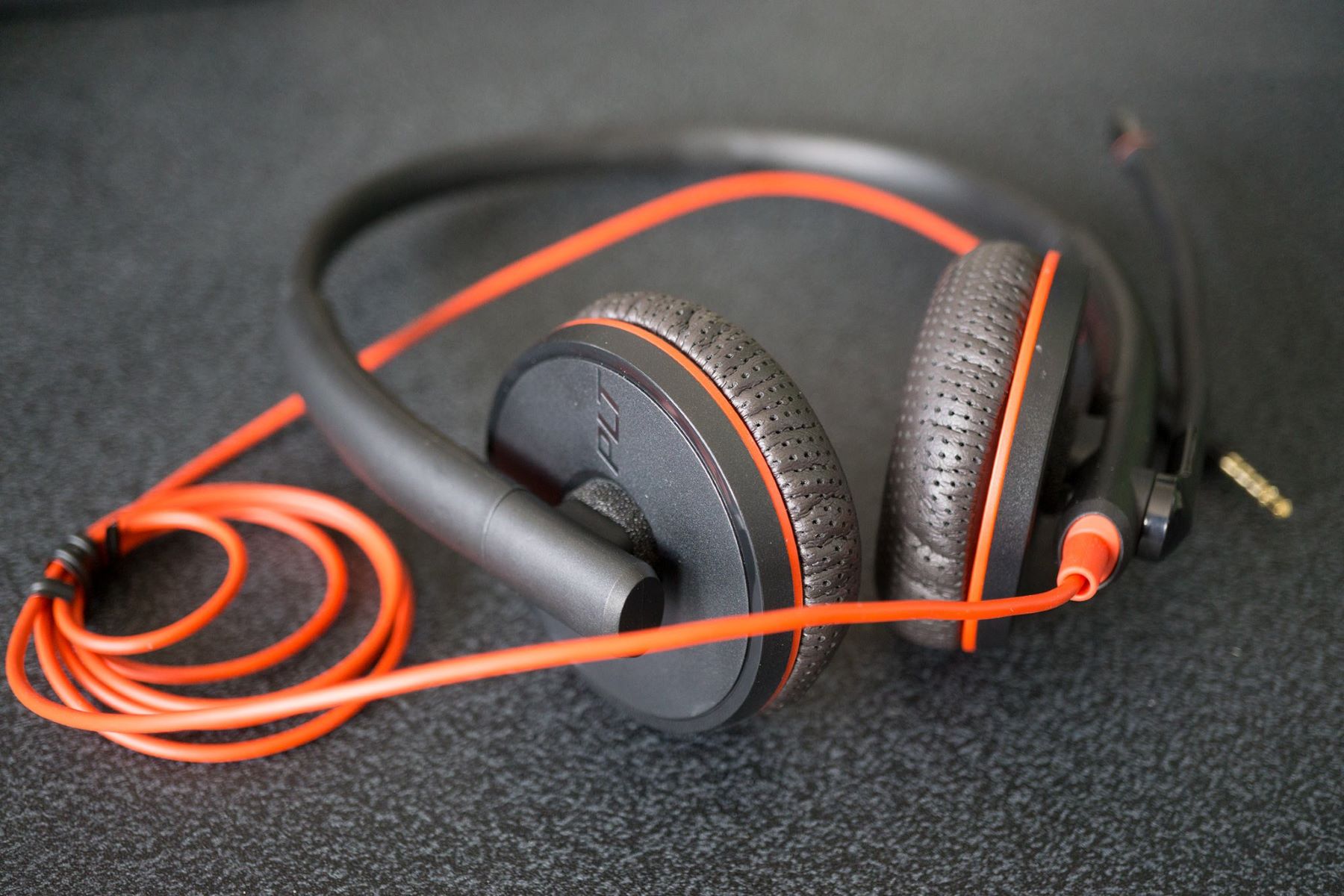
- Examine the Cables and Connectors: For wired headsets, carefully inspect the cables and connectors for any fraying, kinks, or visible damage. Damaged cables can impede the transmission of audio signals and lead to distorted sound or complete audio failure. If any damage is detected, consider replacing the cables with genuine replacements from Plantronics.
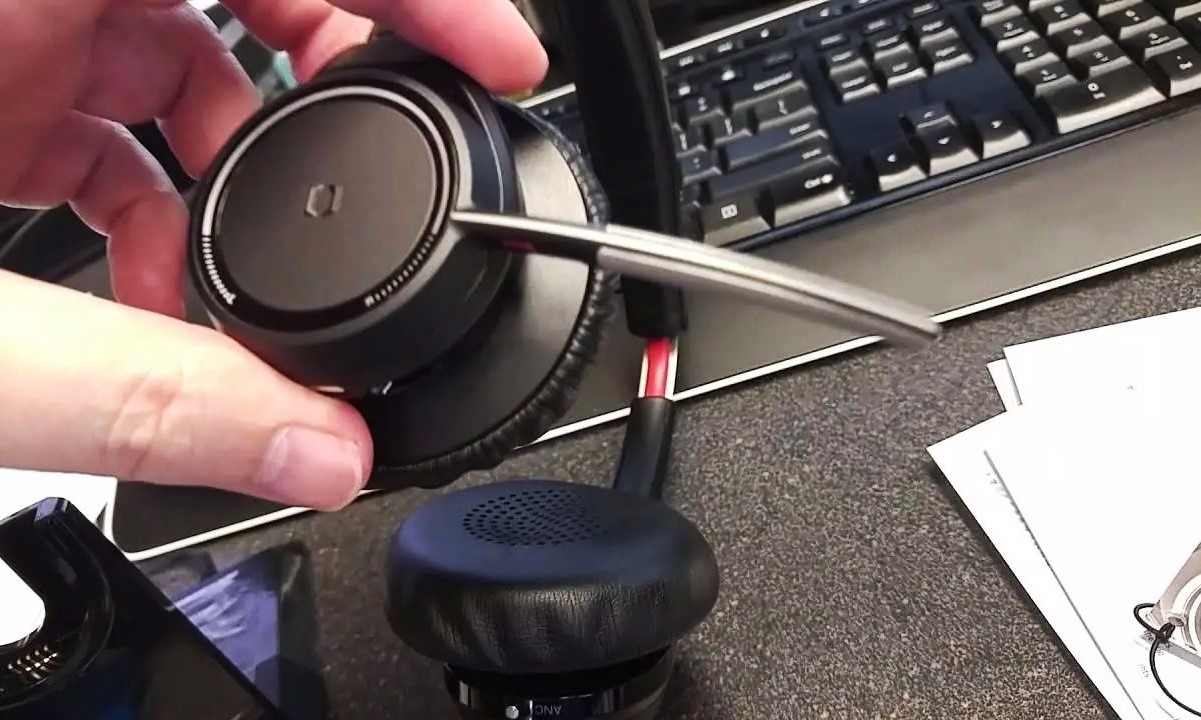
- Assess the Headset Components: Inspect the ear cushions, headband, and microphone of the headset for any signs of wear, tear, or physical damage. Cracked or deteriorating components can affect the overall audio quality and comfort of the headset. Plantronics often provides replacement parts that are compatible with their headsets, allowing you to restore the headset’s integrity.
- Check for Liquid Damage: If the headset has been exposed to moisture or liquid, it can result in corrosion or electrical malfunctions that impact the audio performance. Look for any indications of liquid damage such as water stains, rust, or irregular behavior of the headset. If liquid damage is suspected, refrain from using the headset and seek guidance from Plantronics support for further assessment.
- Inspect the Controls and Buttons: Verify that the control buttons, switches, and volume dials on the headset are functioning correctly. Physical damage to these components can lead to erratic audio behavior and may require professional servicing to rectify.
By diligently checking for physical damage and promptly addressing any issues, you can safeguard the audio integrity of your Plantronics headset and prolong its operational lifespan.
Contacting Plantronics Support
When all troubleshooting efforts have been exhausted and audio issues persist with your Plantronics headset, reaching out to Plantronics support can provide valuable assistance and guidance in resolving the underlying issues. Here’s how you can effectively engage with Plantronics support to address persistent audio problems:
- Accessing Customer Support: Visit the official Plantronics website to locate the customer support section. Plantronics typically offers multiple channels for customer support, including live chat, email support, and a dedicated support hotline. Choose the contact method that best suits your preferences and urgency of the issue.
- Provide Detailed Information: When contacting Plantronics support, be prepared to provide detailed information about the audio issues you are experiencing. Include specific details such as the model of your headset, the type of audio problems encountered, the devices with which the headset is used, and any troubleshooting steps you have already attempted.
- Follow Support Instructions: Plantronics support representatives may provide specific instructions for further troubleshooting or may initiate a warranty claim or repair process if the headset requires servicing. Follow the support team’s guidance diligently and provide any requested information or documentation promptly.
- Warranty and Service Options: If your Plantronics headset is within the warranty period, inquire about the available warranty coverage for addressing audio issues. Plantronics may offer repair or replacement options based on the warranty terms. For headsets outside the warranty period, explore the potential service options provided by Plantronics.
By proactively engaging with Plantronics support, you can leverage the expertise of their support team to diagnose and resolve persistent audio issues with your headset, ultimately ensuring a satisfactory audio experience.