What are Developer Options?
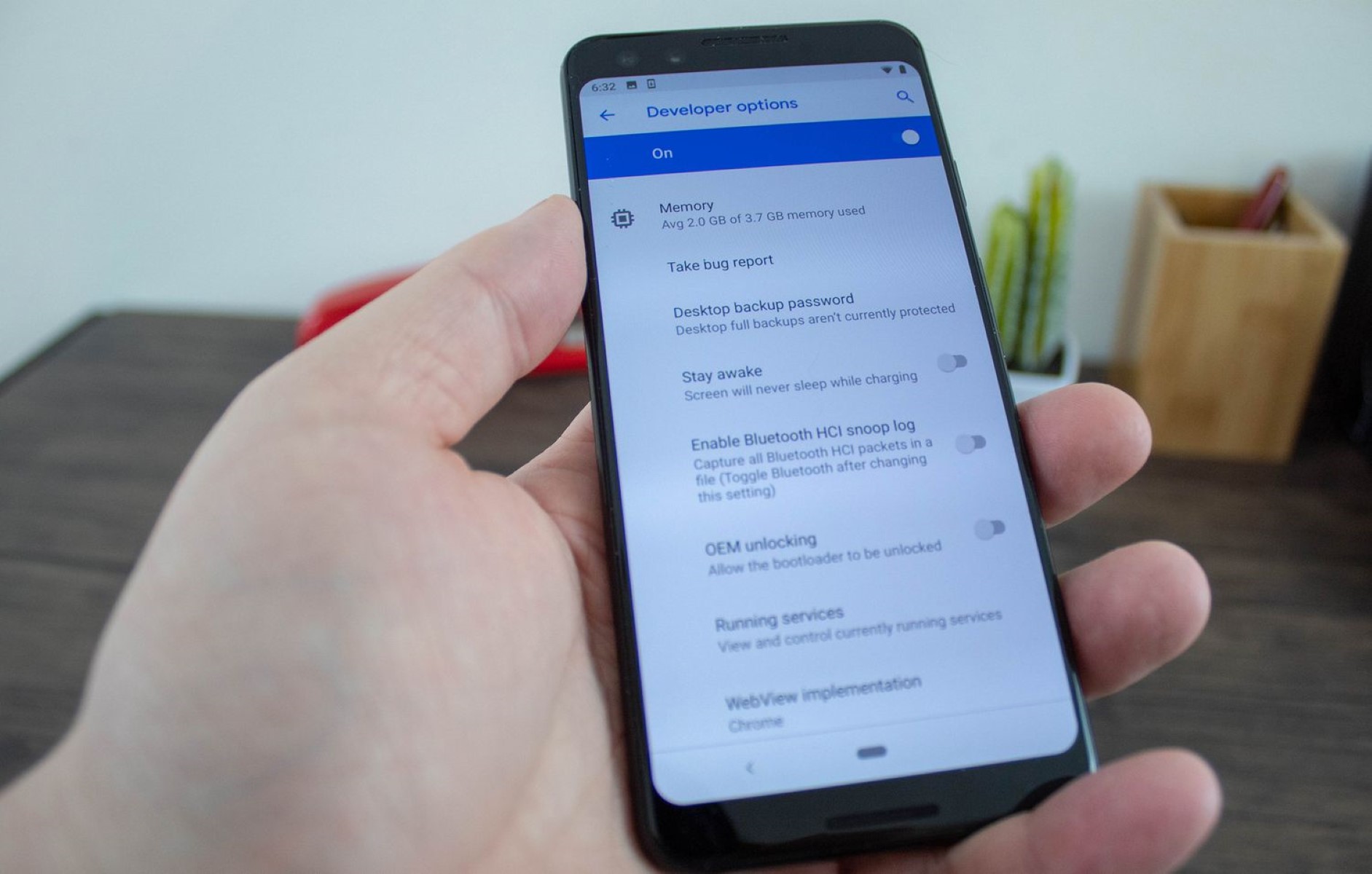
Developer Options, often hidden in the settings of Android devices, provide advanced features and tools primarily intended for developers and advanced users. These options are designed to facilitate app development, debugging, and overall device customization. When enabled, Developer Options unlock a plethora of settings and functions that are not typically required for everyday use but are invaluable for developers and tech-savvy individuals.
Some of the key features accessible through Developer Options include:
-
USB debugging: This feature allows a device to communicate with a computer via a USB connection, enabling advanced tasks such as installing custom ROMs, rooting the device, and troubleshooting app issues.
-
OEM unlocking: Enabling this option allows the bootloader to be unlocked, which is essential for installing custom firmware or making low-level system modifications.
-
Advanced system monitoring: Developer Options provide access to detailed system information, including CPU usage, GPU rendering, and other performance metrics. This data is crucial for optimizing app performance and diagnosing hardware-related issues.
-
Mock locations: This feature enables the device to use simulated GPS locations, which is particularly useful for testing location-based apps without physically moving from place to place.
-
Debugging tools: Developer Options offer various debugging tools, such as bug reports, visual feedback for taps, and GPU overdraw visualization, which aid in identifying and resolving app-related issues.
While these features are immensely beneficial for developers and power users, they are not typically needed for regular device usage. Therefore, Developer Options are hidden by default to prevent accidental access and modification by inexperienced users. However, those who require these advanced features can easily enable Developer Options by tapping the build number in the device's settings multiple times.
Understanding Developer Options is crucial for anyone seeking to harness the full potential of their Android device, especially for those involved in app development, customization, and system optimization. These options empower users to take control of their devices, experiment with advanced settings, and gain deeper insights into the inner workings of the Android operating system.
Why Would You Want to Remove Developer Options?
While Developer Options offer a treasure trove of advanced settings and tools, there are compelling reasons why users might want to remove or disable them from their Xperia devices. Here are several key considerations:
Preventing Unintentional Modifications
Developer Options provide access to powerful features that can significantly impact the device's behavior and performance. For casual users who may have enabled Developer Options out of curiosity or by following online guides, there is a risk of inadvertently making changes that could disrupt the normal functioning of the device. By removing Developer Options, users can mitigate the potential for accidental modifications that may lead to instability or unexpected behavior.
Enhancing Security
Enabling Developer Options, particularly the USB debugging and OEM unlocking features, can expose the device to security risks if not used judiciously. USB debugging, for instance, allows a connected computer to access the device's software interface, potentially opening avenues for unauthorized access or data extraction. Moreover, OEM unlocking, when left enabled, can compromise the device's security by allowing the installation of unauthorized software. By removing Developer Options, users can bolster the security of their Xperia devices, especially if they are not actively engaged in development or customization activities.
Simplifying User Interface
For many users, the presence of Developer Options in the settings menu can be visually cluttering and may cause confusion or unnecessary concern. By removing Developer Options, the settings menu becomes streamlined and more user-friendly, presenting only the essential options relevant to everyday device usage. This streamlined interface can contribute to a more intuitive and less overwhelming user experience, particularly for individuals who have no need for the advanced features offered through Developer Options.
Preserving System Stability
Some modifications made through Developer Options, such as adjusting system animation scales, can impact the overall performance and stability of the device. By removing Developer Options and reverting to the default system settings, users can ensure that the device operates within its intended parameters, minimizing the potential for performance issues or unexpected glitches.
In essence, while Developer Options are indispensable for certain user groups, the decision to remove them from Xperia devices is driven by the desire to maintain simplicity, security, and stability in everyday device usage. By understanding the implications of enabling Developer Options and weighing the associated risks, users can make informed choices regarding the presence of these advanced settings on their devices.
How to Remove Developer Options on Xperia Devices
Removing Developer Options from Xperia devices is a straightforward process that involves accessing the settings menu and disabling the feature. Here's a step-by-step guide to removing Developer Options:
-
Accessing the Settings Menu: To begin, navigate to the "Settings" app on your Xperia device. This can typically be found in the app drawer or by swiping down from the top of the screen and tapping the gear icon.
-
Locating Developer Options: Within the Settings menu, scroll down and look for the "System" or "About phone" option, depending on the specific Xperia model. Once located, tap on this option to proceed.
-
Disabling Developer Options: Within the "System" or "About phone" section, there should be an option labeled "Developer options." Tap on this to access the Developer Options menu.
-
Turning Off Developer Options: Once inside the Developer Options menu, you will see a toggle switch at the top of the screen. Simply tap the toggle to turn off Developer Options. This action will prompt a confirmation dialog to ensure that you intend to disable the feature.
-
Confirming the Removal: After toggling off Developer Options, a confirmation prompt will appear asking if you want to remove or hide Developer Options from the settings menu. Select the appropriate option to finalize the removal process.
-
Verification: To confirm that Developer Options have been successfully removed, navigate back to the main Settings menu and verify that the "Developer options" entry is no longer visible. This indicates that Developer Options have been effectively removed from the Xperia device.
By following these steps, users can easily remove Developer Options from their Xperia devices, thereby streamlining the settings menu and mitigating the risk of unintended modifications. It's important to note that while removing Developer Options is a reversible process, users should exercise caution and only enable these advanced settings when necessary for development, debugging, or customization purposes.
The ability to remove Developer Options provides Xperia users with the flexibility to tailor their device's settings to suit their specific needs and preferences, ensuring a more streamlined and user-friendly experience.