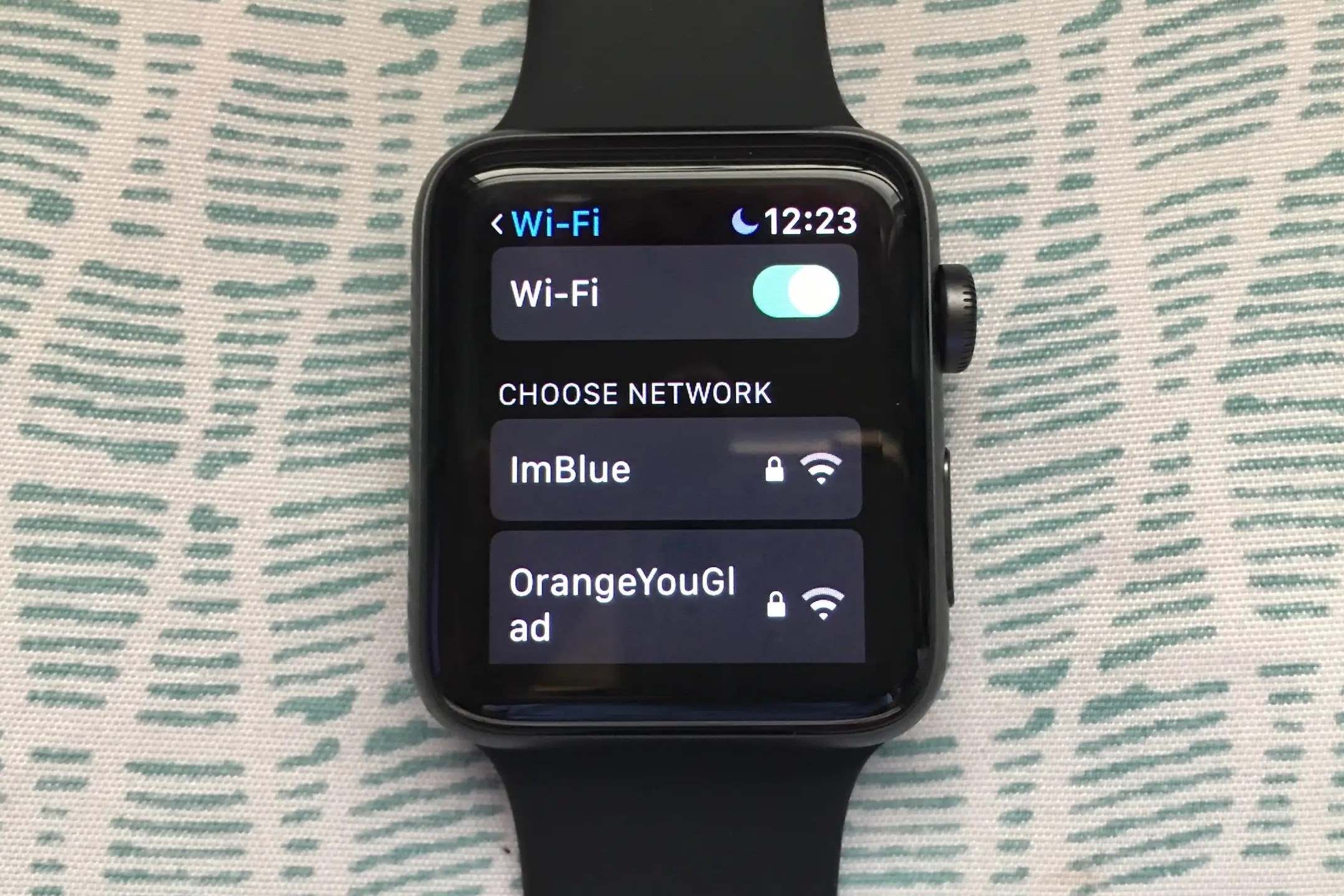
How to Connect Your Smartwatch to Wi-Fi
How to Connect Your Smartwatch to Wi-Fi
Connecting your smartwatch to Wi-Fi is a straightforward process that allows you to access a wide range of features and services. Here’s a step-by-step guide to help you connect your smartwatch to Wi-Fi:
-
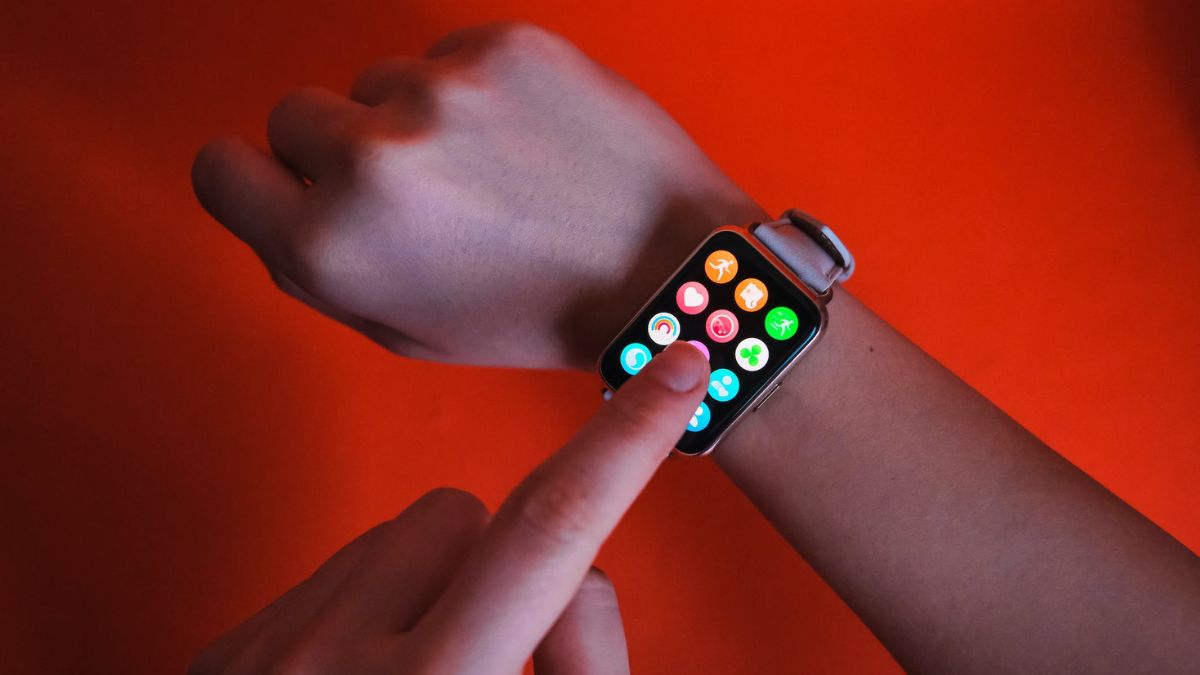
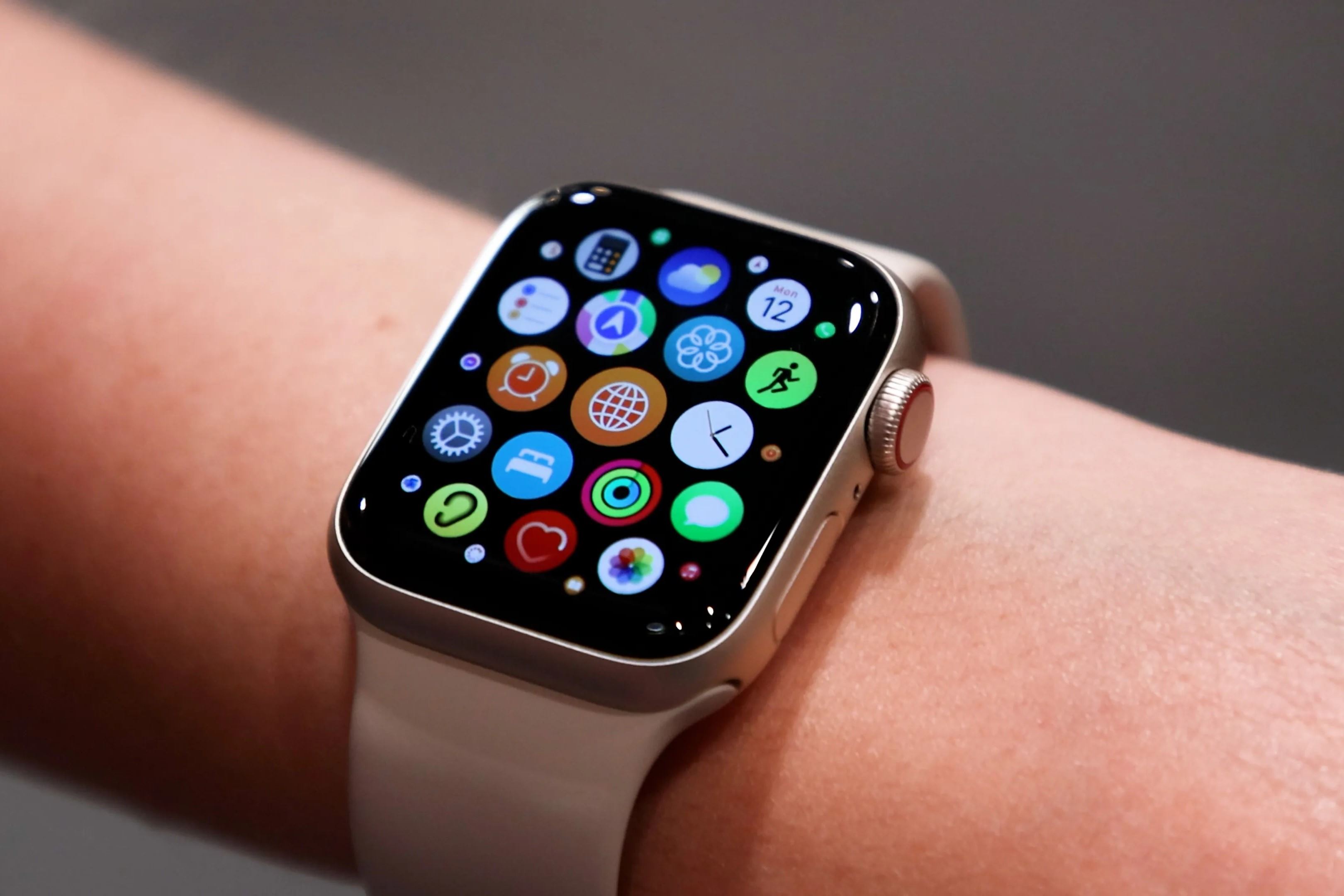
Access Settings: Navigate to the settings menu on your smartwatch. This can typically be found by swiping or tapping on the screen to access the main menu, then selecting "Settings."
-
Select Wi-Fi: Once in the settings menu, locate and select the Wi-Fi option. This will prompt the smartwatch to start scanning for available Wi-Fi networks in the vicinity.
-
Choose a Network: After the scanning process is complete, a list of available Wi-Fi networks will appear on the screen. Select the network you wish to connect to from the list.
-
Enter Password: If the selected Wi-Fi network is password-protected, you will be prompted to enter the password. Use the on-screen keyboard or voice input to enter the password accurately.
-
Connect: Once the correct password is entered, select the "Connect" or "Join" option. Your smartwatch will then attempt to establish a connection to the selected Wi-Fi network.
-
Confirmation: Upon successful connection, a confirmation message or icon will appear on the screen, indicating that your smartwatch is now connected to the Wi-Fi network.
By following these simple steps, you can seamlessly connect your smartwatch to Wi-Fi, enabling you to enjoy enhanced functionality and connectivity.
Benefits of Connecting Your Smartwatch to Wi-Fi
Connecting your smartwatch to Wi-Fi offers a multitude of benefits that enhance its functionality and convenience. Here are some compelling advantages of establishing a Wi-Fi connection for your smartwatch:
- Enhanced Notifications: When connected to Wi-Fi, your smartwatch can seamlessly receive notifications, allowing you to stay updated on emails, messages, and app alerts even when your smartphone is out of Bluetooth range.
- Access to Online Services: With Wi-Fi connectivity, your smartwatch gains access to a variety of online services, such as weather updates, news alerts, and music streaming, without relying on a paired smartphone.
- Software Updates: Wi-Fi connectivity enables your smartwatch to receive and install software updates directly, ensuring that it remains equipped with the latest features, security patches, and performance enhancements.
- Independent Functionality: By connecting to Wi-Fi, your smartwatch can function independently for certain tasks, such as making Wi-Fi calls, sending messages, and accessing online content, reducing the reliance on a paired smartphone.
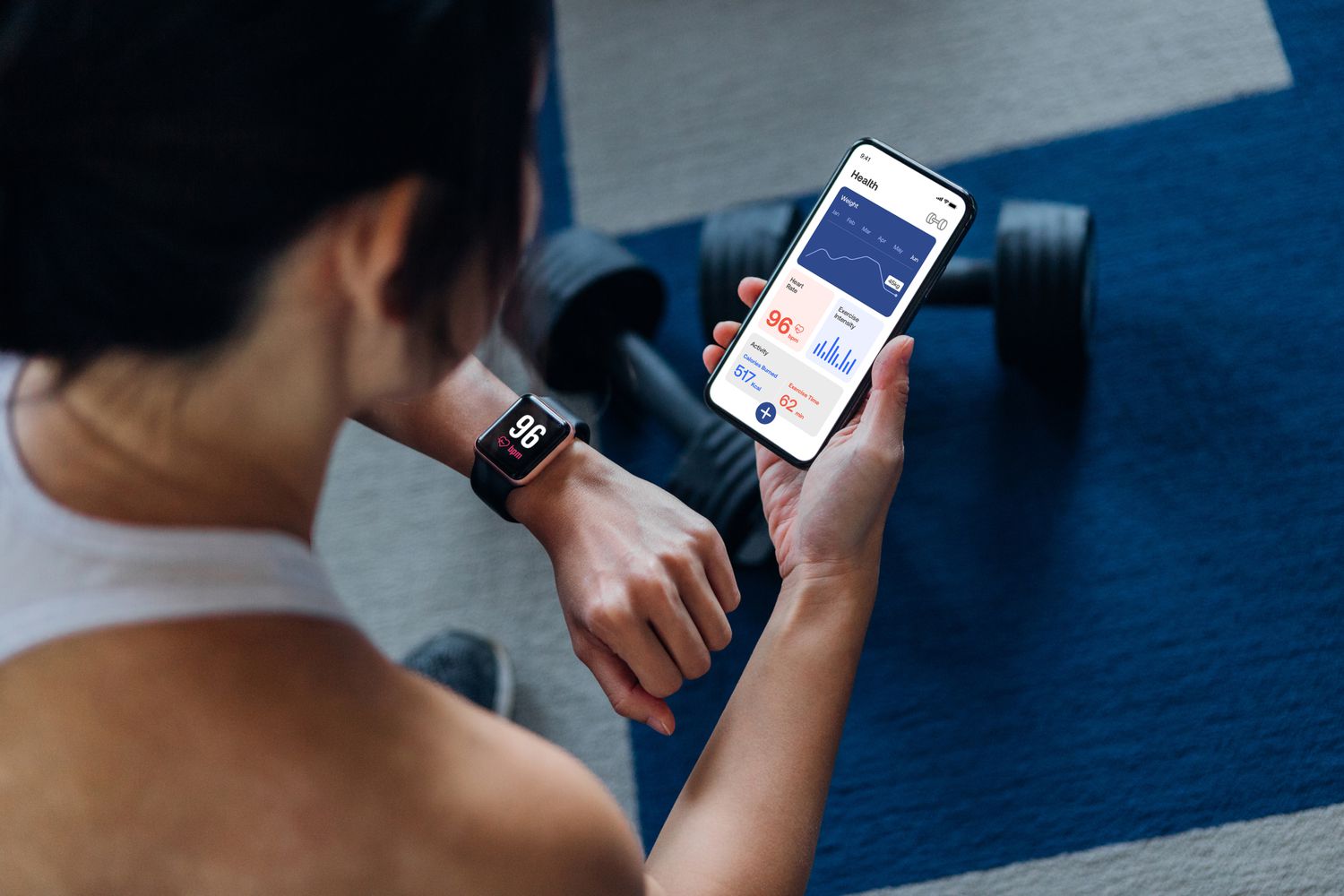
- Seamless Data Synchronization: When connected to Wi-Fi, your smartwatch can seamlessly synchronize data, such as fitness tracking information, calendar updates, and app data, ensuring that you have access to the latest information at all times.
These benefits underscore the importance of connecting your smartwatch to Wi-Fi, empowering you to make the most of its capabilities and stay connected in diverse scenarios.
Troubleshooting Common Wi-Fi Connection Issues
While connecting your smartwatch to Wi-Fi can significantly enhance its functionality, you may encounter common issues that can disrupt the connection. Here are some troubleshooting tips to address common Wi-Fi connection issues:
- Weak Signal: If your smartwatch struggles to connect to Wi-Fi or experiences intermittent connectivity, try moving closer to the Wi-Fi router to strengthen the signal. Additionally, consider repositioning the router or using Wi-Fi range extenders to improve coverage.
- Incorrect Password: Ensure that the password entered for the Wi-Fi network is accurate. Pay attention to uppercase and lowercase letters, special characters, and numerical digits, as an incorrectly entered password can prevent successful connection.
- Network Compatibility: Verify that your smartwatch is compatible with the Wi-Fi network’s frequency band (2.4GHz or 5GHz) and security protocols (WEP, WPA, WPA2). Incompatible settings can hinder the connection process.
- Software Updates: Check for available software updates for your smartwatch, as outdated firmware or operating system versions can impact Wi-Fi connectivity. Install any pending updates to ensure optimal performance.
- Network Congestion: In environments with numerous Wi-Fi networks or high network traffic, interference and congestion can affect your smartwatch’s Wi-Fi connection. Consider switching to less congested Wi-Fi channels or utilizing the 5GHz band for improved performance.
- Reset Network Settings: If persistent issues arise, reset the network settings on your smartwatch to clear any potential configuration errors. Reconfigure the Wi-Fi connection from scratch and ensure that the settings align with the network requirements.
By addressing these common Wi-Fi connection issues proactively, you can optimize the connectivity of your smartwatch and enjoy uninterrupted access to online services and features.
Tips for Maximizing Wi-Fi Connection on Your Smartwatch
Optimizing the Wi-Fi connection on your smartwatch is essential for ensuring reliable and seamless connectivity. Here are some valuable tips to maximize the Wi-Fi connection on your smartwatch:
- Positioning and Range: Position yourself within the optimal range of the Wi-Fi router to maintain a strong and stable connection. Avoid obstructions and interference, and consider the use of Wi-Fi range extenders for extended coverage.
- Network Selection: Prioritize the use of secure and trusted Wi-Fi networks to safeguard your smartwatch’s connectivity and protect sensitive data. Avoid connecting to public or unsecured networks that may pose security risks.
- Conserving Power: Manage the Wi-Fi settings on your smartwatch to conserve battery life. Disable Wi-Fi when not in use or enable power-saving modes to minimize energy consumption while maintaining essential connectivity.
- Regular Reboots: Periodically reboot your smartwatch to refresh its network settings and clear potential connectivity issues. Rebooting can help resolve temporary glitches and optimize Wi-Fi performance.
- Network Prioritization: If your smartwatch supports the feature, prioritize specific Wi-Fi networks to automatically connect to preferred networks when available, ensuring a seamless transition between known and trusted connections.
- Security Measures: Implement robust security measures for your home Wi-Fi network, such as strong passwords, encryption protocols, and firmware updates, to create a secure environment for your smartwatch’s connectivity.
By implementing these tips, you can enhance the Wi-Fi connection on your smartwatch, promoting consistent and reliable access to online services and features while optimizing battery efficiency and security.