Check the Manufacturer's Guidelines
Before removing the battery from your laptop, it's crucial to refer to the manufacturer's guidelines. These guidelines are often provided in the user manual or on the manufacturer's website. Adhering to these instructions ensures that you follow the specific recommendations for your laptop model, which can vary based on the design and technology used. Here are some key points to consider:
-
Consult the User Manual: The user manual contains valuable information about the proper procedures for handling the battery. It may also include specific warnings or precautions related to battery removal. Take the time to review this document thoroughly.
-
Online Resources: Manufacturers often provide comprehensive guides and FAQs on their websites. These resources can offer additional insights into the safe removal of the laptop battery. Be sure to access reliable sources directly from the manufacturer to obtain the most accurate information.
-
Warranty Implications: Removing the battery incorrectly or without following the manufacturer's guidelines could potentially void the warranty. Understanding the manufacturer's recommendations helps you maintain the warranty coverage and avoid unnecessary expenses for future repairs or replacements.
-
Safety Considerations: Some laptops have built-in batteries that are not intended to be removed by users. In such cases, attempting to remove the battery could pose safety risks or cause damage to the device. The manufacturer's guidelines will explicitly state whether the battery is user-replaceable.
By checking the manufacturer's guidelines, you demonstrate a proactive approach to maintaining your laptop and safeguarding its components. This initial step sets the foundation for a smooth and responsible battery removal process, ensuring that you proceed with confidence and awareness of the specific requirements for your device.
Power Off the Laptop
Before initiating the battery removal process, it is essential to power off the laptop completely. This simple yet crucial step helps prevent potential damage to the device and ensures a safe environment for handling the battery. Here’s why powering off the laptop is imperative:
- Preventing Electrical Hazards: When the laptop is powered on, it is actively drawing power from the battery and may be in a state of electrical activity. Removing the battery while the laptop is still running can lead to electrical hazards, potentially causing damage to the device or posing a safety risk to the individual handling it.
- Minimizing Data Loss: Shutting down the laptop properly allows the operating system and applications to close all active processes and save any unsaved data. This helps prevent data loss or corruption, ensuring that your work and files remain intact throughout the battery removal process.
- Enhancing Component Safety: Powering off the laptop reduces the risk of accidental damage to internal components. It provides a stable and secure environment for handling the battery, minimizing the likelihood of disruptions to the device’s internal mechanisms or circuitry.
By powering off the laptop before removing the battery, you demonstrate a responsible and proactive approach to device maintenance. This simple yet crucial step sets the stage for a smooth and safe battery removal process, mitigating potential risks and ensuring the integrity of both the laptop and its components.
Unplug Any Peripherals
Prior to removing the battery from your laptop, it is important to unplug any peripherals or external devices connected to the device. This preparatory step serves multiple purposes and contributes to a seamless and safe battery removal process. Here’s why unplugging peripherals is essential:
- Preventing Data Loss and Corruption: Unplugging peripherals such as external hard drives, USB devices, or SD cards reduces the risk of data loss or corruption during the battery removal process. It allows these devices to be safely ejected or disconnected, minimizing the potential for data transfer interruptions or file system errors.
- Ensuring Peripheral Safety: Removing external devices from the laptop creates a safer environment for both the peripherals and the laptop itself. Accidental tugs or movements during the battery removal process can be detrimental to connected peripherals, potentially causing damage to their ports or components.
- Facilitating Uninterrupted Access: Unplugging peripherals provides unobstructed access to the battery compartment, allowing for a smoother and more efficient removal process. It eliminates any potential obstacles or entanglements that may hinder the safe extraction of the battery from its designated slot.
By unplugging any peripherals before removing the laptop battery, you demonstrate a proactive approach to device maintenance and safety. This thoughtful preparation minimizes the risk of data loss, protects external devices from potential damage, and streamlines the battery removal process, ensuring a smooth and efficient experience.
Remove the Battery from Its Compartment
Once you have followed the manufacturer’s guidelines, powered off the laptop, and unplugged any peripherals, you can proceed with the actual removal of the battery from its compartment. This step requires careful attention to detail and a methodical approach to ensure the safe extraction of the battery. Here’s how to proceed:
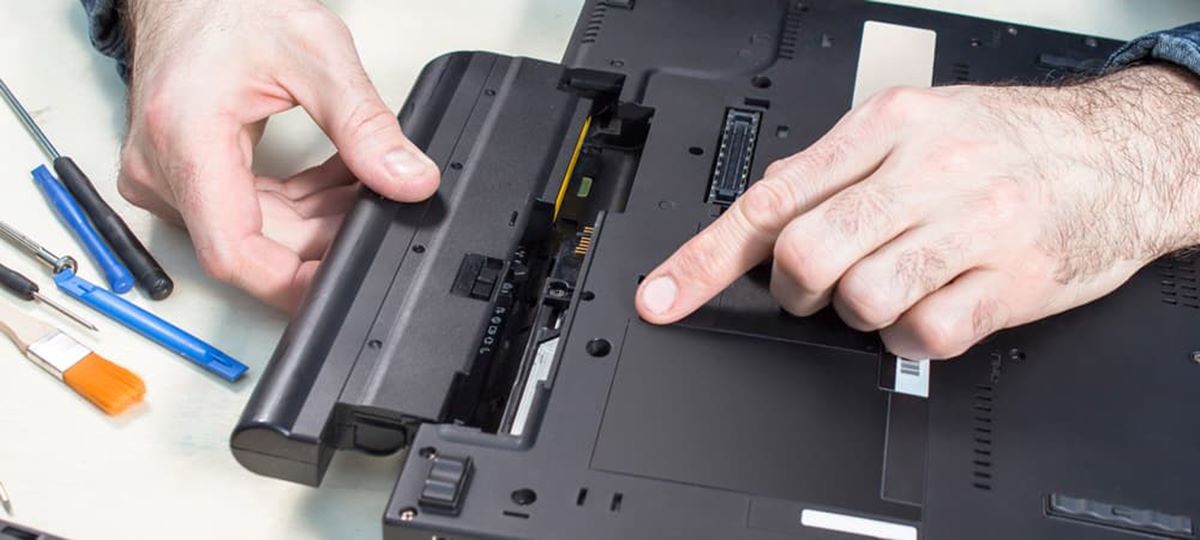
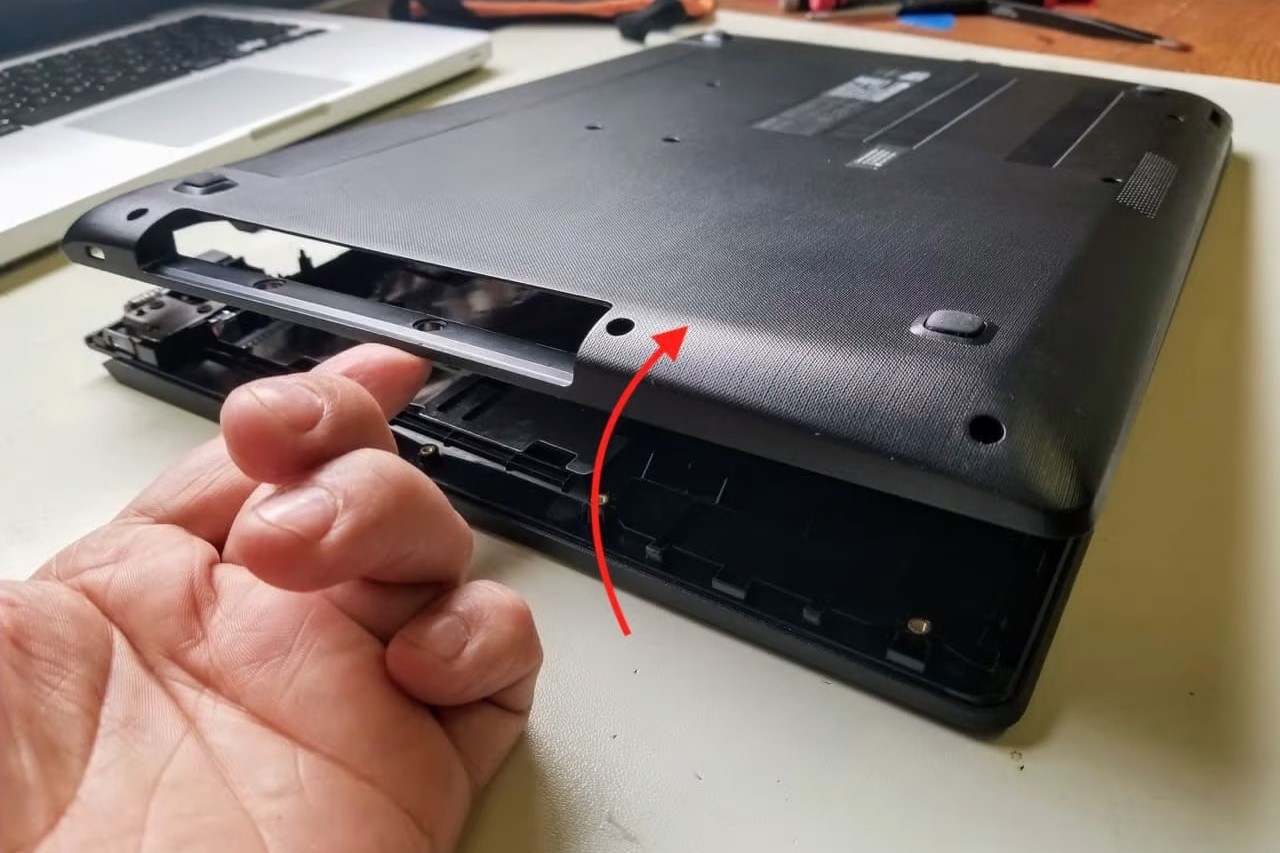
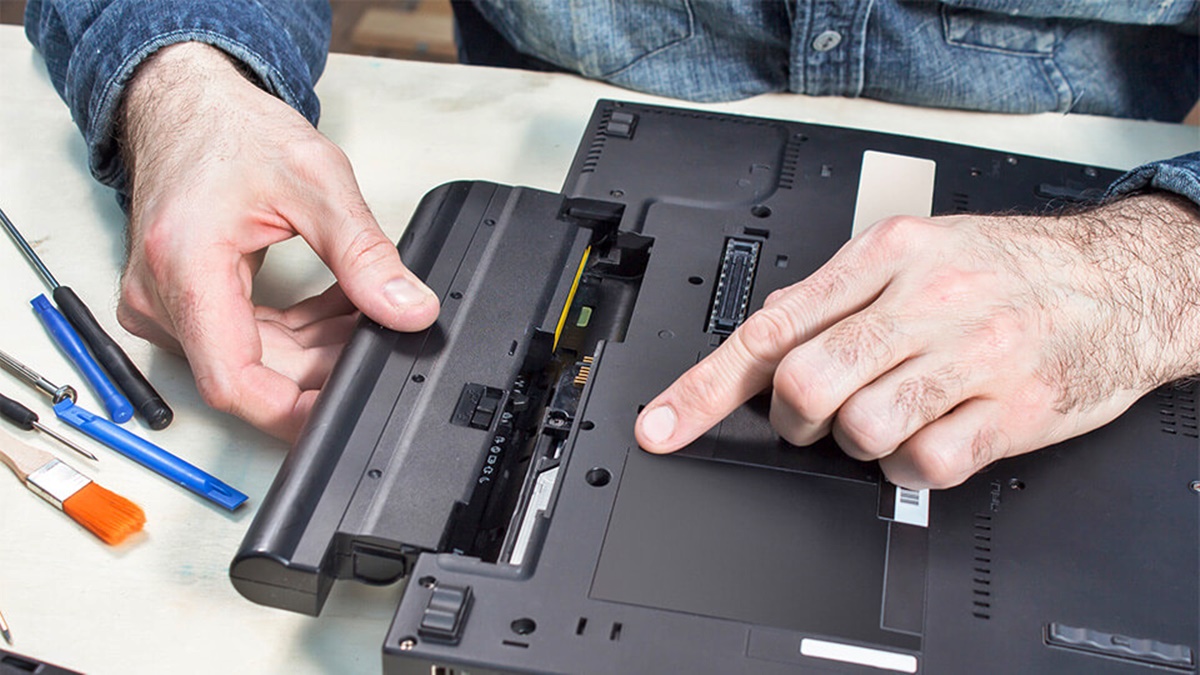
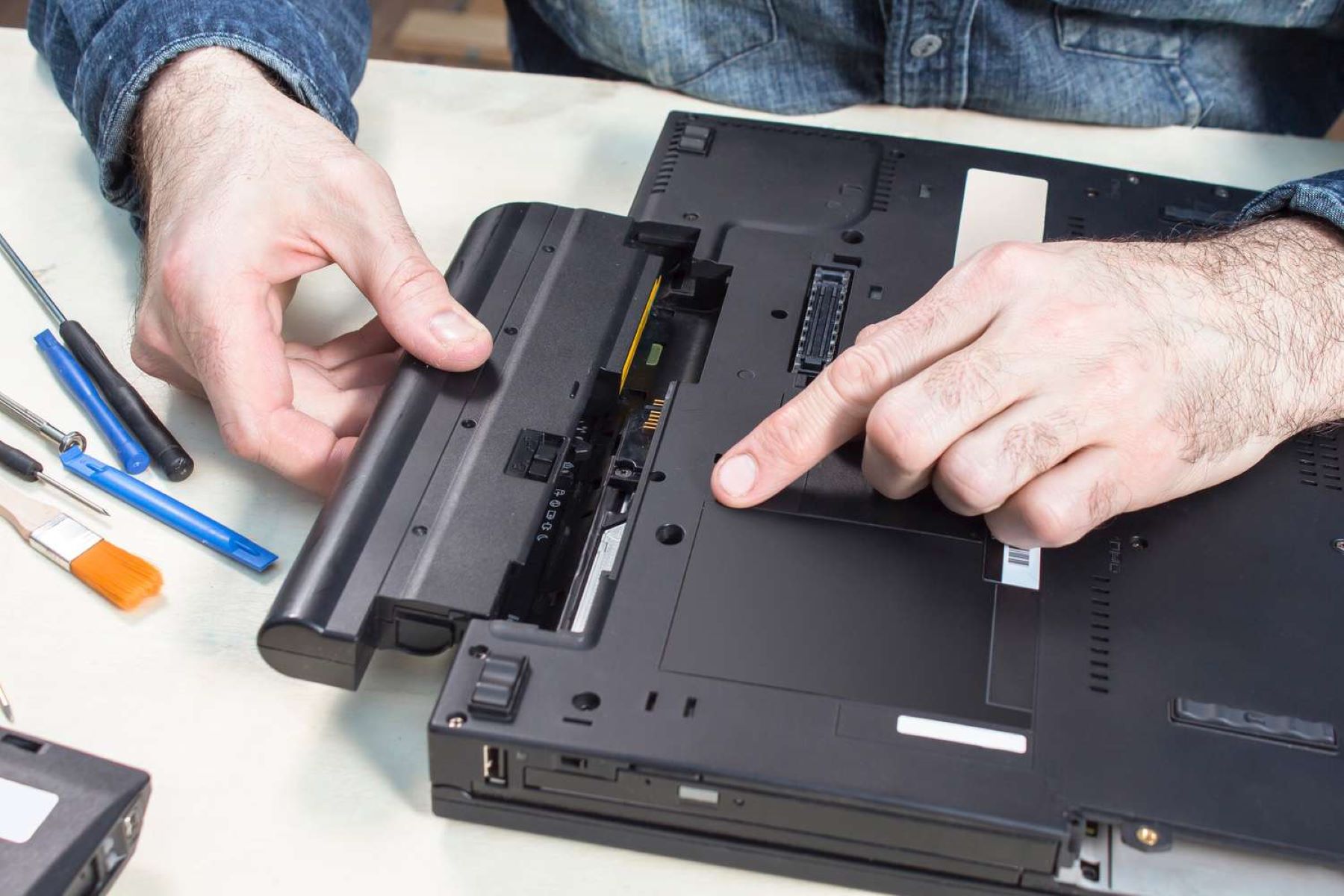
- Locate the Battery Compartment: Depending on the laptop model, the battery compartment may be situated on the bottom of the device or accessible through a designated panel. Take a moment to identify the precise location of the battery compartment before proceeding.
- Use Proper Technique: Some laptops feature a latch or release mechanism that secures the battery in place. Follow the specific instructions provided by the manufacturer to disengage this mechanism, if applicable, and prepare to remove the battery smoothly and evenly.
- Gently Remove the Battery: With the appropriate technique in mind, gently and steadily lift the battery out of its compartment. Exercise caution to avoid any abrupt movements or excessive force that could potentially damage the battery or the laptop itself.
- Handle with Care: As you remove the battery, be mindful of its weight and positioning. Support it with both hands if necessary, ensuring a secure grip to prevent accidental drops or mishandling.
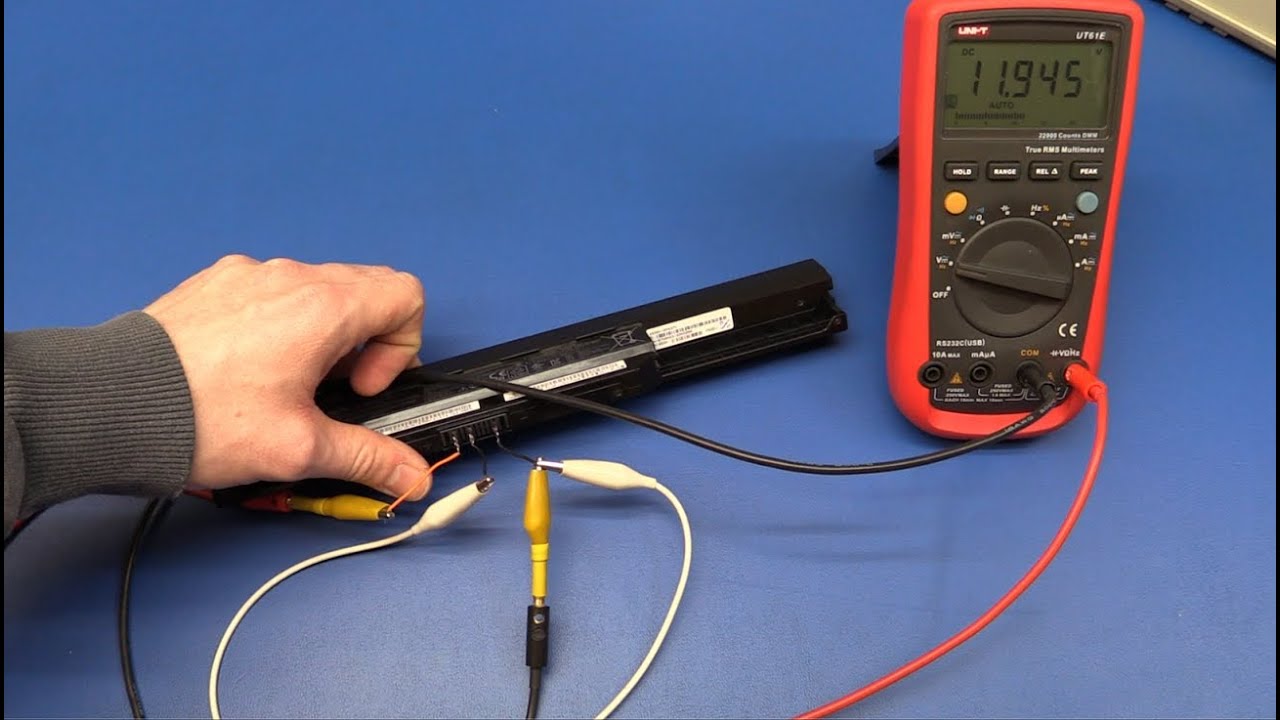
- Inspect for Damage: Once the battery is removed, take a moment to visually inspect it for any signs of damage, wear, or deformation. This examination can help you identify any potential issues that may require attention or replacement.
By following these steps to remove the battery from its compartment, you demonstrate a meticulous and attentive approach to maintaining your laptop. Adhering to proper techniques and handling the battery with care ensures a smooth and safe removal process, safeguarding both the battery and the laptop from potential damage or mishaps.
Use Proper Tools and Techniques
When it comes to handling the battery removal process, employing the right tools and techniques is essential for ensuring a safe and effective procedure. By utilizing proper tools and following recommended techniques, you can minimize the risk of damage to the battery and the laptop while facilitating a smooth removal process. Here’s how to approach this crucial step:
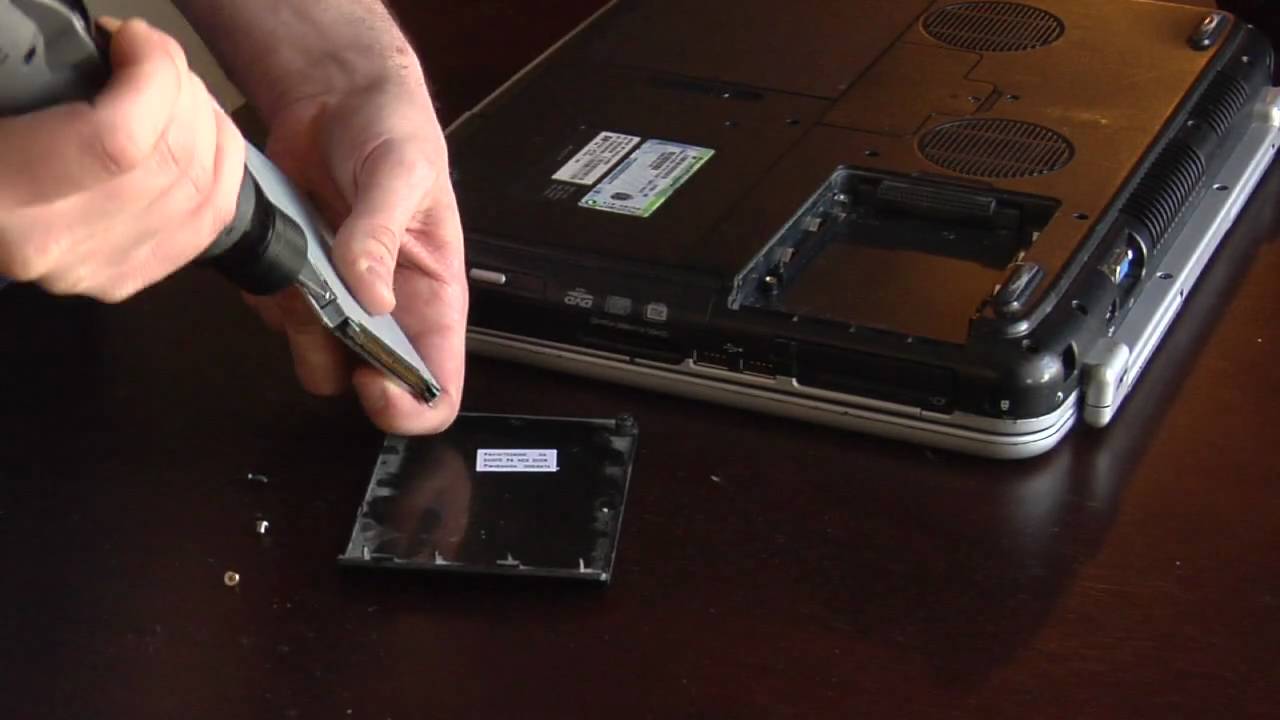
- Utilize the Designated Tools: Some laptops may require specific tools, such as screwdrivers or release keys, for accessing the battery compartment. Refer to the manufacturer’s guidelines to identify any specialized tools recommended for the removal process, and ensure that you have them readily available before proceeding.
- Follow Manufacturer’s Instructions: The manufacturer’s guidelines often include detailed instructions on the recommended techniques for removing the battery. Whether it involves pressing a release button, sliding a latch, or using a specific motion, adhering to these instructions is paramount for a safe and successful removal.
- Exercise Patience and Precision: Approach the removal process with patience and precision, avoiding rushed or forceful actions that could lead to damage. Take the time to understand the designated techniques and execute them carefully, ensuring a gradual and controlled extraction of the battery.
- Seek Professional Assistance if Necessary: If you encounter any challenges or uncertainties during the removal process, consider seeking assistance from a professional technician or the laptop’s manufacturer. It’s important to prioritize safety and accuracy, especially if the removal process requires specialized expertise.
By using proper tools and techniques as recommended by the manufacturer, you demonstrate a conscientious and responsible approach to handling the battery removal process. Adhering to the designated tools and techniques not only safeguards the integrity of the laptop and the battery but also contributes to a seamless and efficient removal experience.
Store the Battery Properly
After successfully removing the battery from your laptop, it’s important to store it properly to maintain its integrity and prolong its lifespan. Proper storage not only preserves the battery’s performance but also ensures safety and usability for future use. Here are essential guidelines for storing the battery:
- Protect from Extreme Temperatures: Store the battery in a cool, dry place away from direct sunlight and extreme temperatures. Exposure to heat can accelerate the battery’s degradation, while cold temperatures can affect its performance. Aim for a storage environment with moderate, consistent temperatures.
- Avoid Full Discharge: If the battery will not be in use for an extended period, ensure that it retains a partial charge, ideally around 50%. Storing a battery in a fully discharged state can lead to irreversible capacity loss and potential damage, so maintaining a moderate charge level is crucial.
- Use a Protective Case: If the battery will be stored separately from the laptop, consider using a protective case or container designed for battery storage. This helps shield the battery from physical damage, dust, and moisture, preserving its condition during storage.
- Regularly Check and Recharge: Periodically check the stored battery to ensure it maintains a stable charge level. If the charge drops significantly over time, consider recharging the battery to the recommended level to prevent deep discharge and maintain its overall health.
- Follow Manufacturer’s Recommendations: Refer to the manufacturer’s guidelines for specific storage recommendations tailored to your battery model. Manufacturers often provide detailed instructions for optimal storage conditions and maintenance practices to prolong the battery’s lifespan.
By storing the battery properly in accordance with these guidelines, you demonstrate a proactive and responsible approach to preserving the battery’s condition and usability. Maintaining a suitable storage environment and adhering to recommended practices contribute to the longevity and performance of the battery, ensuring its readiness for future use when needed.