Choosing the Right Photos
When it comes to personalizing your smartwatch with photos, selecting the right images is crucial for creating a truly tailored experience. The photos you choose should not only resonate with you on a personal level but also complement the aesthetics of your smartwatch. Here are some tips for choosing the perfect photos:
- Meaningful Moments: Opt for photos that capture meaningful moments in your life. Whether it’s a cherished family photo, a breathtaking sunset, or a snapshot from a memorable vacation, choosing images that evoke positive emotions can enhance your daily interactions with your smartwatch.
- High-Quality Resolution: Ensure that the photos you select are of high-quality resolution. Crisp, clear images will look more visually appealing on your smartwatch’s display, allowing you to fully appreciate the details of each photo.
- Diverse Selection: Curate a diverse selection of photos to suit different moods and occasions. From vibrant and colorful images to serene black-and-white snapshots, having a variety of photos at your disposal enables you to switch up the look of your smartwatch based on your daily vibe.
- Personal Expression: Your smartwatch is an extension of your personal style, so choose photos that reflect your individuality. Whether you’re drawn to artistic landscapes, candid portraits, or abstract compositions, let your smartwatch showcase your unique tastes and interests.
- Adaptability: Consider how the photos will appear as watch faces, backgrounds, or within notifications. Images with a clear focal point and balanced composition tend to work well in these contexts, ensuring that they translate effectively to the smaller screen of a smartwatch.
By carefully curating a collection of photos that hold personal significance and visual appeal, you can elevate the overall experience of using your smartwatch and infuse it with a touch of your own personality.
How to Add Photos to Your Smartwatch
Adding photos to your smartwatch is a straightforward process that allows you to customize its appearance and infuse it with your personal style. Here’s a guide on how to seamlessly integrate your favorite photos into your smartwatch:
- Syncing with Companion App: Most smartwatches come with a companion app that facilitates the customization of watch faces and other visual elements. Begin by syncing your smartwatch with the companion app on your smartphone, which serves as the primary interface for managing photos and other settings.
- Uploading from Smartphone: Utilize the companion app to upload photos from your smartphone’s gallery to the smartwatch. This often involves selecting the desired images and transferring them to the designated photo storage area within the app.
- Customization Options: Explore the customization options within the companion app, which may include features for cropping, resizing, and positioning the photos to fit the smartwatch’s display dimensions. Take advantage of these tools to optimize the appearance of your chosen images.
- Wireless Transfer: Some smartwatches support wireless transfer of photos directly from your smartphone to the watch. This convenient feature eliminates the need for manual uploads and streamlines the process of adding new photos on the go.
- Cloud Integration: If your smartwatch is compatible with cloud services, consider leveraging cloud integration to access and sync your photo library seamlessly. This allows you to effortlessly manage and update your collection of photos without relying solely on local storage.
By following these steps and utilizing the functionalities offered by the companion app, you can effortlessly add and manage photos on your smartwatch, ensuring that it reflects your personal style and resonates with your individual preferences.
Creating Custom Watch Faces
One of the most compelling ways to personalize your smartwatch is by creating custom watch faces that showcase your favorite photos and designs. This feature allows you to transform the look of your smartwatch and tailor it to your unique preferences. Here’s how you can craft custom watch faces to elevate the aesthetic appeal of your smartwatch:
- Selection of Photos: Begin by selecting the photos you wish to feature on your custom watch face. Whether it’s a striking landscape, a beloved pet, or a captivating piece of artwork, choose images that resonate with you and encapsulate your personal style.
- Companion App Customization: Access the companion app for your smartwatch, where you’ll find tools and options for creating custom watch faces. Navigate to the watch face customization section, which typically offers a range of templates and layouts to accommodate different photo orientations and styles.
- Layout and Configuration: Experiment with the layout and configuration options provided by the companion app to arrange your chosen photos within the watch face. This may involve adjusting the positioning, scaling, and overlaying of elements to achieve the desired visual impact.
- Additional Widgets and Information: In addition to photos, consider incorporating widgets and informational elements into your custom watch face to enhance its functionality. These widgets can display real-time data such as weather updates, fitness metrics, and upcoming calendar events, complementing the visual appeal of the watch face with practical utility.
- Preview and Activation: Once you’ve finalized the design of your custom watch face, preview it within the companion app to ensure that the layout and visual elements align with your vision. After confirming the design, activate the custom watch face to adorn your smartwatch’s display with a personalized touch.
By leveraging the customization capabilities offered by the companion app, you can curate bespoke watch faces that reflect your individuality and resonate with your aesthetic sensibilities, transforming your smartwatch into a unique and expressive accessory.
Personalizing Notifications with Photos
Personalizing notifications with photos on your smartwatch adds a delightful touch to your daily interactions and allows you to visually identify incoming alerts at a glance. Whether it’s a text message, a social media notification, or a calendar reminder, integrating photos into your notifications can enhance the overall experience. Here’s how you can infuse your notifications with personalized visuals:
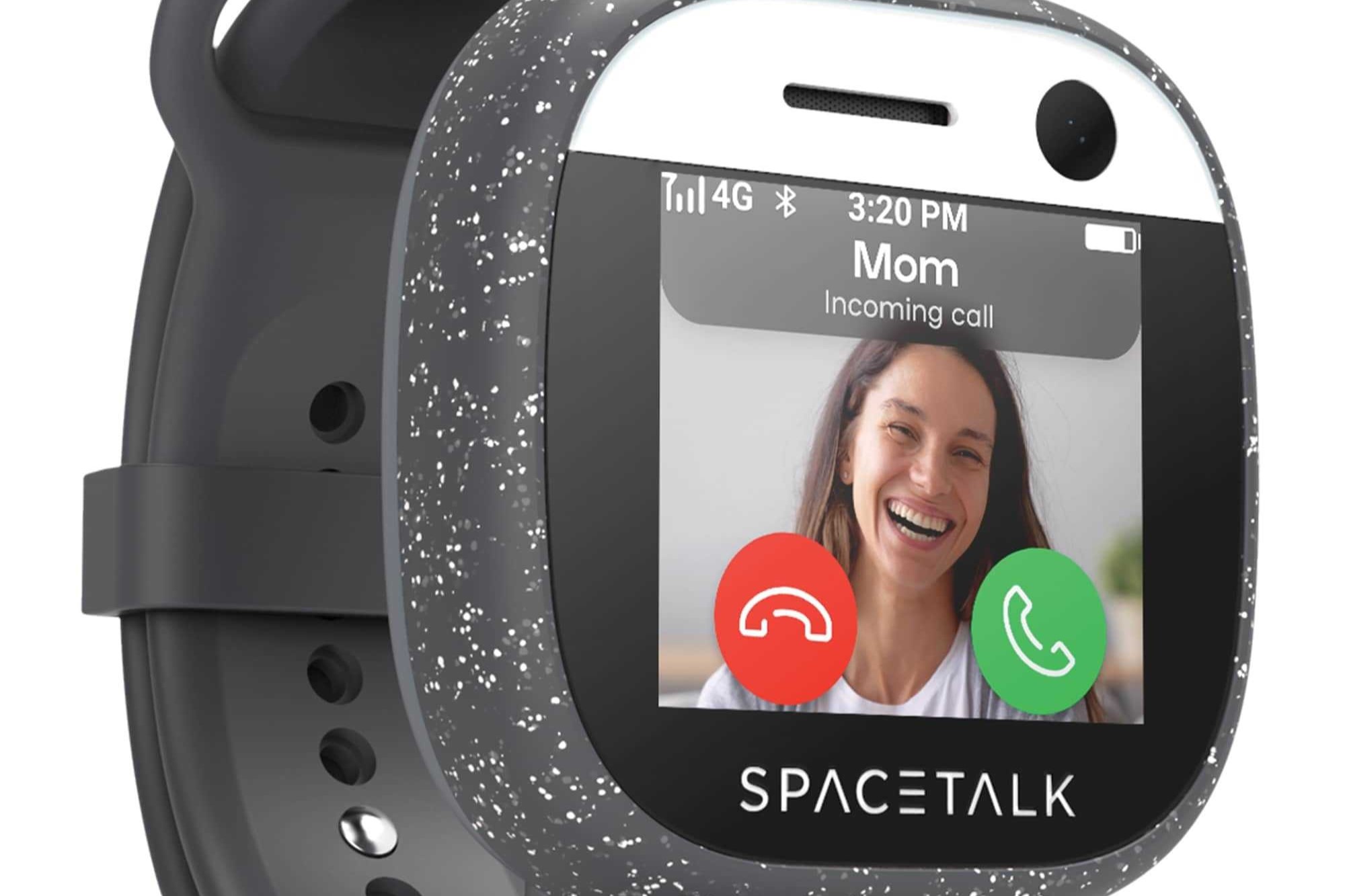
- Assigning Contact-Specific Photos: Utilize the contact management features within your smartwatch’s companion app to assign specific photos to individual contacts. When you receive notifications from these contacts, their associated photos will accompany the alerts, making it easier to identify the sender at a glance.
- App-Specific Visuals: Some smartwatch platforms allow for app-specific visual notifications, enabling you to customize the appearance of alerts from different applications. Take advantage of this feature to assign distinct photos or icons to various apps, adding a personalized touch to each notification.
- Photo-Based Reminders: When setting reminders or calendar events on your smartwatch, consider incorporating relevant photos to visually represent the tasks or occasions. This visual cue can provide context and serve as a memorable prompt when the reminder is triggered.
- Animated Visuals: Explore the option of using animated images or GIFs within notifications to create dynamic and engaging visual alerts. Whether it’s a playful animation for incoming messages or a lively GIF for event reminders, animated visuals can inject personality into your notifications.
- Dynamic Backgrounds: Some smartwatches support dynamic backgrounds for notifications, allowing you to set a rotating selection of photos as the backdrop for incoming alerts. This feature adds variety and visual flair to your notification experience, ensuring that each alert is accompanied by a fresh and captivating image.
By incorporating photos into your notifications, you can infuse your smartwatch interactions with personalization and creativity, transforming routine alerts into visually engaging moments that reflect your unique style and preferences.
Using Photos as Backgrounds for Widgets
Integrating photos as backgrounds for widgets on your smartwatch offers a visually captivating way to personalize the display and enhance the functionality of your device. By leveraging this feature, you can infuse your smartwatch with a touch of creativity and aesthetic appeal. Here’s how you can incorporate photos as backgrounds for widgets to elevate the visual experience:
- Widget Customization: Access the widget customization settings within your smartwatch’s companion app to explore options for incorporating photos as backgrounds. Depending on the platform, you may find dedicated tools for widget personalization that allow you to set custom backgrounds for different widgets.
- Photo-Enabled Widgets: Some smartwatch widgets are designed to support photo backgrounds, enabling you to seamlessly integrate images into specific widget displays. Look for widgets that offer photo-enabled backgrounds, as this feature can significantly enhance the visual appeal of the information presented on the smartwatch screen.
- Visual Context: When selecting photos for widget backgrounds, consider the visual context and thematic relevance to the widget’s content. For example, if you have a weather widget, choosing a scenic landscape photo that corresponds to the current weather conditions can add a contextual and immersive dimension to the widget display.
- Dynamic Photo Widgets: Explore the possibility of using dynamic photo widgets that rotate through a selection of images as backgrounds. This dynamic display can breathe life into the smartwatch interface, offering an ever-changing visual experience that reflects your mood and preferences.
- Custom Widget Creation: For advanced users, consider creating custom widgets that allow for extensive photo integration and background customization. Custom widget creation tools or third-party applications may provide the flexibility to design widgets with personalized photo backgrounds tailored to your specific needs.
By leveraging photos as backgrounds for widgets, you can infuse your smartwatch with personalized visual elements that complement the functionality of the widgets, resulting in a cohesive and visually engaging user experience.
Organizing and Managing Photos on Your Smartwatch
Efficiently organizing and managing the photos on your smartwatch is essential for maintaining a curated collection that aligns with your preferences and style. By implementing effective photo management strategies, you can optimize the visual experience of your smartwatch and seamlessly access the photos you love. Here are key approaches to organizing and managing photos on your smartwatch:
- Album Categorization: Utilize the album categorization feature within your smartwatch’s companion app to group photos into distinct albums based on themes, events, or personal categories. This structured organization allows for easy navigation and quick access to specific sets of photos.
- Tagging and Keywords: Explore tagging and keyword functionalities to label and categorize photos with relevant descriptors. By assigning tags and keywords, you can create a searchable and organized photo library, enabling you to locate specific images with ease.
- Cloud-Based Storage Integration: If your smartwatch supports cloud-based storage integration, consider syncing your photo library with a cloud service for seamless access and backup. Cloud integration ensures that your photos are securely stored and readily available across multiple devices.
- Smartwatch-Specific Sorting: Leverage smartwatch-specific sorting options to arrange photos based on criteria such as date, size, and favorites. This tailored sorting functionality allows you to customize the display of photos directly on the smartwatch, optimizing the browsing experience.
- Offline Accessibility: Prioritize photos that are essential for offline accessibility on your smartwatch, ensuring that key images are stored locally for immediate viewing, even when your smartwatch is not connected to a smartphone or network.
By implementing these organizational strategies and leveraging the photo management features offered by your smartwatch and companion app, you can maintain a well-organized and easily accessible collection of photos that enriches the visual experience of your smartwatch.