Checking Compatibility
Checking Compatibility
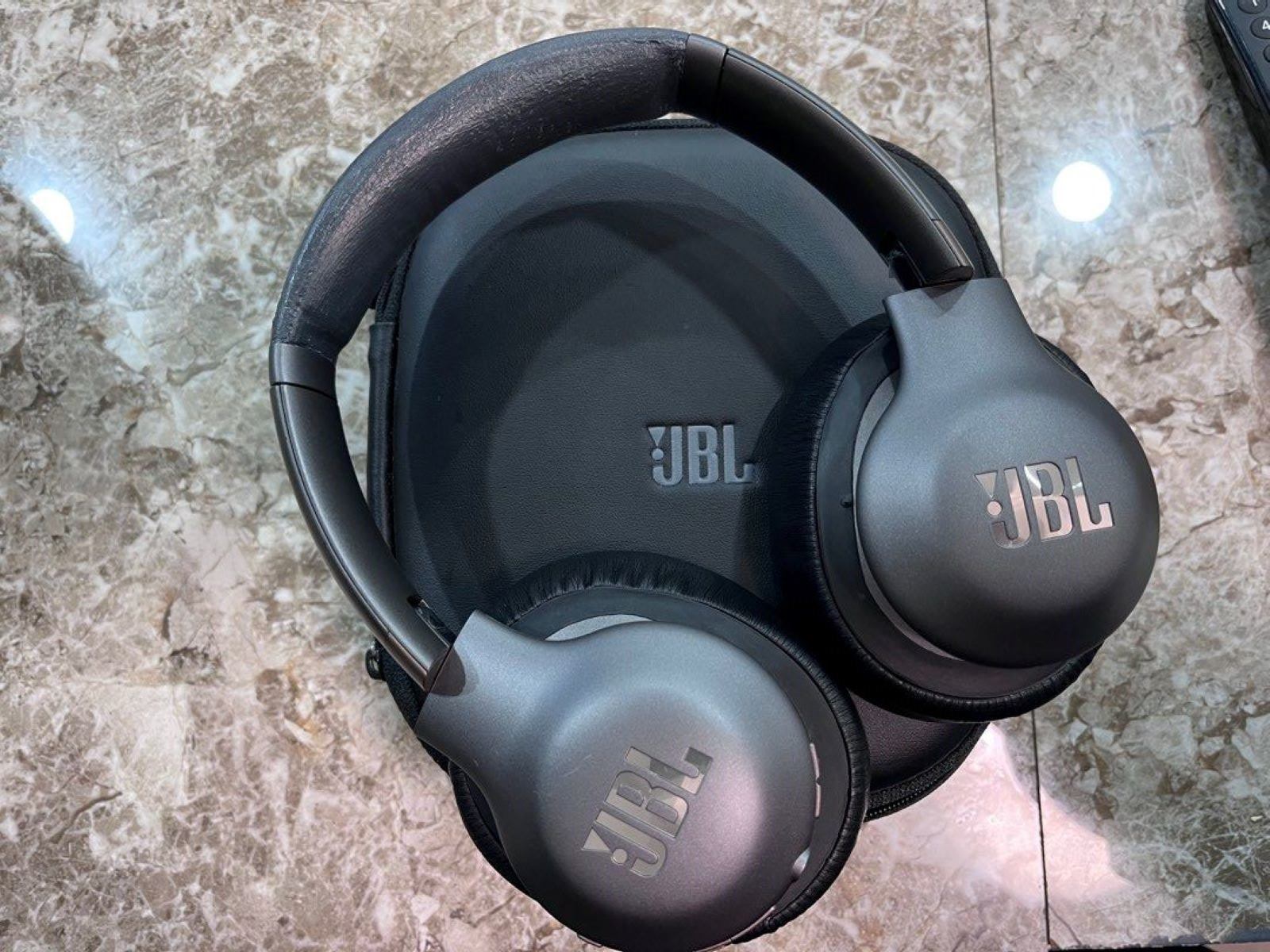
Before attempting to pair your headset with your TV, it's essential to ensure that your devices are compatible. Not all TVs support Bluetooth connectivity, so it's crucial to verify this beforehand. Here's how to check the compatibility of your headset with your TV:
-
Refer to the TV Manual: The user manual for your TV is a valuable resource for determining its compatibility with Bluetooth devices. Look for a section that outlines the TV's connectivity options, including Bluetooth support. If the manual confirms Bluetooth compatibility, you're one step closer to wirelessly connecting your headset.
-
Online Specifications: If you no longer have access to the TV manual, you can search for the model number of your TV online. Visit the manufacturer's website or reputable electronics retailers to find the product specifications. Look for details regarding Bluetooth functionality and supported audio devices. This information will clarify whether your TV is equipped for wireless headset connectivity.
-
Consult Manufacturer Support: If you're still uncertain about your TV's compatibility with Bluetooth devices, consider reaching out to the manufacturer's customer support. They can provide direct assistance and confirm whether your TV supports Bluetooth connectivity for audio devices.
-
Check the TV's Settings: Navigate to the settings menu on your TV and look for options related to audio output and device connectivity. If there is a Bluetooth or audio output section, it's likely that your TV supports wireless headset pairing. However, if these options are absent, your TV may not be Bluetooth-compatible.
By confirming the compatibility of your TV with Bluetooth devices, you can proceed with confidence, knowing that your efforts to pair your headset will be successful. If your TV does not support Bluetooth, don't worry – there are alternative methods for connecting your headset that we'll explore in the following sections.
Connecting via Bluetooth
Connecting via Bluetooth
Once you’ve confirmed that your TV and headset are compatible, connecting them via Bluetooth can provide a convenient and wireless audio experience. Here’s a step-by-step guide to pairing your headset with your TV using Bluetooth:
- Activate Bluetooth on the TV: Access the TV’s settings menu and navigate to the Bluetooth or connectivity section. Enable Bluetooth functionality on the TV, allowing it to discover nearby devices for pairing.
- Put the Headset in Pairing Mode: Most Bluetooth headsets have a dedicated pairing mode. Consult the headset’s manual to understand how to activate this mode. Typically, this involves pressing and holding a specific button or combination of buttons until the headset’s indicator light flashes, indicating that it’s ready to pair.
- Search for Devices on the TV: Once the headset is in pairing mode, initiate a search for Bluetooth devices on the TV. This process may vary depending on the TV model, but it usually involves selecting the option to discover nearby Bluetooth devices.
- Select and Pair the Headset: When the TV detects the headset, it will display the name or model of the headset on the screen. Select the headset from the list of available devices and initiate the pairing process. Follow any on-screen prompts to complete the pairing procedure.
- Confirm Connection and Test Audio: After successful pairing, the TV should indicate that the headset is connected. Test the audio output by playing a video or audio source on the TV. Ensure that the audio is transmitted to the headset and adjust the volume as needed.
Once the Bluetooth connection is established, you can enjoy the freedom of wireless audio without the constraints of physical cables. This method is ideal for individuals seeking a clutter-free setup and the flexibility to move around while enjoying TV audio through their headset.
Connecting via Audio Cable
When Bluetooth connectivity isn’t an option, or if you prefer a direct and reliable audio connection, using an audio cable to connect your headset to the TV is an excellent alternative. Follow these straightforward steps to establish a wired connection between your headset and the TV:
- Identify Audio Output Ports: Examine the back or side of your TV to locate the audio output ports. Common options include a 3.5mm headphone jack, RCA (red and white) audio outputs, or an optical audio output. Choose the port that is compatible with your headset’s audio cable.
- Select the Correct Audio Cable: Depending on the available ports on your TV and the input options on your headset, select the appropriate audio cable. For example, if your TV has a 3.5mm headphone jack and your headset also uses a 3.5mm audio cable, simply connect the two using a compatible cable.
- Connect the Cable to the TV and Headset: Plug one end of the audio cable into the designated audio output port on the TV. Then, connect the other end to the corresponding input on your headset. Ensure a secure connection to prevent audio disruptions.
- Adjust TV Audio Settings: Access the TV’s settings menu and navigate to the audio output options. Select the appropriate audio output source, such as “Headphones” or “External Speakers,” to direct the audio signal to the connected headset. Adjust the volume settings as needed.
- Test the Audio Connection: Play a video or audio content on the TV to verify that the audio is transmitted to the headset via the connected cable. Adjust the volume on both the TV and the headset to achieve the desired audio levels.
By utilizing an audio cable for the connection, you can enjoy high-quality audio without relying on wireless technology. This method is particularly beneficial for individuals who prioritize stable audio transmission and do not require the mobility offered by Bluetooth connectivity.
Adjusting TV Settings
After successfully connecting your headset to the TV, it’s important to optimize the TV settings to ensure an optimal audio experience. By making specific adjustments, you can customize the audio output and enhance the overall viewing and listening pleasure. Follow these steps to adjust the TV settings for seamless integration with your headset:
- Audio Output Selection: Access the TV’s audio settings menu and locate the option for audio output. Depending on the connected device (headset or external speakers), select the appropriate output to ensure that the audio signal is directed to the headset.
- Equalizer Settings: Some TVs offer built-in equalizer settings that allow you to adjust the audio frequencies to suit your preferences. Experiment with the equalizer presets or manually adjust the bass, treble, and other audio parameters to achieve a personalized audio profile that complements your headset’s capabilities.
- Volume Normalization: Certain TVs feature volume normalization or leveling options designed to minimize sudden changes in audio volume between different programs or channels. Enable this feature to maintain consistent audio levels, preventing abrupt volume fluctuations that may affect your listening experience.
- Audio Delay Adjustment: If you encounter synchronization issues between the audio and video, your TV may offer settings to adjust the audio delay. This feature is particularly useful for addressing any latency or mismatch between the visual and audio elements, ensuring a harmonious viewing experience.
- Bluetooth Audio Settings (If Applicable): For TVs equipped with Bluetooth connectivity, explore the Bluetooth audio settings to customize the audio output specifically for paired Bluetooth devices. This may include options for audio codecs, sound modes, and other Bluetooth-related configurations.
By fine-tuning the TV settings to accommodate your headset, you can elevate your audio enjoyment while watching TV programs, movies, or gaming. These adjustments cater to your specific audio preferences and contribute to a more immersive and personalized entertainment experience.
Troubleshooting Common Issues
While connecting your headset to the TV can significantly enhance your audio experience, it’s not uncommon to encounter occasional issues during the setup process. Understanding and addressing these common issues can help you overcome potential obstacles and ensure a seamless connection between your headset and the TV. Here are some troubleshooting steps for common issues:
- Bluetooth Pairing Failures: If you encounter difficulties pairing your headset with the TV via Bluetooth, ensure that the headset is in pairing mode and within close proximity to the TV. Additionally, verify that the TV’s Bluetooth function is activated and that there are no obstructions or interference disrupting the pairing process.
- Audio Output Selection: If you’re not hearing audio through your headset after connecting it to the TV, revisit the TV’s audio output settings. Confirm that the correct audio output source is selected, such as “Headphones” or “Bluetooth Audio,” to direct the audio signal to the connected headset.
- Compatibility Issues: In the event of compatibility concerns, double-check the specifications of both the TV and the headset. Ensure that the TV supports the required audio output options and that the headset is compatible with the TV’s connectivity standards. Consider consulting the manufacturer’s support resources for additional guidance.
- Audio Delay or Latency: If you notice a delay between the audio and video while using your headset with the TV, explore the TV’s settings for audio delay adjustments. Fine-tune the audio synchronization to minimize any perceptible delay, enhancing the coherence of the audio-visual experience.
- Cable Connection Issues: When connecting the headset to the TV via an audio cable, inspect the cable connections to ensure they are secure and properly inserted into the respective ports. Verify that the selected audio output port on the TV matches the input port on the headset, and test the audio transmission after reseating the connections.
By proactively addressing these common issues, you can troubleshoot potential challenges and optimize the connection between your headset and the TV. These troubleshooting steps empower you to resolve technical hitches efficiently, allowing you to fully enjoy the enhanced audio experience provided by your headset-TV setup.