What are Location Services?
Location services are a fundamental feature of modern smartphones, including the iPhone 13. They utilize a combination of GPS, Bluetooth, Wi-Fi, and cellular data to determine the device's geographical position. This functionality enables a wide array of convenient and innovative applications, such as maps and navigation, location-based reminders, and geotagging of photos.
By leveraging location services, iPhone 13 users can enjoy personalized experiences tailored to their current whereabouts. For instance, they can receive localized weather updates, find nearby restaurants or attractions, and even share their real-time location with friends and family. Additionally, location services play a pivotal role in enhancing the accuracy and efficiency of various apps, ultimately enriching the overall user experience.
However, it's important to note that while location services offer numerous benefits, they also raise privacy and security considerations. When activated, these services can track and store a user's location data, potentially raising concerns about unauthorized access or misuse. As such, it's crucial for iPhone 13 users to understand how to manage and control their device's location services effectively.
In the next sections, we will delve into the step-by-step process of activating location services on the iPhone 13, as well as how to customize these settings for specific apps. Additionally, we will explore the various options available for managing location services, empowering users to make informed decisions about their privacy and location-related preferences.
How to Activate Location Services on iPhone 13
Activating location services on your iPhone 13 is a straightforward process that allows you to harness the full potential of location-based features and applications. Whether you're exploring a new city, finding nearby points of interest, or simply staying connected with friends, enabling location services is essential for unlocking the device's capabilities.
To activate location services on your iPhone 13, follow these simple steps:
-
Accessing Settings: Begin by unlocking your iPhone 13 and navigating to the home screen. Locate and tap on the "Settings" app, which is represented by a gear icon.
-
Selecting Privacy: Within the Settings menu, scroll down and tap on "Privacy." This section houses various settings related to user data and permissions.
-
Choosing Location Services: Under the Privacy menu, select "Location Services." This option governs the overall functionality of location-based services on your iPhone 13.
-
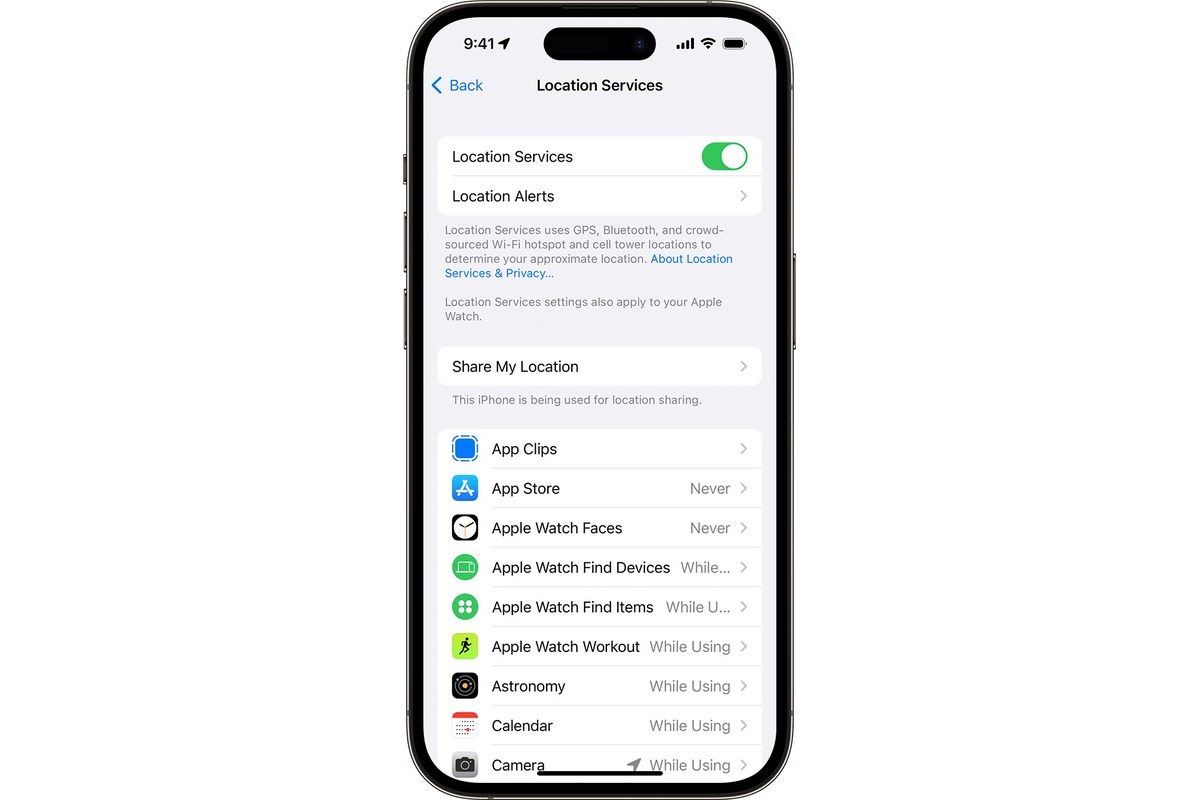
Enabling Location Services: Upon entering the Location Services menu, you will find a toggle switch at the top of the screen. Simply slide this switch to the right to enable location services for your device.
-
Customizing Location Preferences (Optional): If you wish to customize the level of access granted to specific apps, scroll down to view a list of installed applications. Here, you can individually adjust the location access for each app according to your preferences.
By following these steps, you can effectively activate location services on your iPhone 13, empowering your device to provide personalized and location-aware experiences. Whether you're utilizing navigation apps for seamless travel, leveraging location-based reminders, or simply enjoying the convenience of geotagged photos, enabling location services is the gateway to a myriad of innovative features.
It's important to note that while location services offer numerous benefits, users should be mindful of their privacy and security. Regularly reviewing and managing location settings ensures that you maintain control over your device's location data, allowing you to strike a balance between functionality and privacy.
With location services activated on your iPhone 13, you're poised to explore a world of location-based possibilities, seamlessly integrating your device with the surrounding environment and enhancing your overall mobile experience.
Enabling Location Services for Specific Apps
Enabling location services for specific apps on your iPhone 13 allows you to tailor the level of location access granted to individual applications, ensuring a personalized and secure user experience. By customizing location preferences for each app, you can strike a balance between functionality and privacy, empowering your device to provide location-aware services while safeguarding your personal data.
To enable location services for specific apps on your iPhone 13, follow these steps:
-
Accessing Location Services Settings: After activating location services on your iPhone 13, navigate back to the "Location Services" menu within the "Privacy" section of the Settings app.
-
Viewing Installed Apps: Scroll through the list of installed apps that have requested access to your device's location. Each app will display its respective location access status, such as "Never," "While Using the App," or "Always."
-
Customizing Location Access: Select the app for which you wish to customize location access. You will be presented with several options to tailor the app's location permissions according to your preferences.
-
Never: Choosing this option restricts the app from accessing your device's location under any circumstances. This setting is ideal for apps that do not require location data to function effectively.
-
While Using the App: Selecting this option grants the app access to your device's location only while the app is actively in use. This setting strikes a balance between functionality and privacy, ensuring that the app can provide location-based services when needed without continuous access to your location.
-
Always: Opting for this setting allows the app to access your device's location at all times, even when the app is running in the background. This level of access is suitable for apps that provide continuous location-based features, such as navigation or fitness tracking apps.
-
By customizing the location access for specific apps, you can optimize the functionality of each application while maintaining control over your device's location data. This granular approach to managing location services empowers you to make informed decisions about the privacy and security of your personal information, ensuring that your iPhone 13 operates in a manner that aligns with your preferences and values.
With location services enabled for specific apps, you can seamlessly harness the full potential of location-based features while preserving your privacy, creating a tailored and secure mobile experience that caters to your individual needs and preferences.
Managing Location Services Settings
Managing location services settings on your iPhone 13 is essential for maintaining control over your device's location data while optimizing the functionality of location-based features and applications. By carefully customizing these settings, you can strike a balance between convenience, privacy, and security, ensuring that your iPhone 13 operates in a manner that aligns with your preferences and values.
Upon activating location services and customizing location access for specific apps, you can further refine and manage location services settings to enhance your overall user experience. Here's how you can effectively manage location services settings on your iPhone 13:
Location-Based Alerts
Under the "Location Services" menu within the "Privacy" section of the Settings app, you can explore the "System Services" option. Here, you will find the "Significant Locations" feature, which allows your iPhone 13 to learn places significant to you to provide useful location-based information. You can manage this feature by toggling it on or off and even clear the history of significant locations stored on your device.
Share My Location
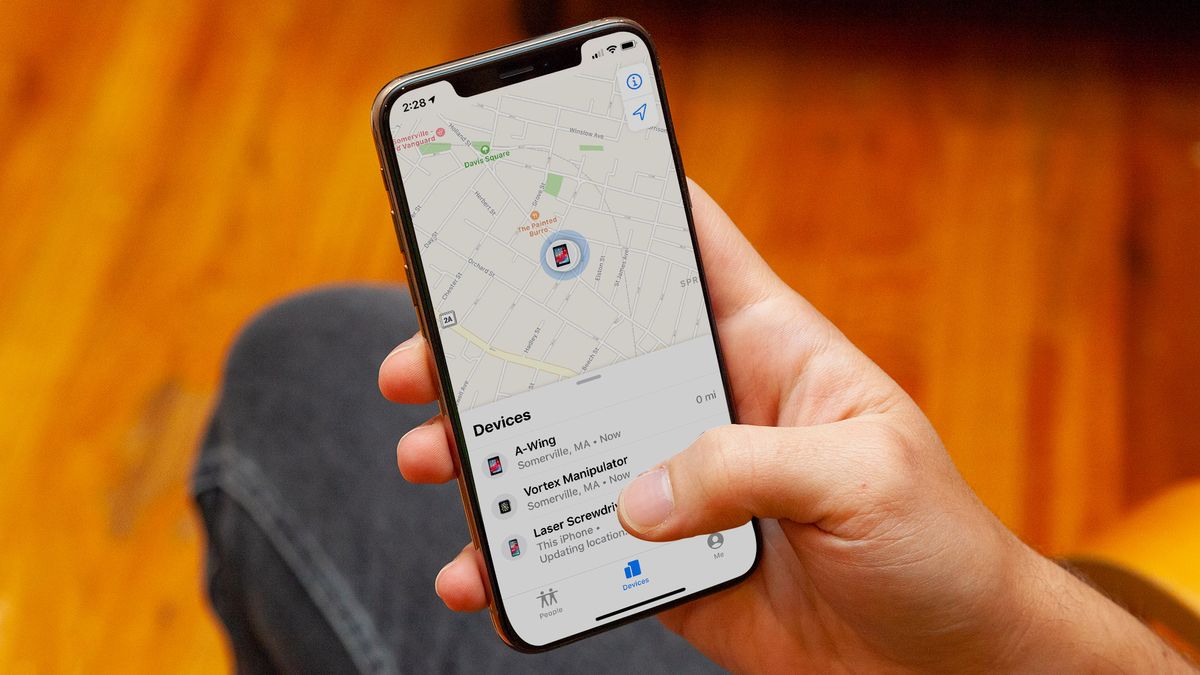
The "Share My Location" setting enables you to share your real-time location with friends and family using the Messages app or through the Find My app. By accessing the "Share My Location" option within the "Privacy" settings, you can customize location sharing preferences, including who can see your location and for how long. This feature is particularly useful for staying connected and ensuring safety during meetups or emergencies.
Location-Based Apple Ads
Within the "Location Services" menu, you can navigate to the "Apple Advertising" section to manage the use of your device's location for personalized advertising. By adjusting the "Location-Based Apple Ads" setting, you can choose whether to allow Apple to use your location for delivering relevant and localized advertisements. This level of control empowers you to make informed decisions about the use of your location data for advertising purposes.
Location Services System Preferences
In addition to app-specific location settings, your iPhone 13 offers system-level location services preferences that can be managed under the "Location Services" menu. Here, you can customize location access for services such as Emergency Calls & SOS, Find My iPhone, and Location-Based Suggestions. By reviewing and adjusting these system preferences, you can tailor your device's location services to suit your individual needs and privacy preferences.
By actively managing location services settings on your iPhone 13, you can ensure that your device operates in a manner that respects your privacy, security, and personal preferences. Regularly reviewing and customizing these settings empowers you to harness the full potential of location-based features while maintaining control over your device's location data, ultimately enhancing your overall mobile experience.