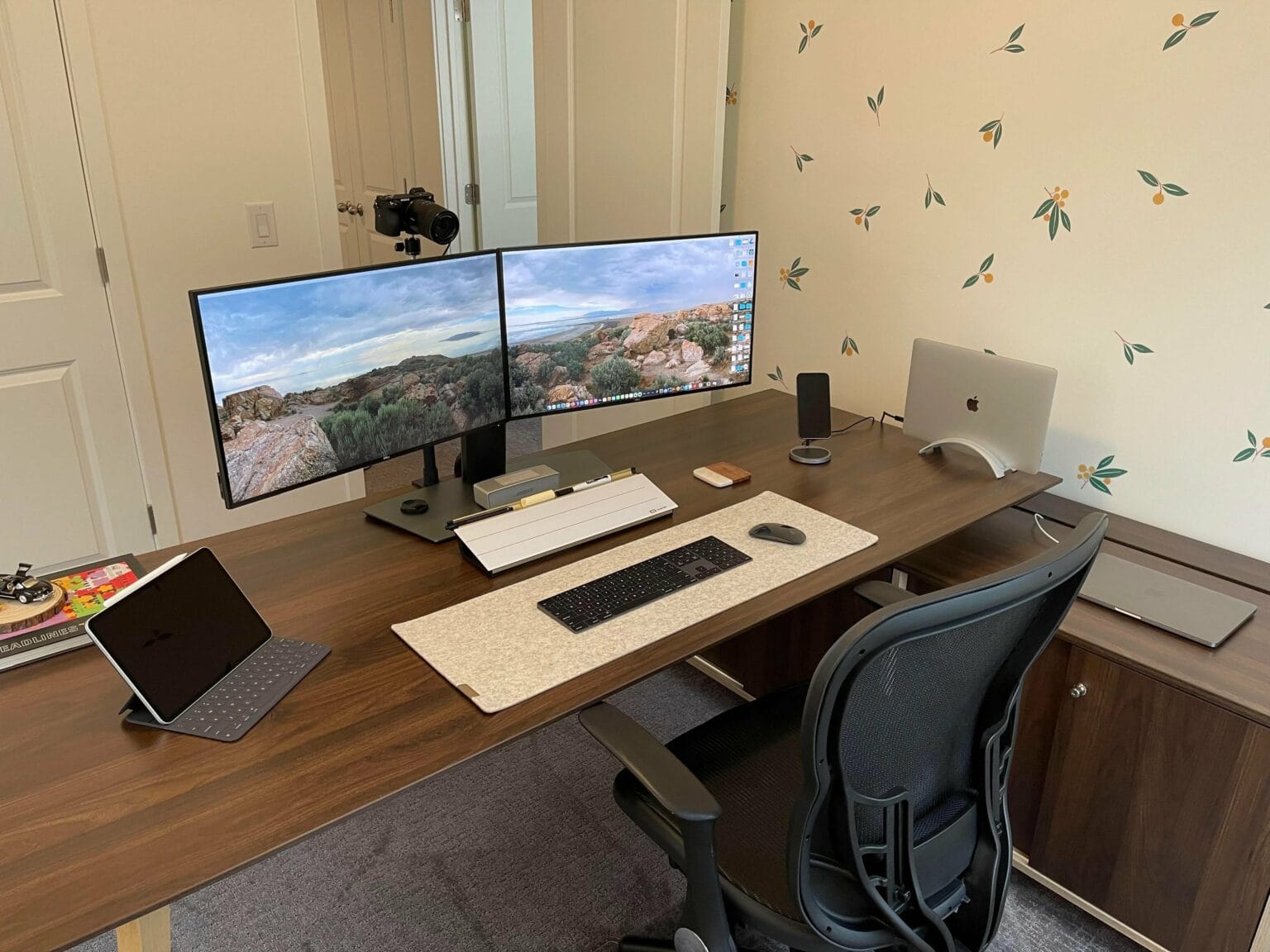
Choosing the Right Monitor
When it comes to setting up a second monitor for your computer, choosing the right one is crucial for a seamless and productive dual-screen experience. With so many options available in the market, it can be overwhelming to make the right choice. But fear not! In this section, we will guide you through the factors to consider when selecting the perfect monitor for your setup.
1. Size and Resolution: One of the first things to consider is the size and resolution of the monitor. While a larger screen size provides a more immersive viewing experience, it’s essential to make sure your desk space can accommodate it. Additionally, higher resolutions such as 4K or QHD offer sharper visuals and more screen real estate for multitasking.
2. Panel Type: The panel type of the monitor determines the overall picture quality and viewing angles. There are three main types to choose from: TN (Twisted Nematic), VA (Vertical Alignment), and IPS (In-Plane Switching). TN panels offer fast response times, making them ideal for gaming, while VA and IPS panels provide better color reproduction and wider viewing angles, making them suitable for graphic design and content creation.
3. Refresh Rate and Response Time: If you are a gamer or work with fast-paced visuals, a higher refresh rate monitor (e.g., 144Hz or 240Hz) combined with a low response time will provide smoother and more responsive gameplay or video playback. For general and office use, a standard 60Hz refresh rate is typically sufficient.
4. Connectivity: Check the available connectivity options on the monitor to ensure compatibility with your computer. Most modern monitors offer HDMI and DisplayPort connections, which can support high-resolution output and audio signals. Additionally, consider the number of available ports if you plan to connect other devices, such as speakers or USB peripherals, to your monitor.
5. Ergonomics: Don’t overlook the ergonomic features of a monitor, especially if you’ll be spending long hours working or gaming. Look for monitors that offer height adjustment, tilt, and swivel options to find a comfortable viewing angle. Some monitors even come with a built-in blue light filter to reduce eye strain.
By considering these factors, you can confidently select a monitor that suits your needs and enhances your dual-monitor setup. Remember to check user reviews and do some research to ensure you’re making an informed decision. Now that you’ve chosen your ideal monitor let’s move onto the next step, checking your computer’s graphics card.
Checking Your Computer’s Graphics Card
Before you connect your second monitor, it’s important to check if your computer’s graphics card can support multiple displays. Having a capable graphics card ensures that you can take full advantage of the added screen real estate. Here’s how to check your graphics card:
1. Windows: On a Windows computer, you can follow these steps:
- Right-click on the desktop and select “Display settings.”
- Scroll down and click on “Advanced display settings.”
- Under the “Advanced display settings” section, you will find information about your graphics card and the number of connected displays.
Alternatively, you can open the Run dialog by pressing the Windows key + R, type “dxdiag” and press Enter. In the DirectX Diagnostic Tool window, go to the “Display” tab, and you’ll find the name of your graphics card under the “Device” section.
2. macOS: If you’re using a Mac, follow these steps:
- Click on the Apple menu and select “About This Mac.”
- In the “Overview” tab, click on “System Report.”
- Under the “Graphics/Displays” section, you will find detailed information about your graphics card.
Make sure that your graphics card supports multiple displays and has the necessary ports to connect your second monitor. If you have an integrated graphics card, you may need to check if it can handle dual monitors or if you need to install a dedicated graphics card for optimal performance.
If you discover that your current graphics card doesn’t support multiple displays, you can consider upgrading to a more powerful one that meets your needs. Be sure to check compatibility with your computer’s motherboard and power supply before making a purchase.
Now that you’ve determined the capabilities of your graphics card, you’re ready to connect your second monitor. In the next section, we’ll guide you through the steps of connecting the monitor to your computer.
Connecting the Monitor to Your Computer
Now that you’ve chosen the right monitor and checked your computer’s graphics card compatibility, it’s time to connect the second monitor to your computer. Follow these steps to ensure a successful connection:
1. Identify the Ports: Look for the available display ports on both your computer and the second monitor. Common options include HDMI, DisplayPort, DVI, and VGA. Make sure you have the necessary cables for connecting the monitor to your computer.
2. Power off the Devices: Before connecting any cables, power off both your computer and the second monitor. It’s important to ensure that no electricity is passing through the devices during the connection process.
3. Connect the Cable: Take one end of the cable and connect it to the appropriate port on the second monitor. Then, take the other end and connect it to the corresponding port on your computer. Ensure a secure connection by tightening any screws or latches if present.
4. Power On the Devices: After making the cable connections, power on your computer and the second monitor. Allow sufficient time for the devices to boot up and detect each other.
5. Adjust Display Settings: Once both devices are powered on, you may need to adjust the display settings to enable and customize the second monitor. On a Windows computer, right-click on the desktop and select “Display settings” to access the display configuration options. On a Mac, go to “System Preferences” > “Displays” to adjust the settings.
6. Arrange the Display: Depending on your preference, you can choose to extend your desktop, mirror your displays, or use the second monitor as the primary display. Use the display settings to arrange the monitors according to your desired setup.
That’s it! You have successfully connected the second monitor to your computer. If both monitors are functioning correctly, you can start enjoying the added screen space and enhanced productivity. In the next section, we will discuss how to configure the display settings for optimal usage.
Configuring Display Settings
Once you have connected your second monitor to your computer, it’s time to configure the display settings to ensure optimal usage and productivity. Follow these steps to configure your display settings:
1. Access Display Settings: On a Windows computer, right-click on the desktop and select “Display settings.” On a Mac, go to “System Preferences” > “Displays.”
2. Identify the Monitors: In the display settings, you will see a visual representation of both monitors. Make sure they are correctly identified as “Monitor 1” and “Monitor 2.” You can click and drag the monitors to rearrange them according to your physical setup.
3. Adjust Resolution and Orientation: You can customize the resolution and orientation for each monitor individually. Select a resolution that suits your needs and ensure that the monitors are oriented correctly (landscape or portrait mode).
4. Set Display Mode: Choose the display mode that best fits your workflow. The options typically include:
- Extend: This mode allows you to use the second monitor as an extension of your primary display, giving you additional workspace.
- Mirror: This mode duplicates the content from your primary display onto the second monitor, ideal for presentations or sharing your screen.
- Show only on 1/2: This mode disables one of the monitors, displaying content only on the selected monitor.
5. Adjust Scaling: Depending on the resolution and size of your monitors, you may need to adjust the scaling to ensure that text, icons, and other elements are displayed properly.
6. Apply Settings: Once you have made all the desired changes, apply the settings and test the functionality of both monitors. Make sure that content seamlessly moves between the monitors and that all applications are displayed correctly.
7. Additional Settings: Explore the additional settings available in your computer’s display options. These may include color calibration, refresh rate adjustments, and advanced graphics settings.
By configuring the display settings to your preference, you can optimize your dual-monitor setup for improved workflow, multitasking, and enhanced productivity. In the next section, we will discuss how to adjust monitor settings to further enhance your visual experience.
Adjusting Monitor Settings
Now that you have connected and configured your second monitor, it’s time to fine-tune the monitor settings to ensure the best possible visual experience. Here are some key settings you can adjust:
1. Brightness and Contrast: Adjusting the brightness and contrast levels of your monitor can significantly impact the clarity and details of the displayed content. Find the appropriate settings for your environment to avoid eye strain and optimize the visual quality.
2. Color Calibration: Most monitors offer settings to adjust the color temperature, saturation, and hue. Calibration tools and software can help you achieve accurate and consistent colors across both monitors, ensuring better color accuracy for design work or photo editing.
3. Gamma and Color Space: Adjusting the gamma settings can enhance the overall brightness and contrast range, providing a more vibrant and balanced visual experience. Additionally, you may need to select the appropriate color space, such as sRGB or Adobe RGB, depending on your specific needs.
4. Pivot and Tilt: If your monitor supports it, consider adjusting the pivot and tilt settings to find a more comfortable viewing angle. This can help reduce neck and eye strain, especially during long working sessions.
5. Blue Light Filter: Many monitors offer a blue light filter or a built-in low-blue light mode. Enabling this feature can help reduce eye fatigue and improve sleep quality, especially when using the monitors for extended periods, particularly in the evening or at night.
6. OSD Language and Navigation: Explore the on-screen display (OSD) settings of your monitor to adjust the language, navigation options, and other preferences. This ensures that you can easily access and modify settings as needed.
7. Monitor Firmware: Check if there are any available firmware updates for your monitor. These updates may provide bug fixes or improved functionality, ensuring that your monitor is running optimally.
By adjusting these monitor settings, you can customize your visual experience and make the most of your dual-monitor setup. Experiment with different settings until you find the optimal configuration that suits your needs and preferences.
In the next section, we will discuss some common issues you may encounter when setting up a second monitor and how to troubleshoot them.
Troubleshooting Common Issues
While setting up a second monitor can greatly enhance your productivity, you may encounter some common issues along the way. Here are a few troubleshooting tips to help resolve those issues:
1. No Signal: If your second monitor shows “No Signal,” ensure that all cables are securely connected. Check if the monitor is powered on and receiving power. Additionally, verify that you have selected the correct input source on your monitor.
2. Incorrect Resolution: If the resolution on your second monitor is not displaying correctly, go to the display settings on your computer and adjust the resolution to match the recommended settings for your monitor. If the resolution options are limited, make sure your graphics card drivers are up to date.
3. Display Issues: If you experience flickering, blurry, or distorted images on your second monitor, try adjusting the refresh rate in the display settings. Also, ensure that the cables are securely connected and not damaged. Updating your graphics card drivers can also help resolve display issues.
4. Cursor Not Moving between Monitors: If your cursor is not moving seamlessly between the monitors, check the display settings to ensure that the monitors are arranged correctly. If they are, try restarting your computer or disconnecting and reconnecting the cables to see if the issue gets resolved.
5. Unsupported Display Mode: If you’re having trouble enabling certain display modes, it could be due to the limitations of your graphics card or monitor. Ensure that both the graphics card and monitor support the specific display mode you are trying to enable.
6. Sound Issues: If you encounter sound-related issues, such as no audio or low volume, verify that the audio cables are properly connected. Check the audio settings on your computer to ensure that the correct audio output device is selected for the second monitor.
7. Driver and Firmware Updates: Ensure that your graphics card drivers and monitor firmware are up to date. Outdated drivers or firmware can often cause compatibility issues and other problems. Visit the manufacturer’s website to download and install the latest updates.
By following these troubleshooting tips, you can overcome common issues that may arise when setting up a second monitor. Remember to check the user manuals and support resources for your specific devices for additional guidance.
With your second monitor functioning properly, you can now enjoy the expanded workspace and improved workflow that it provides.