Method 1: Using the Subtitle Settings on Netflix
Netflix offers a range of subtitle options to enhance your viewing experience. By following these simple steps, you can easily enable subtitles or customize them to suit your preferences:
- Open the Netflix app or website on your device and sign in to your account.
- Select the profile you want to adjust the subtitle settings for, if applicable.
- Choose a TV show or movie to watch. Once the content starts playing, click on the screen to access the playback controls.
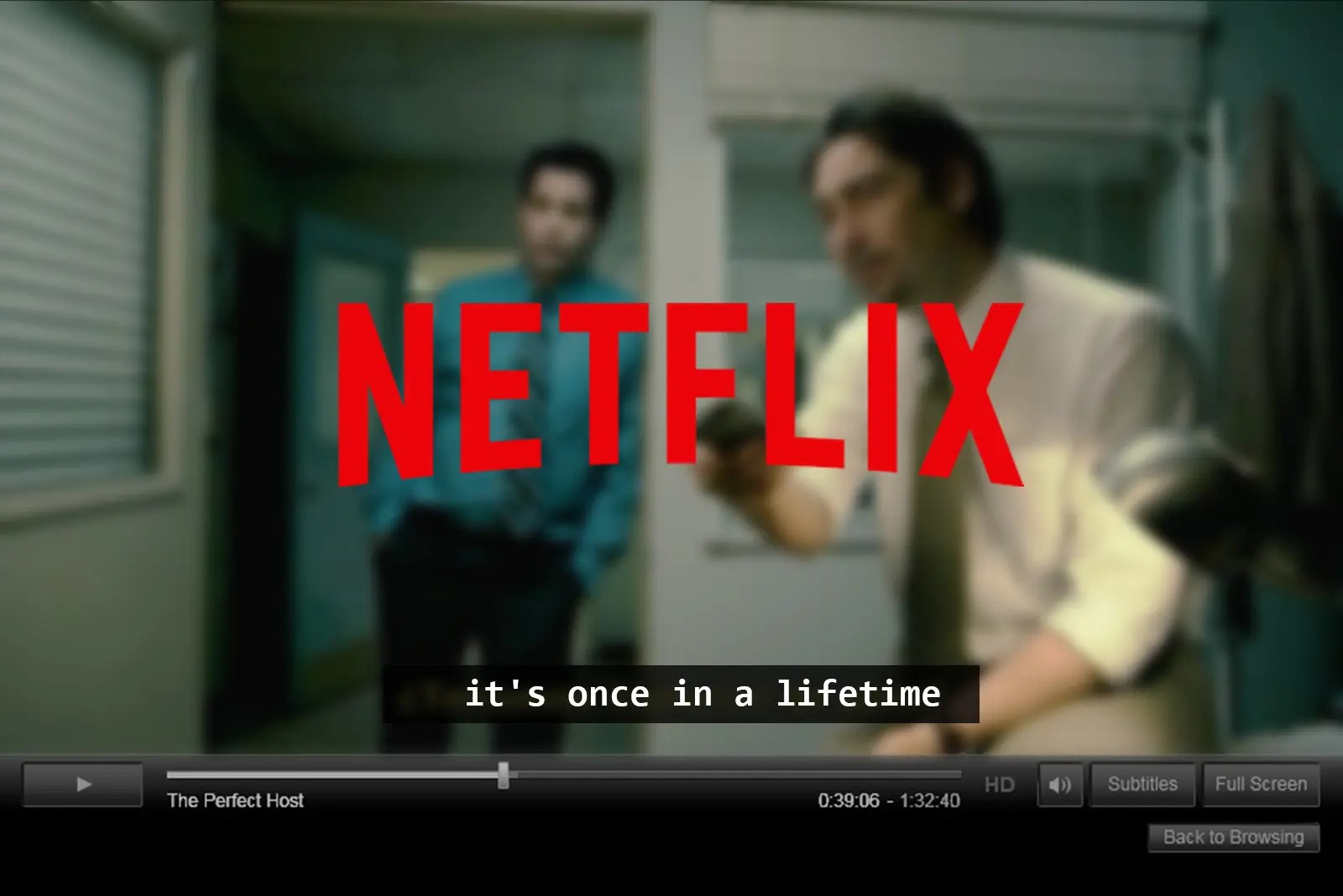
- Look for the “Dialogs & Subtitles” icon, usually represented by a speech bubble or a text bubble, depending on your device. Click on it to open the subtitle menu.
- You will be presented with various options. Select your preferred subtitle language from the available choices.
- If you wish to customize the appearance of the subtitles, such as the font, size, or color, navigate to the “Subtitle Appearance” or “Subtitles & Captions Appearance” section. Make the desired changes and save them.
- Once you have made your selections, the subtitles will automatically start appearing when you watch content that supports them. You can always return to the subtitle settings to make further adjustments if needed.
It’s important to note that not all TV shows and movies on Netflix support subtitles. However, the majority of their content is equipped with various subtitle options, making it accessible to a wider audience.
By utilizing the subtitle settings on Netflix, you can enjoy your favorite shows and movies while following the dialogue more accurately. Whether you prefer subtitles for language clarity or want to improve your language skills, Netflix offers a convenient and user-friendly way to enhance your viewing experience.
Method 2: Using Third-Party Extensions or Plugins
If you’re looking for additional subtitle options or if the content you’re watching on Netflix doesn’t have built-in subtitles, you can rely on third-party extensions or plugins to add subtitles. Here’s how you can do it:
1. Check your preferred web browser’s extension or plugin store. Popular browsers like Google Chrome, Mozilla Firefox, and Microsoft Edge have a wide range of extensions available.
2. Search for “Netflix subtitles” or “subtitles for Netflix” in the extension or plugin store.
3. Browse through the search results and read reviews to find a reputable and reliable extension or plugin. Pay attention to the user ratings and feedback to ensure a positive experience.
4. Once you’ve found a suitable extension or plugin, click on the “Add to [Browser Name]” or “Install” button to download and install it on your browser.
5. Open Netflix in your browser and sign in to your account.
6. Start playing the show or movie you want to watch.
7. Look for the newly installed extension or plugin icon in your browser’s toolbar or menu. Click on it to open the settings and configure the subtitle options.
8. Some extensions or plugins allow you to search for and download subtitles from various sources. Others may provide automatic subtitle syncing based on the audio and video of the content you’re watching.
9. Customize the appearance of the subtitles if desired, such as the font, size, color, or position on the screen.
10. Enjoy watching your favorite content with the added subtitles provided by the extension or plugin you installed.
Using third-party extensions or plugins can give you more flexibility and control over the subtitles you want to enable on Netflix. However, make sure to download from trusted sources and keep your extensions or plugins up to date to ensure security and compatibility with the latest version of Netflix.
Method 3: Using Captioning Services for Accessibility
If you require subtitles for accessibility reasons, such as hearing impairments, you can make use of external captioning services to add accurate and detailed captions to Netflix content. Follow these steps to access captioning services:
1. Start by identifying a reputable captioning service that specializes in providing captions for streaming platforms like Netflix. Examples include Rev.com, CaptionSync, and 3Play Media.
2. Visit the website of your chosen captioning service and sign up for an account if required. Provide the necessary information, such as your email address and payment details.
3. Once you have created an account, follow the instructions provided by the captioning service on how to submit a request for captioning for Netflix. Typically, you will need to provide details like the title of the show or movie, the episode or season number (if applicable), and the language of the original audio.
4. Depending on the captioning service, you may have the option to select your preferred caption format and customization options. You can specify font styles, colors, and other display preferences to suit your needs.
5. Submit your request and wait for the captioning service to process it. The time it takes to receive the captions may vary depending on the service provider and the length of the content.
6. Once the captions are ready, you will typically receive a notification from the captioning service. They may provide you with a caption file that you can integrate with Netflix or offer instructions on how to access the captions while streaming Netflix content.
7. Follow the provided instructions to enable the captions on Netflix. This may involve uploading the caption file or adjusting the settings within the Netflix app or website.
By using captioning services, you can access professional and accurate captions that enhance the accessibility of Netflix content. These services are particularly useful for individuals with hearing impairments, ensuring that they can fully enjoy movies and shows with clear and comprehensive captions.
Method 4: Requesting Subtitles for a Specific Title
If you come across a TV show or movie on Netflix that does not have subtitles available, you have the option to request them. While Netflix does not guarantee that all subtitle requests will be fulfilled, they appreciate user feedback and strive to improve the viewing experience for all. Here’s how you can request subtitles for a specific title:
1. Sign in to your Netflix account and navigate to the Help Center. You can usually find the Help Center link at the bottom of the Netflix homepage.
2. In the Help Center, search for “requesting subtitles” or navigate to the section related to feedback and requests.
3. Look for the option to submit a subtitle request. Click on it to begin the process.
4. Provide the necessary details about the title for which you are requesting subtitles. This typically includes the title name, language, and any specific information that may aid in the request process.
5. Submit your request and wait for Netflix to review it. They will prioritize popular requests and evaluate the feasibility of adding subtitles to the requested title.
6. Keep in mind that Netflix receives numerous subtitle requests, so it may take time for them to investigate and potentially provide subtitles for the title you requested. Be patient and check for updates periodically.
7. While waiting for official subtitles, you can explore the other methods mentioned earlier, such as using third-party extensions or plugins or captioning services, to add subtitles to the content temporarily.
By requesting subtitles for a specific title, you contribute to the efforts of making Netflix more inclusive and accessible to a diverse range of viewers. It’s a valuable way to voice your needs and preferences, helping Netflix understand the demand for subtitles in different languages and for various shows and movies.