Importance of Cleaning Tablet Memory
As technology continues to advance at a rapid pace, tablets have become an essential tool in our daily lives. Whether it’s for work, entertainment, or staying connected, we rely on our tablets to perform a wide range of tasks. However, over time, our tablets can become sluggish and unresponsive due to excessive memory usage. This is why it is crucial to regularly clean and optimize tablet memory.
By cleaning tablet memory, you can significantly improve the overall performance and functionality of your device. Here are a few reasons why cleaning tablet memory is important:
- Enhanced Speed and Responsiveness: Over time, as you install and use various apps, browse the internet, and save files, your tablet’s memory can get cluttered. This can slow down the device and lead to lagging and unresponsiveness. By clearing unnecessary files and app caches, you can free up memory and improve the speed and responsiveness of your tablet.
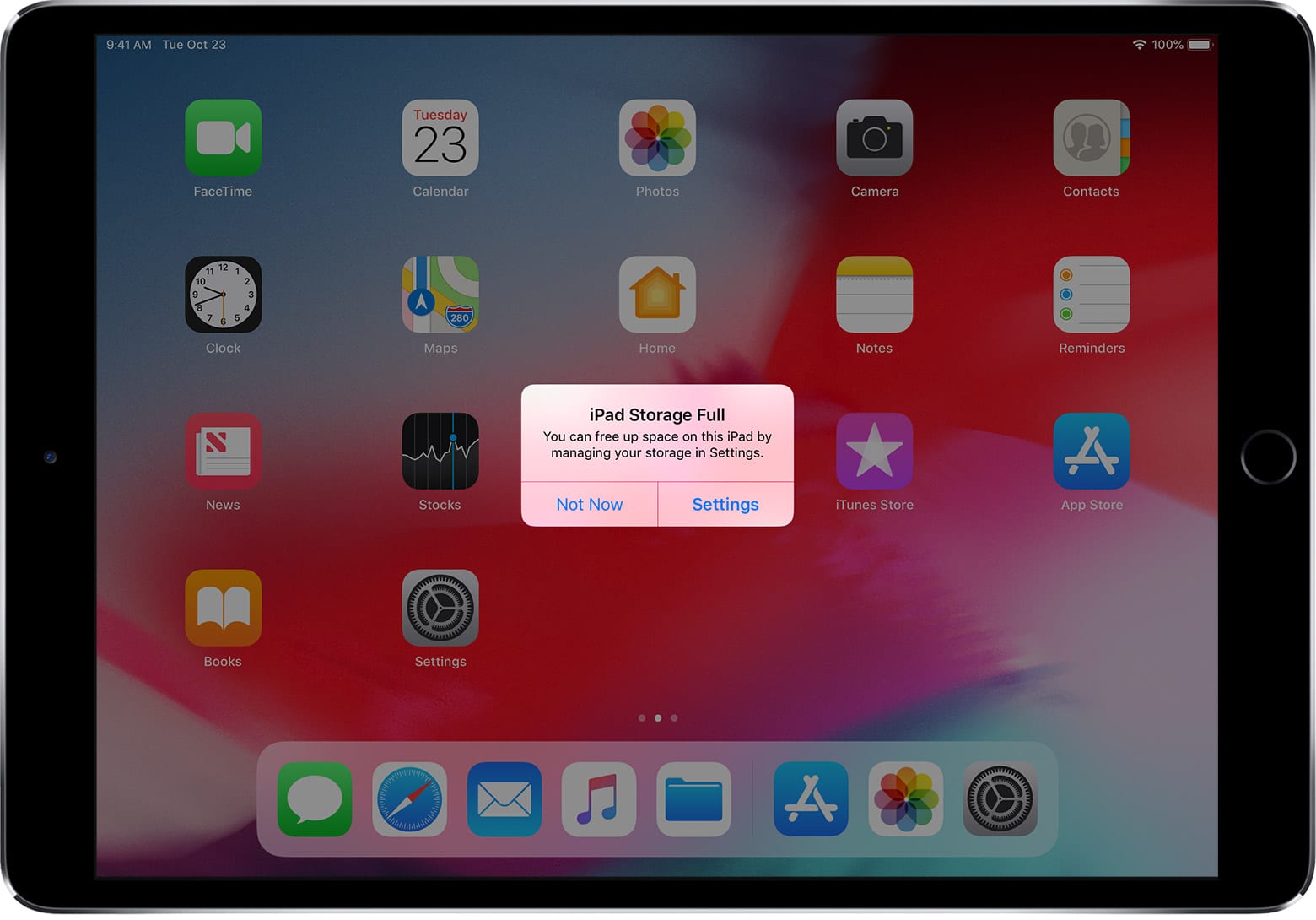
- Increased Storage Space: Tablets come with a limited amount of storage space. If your device is running low on internal storage, it can hinder your ability to download new apps, save important files, or take photos and videos. Cleaning tablet memory allows you to reclaim valuable storage space, giving you more room for the things that matter most.
- Better App Performance: App caches are temporary files that help speed up the performance of applications. However, over time, these caches can accumulate and take up a significant amount of memory. By regularly clearing app caches, you can ensure that apps run smoothly and efficiently.
- Optimized Battery Life: Running multiple apps and processes in the background can drain your tablet’s battery faster. When your device’s memory is filled up, it requires more power to perform tasks, resulting in reduced battery life. Cleaning tablet memory can help optimize battery usage and extend the battery life of your device.
Cleaning tablet memory is a simple yet effective way to optimize the performance of your device. By following the methods and techniques discussed in this article, you can keep your tablet running smoothly, enjoy faster speeds, and make the most out of its capabilities.
Understanding Tablet Memory
Tablet memory refers to the storage and RAM (Random Access Memory) capacity of your device. It is important to distinguish between these two types of memory and understand how they contribute to the overall performance of your tablet.
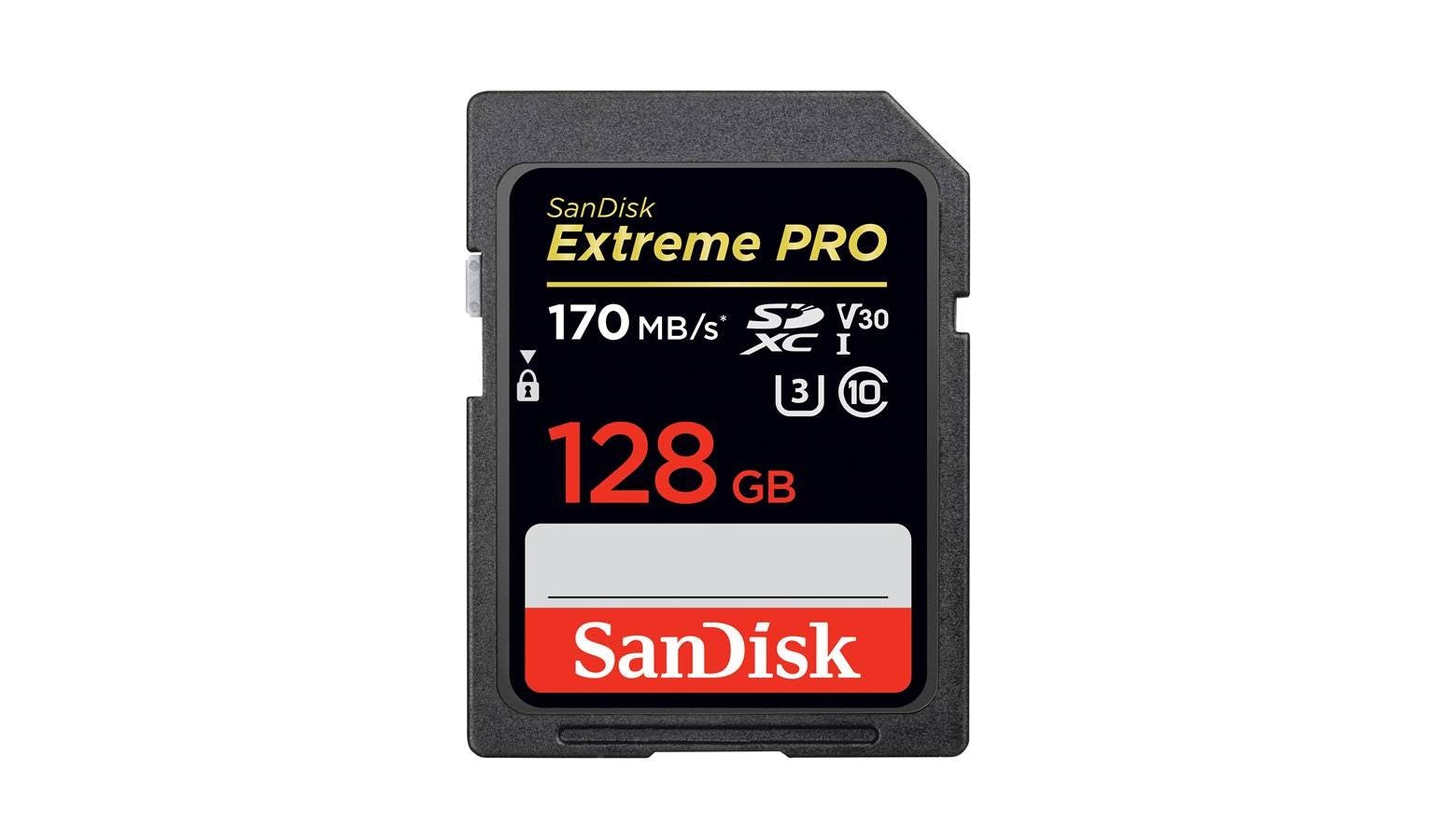
1. Storage: Tablet storage is where all your data, including apps, photos, videos, documents, and system files, are stored. It is commonly measured in gigabytes (GB) or terabytes (TB). Storage capacity affects how much content you can save on your tablet. If you frequently download large files or have multiple apps installed, you may require more storage space. It is worth noting that some tablets allow for expandable storage through a microSD card, which can increase the overall storage capacity.
2. RAM (Random Access Memory): RAM is the temporary memory that your tablet uses to perform various tasks and run applications. Unlike storage, which stores data even when the device is powered off, RAM is cleared when the tablet is shut down or restarted. RAM affects the multitasking capability and overall speed of your tablet. The more RAM your tablet has, the more apps it can run simultaneously without slowing down or freezing.
3. Virtual Memory: In addition to storage and RAM, tablets also utilize virtual memory. Virtual memory is an extension of RAM that allows the device to use part of the storage as temporary memory when the actual RAM is fully utilized. This helps prevent the tablet from running out of memory even when multiple apps are running simultaneously.
4. Memory Hierarchy: Tablets, like other computing devices, have a memory hierarchy. The memory hierarchy consists of different levels of memory, each with varying speeds and capacities. At the top of the hierarchy is the CPU cache, which is the fastest and most expensive form of memory. The next level is the RAM, followed by storage. Understanding the memory hierarchy can help you make informed decisions about which apps and data should be stored in different areas of your tablet’s memory.
By understanding tablet memory and how it functions, you can better manage and optimize your device’s performance. It is important to strike a balance between utilizing storage efficiently and keeping enough free RAM to ensure smooth multitasking. Regularly cleaning and organizing your tablet’s storage can help ensure that it runs at its best and that you have enough space for new content and apps.
Clearing App Cache
One of the most effective ways to free up memory on your tablet is by clearing the app cache. App cache consists of temporary files and data that are stored on your device for quick access, allowing apps to load faster. However, over time, app cache can accumulate and take up a significant amount of storage space. Clearing app cache not only frees up memory but also helps improve the performance of your tablet.
To clear app cache on your tablet, follow these simple steps:
- Open the Settings app on your tablet.
- Navigate to the Apps or Applications section.
- Scroll through the list of installed apps and select the app you want to clear the cache for.
- Tap on the Storage or Storage & cache option.
- Here, you will see options to clear Cache or Clear storage. Tap on Clear Cache to remove the temporary files associated with the app.
Repeat these steps for each app on your tablet to clear their respective caches. Alternatively, you can choose to clear the cache for all apps at once by selecting the Cache option in the Storage or Storage & cache settings.
It’s important to note that clearing app cache will not delete any personal data or settings associated with the app. It simply removes temporary files, which can include cached images, videos, scripts, and other data that apps store for quick retrieval.
Regularly clearing app cache can bring several benefits to your tablet. It can help free up valuable storage space, improve app performance, and enhance overall device speed and responsiveness. If you notice certain apps becoming slower or unresponsive, clearing their cache can often resolve the issue.
By incorporating the habit of clearing app cache into your tablet maintenance routine, you can ensure that your device remains optimized and performs at its best.
Deleting Unnecessary Files
Over time, your tablet can become cluttered with unnecessary files that take up valuable storage space. These files can include old documents, downloaded files, screenshots, and media files that you no longer need. Deleting unnecessary files is a simple yet effective way to free up memory and optimize your tablet’s performance.
To delete unnecessary files from your tablet, follow these steps:
- Open the File Manager or Files app on your tablet. If your tablet doesn’t come with a native file manager, you can download one from the app store.
- Navigate to the storage location where the files are stored. This is typically the Internal Storage or SD Card.
- Browse through the files and folders and identify the ones that you no longer need or want.
- Select the files by tapping and holding on them. You can select multiple files at once by tapping on each file.
- Once the files are selected, look for the Delete or Remove option. This can usually be found in the overflow menu or as an icon at the top or bottom of the screen.
- Confirm the deletion when prompted. Depending on the file manager app, you may be asked to confirm the deletion of individual files or all selected files.
It is important to carefully review the files before deleting them to ensure you don’t remove anything important or valuable. If you’re unsure about a file, consider making a backup before deleting it.
In addition to manually deleting files, you can also make use of storage management features available on some tablets. These features can analyze your storage and identify unnecessary files and suggest them for deletion.
Regularly deleting unnecessary files not only frees up storage space but also improves the overall organization of your tablet. It allows you to have a clutter-free storage system and ensures that you have ample space for new files, apps, and updates.
By incorporating the habit of regularly deleting unnecessary files, you can keep your tablet’s memory optimized and running smoothly.
Uninstalling Unused Apps
Over time, our tablets can accumulate a plethora of apps that we no longer use or need. These unused apps not only take up valuable storage space but can also impact the performance and speed of our devices. Uninstalling unused apps is a simple and effective way to free up memory and optimize your tablet’s performance.
To uninstall unused apps from your tablet, follow these steps:
- Open the Settings app on your tablet.
- Navigate to the Apps or Applications section.
- Scroll through the list of installed apps and identify the apps that you no longer use.
- Tap on the app you want to uninstall.
- In the app details page, select the Uninstall option.
- Confirm the uninstallation when prompted.
Repeat these steps for each unused app that you want to uninstall from your tablet. Alternatively, you can go to the app drawer on your device and perform a long press on the app icon. This will bring up a menu where you can select the Uninstall option.
Uninstalling unused apps not only frees up storage space but also improves the overall performance of your tablet. These apps may continue running in the background, consuming system resources and draining battery life. By removing them from your device, you can enhance device speed, optimize battery usage, and enjoy a cleaner and more organized app drawer.
It’s important to note that when you uninstall an app, you also remove its associated data and settings. If you want to reinstall the app in the future, you will need to download it from the app store and set it up again.
Regularly reviewing and uninstalling unused apps is a good practice to keep your tablet optimized and running smoothly. It allows you to prioritize the apps that you truly need and use, ensuring that your device’s resources are allocated efficiently.
Managing Photos and Videos
Photos and videos are among the biggest culprits when it comes to taking up storage space on our tablets. Managing and organizing these media files not only frees up memory but also helps us to easily locate and enjoy our favorite moments. Here are some tips for managing photos and videos on your tablet:
- Delete Unwanted Media: Take the time to go through your photo and video collections and delete any files that are duplicates, blurry, or simply no longer needed. This will immediately free up valuable storage space on your tablet.
- Utilize Cloud Storage: Consider uploading your photos and videos to a cloud storage service like Google Drive, Dropbox, or iCloud. This allows you to access them from any device with an internet connection and frees up local storage on your tablet.
- Use Photo and Video Editing Apps: Instead of keeping every single photo or video you capture, make use of editing apps to enhance and select the best ones. This cuts down on storage usage without compromising on the quality of your media collection.
- Create Folders and Albums: Organize your photos and videos into folders or albums based on specific categories or events. This makes it easier to locate and share specific memories when you need them.
- Transfer Files to External Storage: If your tablet supports external storage options like an SD card, consider transferring older photos and videos to free up internal storage space. Just make sure to regularly back up your external storage to avoid losing any precious memories.
- Stream Videos Online: Instead of storing a large collection of videos on your tablet, consider using streaming platforms like Netflix, YouTube, or Amazon Prime Video. This allows you to enjoy a wide variety of videos without taking up local storage.
By implementing these strategies and making photo and video management a regular habit, you can optimize your tablet’s storage space and ensure easy access to your favorite memories whenever you want.
Transferring Files to Cloud Storage
Cloud storage has become increasingly popular as a convenient and efficient way to store and access files, including photos, videos, documents, and more. Transferring your files to cloud storage offers numerous benefits, such as freeing up local storage space on your tablet and providing easy accessibility from any device with an internet connection. Here’s how you can transfer files to cloud storage:
- Select a Cloud Storage Service: There are various cloud storage services available, such as Google Drive, Dropbox, Microsoft OneDrive, and iCloud. Choose the one that best suits your needs, taking into consideration factors like storage capacity, pricing, and integration with your tablet.
- Create an Account: Sign up for an account with your chosen cloud storage service. This typically involves providing your email address and creating a password.
- Install the App: Download and install the cloud storage app associated with your chosen service from the app store on your tablet.
- Sign In: Open the app and sign in using the credentials you created in step 2.
- Upload Files: Navigate to the upload section within the app and select the files you want to transfer to the cloud. You may have the option to select multiple files or an entire folder.
- Organize Files: Once your files are uploaded to the cloud, you can create folders and organize them as desired. This makes it easier to locate and manage your files within the cloud storage interface.
- Access Files from Any Device: With your files safely stored in the cloud, you can now access them from any device, including your tablet, smartphone, or computer. Simply install the cloud storage app and sign in with your account credentials.
Transferring files to cloud storage not only frees up valuable local storage space on your tablet but also provides you with the convenience of accessing your files from anywhere. Additionally, cloud storage services often provide automatic backup features, ensuring that your files are secure and protected.
It’s important to periodically review and manage your files in the cloud to ensure that you stay within the storage limits of your chosen cloud storage service. Consider deleting or archiving files that you no longer need to further optimize your storage usage.
By leveraging the power of cloud storage, you can streamline your file management process, have peace of mind knowing your files are backed up, and enjoy the freedom of accessing your data on-the-go.
Using Memory Optimization Apps
Memory optimization apps can be valuable tools for keeping your tablet running smoothly and efficiently. These apps are specifically designed to analyze and optimize your device’s memory usage, helping to free up RAM and improve overall performance. Here’s how you can make use of memory optimization apps:
- Research and Choose a Reliable App: There are many memory optimization apps available in app stores, each with different features and capabilities. Take the time to research and read reviews to find a reputable app that suits your needs.
- Install the App: Download and install the memory optimization app from the app store on your tablet. Make sure to grant the necessary permissions for the app to function optimally.
- Launch the App and Start the Optimization Process: Open the memory optimization app and follow the provided instructions to initiate the optimization process. The app will typically scan your tablet’s memory usage and identify areas where optimization is needed.
- Clear Unnecessary Processes and Background Apps: Memory optimization apps can help identify and close unnecessary processes and background apps that may be consuming your tablet’s RAM. By freeing up RAM, you can enhance the speed and responsiveness of your device.
- Manage App Permissions: Some memory optimization apps may offer features to manage app permissions. Review and adjust the permissions of individual apps to control their access to your tablet’s resources and better optimize memory usage.
- Monitor Memory Usage: Use the memory optimization app to monitor your tablet’s memory usage regularly. This allows you to proactively identify any apps or processes that are consuming excessive memory and take appropriate actions.
- Customize Optimization Settings: Memory optimization apps often provide customization options to tailor the optimization process to your specific preferences. Explore the settings of the app to adjust parameters such as frequency of optimization, automated cleanup, and notifications.
- Regularly Update the App: Keep your memory optimization app updated to ensure that you have access to the latest features and improvements. App updates often include bug fixes and performance enhancements.
Using a memory optimization app can be a useful addition to your tablet maintenance routine. However, it is important to note that these apps should be used in conjunction with other best practices such as clearing app caches, deleting unnecessary files, and managing unused apps. They are not a substitute for regular device maintenance and storage optimization.
By incorporating a memory optimization app into your tablet maintenance habits, you can keep your device running smoothly and efficiently, ensuring optimal performance and maximizing its capabilities.