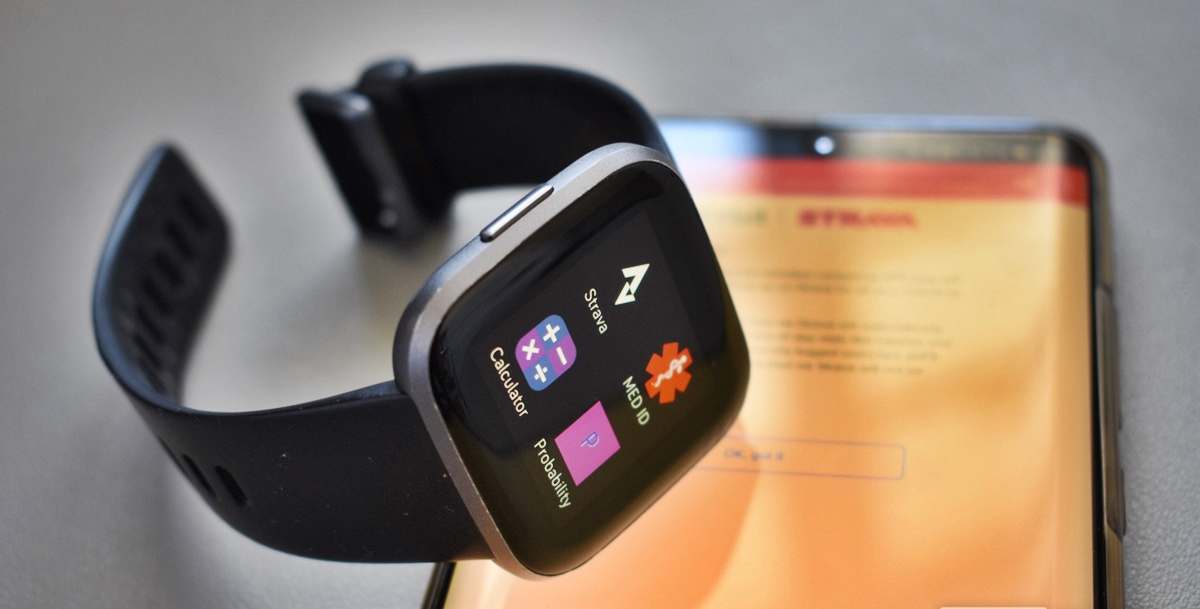
Check Compatibility
Before you can sync your new Fitbit device to your account, it’s essential to ensure compatibility between your device and the Fitbit app. This will ensure a seamless syncing process and allow you to make the most out of your fitness tracker. Here’s what you need to do:
- Check your device’s compatibility: Visit the Fitbit website or check the device’s packaging to verify if your Fitbit is compatible with the Fitbit app. Fitbit devices are compatible with most modern smartphones and tablets running on iOS, Android, and Windows operating systems.
- Verify your device’s software requirements: Check if your device’s software is up to date. Some Fitbit devices require specific software versions to be able to sync with the Fitbit app. You can usually find this information in the device’s manual or on the Fitbit website.
By ensuring compatibility, you’ll save yourself the frustration of trying to sync your Fitbit device to an incompatible device. It’s important to have the right device and software to make the most of your Fitbit and track your fitness progress effectively.
Charge your Fitbit device
Before you can begin the syncing process, it’s crucial to make sure your Fitbit device has enough battery power. Here’s what you need to do to charge your Fitbit device:
- Locate the charging cable: Most Fitbit devices come with a proprietary charging cable. Find the cable that came with your device or any compatible charging cable if you have misplaced the original one.
- Connect the charging cable: Attach one end of the charging cable to the port on the back or bottom of your Fitbit device. Ensure a secure connection to prevent any interruption in the charging process.
- Connect the other end of the charging cable: Plug the other end of the charging cable into a USB port on your computer, a USB wall charger, or any other power source.
- Check the charging status: Once connected, check the display on your Fitbit device. It should indicate that it’s charging. Some Fitbit devices may have an LED indicator that lights up or blinks to show the charging status.
- Leave your Fitbit device to charge: Allow your Fitbit device to charge fully. The charging time may vary depending on the device model and its current battery level. It’s recommended to leave it charging for at least one to two hours to ensure a complete charge.
Ensuring that your Fitbit device is sufficiently charged will enable it to function optimally and ensure a smooth syncing process. Once your Fitbit is fully charged, you can proceed to the next steps to sync it with your account.
Download the Fitbit App
In order to sync your new Fitbit device with your account, you need to have the Fitbit app installed on your smartphone or tablet. Here’s how you can download the Fitbit app:
- Go to your device’s app store: Open the app store on your iOS, Android, or Windows device. The app store is typically labeled as “App Store” for iOS, “Google Play Store” for Android, and “Microsoft Store” for Windows.
- Search for the Fitbit app: Use the search bar within the app store to search for “Fitbit.” Look for the official Fitbit app, which is developed by Fitbit, Inc.
- Select and install the app: Once you find the Fitbit app in the search results, tap on it to access the app’s details page. Then, tap the “Install” or “Get” button to begin the installation process. Follow the on-screen prompts to complete the installation.
- Open the Fitbit app: After the Fitbit app has finished installing, locate its icon on your device’s home screen or app drawer and tap on it to open it.
The Fitbit app is essential for syncing your Fitbit device, tracking your fitness progress, and accessing additional features and settings. Make sure to download the app from the official app store to ensure the best compatibility and reliability.
Create a Fitbit Account
In order to sync your new Fitbit device and track your fitness progress, you’ll need to create a Fitbit account. Follow these steps to create your account:
- Open the Fitbit app: Launch the Fitbit app on your smartphone or tablet. If you haven’t downloaded the app yet, refer to the previous section on how to download the Fitbit app.
- Tap “Join Fitbit”: On the app’s login screen, tap the “Join Fitbit” or “Sign Up” button to begin the account creation process.
- Enter your email and password: Provide a valid email address and create a secure password for your Fitbit account. Make sure to choose a password that is strong and memorable.
- Complete your profile: Follow the on-screen prompts to complete your profile information. This may include providing your name, gender, date of birth, and other relevant details. You may also be asked to set your fitness goals and preferences.
- Agree to the terms and conditions: Read and accept Fitbit’s terms of service and privacy policy. It’s important to understand and agree to these terms before creating your account.
- Verify your email address: Fitbit may require you to verify your email address before you can complete the account creation process. Check your inbox for a verification email and follow the instructions provided.
Once you’ve successfully created your Fitbit account, you’ll be able to sync your new Fitbit device and start tracking your activities, sleep, and overall fitness. Keep your account credentials safe and remember to sign in with your Fitbit account whenever you use the Fitbit app.
Open the Fitbit App
After creating your Fitbit account, you’ll need to open the Fitbit app to set up and sync your new Fitbit device. Here’s how you can open the Fitbit app:
- Locate the Fitbit app icon: Look for the Fitbit app icon on your device’s home screen or in the app drawer. The icon typically features the Fitbit logo, which is a stylized “F” in a square.
- Tap on the Fitbit app icon: Once you’ve found the Fitbit app icon, tap on it to launch the app. The Fitbit app will open and display the login screen.
- Enter your Fitbit account credentials: On the app’s login screen, enter the email address and password associated with your Fitbit account. Make sure to double-check the information to avoid any login errors.
- Tap “Login” or “Sign In”: After entering your credentials, tap the “Login” or “Sign In” button to access your Fitbit account through the app.
Opening the Fitbit app allows you to access your Fitbit account and perform various functions, including setting up and syncing your Fitbit device, viewing your fitness data, tracking your progress, and adjusting settings. Make sure to keep your Fitbit app updated to enjoy the latest features and improvements provided by Fitbit.
Follow the App Instructions
Once you have successfully opened the Fitbit app and logged into your account, you will be guided through a step-by-step process to set up and sync your new Fitbit device. Follow the app’s instructions carefully to ensure a smooth and successful setup. Here’s what you can expect:
- Device selection: The app will prompt you to select your specific Fitbit device from a list of available options. Make sure to choose the correct model to ensure compatibility.
- Bluetooth pairing: To establish a connection between your Fitbit device and your smartphone or tablet, the app will instruct you to enable Bluetooth on your device and follow the pairing instructions provided.
- Account verification: The app may ask you to verify your Fitbit account details and confirm that you are the owner of the device. This step ensures the security of your data.
- Synchronization options: You will have the opportunity to customize your syncing preferences, such as how frequently you want your Fitbit device to sync with the app and whether you want notifications and alerts enabled.
- Additional features: Depending on your Fitbit device model and the app version, you may be guided through additional features and settings, such as setting personalized goals, enabling sleep tracking, or configuring heart rate monitoring.
Make sure to carefully read and follow each instruction provided by the Fitbit app. The setup process may vary slightly depending on your device model and any updates that Fitbit has released. If you encounter any difficulties, consult the app’s help resources or visit the Fitbit website for assistance.
Connect your Device to Wi-Fi
If your Fitbit device supports Wi-Fi connectivity, it’s important to connect it to a wireless network for seamless syncing and access to online features. Here’s how you can connect your device to Wi-Fi:
- Access the settings: On your Fitbit device, navigate to the settings menu. The exact method may vary depending on your device model, but it usually involves swiping or tapping on the screen to access the settings.
- Find the Wi-Fi settings: Look for the Wi-Fi option within the settings menu. It may be labeled as “Wi-Fi,” “Networks,” or a similar term.
- Select a network: Once you’re in the Wi-Fi settings, your Fitbit device will search for available networks. Select your desired network from the list of available options.
- Enter the network password: If prompted, enter the password for the selected network. Use the on-screen keyboard or physical buttons to input the password accurately.
- Connect to the network: After entering the password, your Fitbit device will attempt to connect to the network. It may take a few moments for the connection to be established.
- Verify the connection: Once connected to the Wi-Fi network, your Fitbit device will display a confirmation message or icon indicating a successful connection. You can now proceed with syncing and accessing online features.
Note that not all Fitbit devices have Wi-Fi capabilities. If your device does not support Wi-Fi connectivity, you can still sync it with the Fitbit app using Bluetooth and your mobile device’s internet connection. Check your device’s specifications or the Fitbit website for more information on its connectivity features.
Sync Your Fitbit Device
Once you have successfully set up your Fitbit device and connected it to Wi-Fi or your mobile device, it’s time to sync your device with the Fitbit app. Syncing allows you to transfer your fitness data, such as steps taken, distance traveled, and sleep patterns, to your account for tracking and analysis. Here’s how to sync your Fitbit device:
- Open the Fitbit app: Launch the Fitbit app on your smartphone or tablet. If you have already opened it, ensure that it is running in the background.
- Bring your Fitbit device close to your mobile device: Make sure your Fitbit device is within Bluetooth range of your smartphone or tablet. The recommended range is typically around 20 feet or 6 meters.
- Wait for the sync to start: Your Fitbit device and the Fitbit app will automatically initiate the syncing process. This may take a few moments, so be patient while the devices establish a connection.
- Keep your device and app awake: To ensure a successful sync, keep both your Fitbit device and the Fitbit app active and awake during the syncing process. Avoid closing the app or putting your device to sleep.
- Check for sync completion: Once the syncing process is complete, the Fitbit app will display a confirmation message or a sync icon indicating that the transfer of data was successful. You can now view your updated fitness data within the app.
- Sync regularly: To keep your fitness data up to date and track your progress accurately, it’s recommended to sync your Fitbit device regularly. This can be done automatically in the background or manually by accessing the app and initiating a sync.
Syncing your Fitbit device ensures that your fitness data is accurately recorded and analyzed within the Fitbit app. It also allows you to take full advantage of the features and insights provided by Fitbit to help you reach your health and fitness goals.