Checking Compatibility
Checking Compatibility
Before attempting to connect Bluetooth speakers to your TV, it’s essential to ensure that your TV is equipped with Bluetooth functionality. Not all TVs come with built-in Bluetooth, so it’s crucial to verify this aspect beforehand. Here’s how you can determine the compatibility:
- Refer to the TV Manual: Start by consulting the user manual of your TV. Look for information related to Bluetooth connectivity. The manual should outline whether your TV has Bluetooth capabilities and provide instructions on how to enable it.
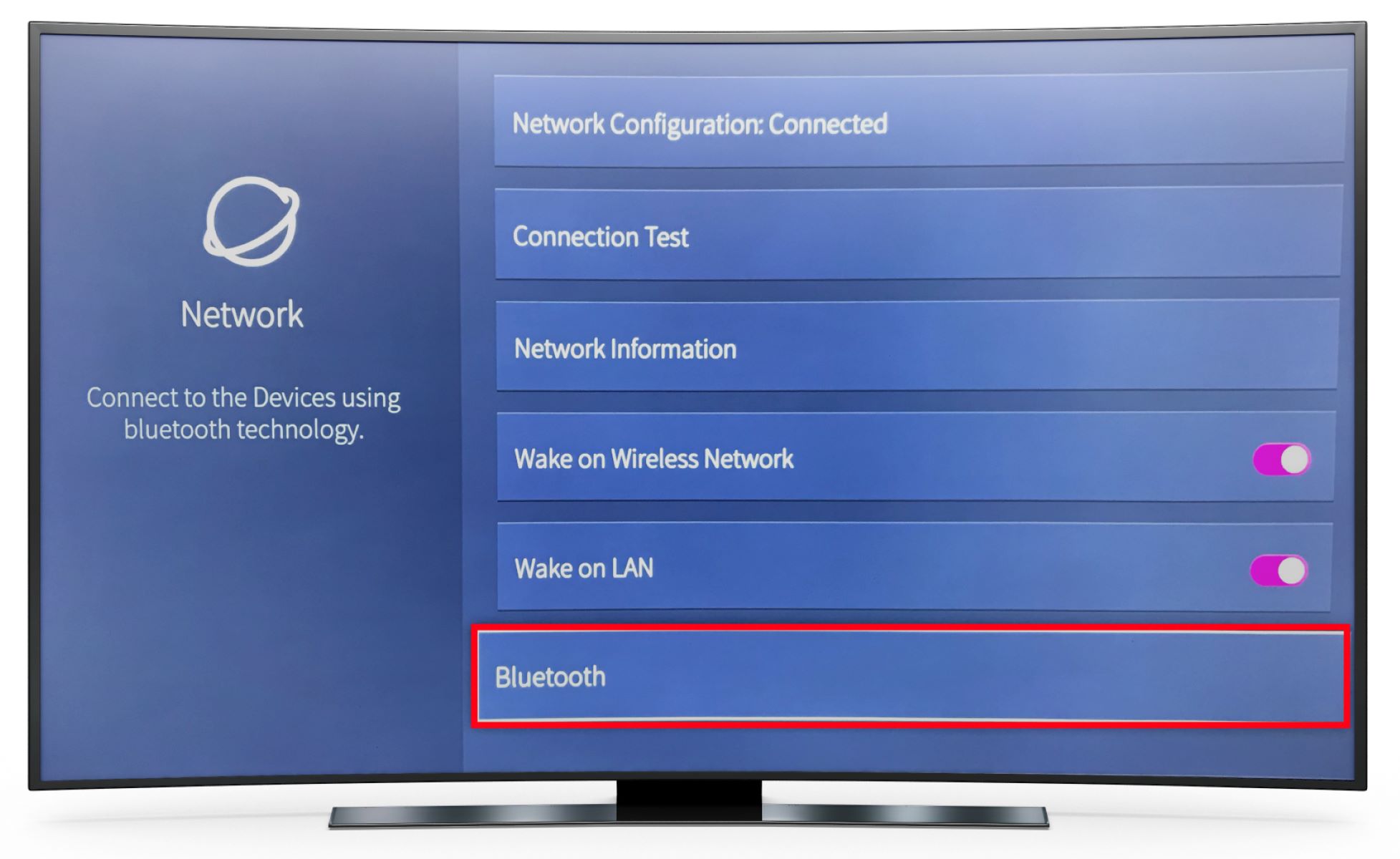
- Check the TV Settings: Navigate to the settings menu on your TV. Look for options related to connectivity, wireless devices, or Bluetooth settings. If your TV supports Bluetooth, there should be a dedicated section for managing Bluetooth connections.
- Online Research: If you no longer have access to the TV manual, consider looking up the specifications of your TV model online. Visit the manufacturer’s website or reputable electronics retailers to find detailed information about the Bluetooth features of your TV.
It’s important to note that older TV models may not have Bluetooth capabilities. In such cases, you may need to explore alternative methods for connecting external speakers, such as using a wired connection or an external Bluetooth adapter.
By confirming the Bluetooth compatibility of your TV, you can proceed with confidence, knowing that your TV is capable of establishing a wireless connection with Bluetooth speakers.
Pairing Process
Pairing Process
Once you’ve verified that your TV is Bluetooth-enabled, you can proceed with the pairing process to connect your Bluetooth speakers. Follow these general steps to pair the devices:
- Access the TV’s Bluetooth Settings: Using your TV remote, navigate to the settings menu and locate the Bluetooth settings. This may be found under the “Sound” or “Audio” settings, depending on the TV model. Enable Bluetooth if it’s not already activated.
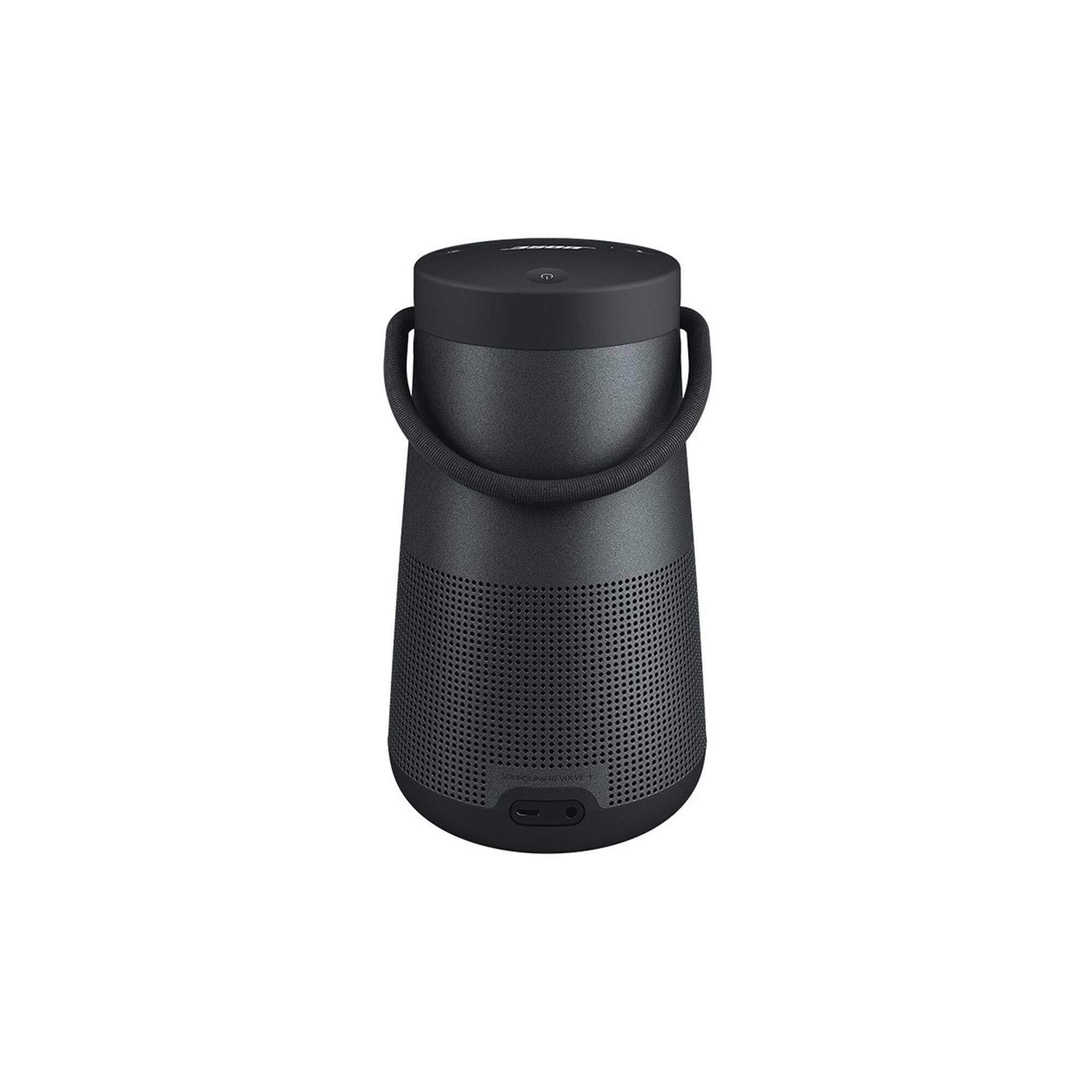
- Put the Bluetooth Speakers in Pairing Mode: Most Bluetooth speakers have a dedicated pairing button or a specific sequence of button presses to initiate pairing mode. Refer to the speaker’s user manual to determine the correct method. Once in pairing mode, the speaker’s indicator lights may flash or change color.
- Search for Bluetooth Devices on the TV: In the TV’s Bluetooth settings, initiate a search for available devices. The TV should detect your Bluetooth speakers within a few moments. Once the speakers are detected, select them to initiate the pairing process.
- Confirm the Pairing: After selecting the Bluetooth speakers on the TV, a confirmation prompt may appear. Follow the on-screen instructions to confirm the pairing. This may involve entering a PIN or simply accepting the connection on both the TV and the speakers.
- Testing the Connection: Once the pairing is complete, play some audio or video content on the TV to ensure that the sound is being transmitted to the Bluetooth speakers. Adjust the volume levels to ensure that the connection is functioning as expected.
It’s important to note that the exact pairing process may vary slightly depending on the make and model of your TV and Bluetooth speakers. Always refer to the respective user manuals for detailed instructions tailored to your specific devices.
By following these steps, you can successfully pair your Bluetooth speakers with your TV, creating a wireless audio setup that enhances your viewing experience.
Using an External Bluetooth Adapter
Using an External Bluetooth Adapter
If your TV does not have built-in Bluetooth capabilities, or if you encounter compatibility issues with your Bluetooth speakers, an external Bluetooth adapter can serve as a practical solution. These adapters enable non-Bluetooth TVs to connect with Bluetooth-enabled devices, including speakers, headphones, and soundbars. Here’s how you can utilize an external Bluetooth adapter to facilitate the connection:
- Choose a Compatible Bluetooth Adapter: Select a Bluetooth adapter that is compatible with your TV’s audio output ports. Common options include 3.5mm audio jack adapters, RCA adapters, or optical audio adapters. Ensure that the adapter supports the same Bluetooth version as your speakers for optimal compatibility.
- Connect the Adapter to the TV: Depending on the type of adapter you’ve chosen, connect it to the appropriate audio output port on your TV. If your TV has a 3.5mm headphone jack, simply plug in the adapter. For RCA or optical audio connections, use the corresponding cables to establish the link.
- Pair the Bluetooth Speakers: Once the adapter is connected, follow the pairing process specific to the adapter and your Bluetooth speakers. This typically involves putting the adapter into pairing mode and then initiating the pairing from the speakers’ end. Refer to the adapter’s manual for detailed instructions.
- Test the Connection: After successfully pairing the Bluetooth speakers with the adapter, play audio from your TV to ensure that the sound is transmitted wirelessly to the speakers. Adjust the volume levels and verify that the connection is stable and the audio quality is satisfactory.
External Bluetooth adapters offer a convenient workaround for TVs without built-in Bluetooth support, allowing you to enjoy the benefits of wireless audio transmission without the need for a new TV or extensive technical modifications. When selecting an adapter, prioritize compatibility and ease of use to streamline the setup process.
Troubleshooting Common Issues
Troubleshooting Common Issues
While connecting Bluetooth speakers to your TV can greatly enhance your audio experience, it’s not uncommon to encounter certain issues during the setup process. Here are some common problems that may arise and the corresponding troubleshooting steps:
- Interference and Range Limitations: If you experience intermittent connectivity or limited range between the TV and the Bluetooth speakers, ensure that there are no obstructions or electronic devices causing interference. Reposition the speakers closer to the TV and remove potential sources of interference, such as other wireless devices or large metal objects.
- Audio Lag or Sync Issues: In some cases, you may notice a delay between the audio and video when using Bluetooth speakers. To address this, check for any available firmware updates for both the TV and the speakers. Additionally, accessing the TV’s audio settings to adjust the audio delay or synchronization can help align the audio with the video playback.
- Compatibility Challenges: If your Bluetooth speakers are not being recognized by the TV during the pairing process, ensure that the speakers are in pairing mode and within close proximity to the TV. Verify that the speakers are compatible with the Bluetooth version supported by your TV, and consult the user manuals for any specific pairing requirements.
- Audio Quality and Distortion: Should you encounter issues with audio quality or distortion, check the volume levels on both the TV and the speakers to prevent over-amplification. Additionally, inspect the audio output settings on the TV to ensure that they align with the recommended specifications for your Bluetooth speakers.
- Power and Battery Concerns: If your Bluetooth speakers are battery-powered, ensure that they are adequately charged or connected to a power source. Low battery levels can impact the stability of the Bluetooth connection and lead to audio disruptions.
By addressing these common issues with practical troubleshooting steps, you can overcome potential challenges and optimize the performance of your Bluetooth speakers when connected to your TV. Patience and thoroughness in troubleshooting can lead to a seamless and enjoyable wireless audio experience.